TOOLNAVIA / BUYING GUIDE
MobileTrans Photo Export: Build a PC Archive You Can Trust
The short answer
A phone full of photos becomes easier to manage when you have a computer copy you can actually find and open. MobileTrans can help with that selected-file export workflow. The buying question is whether its category and file selection make your recurring archive task easier than the transfer method you already use—not whether an export button is labelled a backup.
At a glance
- Best for
- Users moving ordinary data among up to five phones through one Windows PC without needing the full WhatsApp/backup suite.
- Price model
- Current Windows Phone Transfer: $29.99/year; $39.99 perpetual; $25.99/month
- Check first
- Hard one-PC/five-phone cap, OS-specific license, Phone Transfer excludes Full Features, and free trial is sample-limited.
Define a useful archive before copying
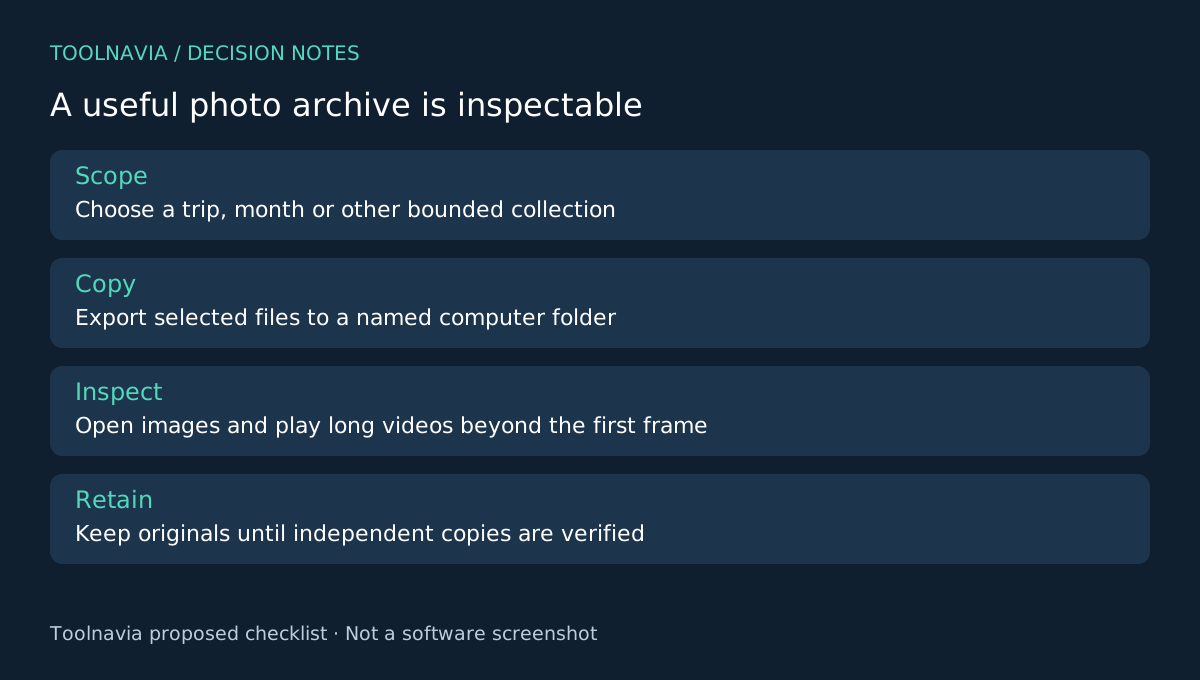
Choose a bounded collection, such as one trip or one month of family footage. Write down its approximate size, date range and a few distinctive items. Create a destination folder with a clear name and enough free space. This gives you something concrete to reconcile after export.
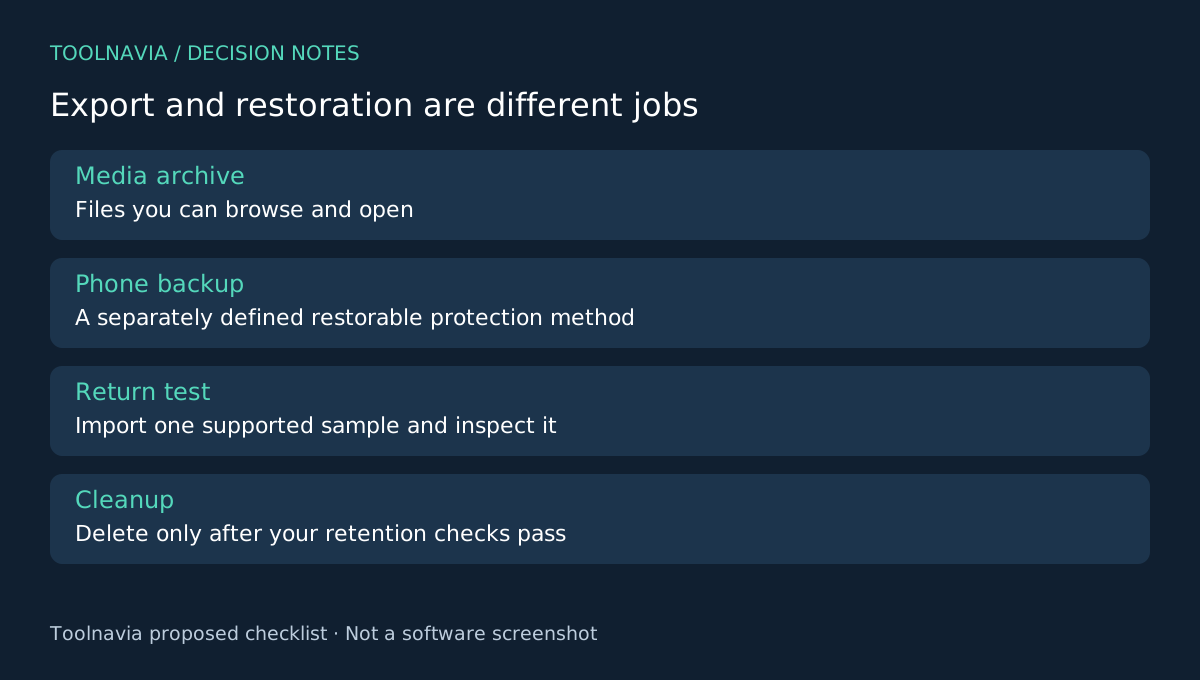
Keep the phone originals while inspecting the result. A local media archive is not a complete restorable phone backup: app state, account access and other categories require their own appropriate protection. Exporting a file also does not establish that every album relationship or edit history travels with it.
Four capabilities worth trying
MobileTrans documents a Phone to PC workflow, category selection, individual file selection and the ability to import exported files back when needed. The practical combination is a computer destination, a narrower data scope, a curated file set and a possible return path for supported material.
For someone who regularly moves only selected media, that can be more convenient than copying an entire device collection. The return path should still be tested on a spare sample; it is not evidence of full-device restoration or universal format support. Check what the installed version offers for your phone.
Export a small collection you can inspect
Connect the phone to the Windows computer and open Phone Transfer, then Phone to PC. The guide notes that an iPhone must trust the computer. Select the supported media category and the files in your planned collection, then keep the phone connected until export finishes.
Open the destination folder outside MobileTrans. Compare the selected set with the exported set rather than comparing unrelated totals from the whole phone. Check an older image, a newly captured image and a long video. For video, inspect the beginning, middle and end, including audio. For photos, look at orientation and the details you need for later searching.
A file extension and a plausible size do not prove usability. If a sample will not open, identify whether the issue is an incomplete transfer, a missing local original or a player-format problem before repeating the whole collection. These are proposed acceptance checks; Toolnavia has not measured MobileTrans export speed or fidelity.
Make the archive survive the next cleanup
Record the export date, source phone and selected date range in a short note beside the folder. Keep a second independent copy of irreplaceable material before deleting originals. Decide how future exports will avoid confusing old and new versions; do not assume that similarly named files are identical.
If you later need a file on another phone, test the documented import workflow with one supported sample and inspect it on that device. Successful export and successful phone playback are separate checkpoints.
Pay for the workflow, not a vague backup promise
The approved Windows Phone Transfer yearly plan lists phone export and import, alongside phone-to-phone transfer. Its reference is $29.99 for one PC and up to five mobile devices; review renewal and optional extras at checkout. It is not the complete toolkit, and WhatsApp Transfer is separate.
Try your existing cable or native media-import method first if the collection is simple. Buy MobileTrans when its selection workflow passes your sample and solves a recurring task. The [MobileTrans plan guide](/en/software/mobiletrans) explains the broader scope. Toolnavia may earn a commission through the official affiliate link; no speed or recovery guarantee is claimed.