TOOLNAVIA / BUYING GUIDE
MobileTrans iPhone-to-Android SMS: Pay After Setup?
The short answer
At a glance
- Best for
- An already-configured Android phone, a backed-up iPhone, and a verified representative SMS/MMS test where the free manufacturer route is unavailable.
- Price model
- Windows Phone Transfer: $29.99/year observed 2026-11-07
- Check first
- Message fidelity and after-setup support vary; one Windows PC/five-device license; not WhatsApp Business.
Verdict: try the free cable path before paying
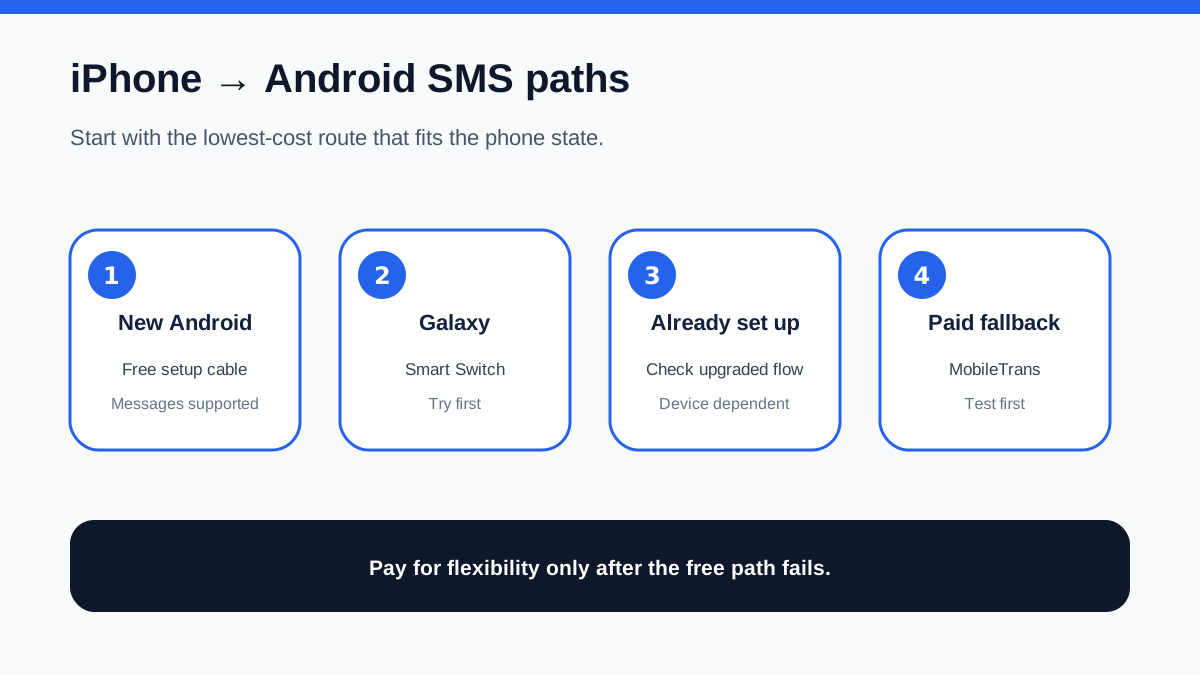
If the Android phone is new or still in setup, do not buy MobileTrans just because you want old iPhone texts. Google says a cable-based Android setup transfer can copy messages, while Samsung Smart Switch can move iMessages, SMS and MMS to a Galaxy by cable. On eligible newer Android 17 devices, an upgraded transfer may also be available after setup.
MobileTrans Phone Transfer becomes a reasonable paid fallback when the destination is already configured, the built-in flow is unavailable or failed, and a small test proves that your exact message set lands correctly. The Windows Phone Transfer plan is currently displayed at $29.99/year, $25.99/month or $39.99 perpetual for one PC and up to five mobile devices. The affiliate offer attached to this article is the approved Windows yearly plan; final checkout, tax and regional eligibility control.
This article contains an approved affiliate link. We may earn a commission if you buy, at no extra cost to you. That relationship does not change the rule: test the free manufacturer route first, preserve the iPhone, and verify the transferred conversation history before erasing anything.
What the free Android route can move
Google's current switching guide separates wireless, cable and upgraded transfers. Classic wireless does not move messages. Classic cable does. The upgraded Android 17 flow can move messages wirelessly or by cable on eligible devices, including encrypted messages and messages stored in iCloud. Availability varies by device and country.
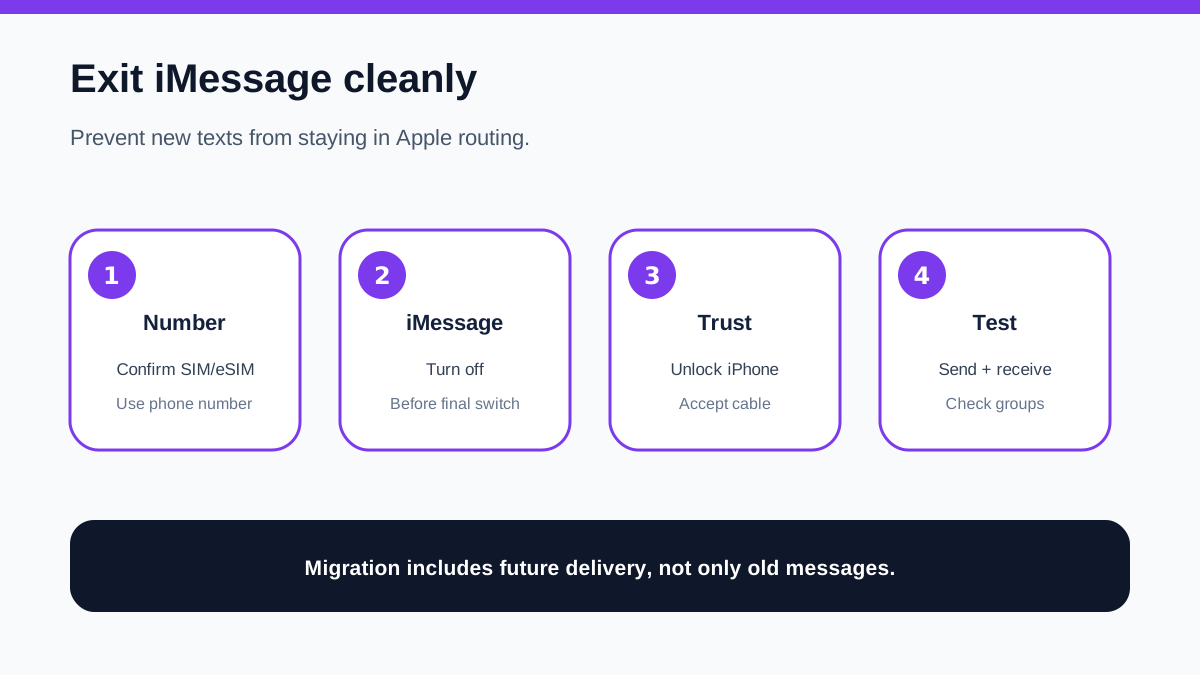
The free route is strongest during first-time setup. Charge both phones, unlock the iPhone, confirm the Android has enough storage, connect a trusted cable, tap Trust on the iPhone and keep the devices connected. Google also says to turn off iMessage so new texts stop routing only to Apple devices.
For Galaxy buyers, Smart Switch is the first tool to try. Samsung lists iMessages, SMS and MMS among the compatible wired data types. Special iMessage effects do not transfer, and support varies by method and software version. This is important: a copied message is not necessarily a perfect recreation of every reaction, effect, attachment state or group-thread behavior.
Where MobileTrans fits
MobileTrans's current iPhone-to-Android SMS guide claims transfer of SMS and MMS through its PC or mobile workflow and describes selecting Phone to Phone, choosing iPhone to Android, selecting messages and connecting the devices. Its product page describes Phone Transfer as moving messages, photos, videos and other supported data between phones. A separate MobileTrans guide positions the tool as a no-reset alternative, but that remains a vendor claim to verify on the buyer's devices.
The paid value is not “messages can move”; free tools already do that in supported setup flows. The value is a second route when the new phone is already in use, when the device maker's setup transfer is no longer offered, or when you need a reusable Windows transfer tool across several household phones. Even then, do not assume every database field maps perfectly. Run a representative test that includes recent SMS, MMS with images, a long group thread, messages from short codes and an old conversation with unusual characters.
Keep the source iPhone unchanged until the destination passes inspection. MobileTrans should be treated as a migration utility, not as an independent archive. Export or screenshot irreplaceable evidence separately if legal or business retention matters.
Price, term and license boundary
On 2026-11-07, the official Windows Phone Transfer page showed $29.99 per year, $25.99 per month and $39.99 perpetual. All three describe one Windows PC and up to five mobile devices. The yearly and monthly plans auto-renew; the perpetual plan covers the purchased major version, with same-major updates rather than guaranteed future major upgrades. Windows and Mac licenses are separate.
For a one-time migration, the monthly price is only $4 below the displayed yearly price, while perpetual is $10 above yearly. Those gaps make the shortest term look less attractive, but price is not the first decision. First prove that your exact phones and message history transfer correctly. Then choose yearly only if you expect multiple migrations or want major upgrades during the term; choose perpetual only if this major version already solves the job and you accept paying again for a future major upgrade.
Phone Transfer is not the same as MobileTrans Full Features. The pricing table separates ordinary phone transfer from WhatsApp transfer, backup and restore. Do not buy this exact offer expecting the WhatsApp Business workflow described on other MobileTrans pages.
Preflight before any transfer
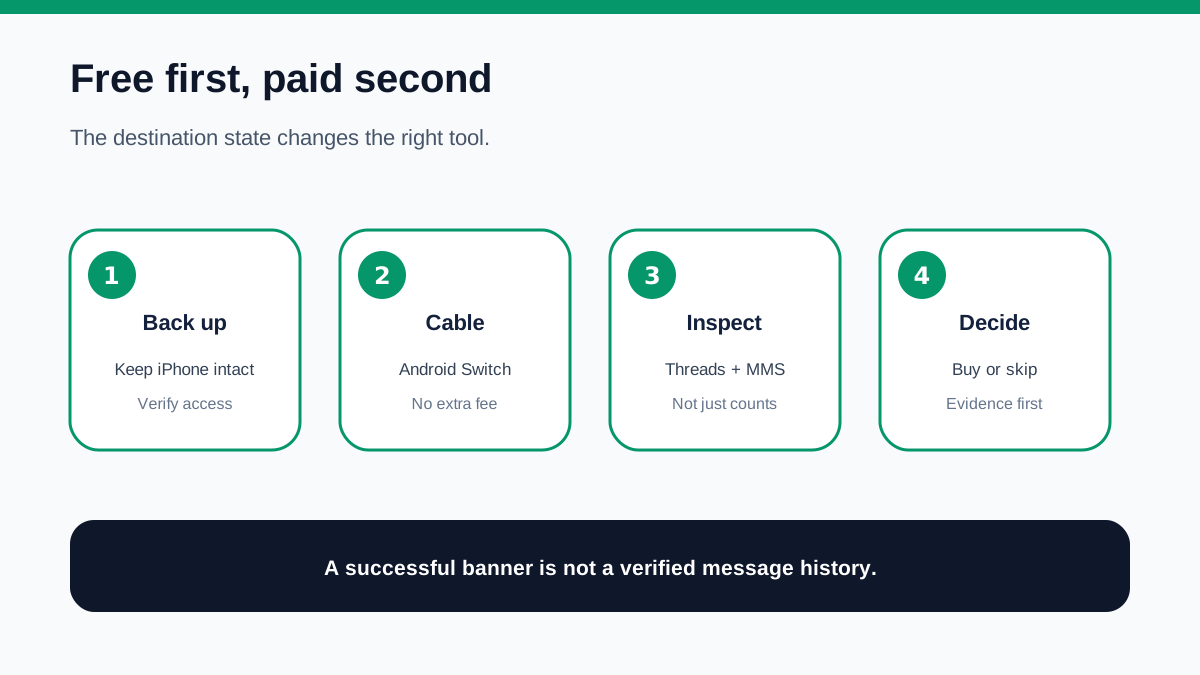
1. Update both phones and MobileTrans, but do not erase the iPhone. 2. Back up the iPhone and confirm the backup can be accessed. 3. Turn off iMessage and FaceTime routing for the number before the final switch. 4. Put the SIM or eSIM plan on the correct phone only when the carrier step is ready. 5. Check free storage on the Android phone. 6. Use a data-capable cable, not a charge-only cable. 7. Keep both phones unlocked, powered and physically stable. 8. Transfer a small representative message set first if the workflow allows selection. 9. Do not mix a second transfer tool into the same attempt. 10. Record the source and destination message counts for the conversations that matter.
If the iPhone shows Don't Trust, reconnect and choose Trust. If the transfer stalls, Google recommends trying a cable when wireless discovery fails. A failed first attempt is a reason to diagnose the connection and device support—not proof that buying another plan will fix the data.
Acceptance: check more than a success banner
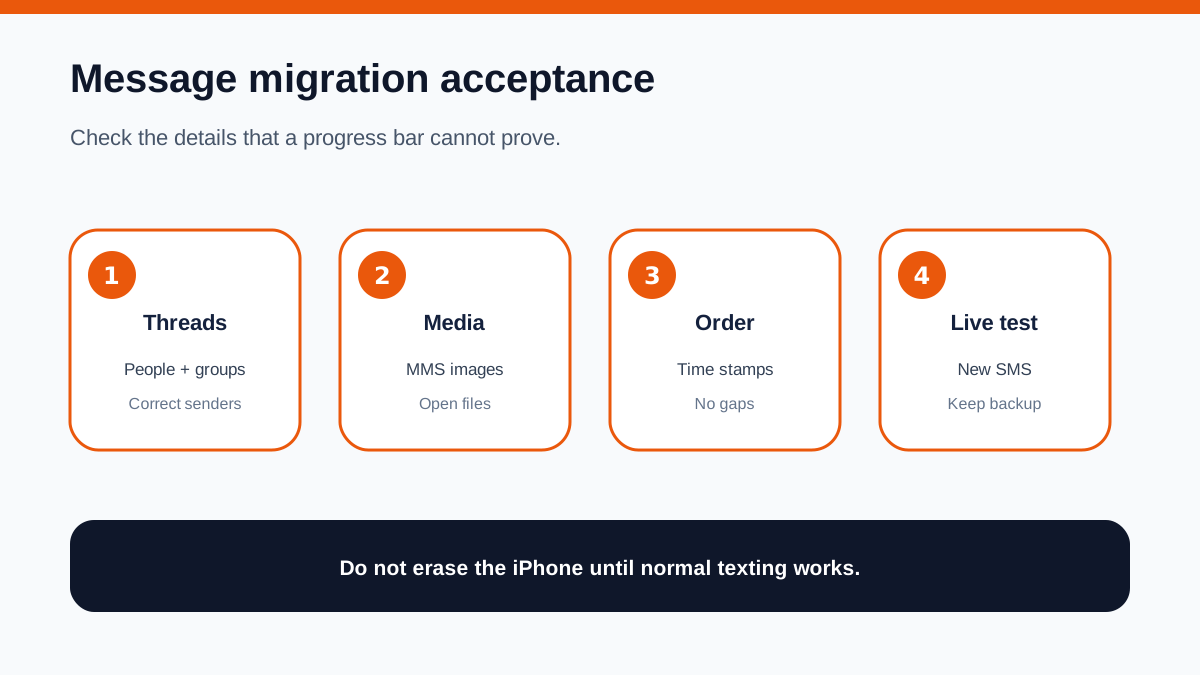
Open the Android messaging app and inspect individual and group threads. Check sender identity, timestamps, ordering, MMS images, links, non-English characters and messages around daylight-saving or timezone changes. Send and receive a new SMS after iMessage has been disabled. Google warns that some group chats may need to be recreated, especially larger ones, and people messaging an Apple ID may need to switch to the phone number.
Compare several high-value conversations against the iPhone. A successful count with missing attachments is not a successful migration. Keep the iPhone and its backup until normal texting, replies and group conversations have worked for several days.
Buy, pause or skip
Buy MobileTrans Phone Transfer when the free cable/manufacturer route is unavailable, the Android phone is already configured, the exact Windows one-PC/five-device license fits, and a test proves the SMS/MMS result. Pause when the destination model, Android version, message type or iMessage state is unclear. Skip when a free Android Switch or Smart Switch transfer works during setup, when you need WhatsApp Business rather than ordinary phone data, or when the source phone is not safely backed up.
The practical conclusion is simple: pay for workflow flexibility, not for a promise of perfect message preservation. Free first-party cable transfer is the baseline; MobileTrans is the fallback that must earn trust on your own devices.