TOOLNAVIA / BUYING GUIDE
MobileTrans After iPhone Setup: Bring Over the Data You Still Need
The short answer
Already using your new iPhone while important material remains on Android? MobileTrans is worth evaluating when you want a computer-based transfer workflow for selected data after setup. Its appeal is a controllable migration session: connect the two phones, choose supported categories and inspect the destination before retiring the old device. It is not a promise to clone every app and account.
At a glance
- Best for
- Users moving ordinary data among up to five phones through one Windows PC without needing the full WhatsApp/backup suite.
- Price model
- Current Windows Phone Transfer: $29.99/year; $39.99 perpetual; $25.99/month
- Check first
- Hard one-PC/five-phone cap, OS-specific license, Phone Transfer excludes Full Features, and free trial is sample-limited.
Start with what must arrive
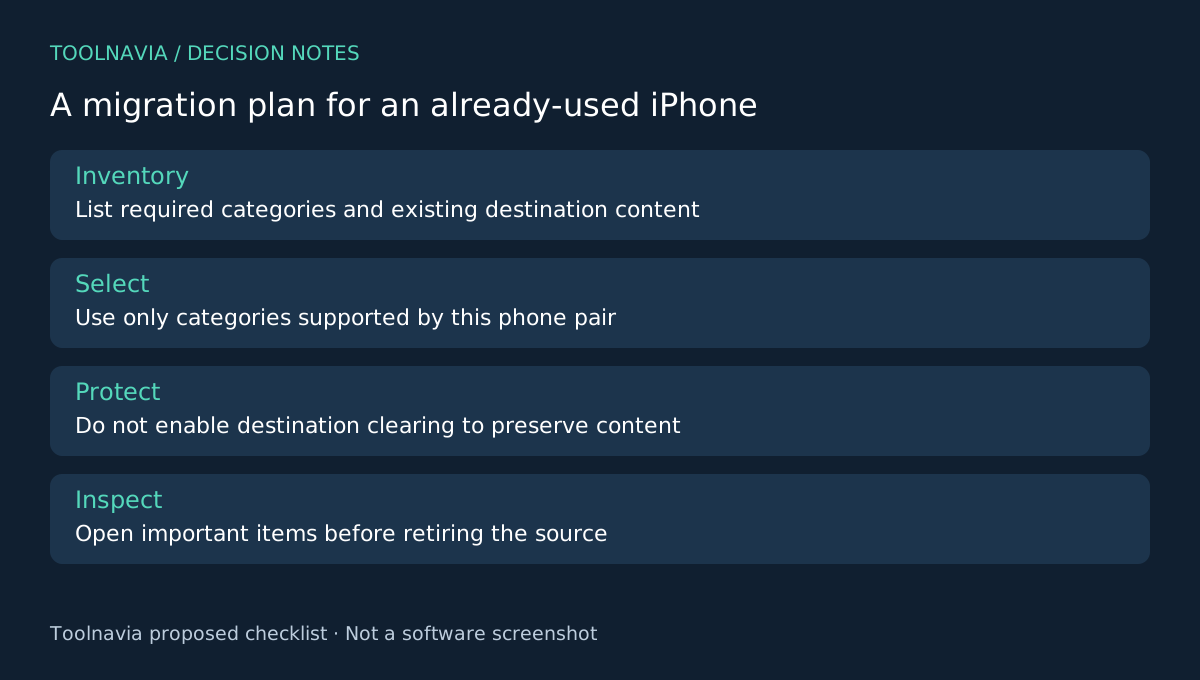
Write a short acceptance list: the contacts you depend on, a recent photo album and any other category the exact Android-to-iPhone direction supports. Note what already exists on the iPhone. A new destination is not necessarily an empty destination, and preserving its newer material is part of the job.
Apple's Move to iOS guide places its app-based migration in setup. For an already configured device, Apple describes erasing and starting over or transferring content manually. That makes a post-setup desktop option worth considering, but it does not make every paid transfer route necessary.
What MobileTrans brings to this session
The product page documents Android-to-iPhone transfer after setup. Its desktop support guide describes connecting both phones, selecting file types and waiting for completion before checking the destination. These provide four useful elements: a cross-platform route, operation after setup, category-level selection and a computer-based session with an explicit completion stage.
Check the available categories on your exact pair. The advertised maximum number of data types is not a guarantee that every direction supports the same list. Nor does copying a category establish that all its fields, attachments or app behavior are preserved.
Protect the destination before pressing Start
Back up important existing material using a method you understand, and make sure you can still unlock and access both phones. Check destination capacity, power and cables. Keep the source available throughout the acceptance period.
The support guide includes an optional control named “Clear data before copy” that erases existing destination data. Leave it unselected when your purpose is to retain current destination content. If the interface or consequence is unclear, resolve that uncertainty before proceeding.
Select only the categories in your acceptance list. Keep both phones connected until the software completes the transfer. Then inspect the destination itself; a completion message is useful evidence of the session, not proof that every important item is usable.
Verify before trading in the Android phone
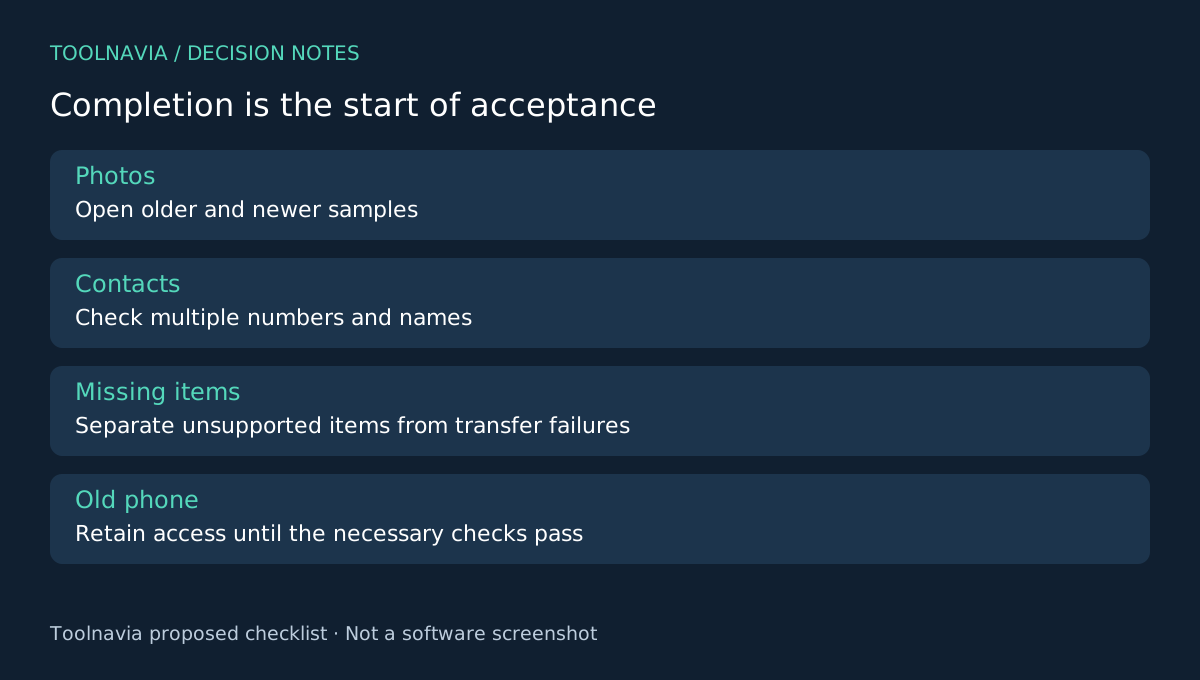
Open a few old and recent photos, inspect a contact with multiple numbers and check whichever additional category motivated the purchase. Compare meaningful samples and totals where available. Record missing items separately from duplicates so that any follow-up attempt has a defined scope.
Do not repeatedly run the entire migration just because one item is missing. First establish whether it was supported, stored locally on the source and selected in the session. Keep app sign-ins, authenticator setup and carrier service on a separate checklist; this article does not establish automatic migration of those functions. These are proposed checks, not Toolnavia test results.
Buy the specific transfer capability you need
The Windows Phone Transfer yearly reference is $29.99 for one PC and up to five mobile devices. It includes phone-to-phone transfer, import and export; WhatsApp Transfer is a separate entitlement. Review renewal and the optional Dr.Fone App trial at checkout.
For a new Android destination, Google setup guidance or Samsung Smart Switch may already fit. For this already configured iPhone, choose MobileTrans only when its supported categories cover your missing material and the inspection plan is practical. See the [MobileTrans plan guide](/en/software/mobiletrans). Toolnavia may earn a commission through the official affiliate link; no complete-device-clone guarantee is implied.