TOOLNAVIA / BUYING GUIDE
MobileTrans for a Family Phone Change: Plan the Five-Device Limit
The short answer
When more than one phone is being replaced at home, the difficult part can be keeping devices, owners and completed transfers straight. MobileTrans can provide one Windows desktop workflow for supported phone transfers, imports and exports. Plan the actual device roster first: a five-device allowance is not five unlimited replacement projects.
At a glance
- Best for
- Users moving ordinary data among up to five phones through one Windows PC without needing the full WhatsApp/backup suite.
- Price model
- Current Windows Phone Transfer: $29.99/year; $39.99 perpetual; $25.99/month
- Check first
- Hard one-PC/five-phone cap, OS-specific license, Phone Transfer excludes Full Features, and free trial is sample-limited.
Count phones, not people or sessions
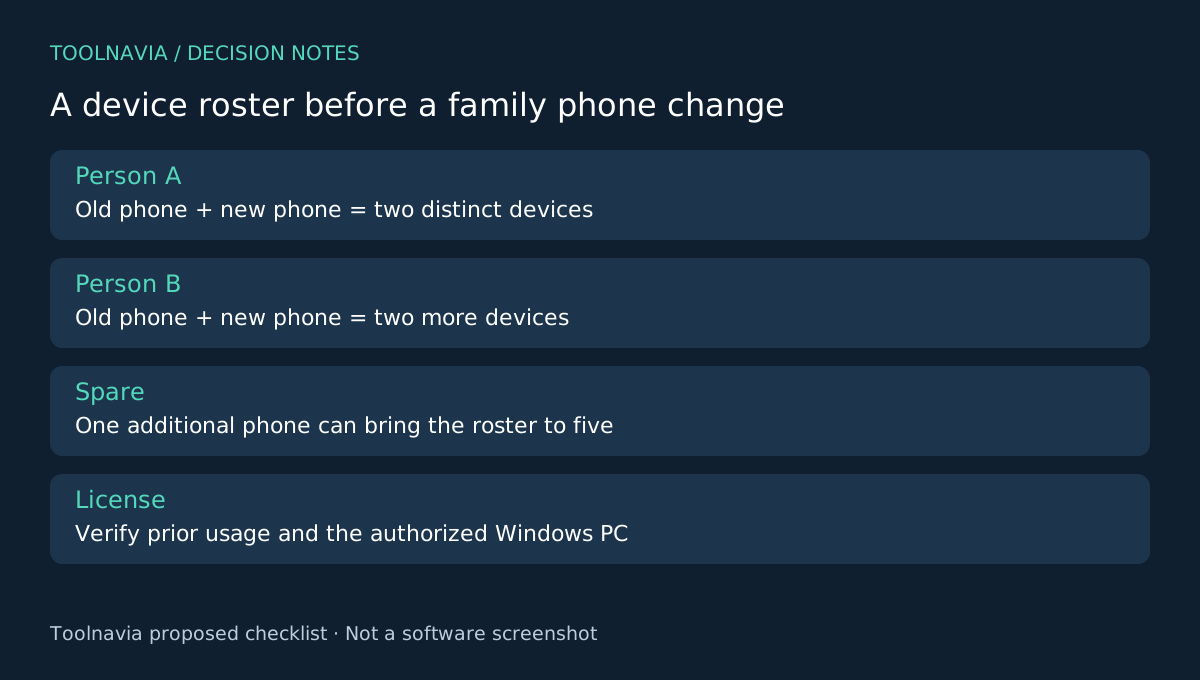
List every old and new phone that will connect, its owner and its role. Two people replacing one phone each can involve four distinct mobile devices. Adding a spare phone can bring that roster to five. This is a planning example, not a promise about how an existing account's device usage is reset.
The official FAQ describes one authorized computer and up to five connected mobile devices. More devices or another PC require a new plan; Windows and Mac licenses are separate. If you have used the license before, verify the remaining entitlement before scheduling everyone's move.
Use four capabilities for different parts of the job
Phone-to-phone transfer handles supported migration between a source and destination. Category selection limits a session to the material that belongs in it. Export to Computer provides a path for selected files that should stay on the PC, and Import to Phone supplies a route for supported computer-held material.
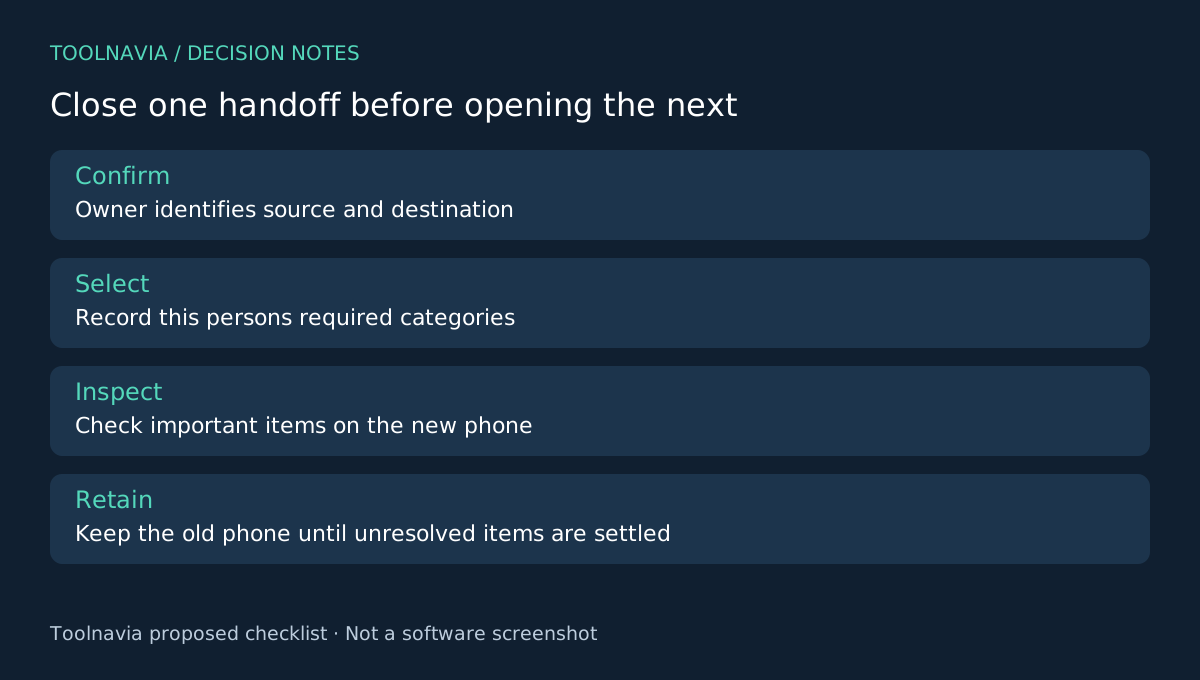
That combination can suit a household with mixed transfer needs. It does not merge everyone's data safely by itself. Keep each person's computer folders and migration notes distinct, and let the device owner confirm both the intended source and destination before proceeding.
Finish one owner's acceptance before starting another
For the first pair, record required categories, available destination space and existing destination content. Prepare appropriate backups. The desktop guide includes an optional destination-clearing control; leave it off when preserving existing material is the objective. Keep both phones connected until the transfer completes.
Inspect that owner's important items directly on the destination. Mark the session complete only when the agreed checks pass, not when a progress indicator reaches its end. Record any unresolved category and retain the old phone. Then start the next owner with a fresh selection and separate output folder.
This deliberate handoff makes it easier to diagnose an error without confusing one person's source with another's. These are proposed organizational checks, not evidence of a measured MobileTrans success rate or a claim that the software manages household permissions.
Give each route the right tool
A new iPhone may fit Apple's setup migration. A new Android phone may fit Google's setup workflow, while a Galaxy destination may suit Smart Switch. A mixed household does not require every phone to use the same paid route.
Keep separate tasks such as app sign-in, authenticator re-enrollment, carrier activation and WhatsApp migration on the owner's checklist. The linked Phone Transfer offer is not the WhatsApp Transfer entitlement. A license decision should follow the supported data job, not the product family's broad feature list.
Check whether one annual plan fits the roster
The Windows Phone Transfer yearly reference is $29.99, with automatic renewal. Review checkout tax and any optional subscription before paying. A short household project does not create an ongoing need by itself; record when to review renewal after the planned work is complete.
Choose MobileTrans if the unique-device roster fits, the required categories are supported and its desktop workflow helps you finish the separate acceptance lists. Commercial service work needs its own license review. See the [MobileTrans plan guide](/en/software/mobiletrans). Toolnavia may earn a commission through the official affiliate link; no unlimited-device or guaranteed-migration claim is made.