TOOLNAVIA / BUYING GUIDE
MiniTool ShadowMaker SSD Cloning: Check the Drive Before Buying Pro
The short answer
ShadowMaker Pro is worth considering when a supported SSD migration can preserve a Windows setup that would be tedious to rebuild. Before paying, identify both disks and check whether an existing SSD-vendor tool already covers the job. The finish line is a working replacement drive, not a completed copying progress bar.
At a glance
- Best for
- A supported drive replacement worth avoiding a full application rebuild.
- Price model
- Monthly $12.99/1 PC; Annual $36/2 PCs; Ultimate $79/3 PCs
- Check first
- A successful copy does not prove boot, compatibility or activation.
Choose a migration, not a backup by another name
MiniTool distinguishes a disk clone, intended for direct use as a replacement, from an image file that must be restored. Its September 2023 guide also states that system-disk cloning is unavailable in Trial and requires Pro or a higher edition. This is an identifiable paid use case, unlike assuming every basic file-backup task needs an upgrade.
The same guide documents source-and-target selection, used-sector versus sector-by-sector modes, disk-ID options and shutdown after completion. These controls can support a planned drive replacement. They do not prove compatibility with every layout or make a mistaken target selection harmless.
Keep a separate backup before the migration. Once you reuse the old drive, the clone becomes the active working system, not a retained history of earlier states. The [retention guide](/en/software/minitool-shadowmaker-backup-retention) explains that different requirement.
Identify the hardware and the actual destination
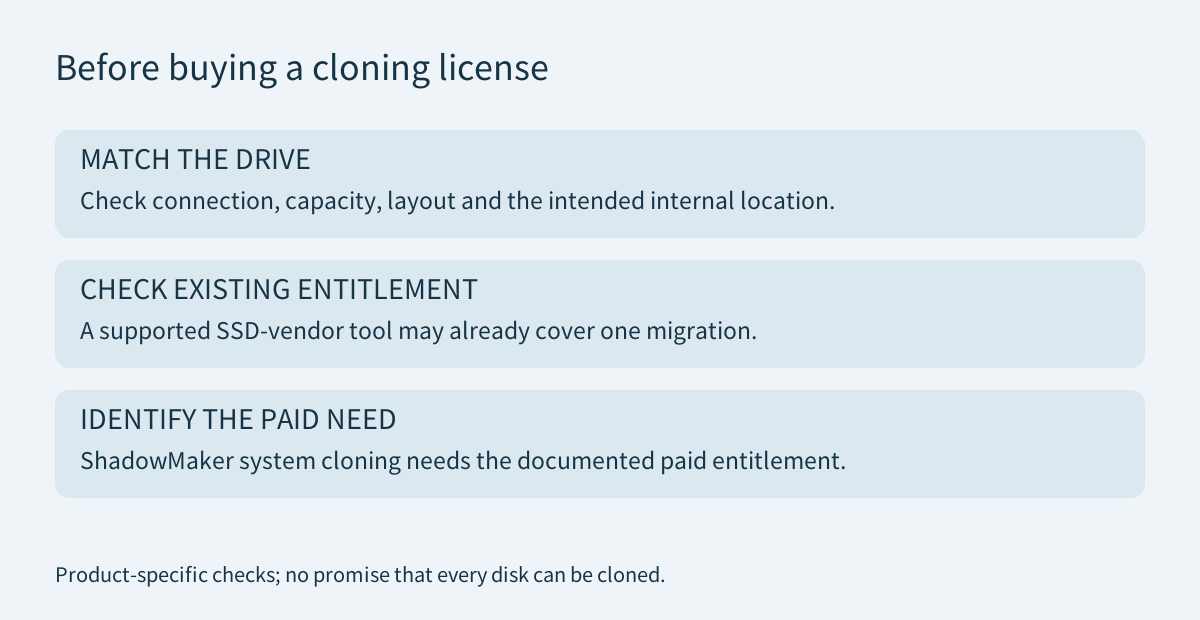
Record the source and destination model, capacity and current contents. Check the computer's supported connection and intended installation location, plus any adapter needed during the transfer. Confirm the usable target capacity and the cloning mode's requirements instead of assuming a similar-looking SSD or a headline capacity will fit the entire layout.
MiniTool explicitly limits its documented dynamic-disk route to disks containing only Simple Volumes, cloned to a basic disk. It also warns that destination data is destroyed. Do not generalize that route to every dynamic or multi-disk configuration. Back up anything needed from the destination before a real operation.
Boot conditions deserve their own check. Acronis' 2026 cloning guide recommends using the destination in its intended internal location and warns that a Windows clone made to an external USB drive may not boot there. It also identifies controller-mode and multiboot limitations for its own utility. Those are Acronis-specific rules, but they illustrate why detecting a drive over USB is weaker evidence than verifying the final boot arrangement.
Check an eligible SSD-vendor route first
For an existing Kingston internal SSD, Kingston documents access to Acronis True Image for Kingston through Kingston SSD Manager. Its instructions require an installed internal Kingston SSD and a supported Windows environment; this is not a generic entitlement for any drive. Check eligibility before adding another cloning purchase to the upgrade.
Samsung's Magician page similarly describes Data Migration to a new Samsung SSD and warns that feature support varies for Samsung OEM and non-Samsung drives. A Samsung label inside a prebuilt computer does not, by itself, establish every feature. Compare the exact supported model and task.
These alternatives are not reasons to change a suitable SSD merely to obtain software. Compare the whole upgrade: drive, required adapter, software entitlement and time. ShadowMaker can still make sense when the verified migration route and its continuing backup functions are useful beyond this one job.
Verify the replacement before retiring the original
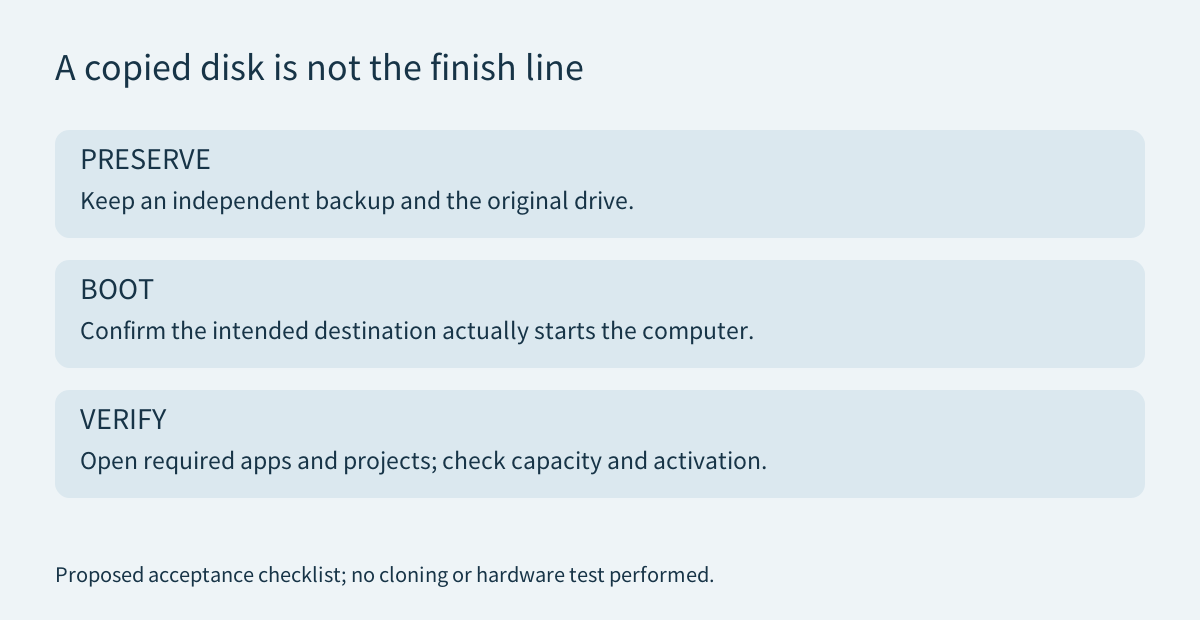
Plan acceptance while the original still works. After a properly authorized migration, confirm that the computer starts from the intended destination, open the applications you cannot easily replace, check representative projects and inspect available capacity. Use the manufacturer's safe shutdown and installation procedure, and keep the old drive unchanged until this work is complete. These are proposed checks, not a Toolnavia cloning benchmark.
A startup success does not independently settle software licensing. Microsoft explains that significant hardware changes, such as a motherboard replacement, can require Windows reactivation. An SSD replacement is not automatically a motherboard change, but moving a cloned installation to another PC is a separate licensing and compatibility question. A cloning license supplies neither a new Windows entitlement nor another application's activation rights.
The [rescue-media guide](/en/software/minitool-shadowmaker-rescue-media) helps prepare a recovery route before changing the working drive. Do not use deletion of the original as the test that the replacement must be correct.
Match the license term to the actual need
MiniTool's current campaign lists Monthly at $12.99 for one PC, Annual at $36 for two PCs, and Ultimate at $79 for three PCs with perpetual use. Monthly and Annual renew unless canceled. Verify the exact system-cloning entitlement and local checkout before payment; a short subscription is not a no-cost trial.
For one eligible migration, an already available vendor tool may be enough. For ongoing backup and future supported drive replacements, evaluate the wider ShadowMaker license. Affiliate disclosure: Toolnavia may earn a commission through its genuine ShadowMaker referral buttons; they do not preselect a term or guarantee a discount, boot success or preserved activation.