TOOLNAVIA / BUYING GUIDE
Filmora Green Screen vs AI Portrait: Which Cutout Is Worth Paying For?
The short answer
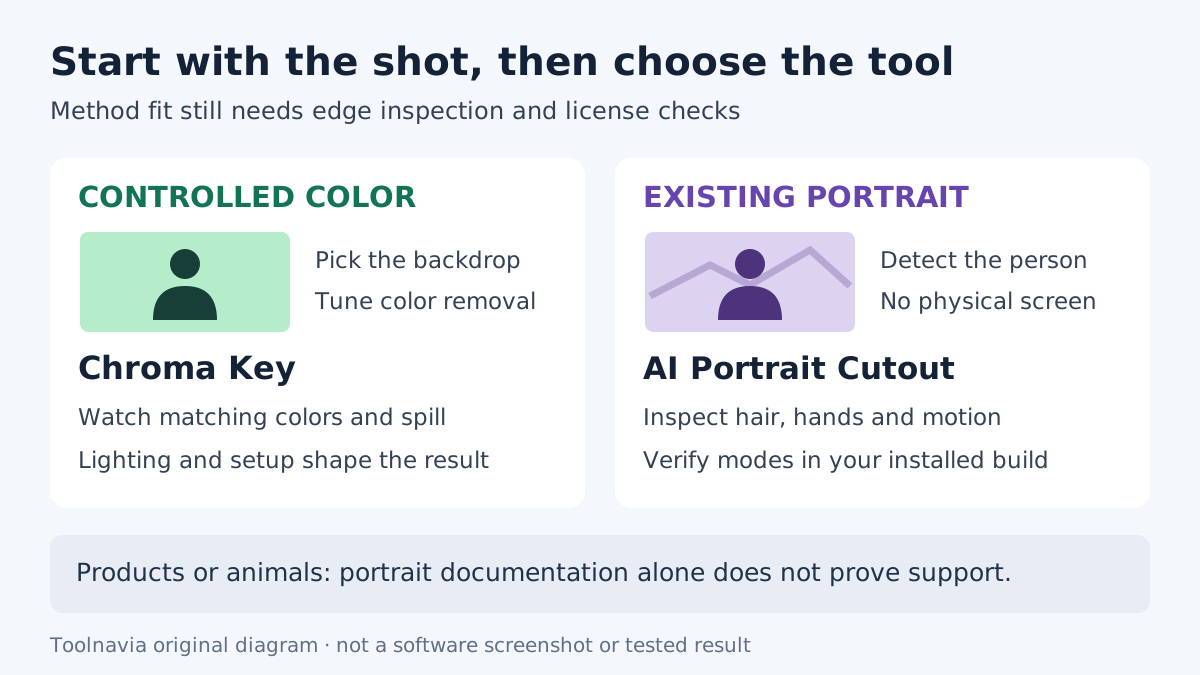
Filmora's green screen and AI Portrait tools solve different shooting problems. Use Chroma Key when you can control a solid backdrop; consider AI Portrait Cutout for existing footage of a person without one. Your useful upgrade is clean, licensed delivery—not an AI label.
*Official-documentation analysis, checked October 31, 2026; no footage was processed by Toolnavia.*
At a glance
- Best for
- Creators choosing a background-removal route from actual footage and verified export rights.
- Price model
- USD display: Basic $49.99/year, Advanced $59.99/year, Filmora16 Perpetual $79.99 once; verify tax, renewal and optional assets.
- Check first
- Portrait guide does not prove arbitrary-object support or every current mode/account entitlement; edge quality is not guaranteed.
Choose from the footage you actually have
| Source material | Starting point | Decision-changing limitation | |---|---|---| | Evenly lit backdrop, distinct from clothing | Chroma Key | Similar subject colors can disappear with the background | | Person filmed in an ordinary room | AI Portrait Cutout | Inspect hair, hands and motion before committing | | Product, animal or transparent object | Controlled-backdrop keying or another verified tool | A portrait guide does not establish object-specific support |
Filmora's current guide describes person detection without a green screen and offers Quick and Advanced Cutout modes. That can avoid buying and lighting a backdrop for an existing talking-head recording; it does not promise perfect separation for every subject.
A planned shoot changes the economics. A reusable backdrop and controlled lighting require space and setup, but give you a color boundary you can deliberately manage. Existing location footage cannot be made into a well-lit green-screen shoot by purchasing a more expensive plan.
Spend effort on the edge that viewers will notice
Filmora's Chroma Key color picker and Tolerance control let you target the actual background shade. Edge Thickness and Feather adjust the boundary; Spill Suppression addresses reflected background color on the subject. These are useful controls for a presenter beside a product, where removing the background should not erase the product's matching-colored label.
Use restrained adjustments. An opaque outline, green tint and missing fingers are different defects; increasing every slider can trade one for another. Inspect motion as well as paused frames. A clean still does not establish stable hair or hand edges across a gesture.
This is also a filming decision. Adobe's Ultra Key instructions emphasize even lighting and clothing that differs from the backdrop. Microsoft documents a selected screen color and threshold. Those are transferable preparation principles, not proof that their settings match Filmora.
Build a composite around a representative difficult moment
The following is an editorial workflow to try, not a completed test:
1. Choose footage containing the actual challenge: moving hands, loose hair or the product being demonstrated. Use media and replacement backgrounds you are entitled to publish.
2. Place the new background on the lower timeline track and the foreground above it, as Filmora's portrait guide describes.
3. For keyed footage, sample the backdrop and adjust removal and edge controls. For portrait footage, enable AI Portrait Cutout and examine the modes your installed build exposes.
4. Preview the subject against both a light and a dark background, then your intended scene. Look for missing details, color spill and edges that pulse during motion.
5. Export using the delivery dimensions and frame rate you need. Reopen the file and inspect the difficult moment; record any watermark, entitlement prompt or unexpected charge before choosing a plan.
Keeping both methods inside the editing timeline is useful: you can change placement and background without treating the first cutout as final. If repeated adjustments still damage essential detail, improve the recording or choose a different documented workflow instead of buying blindly.
Separate today's license from the old AI add-on
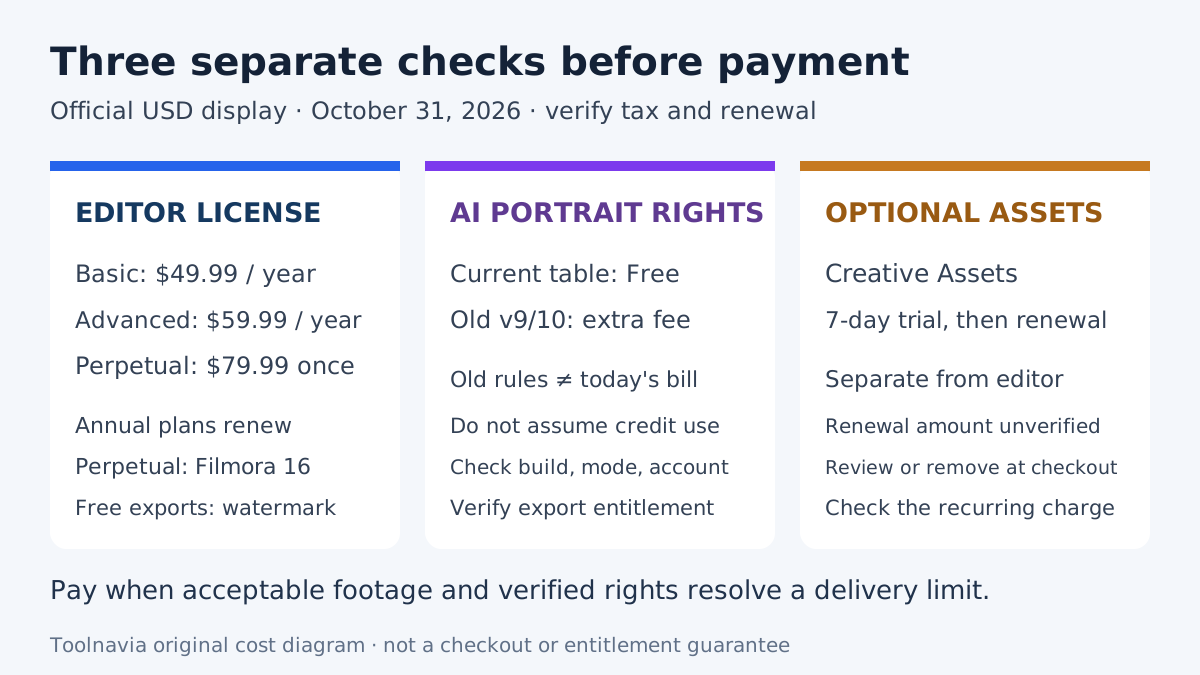
The official USD page currently displays Basic at **$49.99/year**, Advanced at **$59.99/year**, and Perpetual at **$79.99 once**, with updates within Filmora 16. Annual plans automatically renew; confirm the actual renewal amount, tax and selected platform at checkout.
Free editing exports carry a watermark. The current comparison labels AI Portrait “Free,” whereas the Filmora 9/10 guide explicitly required a separate add-on subscription. That old guide does not establish today's charge. Extracted table text also does not reliably identify every mode and account entitlement, so verify your installed version and export screen.
Advanced includes 1,000 AI credits monthly, but that does not establish that Portrait Cutout requires paid credits. The optional seven-day Creative Assets trial has its own recurring charge; its amount was not readable in the retrieved page. Inspect or remove that optional selection before paying.
When the purchase is justified
Choose Filmora when its controls handle your footage, you want to keep compositing and editing together, and a verified license removes a real delivery restriction. Keep the current plan when it already does that. Paying cannot restore detail that your chosen method consistently removes.
If your existing editor suffices, keep it. PowerDirector separately documents people-focused AI removal and color keying; CapCut documents automatic removal plus selected-color controls. These alternatives illustrate different workflows, without proving equivalent Filmora rights or results.
For the broader license decision, see the [Filmora pricing guide](/en/software/filmora).
*Affiliate disclosure: Toolnavia may earn a commission through its approved Filmora link. No exclusive discount or successful cutout is promised.*