TOOLNAVIA / BUYING GUIDE
Filmora Creative Assets: Can You Export After the Subscription Ends?
The short answer
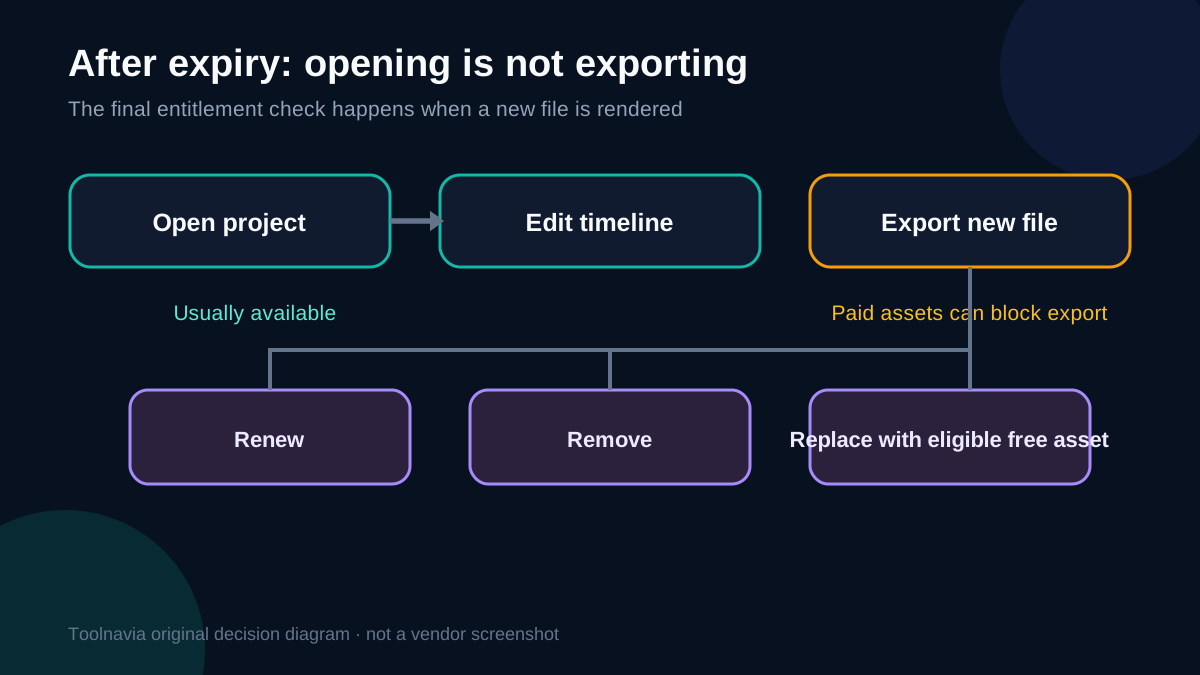
Filmora Creative Assets can make a project look finished quickly, but the editor license and the asset subscription are not the same entitlement. Wondershare’s current store and support pages say that, after a Creative Assets subscription expires, you may still open a project and edit assets already on the timeline, yet a project containing paid or subscription-only assets cannot be exported again unless those assets are removed, replaced with eligible free items, or the subscription is renewed.
That makes the expiry date an export deadline, not merely a download deadline. A finished MP4 that was exported while the subscription was active is different from an editable Filmora project that you may need to revise next month. This guide helps buyers decide whether the recurring asset cost fits their revision cycle before they pay.
Toolnavia may earn a commission if you buy Filmora through the approved link in this guide, at no extra cost to you. Filmora, Creative Assets, AI credits, taxes and optional services can be billed or authorized separately. Always confirm the current checkout and the asset badge before purchasing.
At a glance
- Best for
- Frequent Filmora creators who can keep asset entitlement active through the revision period.
- Price model
- Filmora editor and Creative Assets are separate purchase components; final checkout, renewal, optional services and tax control.
- Check first
- Opening or editing an old project does not prove a new export is authorized; commercial scope varies by asset.
Separate the editor license from the asset subscription
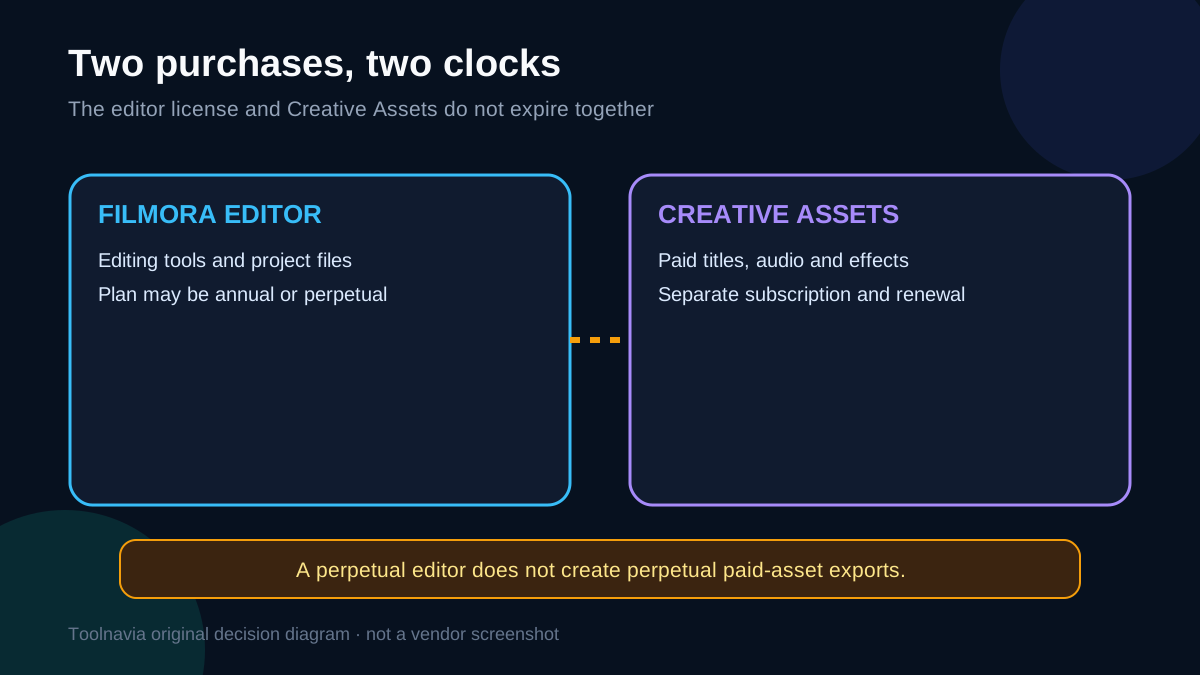
Filmora is the editing application. Creative Assets is a separate library of titles, audio, transitions, effects, stickers, templates and plug-ins. Wondershare presents the asset entitlement as its own monthly, quarterly or annual subscription, and its checkout can include a separate trial or renewal. Buying a perpetual editor license therefore does not create perpetual export rights for paid Creative Assets.
Before choosing a plan, write down both costs: the editor plan you want and the asset subscription needed by the exact resources in your project. Do not treat an “all assets” message as proof that every item has the same commercial authorization. The current commercial-use page says authorization can vary, particularly for audio and third-party material.
A practical purchase test is to build one representative project in the trial or free editor, then inspect every non-free item on the timeline. If the project depends on a paid title pack, music track, transition or plug-in, budget for the asset entitlement for as long as revisions may continue.
What still works after Creative Assets expires
Wondershare’s support guidance draws an important line between editing and exporting. After expiry, you may continue adding or modifying Creative Assets inside the project. The restriction appears when you try to export a project that contains paid or subscription-exclusive resources. The prescribed options are to renew, or remove and replace those resources.
This means an old project may look healthy when opened. The timeline can load, previews can play and text can be changed, yet the deliverable can still be blocked at the final step. Buyers who only test whether a project opens may discover the problem too late.
Use a two-part expiry rehearsal before committing to the subscription:
1. Open a copy of the project while signed into the correct Wondershare account. 2. Export a short section that contains every class of paid asset you expect to use.
The second test matters more than the first. A successful preview is not proof of an export entitlement.
Already-exported videos and new exports are different
The Wondershare Asset License Agreement says works exported during a valid subscription can continue to be used within the applicable authorization scope after the subscription expires. It also says a user cannot create new exports with paid assets once the entitlement has ended.
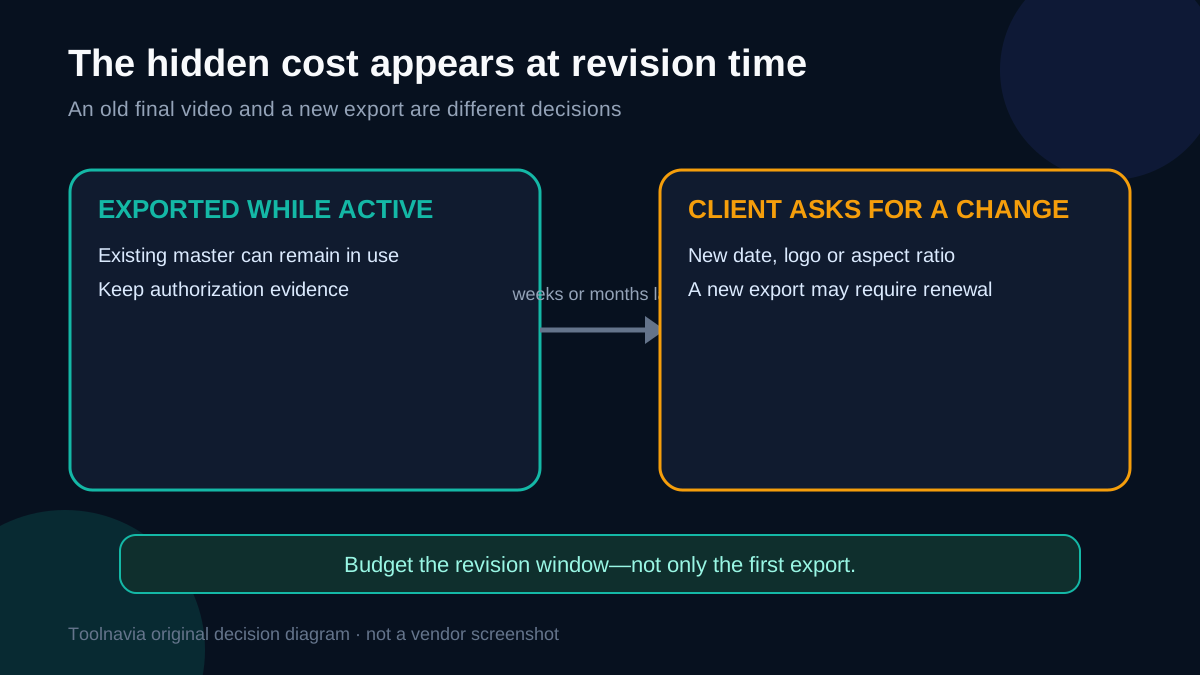
That distinction protects an already-rendered deliverable, not every future version of the project. A client may ask for a corrected date, a new logo, a shorter ending or a different aspect ratio after the subscription ends. Each request can require a new export, even if the underlying edit is small.
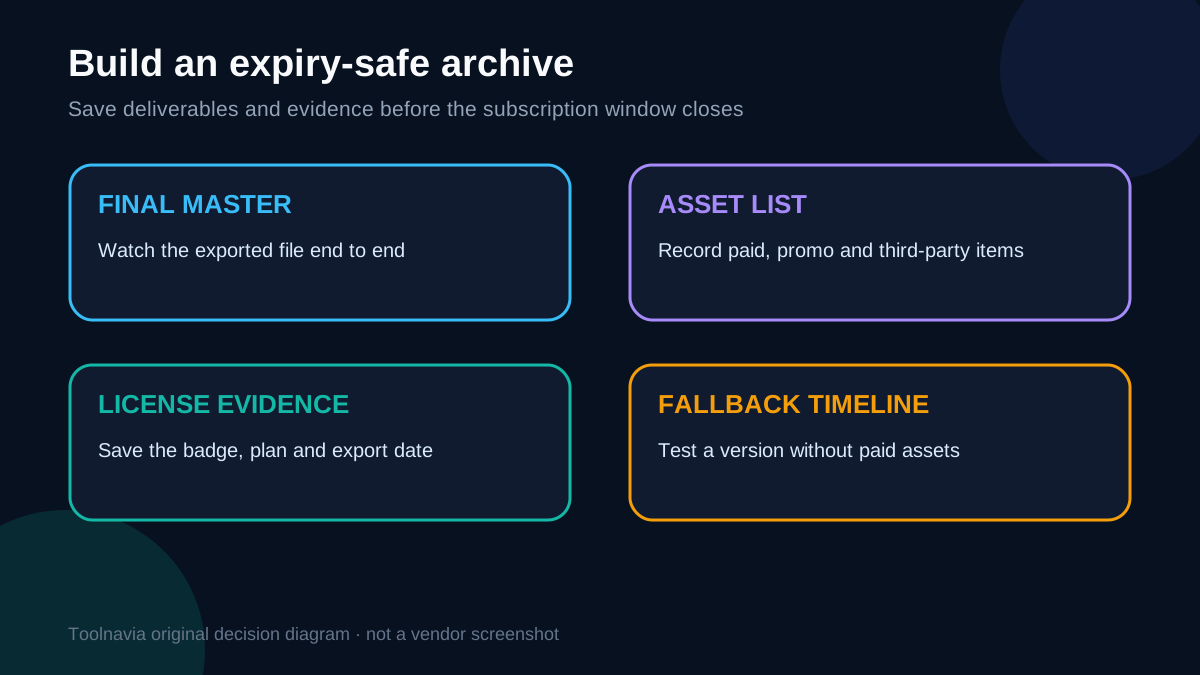
Archive the final masters before expiry: the approved video, a high-quality mezzanine file if useful, caption files, audio stems you are allowed to keep, thumbnails and a PDF or screenshot record of the asset names and authorization shown at the time. Keep the original Filmora project too, but do not assume the project alone guarantees future export.
Commercial use depends on the specific asset
A Filmora editor purchase does not create blanket commercial rights for every library item. Wondershare’s current commercial-use page describes different authorization scopes for individual, team, business and audio assets, and it points users back to the Asset License Agreement for unresolved cases.
Older Filmstock documentation uses legacy product names and describes Business-plan and music restrictions differently from the newer Creative Assets pages. That is a documentation-version conflict, not permission to select the most generous wording. Check the current badge for each asset and save the applicable license terms on the day you export.
For client work, record four facts:
- the asset name and library category; - whether it is marked free, paid or third-party; - the account and plan that authorized the export; - the date the final work was exported and delivered.
If the authorization is unclear, replace the asset or ask Wondershare support before delivery. A visual effect that looks inexpensive can create an expensive re-edit if its scope does not match the client’s use.
Limited-time free assets can become paid export dependencies
Filmora’s Limited Time Free Assets FAQ says promotional assets can support unlimited export only until the promotional period ends; continued export can then require a Creative Assets license. “Free when added” is therefore not the same as “free for every future export.”
Mark promotional resources as temporary dependencies. Before the promotion ends, decide whether to export the final master, replace the item with a permanently free or self-created alternative, or accept the future subscription cost. This is especially important for reusable templates, recurring YouTube formats and client projects that are revised every month.
A clean workflow keeps a “no paid assets” version of the project. Duplicate the timeline, replace subscription resources with owned alternatives, and test that the fallback exports successfully. The fallback may be less polished, but it prevents a one-line revision from forcing an unplanned renewal.
How Filmora differs from other stock subscriptions
Asset subscriptions do not share one universal rule. Adobe Stock says an asset already licensed remains usable after cancellation, while unused subscription licenses are forfeited. Envato ties continuing rights to a specific completed end product and does not allow a downloaded item to start a new project after expiry. Artlist emphasizes publishing or broadcasting the project during the active term for continued coverage.
Filmora’s practical constraint is more tightly connected to export from the editor: paid assets can remain editable, but a new export can require an active entitlement. Do not transfer assumptions from another stock service into Filmora.
Compare services with the same scenario: “The client requests a new 15-second cut six months after cancellation.” Ask whether the old final video remains covered, whether a new version is permitted, whether the asset must have been registered to a project, and whether the software can technically export it. The answers can differ even when all providers use the phrase “royalty-free.”
A pre-expiry checklist for projects you may revise
Start the review at least a week before renewal or expiry. Waiting until the last day leaves no time to identify a restricted asset, get client approval or render large masters.
- Inventory every paid, promotional and third-party asset in the timeline. - Confirm the authorization scope for the intended personal, monetized or client use. - Export and watch the final master from beginning to end. - Save captions, thumbnails and other deliverables outside the project file. - Create and test a fallback timeline without paid assets. - Record the subscription end date and whether auto-renewal is active. - Keep license evidence and the asset list with the project archive. - Do not promise future revisions without budgeting for a renewed entitlement.
For a team, assign one person to own the account and evidence. A project handed to another editor may still fail if the receiving account lacks the same asset entitlement.
Who should buy Creative Assets—and who should not
Creative Assets can be worthwhile for creators who publish frequently, need a broad in-editor library and expect to keep the subscription active through the revision period. The time saved by searchable templates, effects and music can exceed the recurring cost when those assets are used repeatedly and their authorization matches the work.
It is a weaker fit for occasional projects that may need revisions long after delivery, buyers who require a one-time cost, or teams that cannot document which account licensed each resource. Those users may prefer owned assets, self-created graphics or a service whose completed-project license better matches their workflow.
The deciding question is not “Can I download enough assets this month?” It is “Can I still produce the next required export when the project changes?” If the answer depends on renewal, include that renewal in the real project cost before purchasing Filmora or Creative Assets.