TOOLNAVIA / BUYING GUIDE
FileFusion on an External Drive: NTFS or exFAT Before You Pay?
The short answer
An external drive is a good FileFusion candidate only when its file system and your workflow both pass the test. The first gate is mechanical: Microsoft lists hard links as supported on NTFS, but not on exFAT or FAT32. The second gate is architectural: hard links cannot span volumes, so files on C: and E: cannot become one shared physical file. FileFusion's current page describes duplicate fusion on NTFS-based drives, which makes the drive's format a buying requirement rather than a footnote.
At a glance
- Best for
- An NTFS external drive with material duplicate files inside the same volume, where all existing paths need to remain and a disposable test passes.
- Price model
- €29.95 displayed on the official English page when checked 2026-11-09; verify live checkout.
- Check first
- exFAT/FAT32 drives, duplicates mainly spread across volumes, irreplaceable sole copies, or workflows that require independent backup copies.
Check the drive before you compare prices
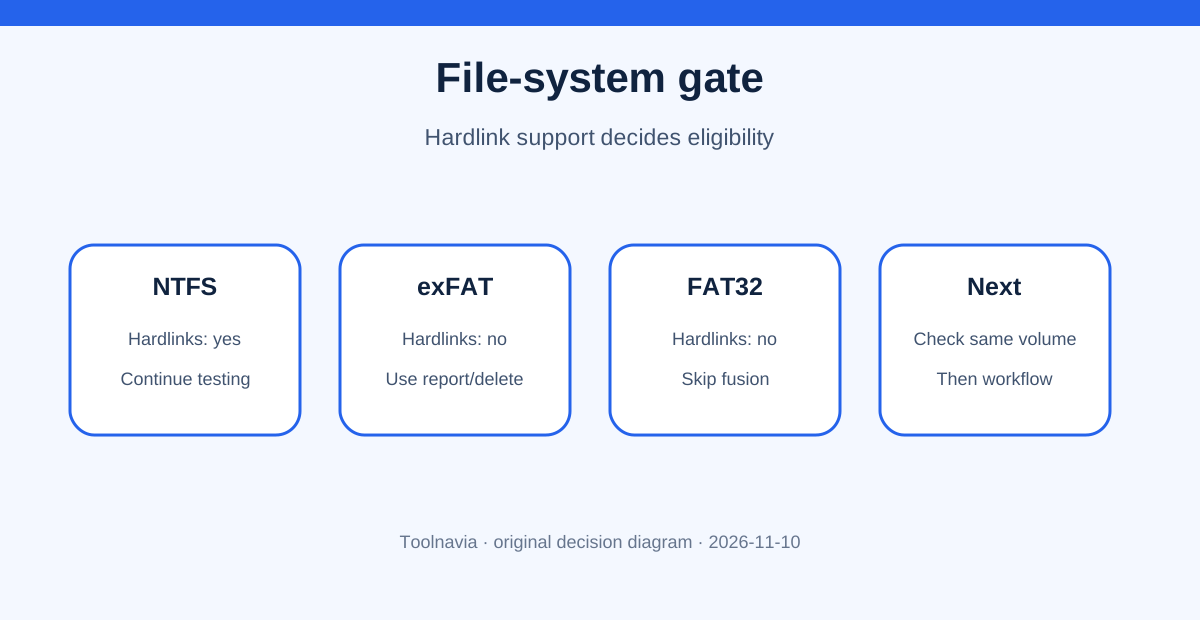
Open the external drive's Properties window in Windows and read the File system field. If it says NTFS, the drive passes the first eligibility gate. If it says exFAT or FAT32, do not buy FileFusion for hardlink fusion on that drive: Microsoft's file-system comparison marks hard links unsupported on both.
This is not a reason to reformat a working drive casually. Reformatting erases the volume, may change compatibility with televisions, cameras or macOS, and does not prove FileFusion will suit the applications that use the files. Keep a verified independent backup and choose a filesystem for the drive's whole job, not merely to make one cleanup utility eligible.
The vendor currently lists FileFusion 2026 version 2026.8 for Windows 7 through Windows 11, shows a test version, and displays €29.95 on the English product page. That page is evidence of the current offer, not a promise about tax, currency or a future checkout. Confirm the final cart and installer requirements before paying.
Understand the same-volume boundary
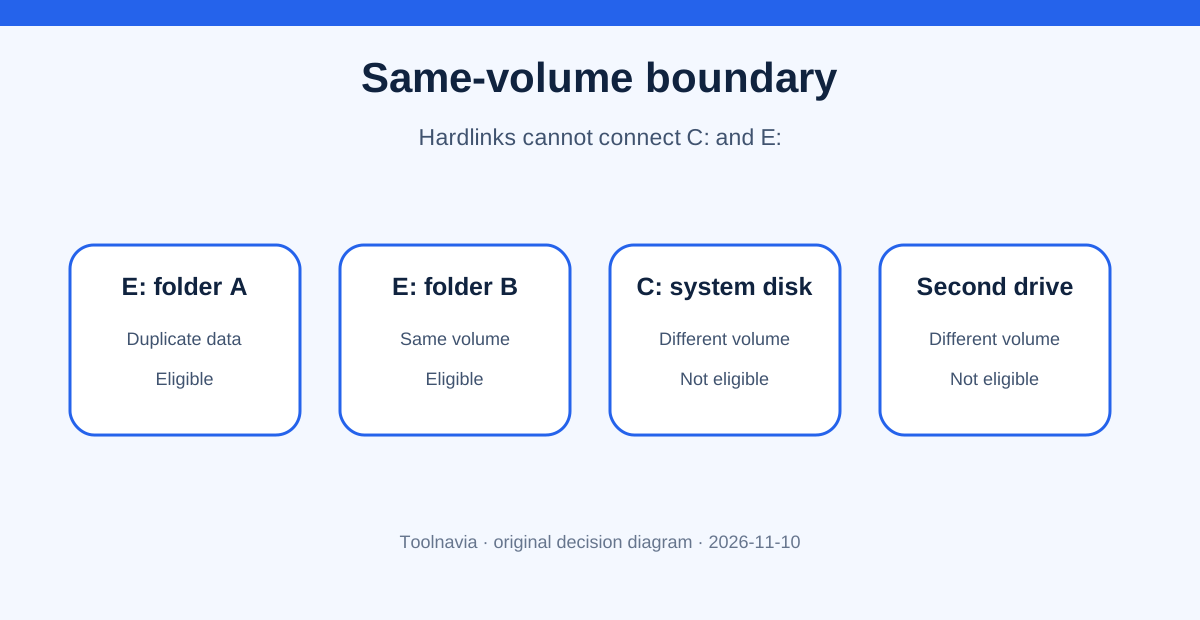
A hard link is another directory entry for the same underlying file. Microsoft says every hard link to a file must be on the same volume. An NTFS external drive can therefore consolidate eligible duplicates that all live on that external drive, but it cannot hardlink a duplicate on C: to one on E:. A second external disk is another volume too.
This distinction changes the expected savings. Imagine 80 GB of identical project assets split between C: and E:. If only 10 GB is duplicated within E:, the hardlink opportunity is 10 GB, not 80 GB. Scan and estimate within each eligible volume before attaching value to the product.
File Explorer may continue to show the logical size for every linked name. That does not mean each name consumes a separate allocation. Use the product's report plus the drive's free-space change, and inspect a disposable example with Windows' `fsutil hardlink list` command. Microsoft's command documentation also notes that deleting one link does not delete the data until all links are removed.
Know what exFAT changes
exFAT is useful for broad device compatibility and large files, but Microsoft does not list hard-link support for it. A FileFusion scan may still help you understand duplicates, yet the hardlink-based storage result described by the vendor depends on NTFS. Do not infer that “external storage” means every external-drive format is eligible.
If cross-platform exchange is the drive's main purpose, keeping exFAT and using a report/delete/move workflow may be the better decision. A duplicate finder can identify matching files without making the filesystem support links. The trade-off is that deleting or relocating copies changes where files remain available; hardlink fusion preserves names while sharing underlying data.
If you decide that NTFS is better for the drive's long-term role, migrate only through a verified backup-and-restore plan. Never convert the sole copy merely to justify the price of cleanup software.
Run a disposable-folder acceptance test
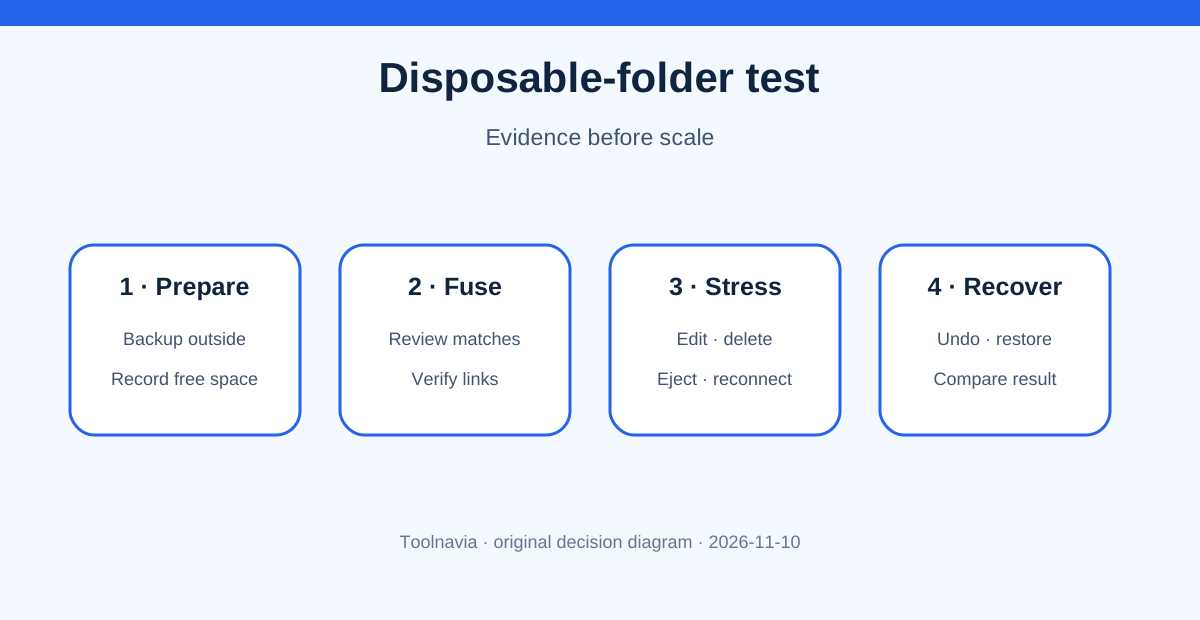
Create a small test folder on the target NTFS drive and place several byte-identical files under different names and subfolders. Keep an untouched backup outside the test volume. Use the FileFusion test version on this limited scope, review every match, and record free space before and after. The vendor says users can choose drives or folders and undo changes, but those controls do not replace independent recovery.
Then test the actual workflow: open each name, edit one copy in the real application, save, rename, delete one name, undo if offered, eject the drive, reconnect it, and run the backup and restore path you really use. Confirm the link set with `fsutil hardlink list`. TreeSize's official duplicate-search documentation likewise treats hardlink replacement as a same-partition operation and distinguishes symbolic links that can cross volumes.
Easy Duplicate Finder's current manual also describes replacing duplicates with hard links, requires confirmation, and provides a way to skip hard links in later scans. That reinforces the need to recognize linked files rather than repeatedly treating their names as independent copies.
Resolve the editing-behavior conflict
The FileFusion page says one physical copy remains and other paths point to it; it also presents its own safety and undo assurances. Generic Microsoft hardlink behavior is stricter: modifications through one name affect the shared underlying file visible through the other names. Those statements are not necessarily a direct contradiction because FileFusion may add application-specific handling, but the public pages do not prove that every editor and save pattern triggers a separate copy.
Treat vendor language such as “100% secure” as marketing, not a substitute for evidence from your exact build, file type and application. Editors often save by replacing a file, while others write in place; those paths can interact differently with links. Toolnavia has not run FileFusion against your editor, sync client, backup software or removable-drive routine.
The safe conclusion is conditional: immutable archives and reference assets may be easier to validate than active databases, synced folders or frequently edited creative projects. Exclude system folders and any workflow you cannot restore.
Compare FileFusion with two alternatives
TreeSize can replace duplicates with NTFS hardlinks on the same partition and offers preview and logging controls in its duplicate search. Its documentation also describes symbolic links for cross-volume cases, but symbolic links are a different mechanism with different availability and failure modes. Do not treat them as a drop-in way to evade FileFusion's same-volume boundary.
Easy Duplicate Finder provides a documented confirmation step for hardlink replacement and can skip hardlinked files in later scans. Its workflow may appeal to someone already using its duplicate-management process. The relevant comparison is not a marketing checklist; it is whether each tool exposes the preview, selection, logging, undo and later-rescan behavior you can actually verify.
A free report-only tool plus manual deletion is often enough when folder paths do not need to survive. Paying for FileFusion makes more sense when many eligible duplicates exist within one NTFS volume and retaining all familiar paths has measurable operational value.
Buy, wait or skip
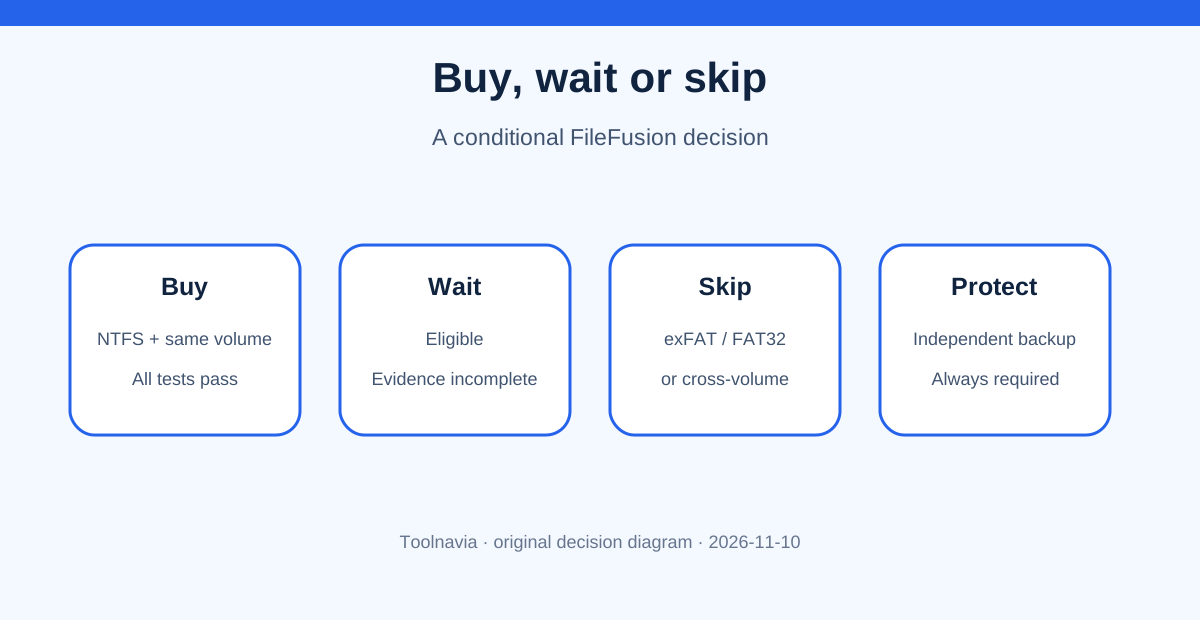
Buy only after four conditions are true: the target volume is NTFS; the material duplicates are within that same volume; a disposable test shows useful recovered allocation; and your edit, delete, eject, backup and restore checks all pass. The current official product page lists €29.95, but verify the live checkout, tax and locale.
Wait if the drive is NTFS but your duplicate set is small or the workflow test is incomplete. Keep the trial evidence and repeat it with the applications that matter. Skip FileFusion for this use case if the drive must remain exFAT/FAT32, the duplicates are mostly across volumes, or independent copies are part of your resilience plan.
The [official FileFusion page](https://www.anrdoezrs.net/click-101895278-15402688?url=https%3A%2F%2Fwww.abelssoft.de%2Fen%2Fwindows%2Fsystem-utilities%2Ffilefusion) is an affiliate link. Toolnavia may earn a commission from a qualifying purchase, at no additional cost to you. That relationship does not change the recommendation: filesystem eligibility and a verified restore path come before the checkout.