TOOLNAVIA / BUYING GUIDE
FileFusion + OneDrive or Dropbox: Will Hard Links Survive Sync?
The short answer
FileFusion can save local NTFS space without changing application paths. That does not mean OneDrive, Dropbox or an ordinary copied backup will preserve the same hard-link structure. A cloud service can upload the bytes behind every visible path and later download valid files while returning separate NTFS records. For a buyer, those are different questions: did the content survive, and did the link identity survive?
At a glance
- Best for
- A local NTFS collection with meaningful duplicates, where cloud sync is secondary and an isolated upload/download/restore test proves content recovery.
- Price model
- €29.95 displayed when checked 2026-11-11; verify live checkout.
- Check first
- Irreplaceable archives, non-NTFS volumes, network shares, cross-volume targets, or workflows that treat a green sync icon as proof that NTFS hard-link identity was preserved.
What FileFusion changes locally
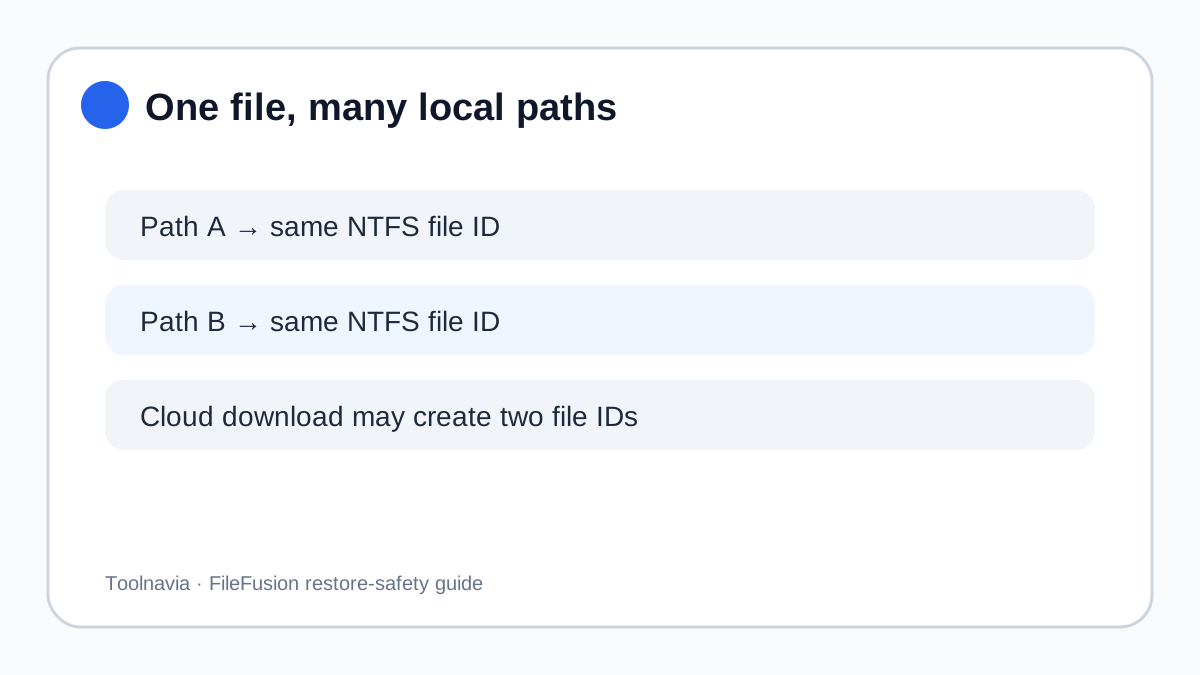
A hard link is another path to the same underlying file on one NTFS volume. FileFusion says it fingerprints duplicates, keeps one physical copy and replaces the other paths with links. The paths still open, but local allocated space can fall. Microsoft’s baseline is stricter: every hard link points to the same file, cannot cross volumes, and changes through one path are visible through the others.
This model is useful for read-mostly reference libraries. It is risky when multiple names are mistaken for independent recovery copies. Deleting one name normally leaves data through remaining links, but deleting every link removes the file. Judge a backup by what it restores, not how many names Explorer shows.
Why cloud sync is separate
OneDrive and Dropbox are synchronization services, not transparent NTFS-volume images. Microsoft’s formal OneDrive limitations page documents path, item and file restrictions but does not promise that a hard-link set will round-trip as one NTFS file. Dropbox is explicit: folders containing hardlinks or other NTFS links may remain marked as syncing because those links are not synced as link objects.
The supported conclusion is narrow. It is too broad to say cloud sync loses the files: every path’s bytes may survive. It is too optimistic to say sync complete means the FileFusion structure is backed up. A clean download may contain one independent file per path. Content recovery can pass while deduplication identity fails.
A Microsoft Community support answer recommends against using OneDrive as a hard-link deduplication layer, but it is a support answer rather than a formal product contract. Treat it as a warning, not universal proof. Independent CHIP guidance similarly warns about copying or syncing FileFusion results to cloud-mounted or non-NTFS destinations; it is third-party advice, not Abelssoft policy.
Run a clean-profile round-trip test
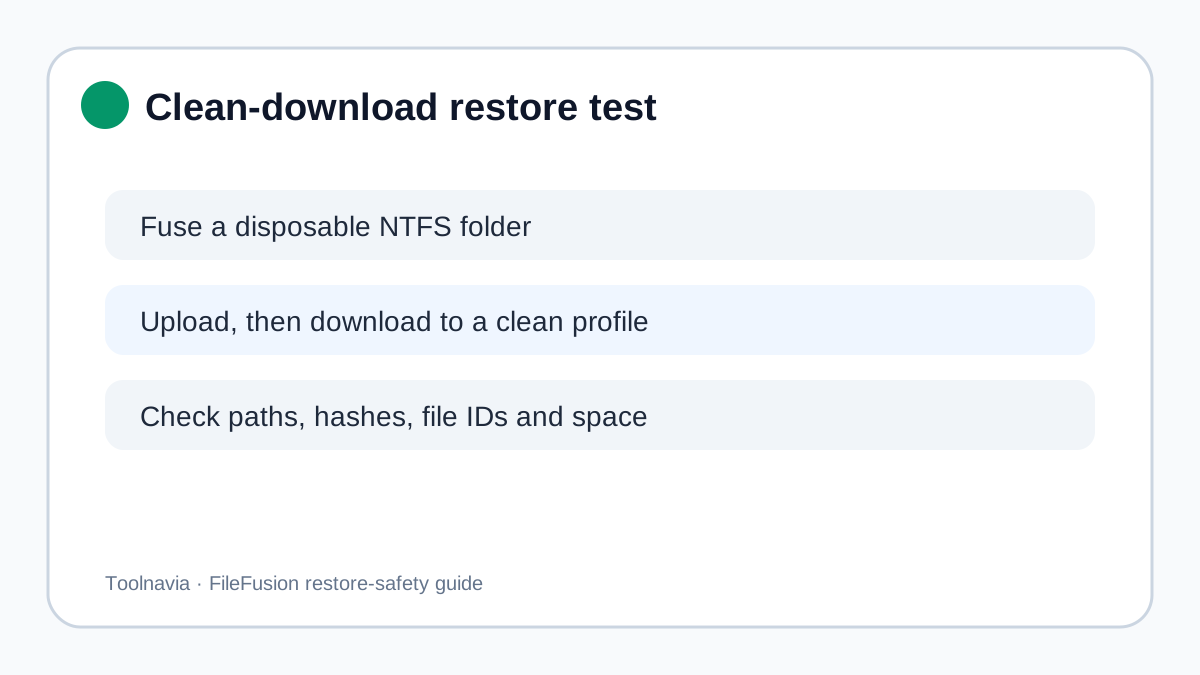
Create a disposable folder on one local NTFS volume. Put three byte-identical files under different names and subfolders, retain an untouched copy outside the test volume, then let FileFusion fuse only that folder. Record each path, a cryptographic hash, file ID or hard-link list, logical size and allocated free space.
Edit one path with the real application you intend to use. Abelssoft says an edited fused reference becomes standalone, while Microsoft says an in-place change to a hard-linked file is visible through every link. Public sources do not establish exactly which save patterns FileFusion intercepts. Some editors replace a file; others write in place. This conflict is unresolved, so the safe gate is a reversible exact-editor test.
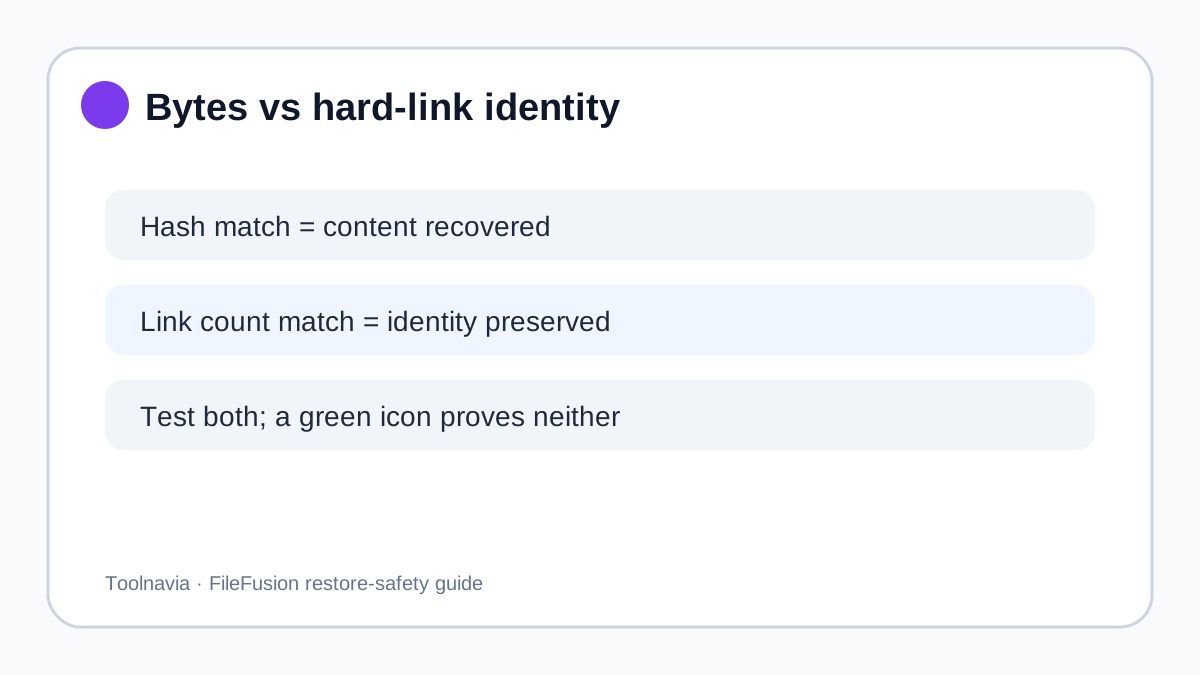
Let the actual cloud client finish. Do not stop at a green icon. On a clean Windows profile or another computer, download into a fresh NTFS location. Check four ledgers: every expected path exists; every hash matches; link counts or file IDs show whether identity survived; and allocated space shows whether local savings survived. Repeat deletion and restore-from-trash or version-history tests.
If hashes pass but link counts do not, the cloud copy may still be a valid content backup, yet restored storage will be larger. If a path or hash fails, exclude that folder. If only the original machine preserves identity, document FileFusion as a local optimization rather than a portable backup property.
Compare review controls
Easy Duplicate Finder offers a replace-with-NTFS-hard-link workflow and later-scan controls. AllDup asks the user to choose a source before removing other duplicates and creating links. Duplicate Cleaner limits hard-link creation to same-content files and requires one file remain. Ashampoo also uses Windows hard links to keep paths working.
None supplies a universal OneDrive or Dropbox round-trip guarantee. Compare reviewability: can you select the surviving source, inspect every group, log the operation and recognize linked files later? If your goal is backup simplicity rather than retained paths, a report-first tool plus manual archive or delete may be easier to restore.
Buy, wait or skip
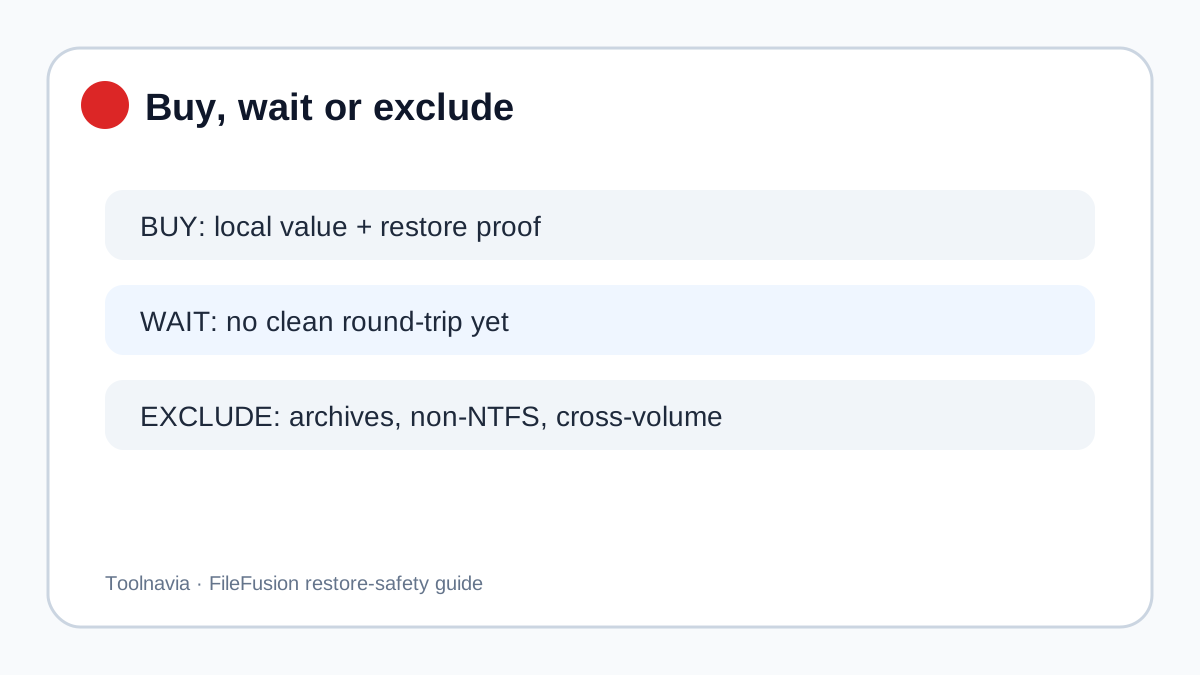
Buy only when duplicates are material, all candidates are on one local NTFS volume, preserving paths has measurable value, the exact editor behaves safely in a disposable test, and a clean cloud restore returns every expected byte. The official English page displayed €29.95 when checked on 2026-11-11; verify final currency, tax, license terms and installer support.
Wait when local savings look useful but the clean-download test is incomplete. Keep irreplaceable archives, databases, active projects and sync roots outside the first fusion set. Skip when the workflow spans volumes, depends on non-NTFS storage or treats duplicate paths as resilience copies.
The [official FileFusion page](https://www.anrdoezrs.net/click-101895278-15402688?url=https%3A%2F%2Fwww.abelssoft.de%2Fen%2Fwindows%2Fsystem-utilities%2Ffilefusion) is an affiliate link. Toolnavia may earn a commission from a qualifying purchase at no additional cost. That does not change the rule: prove content recovery and test hard-link preservation separately.