TOOLNAVIA / BUYING GUIDE
EaseUS Todo PCTrans Pro: Move Apps to a New PC, Not Windows
The short answer
EaseUS Todo PCTrans Professional is for moving selected applications, files, accounts and settings to another Windows PC—not for cloning Windows itself. The current buy page lists one license for two computers, while the product page shows different promotional prices. Treat the final cart as the price authority.
This is an official-document buying analysis, not a Toolnavia migration, compatibility or performance test.
At a glance
- Best for
- A verified two-PC Windows migration with supported apps and retained installers/licenses.
- Price model
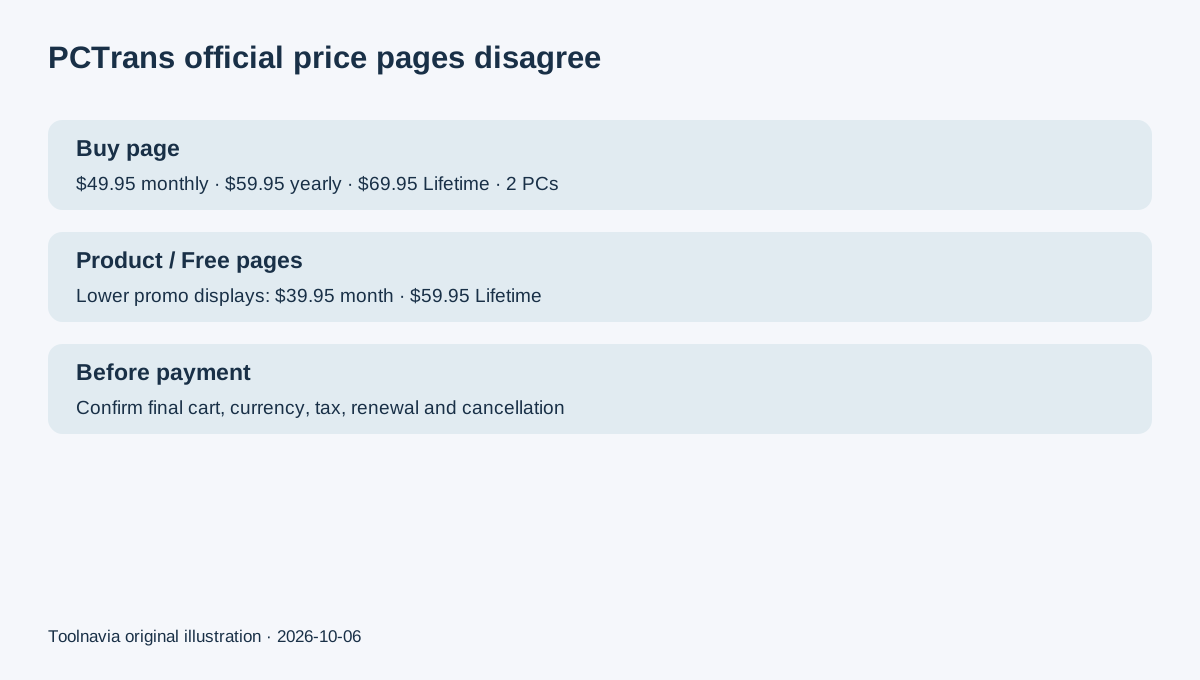
- Buy page: $49.95 monthly / $59.95 yearly / $69.95 Lifetime Upgrades; final cart unverified
- Check first
- Not an OS clone or automatic third-party license transfer; price and Free limits conflict across official pages.
Start with the job: migrate a PC, not the operating system
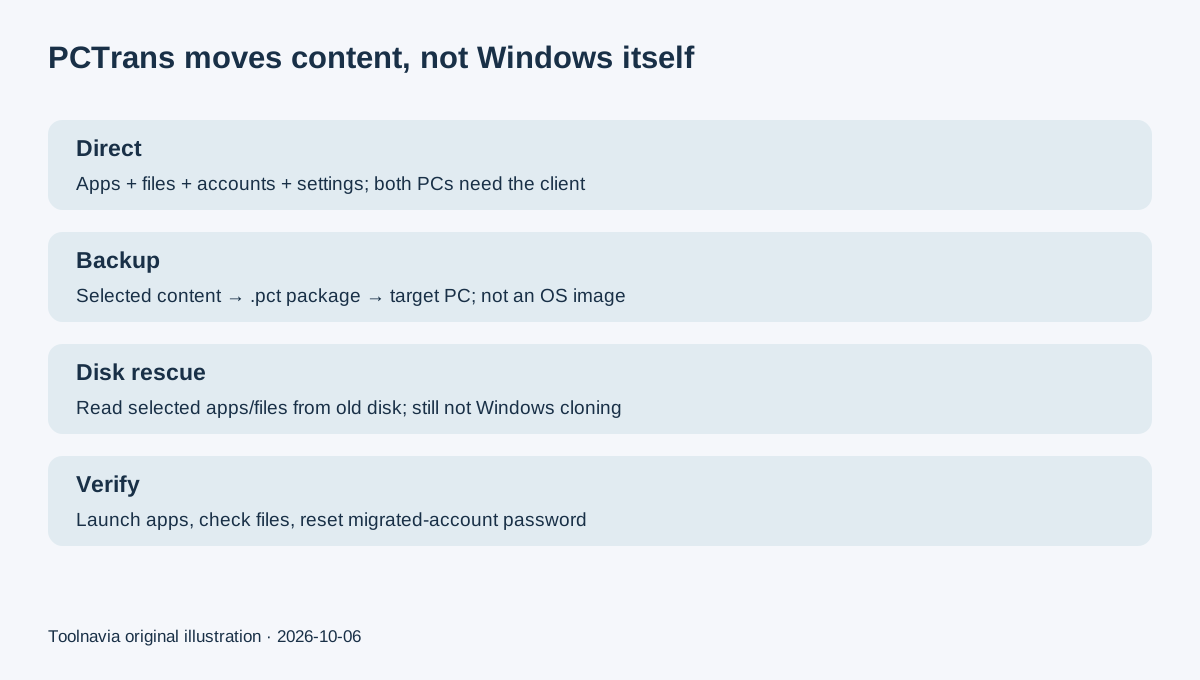
EaseUS's FAQ explicitly says Todo PCTrans transfers apps, data, user accounts and some settings, but not the operating system. If your goal is a bootable copy of Windows on another disk, use a disk-cloning or system-migration workflow instead.
For direct transfer, install Todo PCTrans on both computers. The target Windows version must be equal to or newer than the source for the documented network method. The current help also supports network or cable connections; backup-image transfer is the alternative when a direct connection is inconvenient.
Free may be enough for a small rehearsal, but EaseUS currently publishes conflicting limits. Its main Free page and help say 5 programs plus 2GB, while another official upgrade/FAQ page still says 2 apps plus 500MB. Confirm the installed edition before relying on a numerical Free allowance. The Trial edition only previews what can be transferred; it cannot execute the transfer without a license.
Four capabilities worth validating before paying
**Move selected apps, files and accounts between two PCs.** Direct transfer lets you choose what to send after the old PC is scanned. The software labels applications Supported, Unsupported or Existing; review that status rather than assuming every installed program will arrive ready to use. A successful file copy also does not transfer a third-party software license unless that vendor permits it.
**Use a .pct package when the PCs cannot stay connected.** Transfer via backup creates an image containing selected applications, data, accounts and settings, which can then be restored on the target PC. This is a migration package, not a Windows system image. The manual warns that a corrupted .pct file may need to be recreated, so keep the original data and verify the package before depending on it.
**Rescue selected content from an old system disk.** Transfer via disk can read apps and files from an unbootable system disk connected to a healthy Windows PC. That can reduce reinstallation work, but it is not proof that the old Windows installation itself will boot on the new hardware.
**Move account settings with a recovery plan.** PCTrans can transfer user-account data and personalization, but the help says the migrated account's original password becomes empty and must be changed. OneDrive cloud-only files are also filtered out by default until they exist locally. Verify sign-in, local file availability and destination paths after migration.
Price the exact two-PC license, not the cheapest banner
The dedicated purchase page currently lists Professional at $49.95 monthly, $59.95 yearly and $69.95 for Lifetime Upgrades, each for two computers. Monthly and yearly plans auto-renew unless canceled. The same page says an existing license can be reset through support when changing computers.
However, the main product and Free-download pages still advertise lower promotional figures such as $39.95 for one month and $59.95 Lifetime. Those pages do not establish the final selected order, currency code, taxes or next renewal charge. Record the cart total and renewal terms before paying instead of treating the lowest banner as universal pricing.
For context, Laplink PCmover and Zinstall also sell Windows PC-migration products, but their licensing and transfer scopes differ. Laplink currently shows a $59.95 offer on one migration page; Zinstall lists WinWin at $129 and Migration Kit Pro at $189. This is a scope comparison, not a cheapest-product ranking.
EaseUS advertises a 30-day money-back guarantee, but its refund policy excludes nontechnical buyer's remorse and generally excludes software that has already completed its intended task successfully. Cancellation and a refund request are separate actions.
Suggested rehearsal: migrate one disposable application
Use two noncritical Windows PCs or test environments with an application you can reinstall and a small folder of sample files. Keep independent copies and the application's installer and license information. Start with the Free or Trial edition to inspect what PCTrans recognizes, then verify the application status before authorizing a paid migration.
After the transfer, launch the application, open sample files, inspect the destination folder and sign in to the migrated account with the required password change. Confirm an unrelated application on the target still works. These are proposed acceptance checks, not results Toolnavia has measured.
Buy for a repeatable migration problem
Keep manual file copy, Windows tools or a free migration utility when that solves the job. Consider PCTrans Professional when you need supported application migration, account/settings transfer or an offline .pct workflow across two Windows PCs. Do not buy it expecting an operating-system clone or automatic transfer of third-party license rights. EaseUS's cash affiliate program is open, but Toolnavia approval is unverified and tracking remains disabled.