TOOLNAVIA / BUYING GUIDE
Dr.Fone FRP or Screen Lock? Diagnose Before You Pay
The short answer
# Dr.Fone Screen Unlock: FRP or Screen Lock? Diagnose Before You Pay
A phone that says “enter PIN” and a phone that says “verify the Google account previously synced with this device” are not the same problem. The first is an ordinary screen lock. The second is Factory Reset Protection (FRP), a device-protection check that appears after a reset. Buying an unlocker before naming the lock is the easiest way to pay for the wrong workflow.
This article is for the owner of the device or an authorized technician with proof of ownership. It does not provide bypass instructions. Toolnavia may earn a commission if you buy through the disclosed Dr.Fone link, at no extra cost to you. The recommendation is still to try official account recovery or an authorized service center first.
At a glance
- Best for
- Authorized owners who can identify the lock state and verify the exact device before paying.
- Price model
- $39.95/year observed 2026-11-07; auto-renewal, tax and future terms vary.
- Check first
- No universal compatibility, no guaranteed data preservation and no bypass guidance.
1. Identify the screen, not just the word “locked”
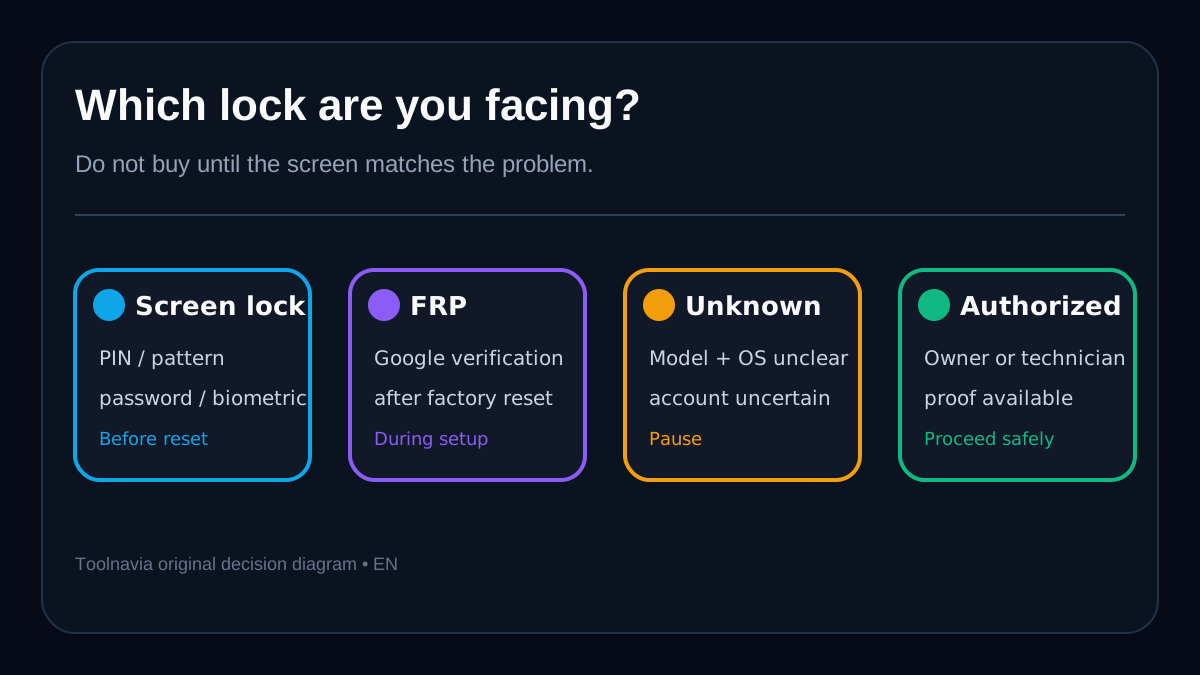
A normal Android screen lock appears before you can reach the home screen and asks for a PIN, pattern, password, fingerprint or face credential. Dr.Fone documents a separate Screen Unlock route for those lock types. Its guide says data-preserving removal is limited to selected older Samsung devices; the broad method for many other devices can erase data.
FRP appears during setup after a factory reset and asks for a Google account that was previously added and synchronized with the phone. Google describes this as device protection: after an unauthorized reset, the phone may require the previous account or screen-lock information before it can be used. Samsung likewise separates FRP from the pre-reset lock screen and says a recovery-mode reset can trigger prior-account verification.
That difference changes the purchase question. For a forgotten PIN on a phone that has not been reset, compare screen-lock support and data consequences. For a Google verification screen after reset, compare FRP support for the exact brand, model and Android version. If you cannot tell which screen you have, pause rather than selecting a generic “unlock” button.
2. Use the official ownership path first
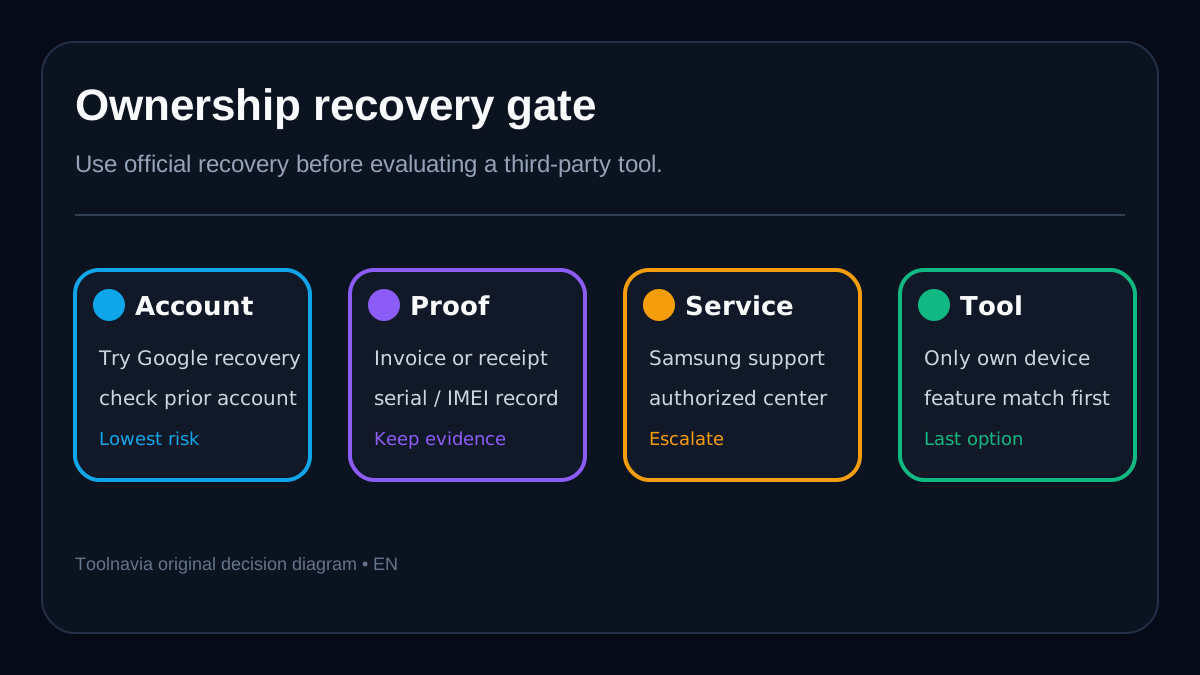
Google’s official guidance is straightforward: enter a Google account previously added and synced to the device. If you forgot the password, use Google account recovery; after a password change, a waiting period may apply before the new credential works on the phone. Samsung advises owners who cannot complete verification to bring the device and proof of purchase to an authorized service center.
Those routes preserve the security model and create the clearest ownership record. They also avoid paying for software when the original account can be recovered. A second-hand device without the seller’s account removal or a receipt is not a clean software-purchase problem. Ask the seller to remove the device from the account, or use the manufacturer’s ownership process.
Do not proceed if the device is not yours, ownership is disputed, or the source of the phone is unclear. No compatibility claim or refund policy turns an unauthorized access attempt into an acceptable use.
3. Data risk differs by function and device
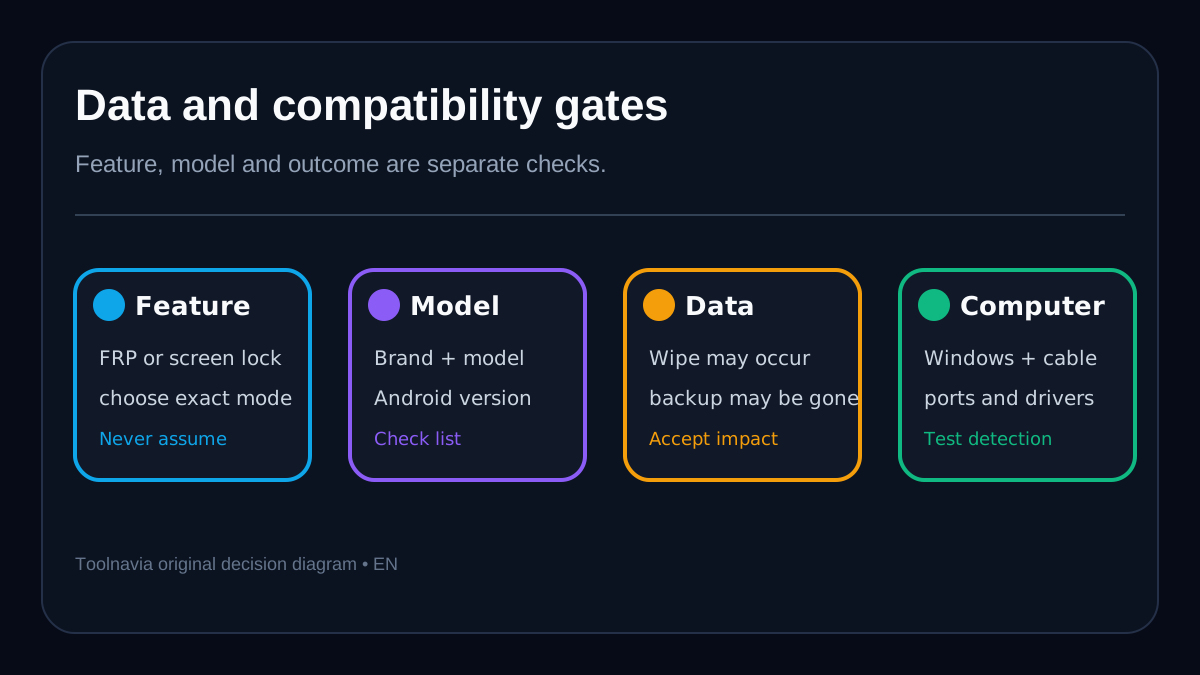
“Unlock without data loss” is not a universal promise. Dr.Fone’s tech-spec page separates a short list of older Samsung and LG models for data-preserving screen-lock removal from broader support where data may be lost. Its screen-lock guide repeats that selected Samsung models may retain data, while the general method for most brands can wipe the device.
FRP usually appears after the factory reset has already erased local data. That does not mean every FRP workflow is risk-free; it means the original local content may already be gone. Google states that a factory reset removes apps and local data, while backed-up information can be restored after successful sign-in.
Competitors expose the same decision boundary. Tenorshare markets separate screen-lock and FRP functions and limits data-safe claims to early Samsung devices. iMyFone distinguishes its FRP mode from its selected-Samsung “without data loss” screen-lock mode; its FAQ says the FRP mode erases data and that support varies by feature. These competitor claims do not prove Dr.Fone compatibility, but they confirm that buyers should never treat “Android unlock” as one uniform operation.
4. Verify feature, model, Android version and computer
Dr.Fone’s own FAQ says the supported-device list differs for screen-lock removal and FRP bypass. Its current FRP guide and product page make broad claims about Samsung and other Android brands, while the tech-spec page is narrower about data-preserving results. The conservative interpretation is to verify the exact feature and model inside the current application before paying, not to rely on a headline.
Record the phone’s brand, exact model number, Android version if known, the exact screen text and whether the reset has already happened. Then download the trial or device checker and confirm that the phone is detected in the correct module. A successful USB connection is not the same as confirmed support; the required feature must recognize the exact device route.
The current Windows annual offer is licensed for up to five mobile devices and two PCs. That is an activation ceiling, not a promise that five arbitrary phones will be supported. Check the computer, cable, USB port and required driver path before purchase. If detection fails in the free stage, do not assume payment will fix the hardware or driver problem.
5. What the $39.95 annual plan buys
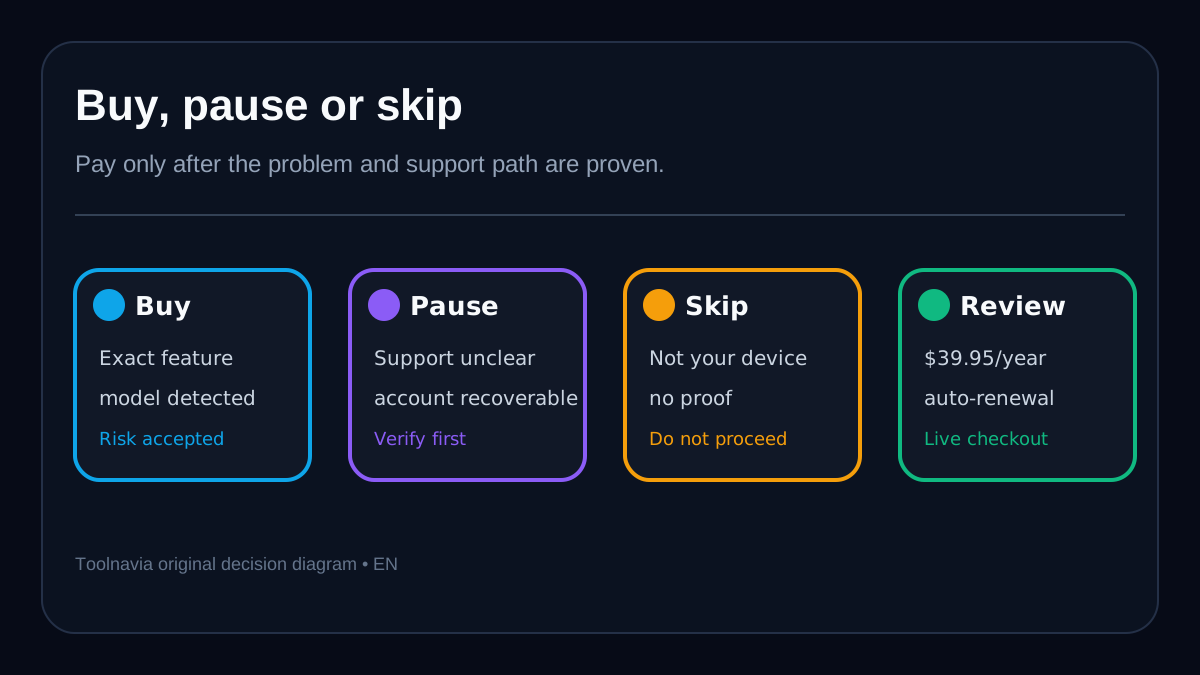
On 7 November 2026, the official Dr.Fone store listed Screen Unlock (Android) at $39.95 per year, with automatic renewal, access for one to five mobile devices and two Windows PCs, software updates and technical support. It also listed a $49.95 perpetual option. Taxes, discounts, regional checkout and future renewal prices can change.
This article maps only to the approved Windows annual offer. The affiliate link goes directly to the official product page; there is no invented coupon or redirect. The store advertises a seven-day money-back guarantee subject to its refund policy, so read the eligibility conditions instead of treating “money back” as an unconditional compatibility warranty.
The annual plan makes sense when the exact feature is confirmed, the device is detected, you accept the data outcome and you expect current-version updates during the subscription. Pause if the model is absent, the lock type is uncertain, the original account can still be recovered, or the phone’s value is lower than the cost and time of the process.
6. A five-minute pre-purchase check
1. Photograph or write down the exact screen message without sharing credentials. 2. Decide whether it is a pre-reset PIN/pattern/password lock or post-reset Google verification. 3. Confirm you own the device or hold written authorization and proof of purchase. 4. Try Google account recovery or the manufacturer’s service route first. 5. Check the Dr.Fone list for the exact feature, brand, model and Android version. 6. Confirm the Windows computer detects the phone in the correct module. 7. Assume data loss unless the exact model is explicitly in a current no-data-loss list. 8. Review the $39.95 annual renewal, two-PC/five-device ceiling, tax and refund terms at live checkout.
Passing all eight checks does not guarantee success, but failing one gives you a concrete reason to pause before paying.
7. Verdict: diagnose first, buy second
Dr.Fone Screen Unlock can be a reasonable paid option for an owner who has identified the correct lock type, exhausted the official recovery path, confirmed exact-device support and accepted the data consequence. The strongest buying signal is not the word “unlock”; it is a match among the screen, feature, model, Android version and current support workflow.
Choose the annual plan only after that match is visible in the product. Pause for account recovery or official service when ownership can be verified through normal channels. Skip the purchase when the device is not yours, support is ambiguous or data loss is unacceptable.