TOOLNAVIA / BUYING GUIDE
Update a Tutorial in DemoCreator Without Losing the Thread
The short answer
A software update should not force you to abandon an otherwise useful tutorial. DemoCreator is worth evaluating when a lesson needs a replacement step, a corrected explanation or a new result screen. Its editing controls can support focused revisions, provided you kept an editable project and inspect everything affected by the change.
At a glance
- Best for
- Creators needing watermark-free recording/editing and choosing future-version subscription or one-time V8.x ownership.
- Price model
- Baseline USD $59.99/year; Perpetual $79.99; live promos may be lower
- Check first
- Perpetual excludes future majors; Visual Assets separate; dynamic promo/renewal prices vary.
Define the change before opening the timeline
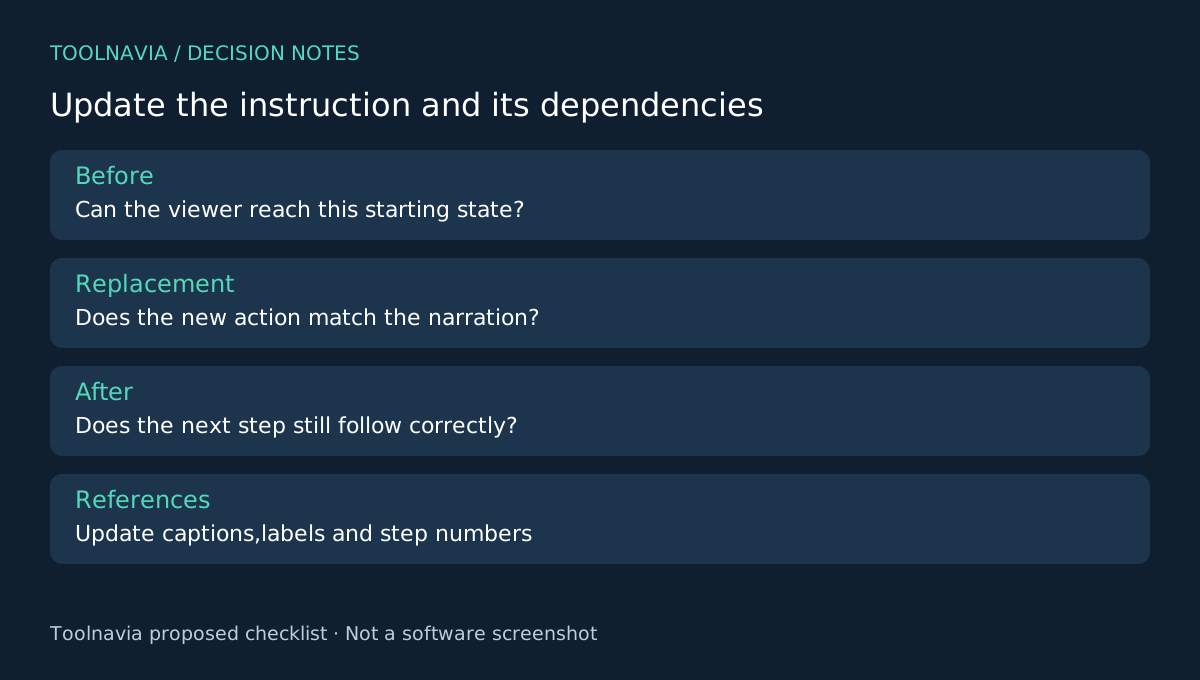
Compare the old lesson with the current application. Write down which instruction is wrong, what replaces it and what remains valid. Include the beginning and end states of the changed step. A new button location may also change the narration, cursor emphasis and caption timing around it.
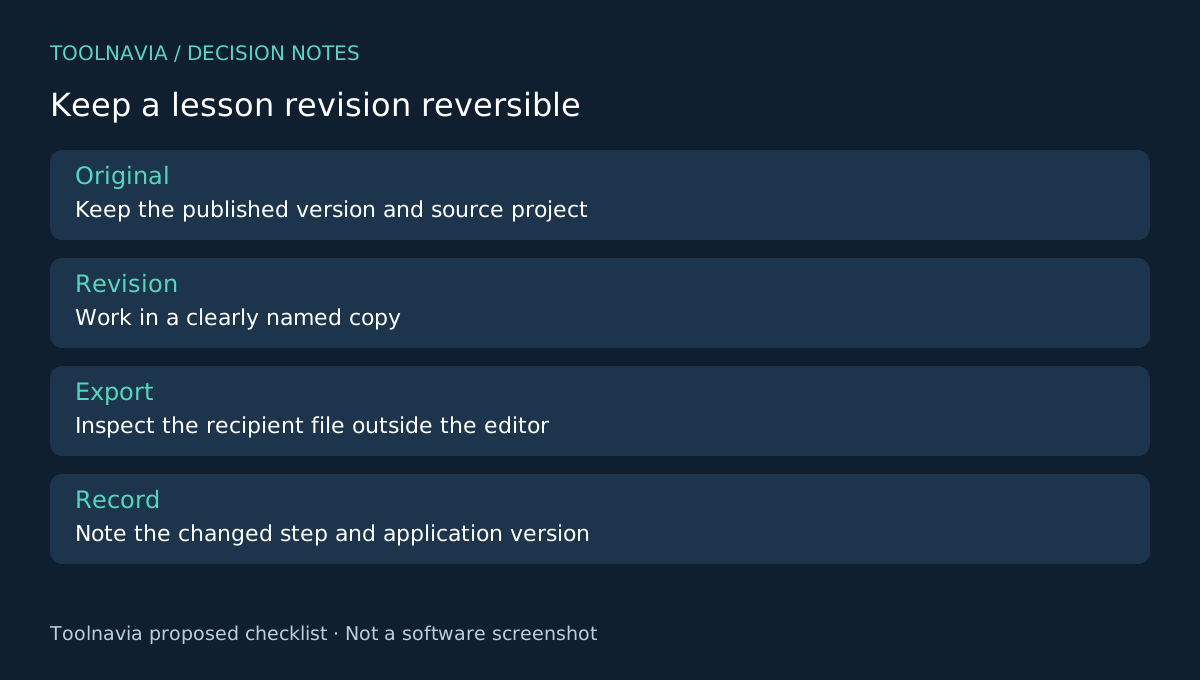
Keep the published version and original project untouched. Make a revision copy and label it with the application version or review date. This makes it possible to explain what changed and to return to the previous edit if the replacement creates a problem.
Four controls help keep the revision local
DemoCreator's basic editing guide documents splitting clips, trimming their edges, adding timeline markers and recording voice-over while reviewing video. Splitting isolates the outdated passage, trimming refines its boundaries, markers identify review points, and voice-over can supply a corrected explanation.
These controls are useful because a tutorial change often involves only part of a lesson. They do not automatically preserve instructional continuity. A technically neat cut can still jump from a screen state the viewer has never reached to a result they cannot reproduce.
Record a replacement with matching context
Capture the updated action with enough material before and after it to make the transition understandable. Match the application scale, window size and pointer treatment as closely as practical. If the new interface genuinely differs, explain the difference rather than disguising it.
Insert the replacement in the revision project and inspect the surrounding steps. Update the spoken instruction where needed. A short voice-over can clarify the changed action, but it must match the visible result and avoid talking over an old contradictory sentence.
Review annotations as separate editorial objects. DemoCreator lets you reposition, edit and retime them. Move or rewrite a label that points to an obsolete control. Do not assume that an annotation remains correct simply because it still appears on the timeline.
Review dependencies, not just the new clip
Check the step immediately before the replacement, the new action and the next dependent step as one sequence. Ask whether a viewer starting from the stated conditions can still follow the lesson. Then check chapter references, captions and any text that mentions a duration or step number.
Export the revised lesson using the required destination settings and inspect that file outside the editor. Keep a short revision note identifying the changed instruction and the application version. If you distribute multiple versions, make the current one unambiguous in the filename and surrounding page.
This is a proposed maintenance workflow. Toolnavia has not performed a timed update experiment, and no claim is made that editing a replacement is always faster than rerecording a short lesson from scratch.
Buy when revision work is part of the job
The approved yearly DemoCreator offer provides watermark-free export and ongoing plan access; review renewal, optional assets and current limits before paying. A recorder-only workflow may be enough when you rarely revisit a video, while an existing editor may already cover the revision controls you need.
OBS, ScreenPal and Loom represent different recording, editing and communication approaches. Choose DemoCreator when a real replacement-step trial shows that its capture and editing workflow fits your maintenance work. See the [DemoCreator plan guide](/en/software/democreator). Toolnavia may earn a commission through the official affiliate link; no automatic-update or time-saving guarantee is implied.