TOOLNAVIA / BUYING GUIDE
DemoCreator Captions: Turn a Screen Lesson into a Readable Guide
The short answer
A tutorial becomes easier to follow when its captions say the right thing at the right moment without hiding the demonstrated control. DemoCreator is worth evaluating if you want to add and correct subtitles beside your screen lesson. Its useful flexibility is choosing between an existing SRT, manual text and automatic transcription—not treating every recording as a fresh AI job.
At a glance
- Best for
- Creators needing watermark-free recording/editing and choosing future-version subscription or one-time V8.x ownership.
- Price model
- Baseline USD $59.99/year; Perpetual $79.99; live promos may be lower
- Check first
- Perpetual excludes future majors; Visual Assets separate; dynamic promo/renewal prices vary.
Choose the source of the words
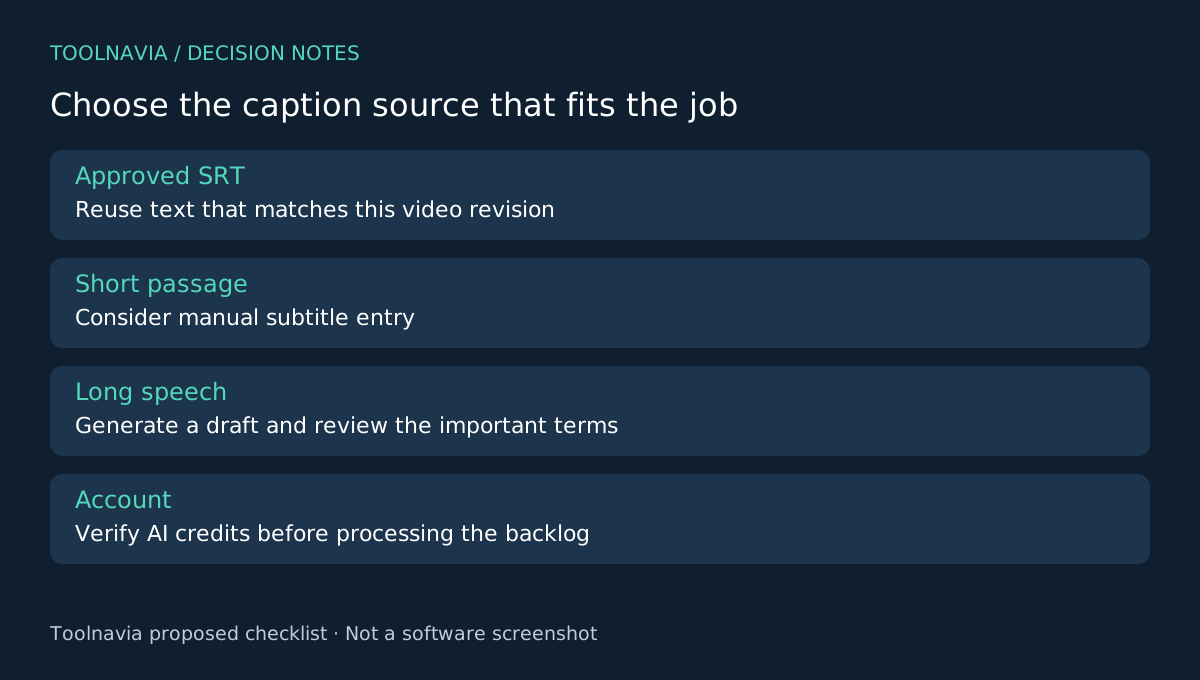
If an approved subtitle file already exists, keep it with the matching video revision. If you only need a few lines, manual entry may be more direct. If the lesson contains substantial speech without a transcript, automatic subtitles can supply a draft for review.
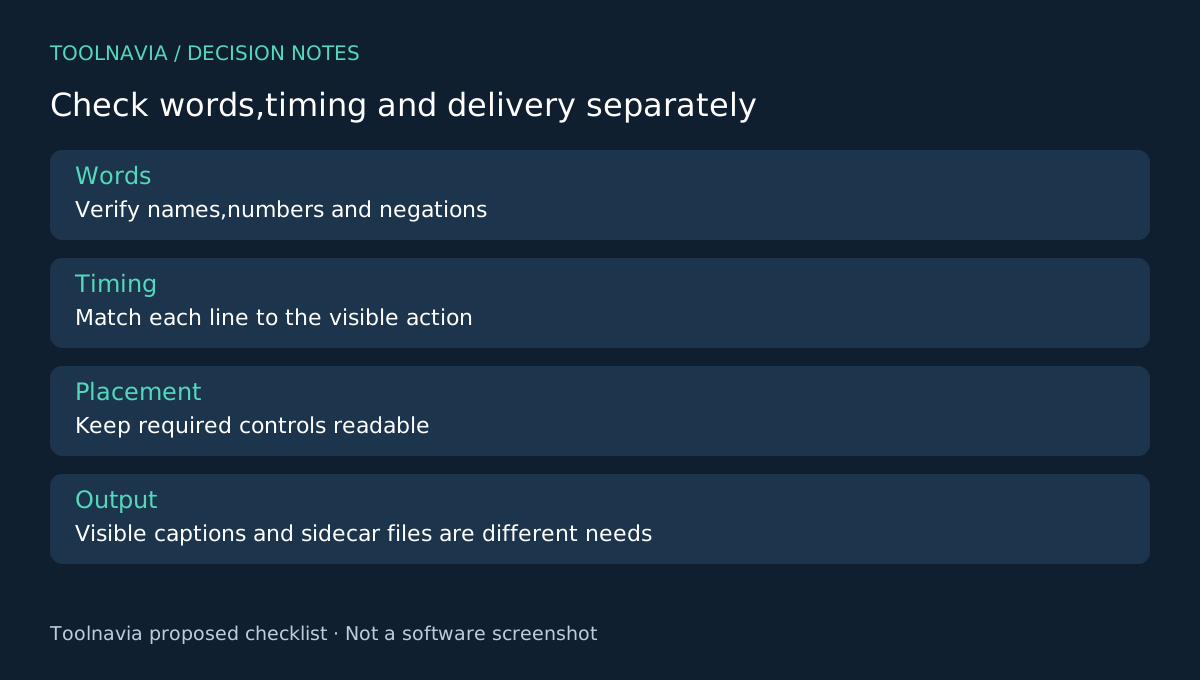
Write down the names, numbers and technical terms that must be correct. These become a small reference sheet for the subtitle pass. A plausible sentence can still be wrong in a way that changes an instruction, especially when a number or negation is misheard.
Four controls support the caption pass
DemoCreator documents automatic subtitle generation, SRT import, manual subtitle entry and controls for timing and appearance. Automatic generation supplies an initial draft, SRT import reuses existing work, manual entry covers precise short passages, and timing/style controls fit the words to the lesson.
Automatic subtitles use AI credits and require the appropriate account access. Confirm the current allowance and consumption for your account before processing a backlog. The store contains desktop AI-credit and online-caption allowance information; do not treat those as one interchangeable unlimited entitlement.
Test one difficult minute
Choose a minute with a technical term, a number and the fastest spoken sentence in the lesson. Use the relevant method to add its subtitles. Compare every important phrase against the audio and your reference sheet. Correct the wording before spending time on decorative styling.
Check the start and end of each line at normal playback speed. Avoid letting a caption describe the next action while the previous screen is still visible. Split crowded lines where the meaning stays intact, and keep enough reading time for the audience you expect.
Inspect the caption against both bright and dark parts of the screen. Move it away from menus, status messages and other controls the viewer needs. These are proposed editorial checks; Toolnavia has not measured transcription accuracy or certified accessibility compliance.
Export the lesson the audience will actually watch
Use the intended video output settings and play the exported sample outside the editor. Confirm that the text remains readable at the target player size and that no essential word is cropped. Watch once with sound and once without it to expose instructions that still depend on unexplained audio.
Be explicit about the deliverable. A video with visible captions is not automatically a separately downloadable or switchable caption track. If the destination requires a sidecar subtitle file, verify that exact output and platform behavior before committing to the workflow; this guide does not infer export support merely from SRT import support.
Keep the corrected text source and editable project with the matching video revision. Later picture edits can shift the timing even when none of the words changes.
Buy after the corrected sample works
Choose the approved DemoCreator yearly offer when the combined recording, editing and caption workflow serves a recurring need. Check renewal, optional assets and AI costs in the [DemoCreator plan guide](/en/software/democreator) and current checkout.
ScreenPal and Loom provide alternative video workflows with their own caption and plan conditions. Compare the required deliverable rather than a headline language count. Toolnavia may earn a commission through the official affiliate link; no automatic-accuracy or universal subtitle-delivery guarantee is made.