TOOLNAVIA / BUYING GUIDE
DemoCreator for Presenter Lessons: Get Voice, Camera and Screen Working Together
The short answer
A presenter-led lesson needs a voice that remains understandable while the screen and camera do their work. DemoCreator is worth evaluating when you want to record those elements together but retain editing flexibility. The strongest trial is a short lesson containing your real microphone, application audio and webcam—not a silent screen capture.
At a glance
- Best for
- Creators needing watermark-free recording/editing and choosing future-version subscription or one-time V8.x ownership.
- Price model
- Baseline USD $59.99/year; Perpetual $79.99; live promos may be lower
- Check first
- Perpetual excludes future majors; Visual Assets separate; dynamic promo/renewal prices vary.
Give each sound a purpose
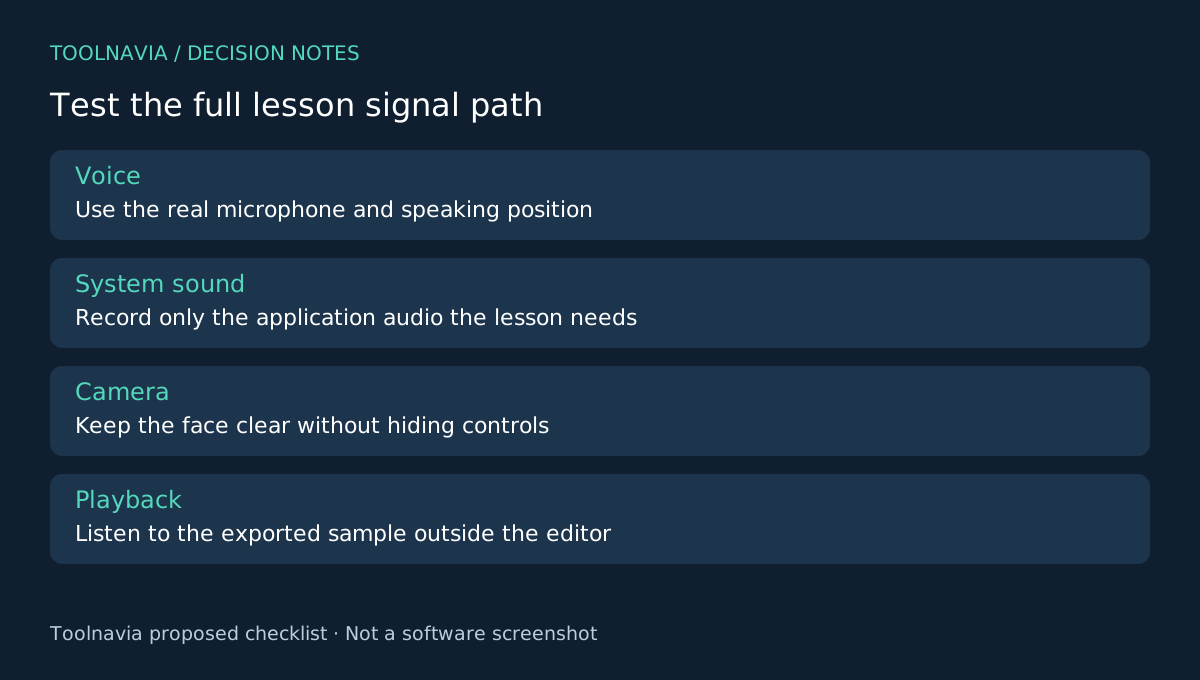
Write down which sources the lesson actually needs. Your voice may explain a process, while system audio demonstrates an alert or a media clip. If the application sound adds nothing, leaving it out can make the lesson easier to review. Close unrelated notifications and prepare a sample you are allowed to record.
Use the same microphone position and camera framing planned for the full session. Speak a sentence containing an important name or number, pause, then demonstrate one on-screen action. This gives you identifiable moments to inspect for clarity and synchronization.
Four controls support a manageable lesson
The screen-recording guide provides microphone and system-audio input selection, camera capture and an editable track-separation configuration. The audio guide adds timeline volume, sound balance and fade controls. Together, these let you choose the sound sources, include the presenter, preserve independent editing options and adjust the recorded audio in context.
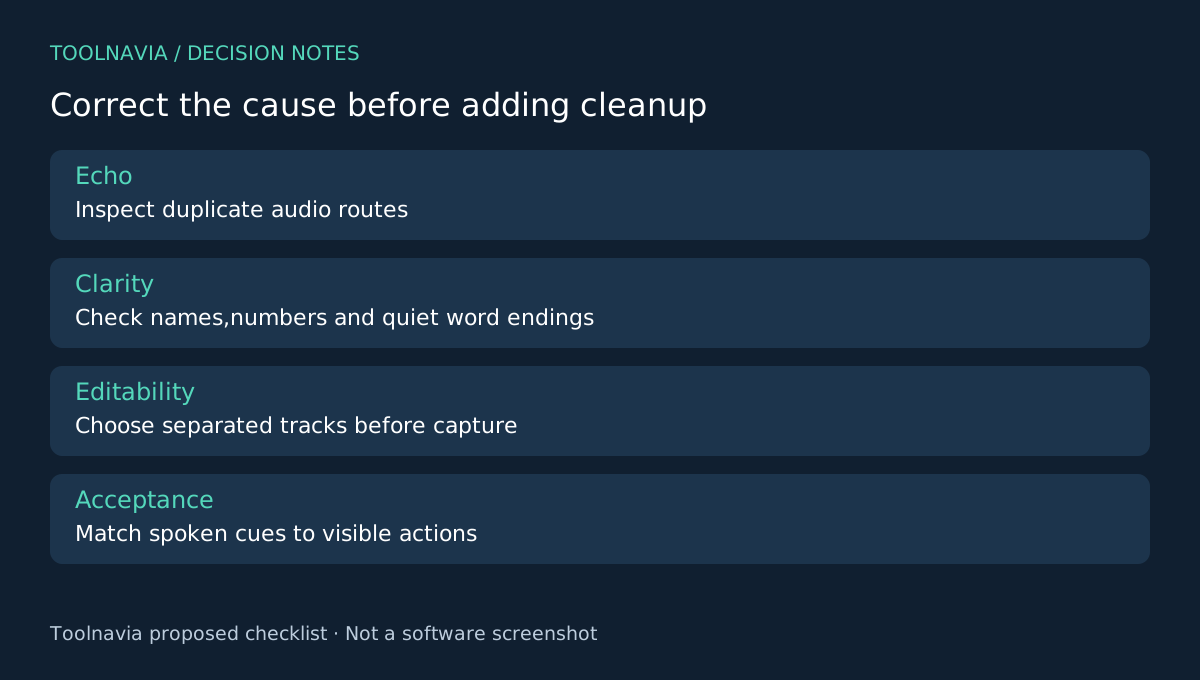
Choose editable tracks before capture when later adjustments matter. The alternative fast-merge configuration combines content and removes some independent editing flexibility. A convenient quick export should not decide the source structure of a lesson you expect to revise.
Diagnose echo before decorating the recording
Record the short sample, then listen to the actual result. If the voice sounds doubled or distant, inspect the input routing first. Wondershare's support article identifies simultaneous system and microphone or stereo-mix capture as a possible cause of echo; it recommends disabling an unnecessary microphone when only computer sound is needed.
For a narrated lesson, keep the microphone you need and investigate whether the same audio is reaching the recording through another path. Use a controlled second sample after each change. Do not assume a cleanup filter can rescue every routing error, clipped syllable or missed word.
If you try denoising, compare the processed speech with the original and listen especially to consonants and quiet endings. The support page documents that control, but it does not establish a guaranteed result for your room. These are proposed checks, not Toolnavia audio measurements.
Check the relationship between presenter and screen
In the editable project, inspect whether the camera covers any important menu, caption or result. Keep the presenter visible where useful and the demonstrated task readable throughout. Adjust the audio so that the explanation remains intelligible when necessary application sound occurs.
Export a short final-format sample and play it outside the editor, using the kind of headphones or speakers your audience is likely to use. Check the spoken cue against the click or screen change. Retain the source recording and project; an exported movie alone does not preserve the same revision options.
Buy for repeatable capture and correction
The linked Cross-Platform Yearly offer includes watermark-free output and separate recording/editing of microphone, screen and camera. Review the current price, renewal, optional Visual Assets and AI limits in the [DemoCreator plan guide](/en/software/democreator) and checkout.
OBS provides source-based recording and audio filters, while ScreenPal and Loom offer different capture-and-delivery workflows. Choose DemoCreator when your own sample proves that capture, correction and export fit the lessons you repeatedly make. Toolnavia may earn a commission through the official affiliate link; no studio-quality or synchronization guarantee is implied.