TOOLNAVIA / BUYING GUIDE
AOMEI Partition Assistant 4K Alignment: Check Your Cloned SSD Before Paying
The short answer
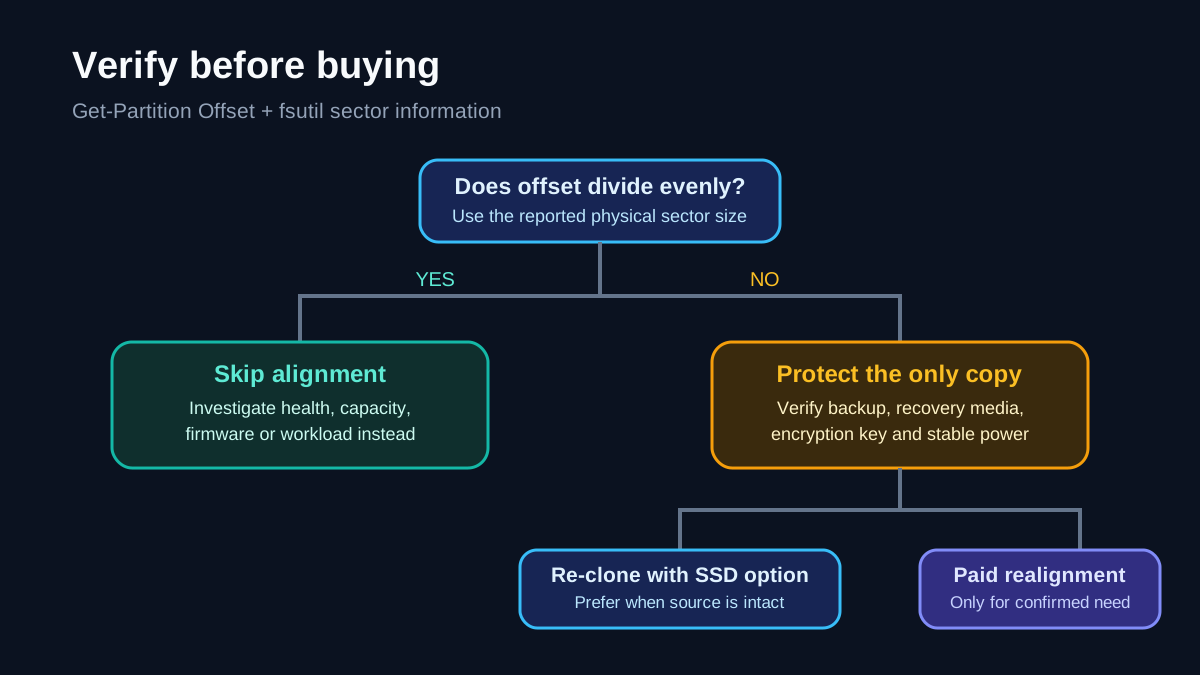
A cloned SSD is not automatically misaligned, and “SSD feels slow” is not proof that a partition boundary is wrong. The safest buying decision is to measure first. If Windows reports a partition offset that divides evenly by the drive’s relevant physical sector size, buying a paid realignment tool is unlikely to solve anything. AOMEI Partition Assistant Professional becomes useful only when the check shows a real problem, the clone-time optimization was not used, and you have a verified backup plus a recovery path.
Disclosure: Toolnavia may earn a commission if you buy through the AOMEI link in this article. The price is not increased for you. The recommendation below is verification-first: do not purchase merely because a clone was performed.
At a glance
- Best for
- Buyers with a confirmed misalignment, verified backup and recovery path when re-cloning is impractical.
- Price model
- Observed $49.95 yearly or $59.95 lifetime for 2 PCs; final cart, tax and renewal terms control.
- Check first
- No guaranteed speed or lifespan gain; alignment can move live data; edition matrix extraction ambiguity and checkout volatility are disclosed.
Quick verdict: verify before you pay
Most current Windows installations begin normal partitions on a 1 MiB boundary. That boundary is divisible by both 512-byte logical sectors and 4,096-byte physical sectors. Modern cloning software can preserve or create that alignment, and AOMEI’s own clone workflow offers an SSD optimization option. Therefore, “I cloned Windows to an SSD” is not enough reason to buy Professional.
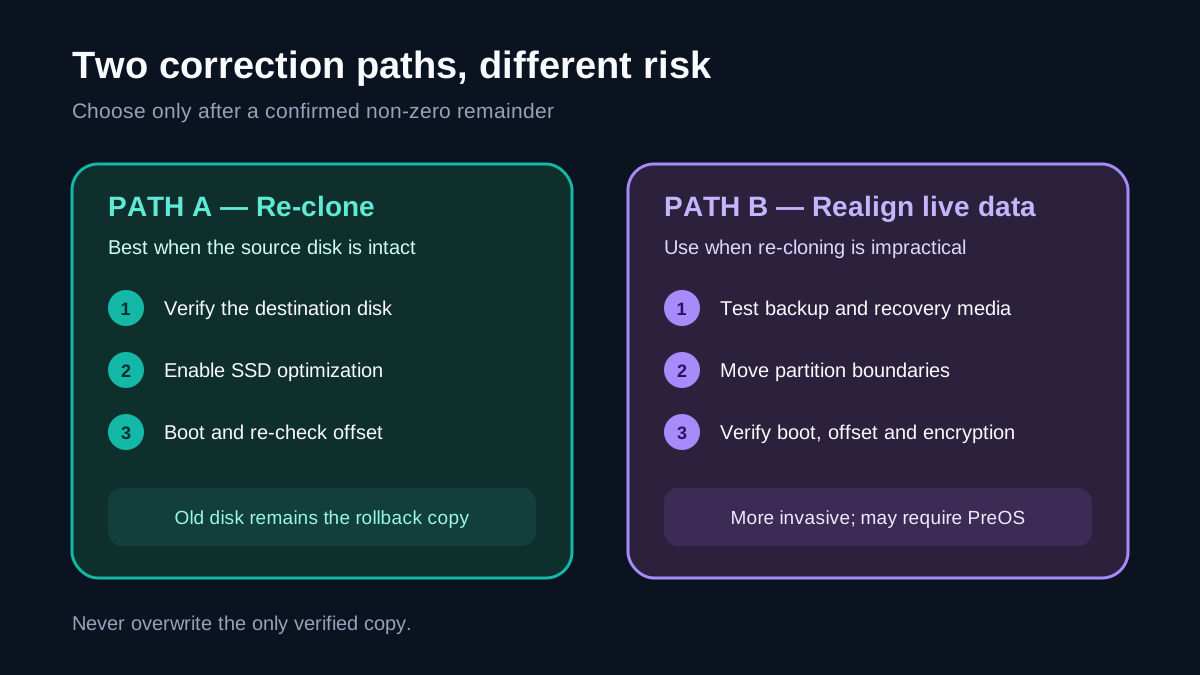
Run the checks in the next section. If every relevant partition is aligned and the computer boots normally, leave the layout alone. If a partition is genuinely misaligned, decide whether you can repeat the clone with SSD optimization before moving live partition data. Post-clone alignment is the more invasive route.
AOMEI’s store showed Professional Yearly at US$49.95 for two PCs and Professional Lifetime at US$59.95 for two PCs when checked on November 5, 2026. The yearly license renews automatically unless canceled; the lifetime offer includes lifetime upgrades. Discounts, currency, tax, and checkout terms can change, so confirm the final order page.
What 4K alignment actually means
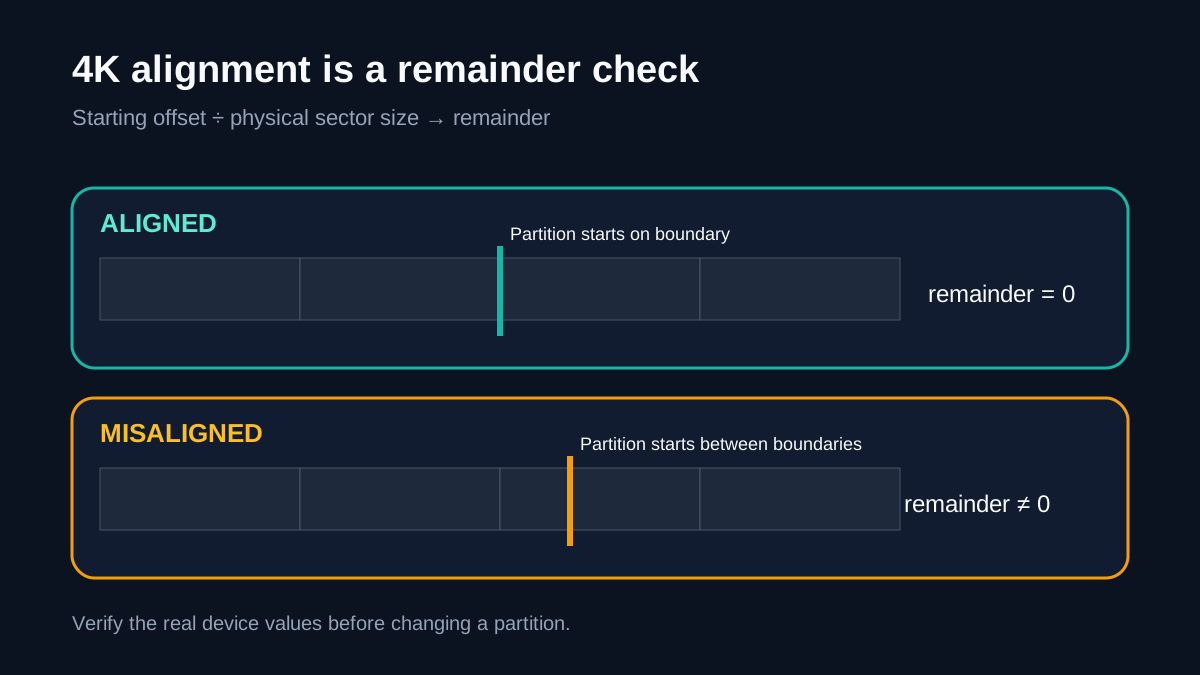
An SSD writes data in physical pages and sectors. Windows also exposes logical sectors to the file system. A partition is aligned when its starting offset falls cleanly on the storage device’s appropriate physical boundary. When it does not, one logical operation may cross physical boundaries and create extra work.
That principle is real, but marketing shortcuts can be misleading. Alignment does not guarantee a specific benchmark gain, and it does not repair unrelated causes of slow storage such as a nearly full drive, thermal throttling, an old SATA link, background indexing, firmware problems, encryption overhead, or a failing SSD. It also does not prove that a cloned installation is healthy.
The useful question is not “Does 4K alignment improve SSDs?” It is “Is this particular partition misaligned against this particular device’s sector information?”
Run the free Windows check first
Open PowerShell as an administrator and inspect the partitions with Get-Partition. Record the disk number, partition number, drive letter, and Offset value. Then run “fsutil fsinfo sectorinfo C:” for the Windows volume, replacing C: if necessary. Note the logical bytes per sector and the physical bytes per sector for performance.
For a straightforward check, divide the partition’s Offset by the reported physical bytes per sector for performance. A remainder of zero indicates that the starting offset is aligned to that boundary. A common 1,048,576-byte offset divides evenly by 4,096.
Check the EFI, recovery, and data partitions too, but do not move boot or recovery boundaries simply because they look unfamiliar. OEM layouts vary. If sector information is unknown, contradictory, or exposed through a storage controller in an unusual way, stop and consult the PC or storage vendor instead of guessing.
Also establish a baseline: confirm that Windows boots, BitLocker or device encryption status is known, SMART health is acceptable, and the drive has enough free space. Save screenshots or command output so you can compare after any change.
When AOMEI clone-time alignment may already solve it
AOMEI documents an “Optimize the performance of SSD” option in its cloning workflow. Its alignment help also says that this optimization can be selected when copying to an SSD. If that option was enabled and your post-clone offset check divides evenly by the physical sector size, there is nothing left for a separate realignment purchase to fix.
This is the cheapest and usually the cleanest path when you still possess a verified source disk: repeat the clone with the SSD option, verify the destination disk selection, and test the new drive before wiping the old one. Remember that committing a clone overwrites the chosen destination. Disconnect unrelated drives if practical and confirm capacities and model names twice.
AOMEI separates data-disk cloning from cloning a running system disk in its edition rules. The paid decision should therefore consider both tasks: whether you need Professional for the system clone itself and whether the resulting partitions are actually misaligned. Do not pay twice in your mental model for a problem the clone workflow already corrected.
When paid post-clone alignment may be justified
AOMEI’s dedicated alignment help says manual Partition Alignment requires Professional, Server, or a higher paid edition. It can detect an already aligned partition and report that no action is needed. That guard is valuable, but it is not a substitute for an external verification record.
Professional is most defensible when all of these are true:
- Windows measurements show a non-zero alignment remainder. - Repeating the clone with SSD optimization is impractical or would cost more time than the license. - The affected system is backed up to independent storage. - You have bootable recovery media and know how to restore the old layout. - The PC is within the two-device license boundary. - You accept that moving partition data may take a long time and may require a PreOS restart.
It is not justified when the offset is already aligned, the symptom is merely “slow,” the SSD is unhealthy, or the machine contains the only copy of important data.
Safety checklist before moving a boundary
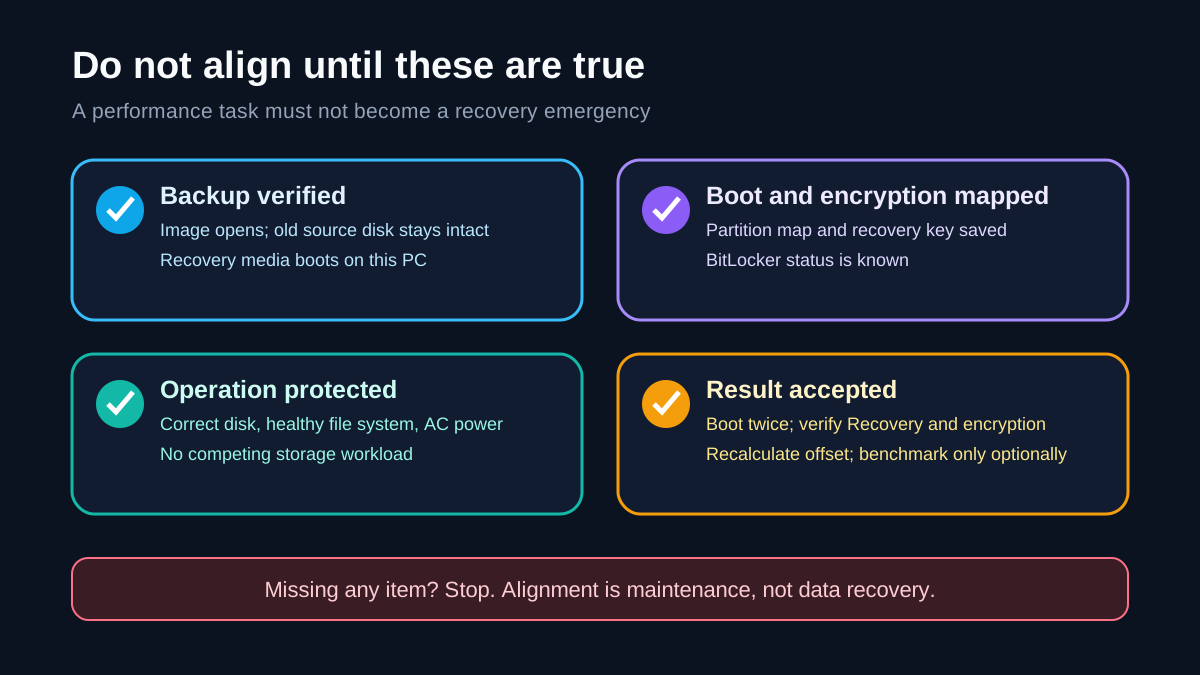
Partition alignment can relocate large amounts of data. Power loss, cable faults, controller errors, or an interrupted restart can turn a performance experiment into a recovery job.
Create a full image backup and verify that it can be read. Keep the original cloned-from drive unchanged until the new SSD has passed boot and application tests. Create bootable recovery media on another device. Record the current partition map. Check the file system for errors. If BitLocker is enabled, store the recovery key somewhere independent and follow Microsoft or the device maker’s guidance before changing partitions.
Use stable AC power; a UPS is preferable for a desktop. Do not run storage-heavy tasks during the operation. Afterward, verify every expected partition, boot twice, check Windows Recovery, confirm encryption state, and repeat the offset calculation. A benchmark is optional and should be run under comparable conditions; do not treat a single score as proof of durability.
Alternatives and break-even
The first alternative is free: do nothing when the partition is already aligned. The second is to repeat the clone with the SSD optimization option while the source disk is still intact. The third is to use a competitor’s alignment function, but the same backup and edition checks apply. MiniTool and EaseUS document similar alignment workflows; their pages do not remove the need to verify the offset or protect the only copy.
At the observed prices, Lifetime was only US$10 more than Yearly. That makes Lifetime look attractive if you expect to use other Professional features or maintain two PCs for more than one year. But the small price gap should not manufacture a need. For a single already-aligned clone, the rational spend is zero.
If you need one system-disk clone now, manual alignment later, bootable media, and recurring partition work across up to two PCs, the bundle of tasks can justify Professional. If alignment is the only task and the check is clean, neither license has a break-even point.
Buy or skip
Buy AOMEI Partition Assistant Professional if a verified misalignment exists, recloning is impractical, you have a tested backup, and the paid feature bundle will be used on no more than two PCs.
Consider the Lifetime option if the final checkout still shows a modest premium over Yearly and you expect repeat use. Confirm whether “lifetime” refers to product upgrades as shown on the current store and keep the invoice and license terms.
Skip the purchase if the offset is already divisible by the relevant physical sector size, the clone-time SSD option already produced a correct layout, or the real problem is drive health, capacity, firmware, interface speed, or workload.
Do not proceed yet if you lack a verified backup, recovery media, the BitLocker recovery key, stable power, or confidence in the disk identity. Alignment is maintenance, not emergency data recovery.
Bottom line
AOMEI Partition Assistant Professional can perform a paid post-clone alignment operation, but the strongest feature in this decision is the one that tells you no action is needed. Measure the partition offset and sector size first. Prefer clone-time optimization when a safe re-clone is available. Buy only for a confirmed misalignment and a broader paid-tool need, then protect the old disk until the new layout survives boot, recovery, and verification checks.