TOOLNAVIA / BUYING GUIDE
AOMEI Partition Assistant Pro: Same-Disk Space or a New SSD?
The short answer
Before buying AOMEI Partition Assistant Professional for a full C: drive, find out where the spare space actually sits. Its Allocate Free Space tool works within one physical disk; an empty second drive needs a different solution. The current two-PC lifetime offer costs $10 more upfront than the annual option.
This is an official-document buying guide, not a Toolnavia disk-operation or performance test.
At a glance
- Best for
- An identified same-disk allocation, supported same-PC app move or system replacement that free tools do not cover.
- Price model
- Displayed $49.95/year or $59.95 lifetime for2PCs; ISOcurrency/tax unverified
- Check first
- Assumed cross-disk capacity transfer, PC-to-PC app migration, Server/Mac licensing or untested changes to the only copy of data.
A drive letter is not a physical disk
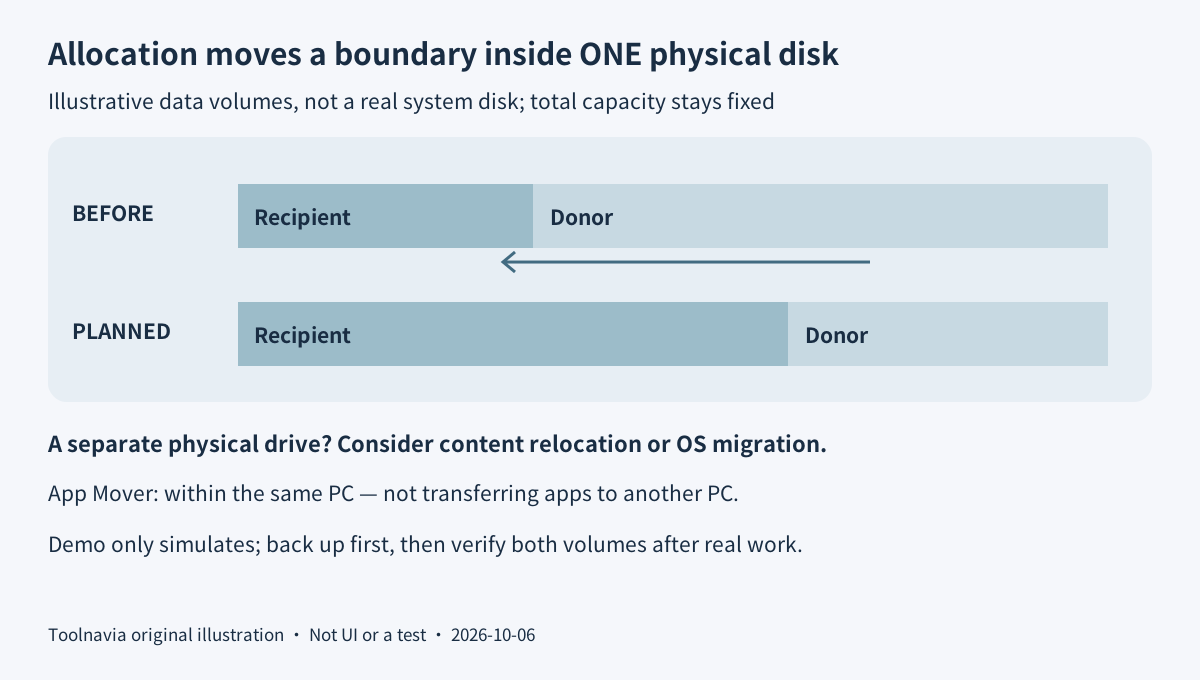
C: and D: can be partitions on one disk or volumes on separate disks. Check the disk number, model and capacity, not just the letters. Redistributing partition boundaries cannot manufacture extra physical storage; when the whole disk is full, moving selected content or replacing the disk is a different decision.
A paid tool is not always necessary. Windows Disk Management can extend an NTFS or ReFS volume into unallocated space immediately to its right on the same disk. AOMEI Standard also offers basic resize, move and merge operations. Free space inside an existing partition is not yet unallocated space.
Standard's page uses broad cloning language, while the download comparison explicitly reserves system-disk cloning and OS migration for Pro. Follow the specific operation gate rather than assuming every visible clone button is free.
Four Pro capabilities solve different problems
**Reallocate space inside the same disk.** Allocate Free Space combines shrinking a donor partition with expanding the chosen destination. It is a convenient way to use capacity already available elsewhere on that disk. It does not transfer empty capacity from a separate physical drive. Busy partitions can require a restart; review the pending operation and keep a verified backup.
**Move selected applications instead of all of Windows.** App Mover can relocate listed movable applications or folders to another partition on the same PC. This can address a small system volume without replacing the operating system. It is not PC-to-PC migration, and protected system folders are excluded. The official FAQ acknowledges some applications can fail afterward; test launching, updating and restoring a sample application before wider use.
**Replace the system drive.** Migrate OS transfers the current computer's running system to a suitable destination. The wizard warns that data at the selected destination will be destroyed, and a system operation can require Windows PE or PreOS restart. Identify and protect both drives first. Success requires booting from the intended new drive and checking files, not merely reaching the end of the copy progress bar.
**Prepare an external working environment.** Pro includes WinPE bootable-media creation, useful for inspecting storage when the installed Windows cannot start. Test that the medium boots and recognizes the intended controller and disk before an emergency. A bootable tool is not itself a backup of your files, and it cannot repair every physical drive fault.
Two-PC licenses: $49.95 yearly or $59.95 lifetime
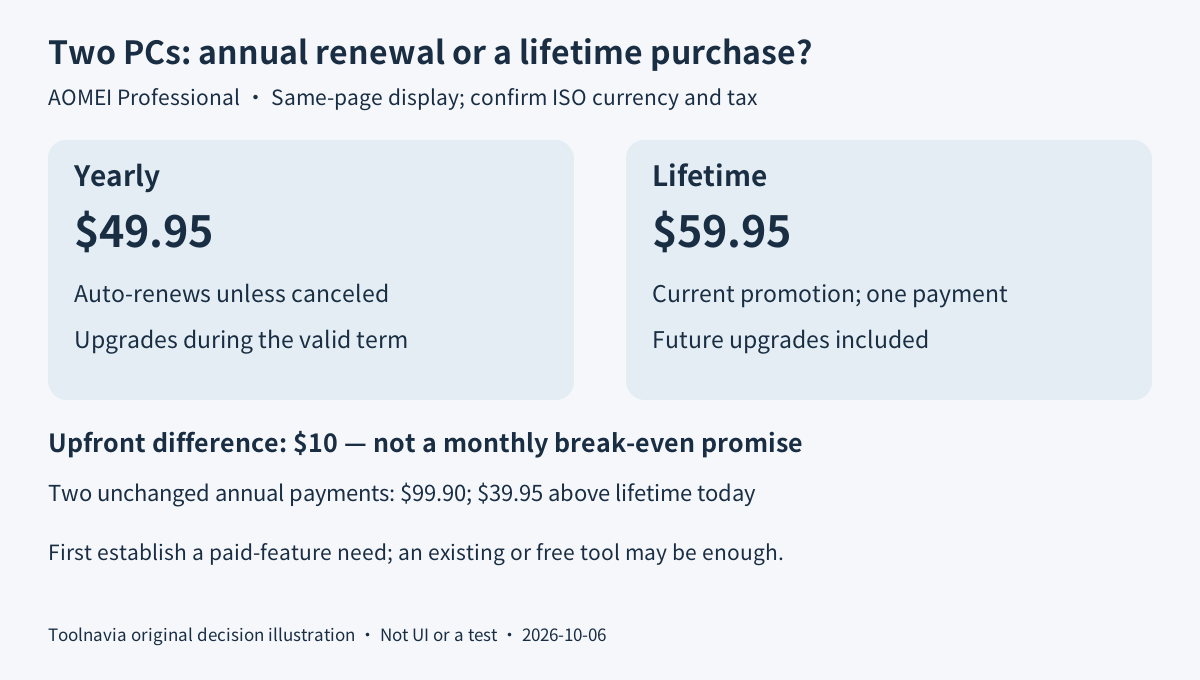
The purchase page shows Professional Yearly at $49.95 and Professional Lifetime at a promotional $59.95, both for two PCs. The annual option auto-renews unless canceled; lifetime is a one-time payment with lifetime upgrades. The specific upgrade guidance limits non-lifetime paid upgrade coverage to the valid service period. Do not confuse upgrade coverage with a promise that an expired annual license remains fully usable.
At those same-page amounts, lifetime costs $10 more today. Two annual payments unchanged at $49.95 would total $99.90, or $39.95 more than today's lifetime option. That comparison matters at the second annual payment, not at an invented monthly break-even date. A short project can still favor the smaller initial commitment.
The final checkout was unavailable and the rendered dollar symbol did not establish an ISO currency. Confirm currency, tax, full charge, next renewal and cancellation instructions for your order. The direct-purchase page advertises a 90-day refund guarantee; keep the receipt and request details rather than assuming canceling renewal also requests a refund.
Check an existing license before buying a second utility. EaseUS Professional's comparison lists two PCs; MiniTool Partition Wizard Pro is a one-PC annual license, with more devices and lifetime upgrades reserved for other options. These are licensing comparisons, not a speed ranking or a claim that regional checkout prices are equivalent. Our existing [EaseUS Partition Master guide](/software/easeus-partition-master) covers that separate product.
Suggested rehearsal: map, preview, then verify
Use a disposable test disk with sample data, not your only system drive. Keep an independent copy, note the physical disk identity and current partition sizes, and confirm that the donor and recipient are on the same disk. Do not delete unfamiliar EFI or recovery partitions to copy an example.
In the documented allocation workflow, select the donor, choose Allocate Free Space, and inspect the amount and destination. Review Pending Operations before committing anything. The Professional Demo only simulates operations: a convincing preview is not a completed resize or a restore test.
Only execute a separately approved, understood change on disposable data with a suitable license. Afterward, check both partition sizes and open sample files from both volumes; handle any required restart as part of the test. These are proposed acceptance criteria, not operations Toolnavia performed on a computer.
Buy for the correct disk problem
Keep free tools for a routine layout they already support. Consider Pro for a specific same-disk allocation, supported app move or system-replacement workflow; choose the license duration only after that need is clear. This Professional PC edition is not the Server edition.
AOMEI's cash affiliate application is open, but Toolnavia approval is unverified and tracking stays disabled. The next useful action is to map the storage and identify the missing operation—not to buy because a partition bar has turned red.