TOOLNAVIA / BUYING GUIDE
AOMEI Migrate OS to SSD vs Clean Install: Which Saves More Time?
The short answer
If your current Windows installation is healthy, AOMEI Partition Assistant Professional's Migrate OS wizard can save the hours normally spent reinstalling applications, restoring settings and rebuilding a working environment. If Windows is unstable, infected or burdened by years of unwanted software, a clean install is the better reset. The paid tool buys continuity and time; it does not make a damaged installation healthy or guarantee a faster computer.
At a glance
- Best for
- Same-PC SSD upgrades where a healthy Windows environment is costly to rebuild.
- Price model
- Professional displays $49.95 yearly or $59.95 lifetime for two PCs; checkout controls.
- Check first
- Not for an unstable or infected Windows installation, a failing source drive, or unrelated-hardware transfer.
Quick verdict
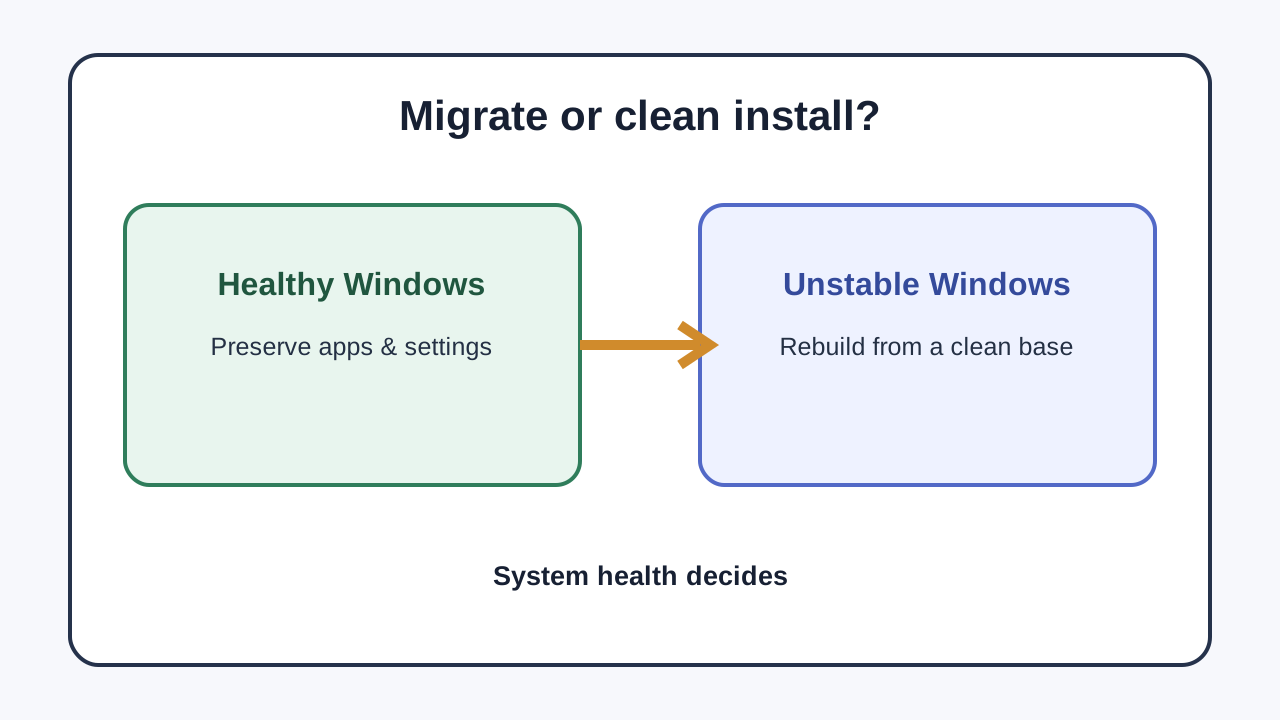
Choose **Migrate OS to SSD** when the current PC boots reliably, the applications and settings are worth preserving, and the destination SSD is large enough for the used system data. Choose a **clean install** when crashes, malware, unexplained errors or accumulated clutter are the reason for the upgrade. Independent same-intent guides reach the same boundary: clone a healthy environment, rebuild an unhealthy one.
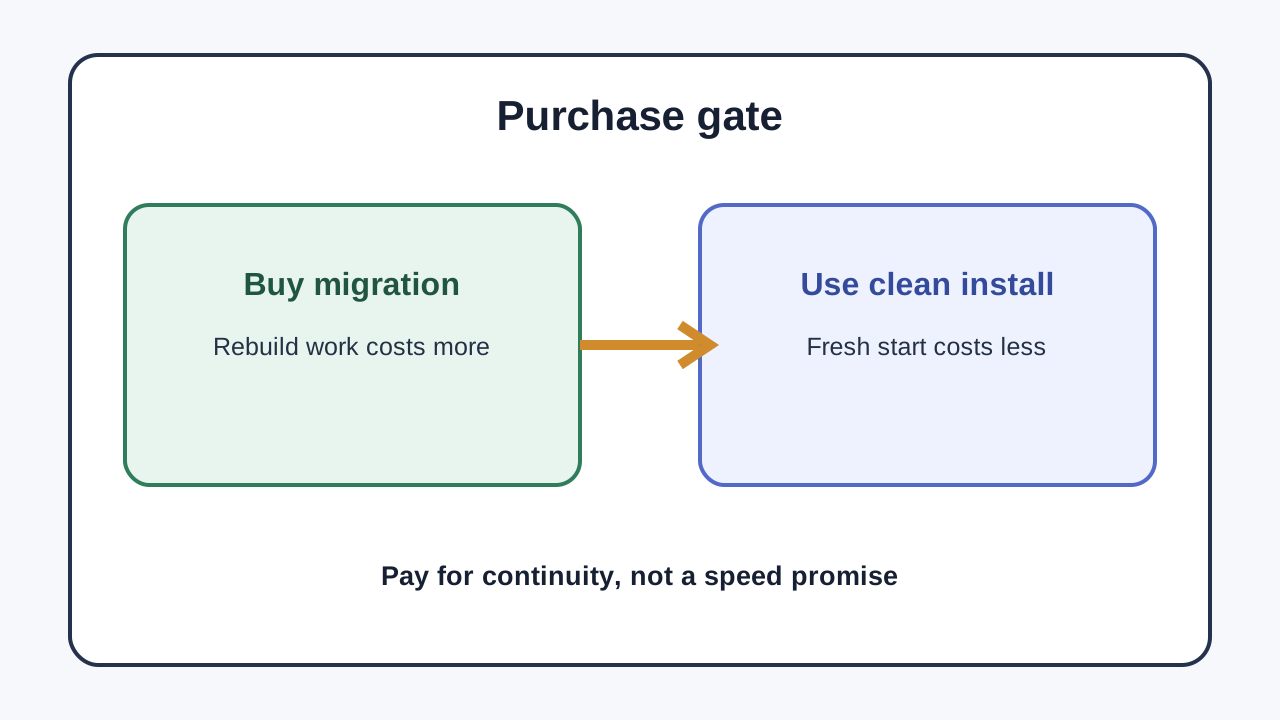
The decision must happen before checkout. AOMEI's exact Professional offer is approved and enabled for Toolnavia, but the software should be purchased only when preserving the existing environment has real value. If Windows and your applications can be rebuilt quickly from documented installers and cloud data, Microsoft's free installation-media workflow may be enough.
What the paid migration wizard buys
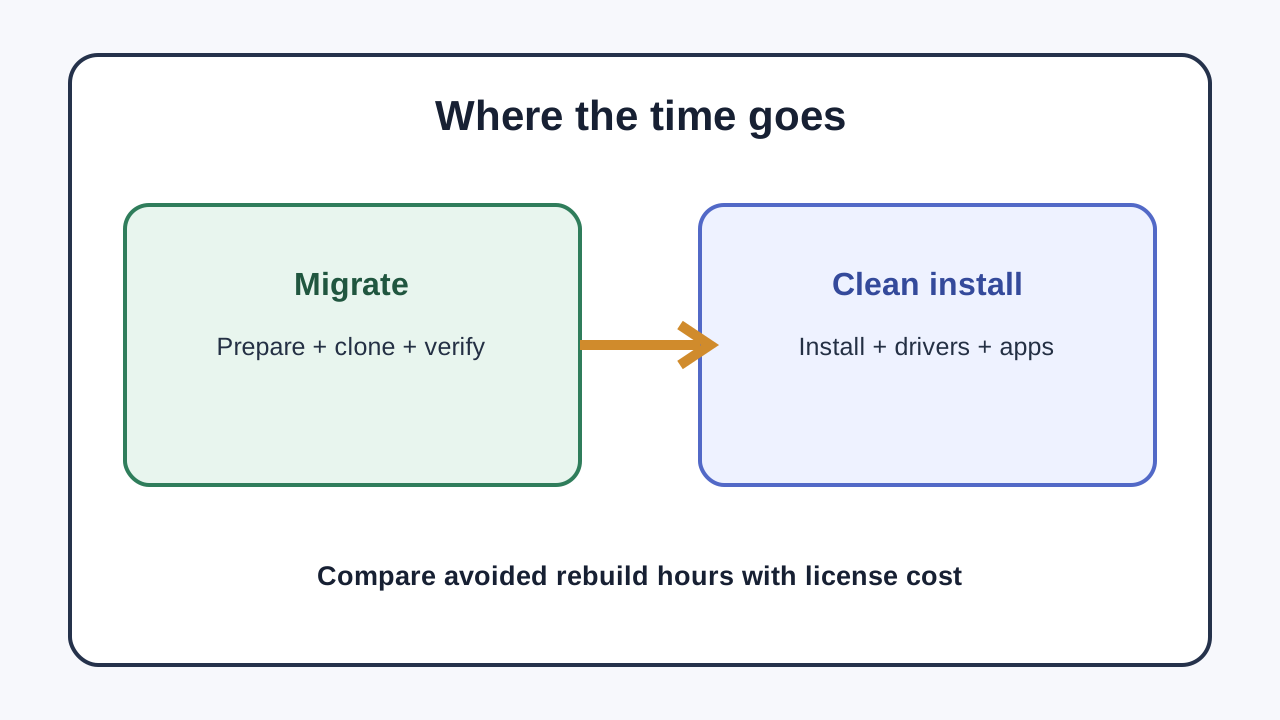
AOMEI says Partition Assistant can move Windows to a new SSD without reinstalling the operating system and applications. Its help page identifies Migrate OS to SSD as a Professional feature, describes hot-clone operation, and documents MBR/GPT and boot-mode conditions. The practical benefit is not magical speed. It is avoiding the work of reinstalling software, signing back into services, recreating preferences, restoring local files and validating specialist drivers.
The current exact offer displays Professional for two PCs at $49.95 yearly or $59.95 lifetime, with the checkout page controlling final currency, tax and total. Those prices can change. Use them only as a current decision aid. If a clean rebuild would take you two focused hours and you value that time above the license price, migration can break even on labor alone. If rebuilding takes thirty minutes and you welcome a reset, paying for continuity is harder to justify.
When migration wins
Migration is the stronger choice when all four conditions are true:
1. Windows is stable enough that you would happily keep using the same installation. 2. The target SSD can hold the used system data with sensible free-space headroom. 3. Important apps, licenses, profiles or local configuration would be costly to recreate. 4. The source and target boot modes are compatible, or you understand the required conversion and firmware settings.
AOMEI's broader transfer guides distinguish cloning from fresh installation and system-image restoration. For a same-PC SSD replacement, a system migration can preserve the environment while avoiding a full-disk copy of unrelated data partitions. That does not remove the need to inspect the pending-operation summary. Confirm which partitions are being moved, which disk will be overwritten and which drive will become the boot target.
Do not treat a successful clone job as proof of a successful upgrade. The result counts only after the PC boots from the new SSD, Windows loads normally, critical applications start, BitLocker status is understood, and the old drive remains untouched long enough to reverse the change.
When a clean install wins
A clean install is the better investment when the operating system itself is the problem. Frequent crashes, suspected malware, corrupted components, driver conflicts and unexplained startup failures can all travel with a migrated image. Cloning preserves strengths and weaknesses together.
Microsoft's reinstall guidance says a clean installation removes personal files, apps, settings and manufacturer customizations. That cost is also its advantage: you rebuild from a known Windows baseline. The process needs installation media, a verified backup, product and account access, network or storage drivers where necessary, and a list of applications and license details. After installation, allow time for Windows Update, driver verification, data restoration and application setup.
A new SSD does not require a paid migration tool. If the old installation is disposable or already unreliable, create Microsoft's installation media and rebuild. The clean-install route is slower on day one but can prevent you from paying to preserve problems.
Compatibility and boot risks
The destination must have enough capacity for the data actually being migrated. “A larger advertised SSD” is not the same as sufficient usable space after partitions and recovery data are considered. Check the source's used capacity, the target's usable capacity and the partitions included in the operation.
Firmware and partition style matter. The official AOMEI help documents MBR/GPT conditions and the need to use the appropriate BIOS or UEFI boot mode. BitLocker also deserves a deliberate step: save the recovery key and understand whether protection needs to be suspended before changing the boot disk. Do not erase the source disk merely because the migration software reports completion.
Hardware changes beyond the disk can change the answer. Moving the same Windows installation to a substantially different motherboard or platform can introduce driver and activation work. This article covers replacing the system drive in the same PC, not transferring a licensed Windows environment to unrelated hardware.
Time and cost break-even
Use a simple labor comparison:
**migration value = avoided reinstall hours × value of your time − migration verification time**
A healthy, customized workstation with many licensed apps can make the avoided hours substantial. A lightly used home PC with browser-synced settings may be easier to rebuild. The current $49.95 yearly and $59.95 lifetime displays are not a reason to buy by themselves. They are a ceiling to compare with the value of the time you expect to save.
Choose yearly for a one-off upgrade that should finish inside one term. Choose lifetime only if you expect repeated partition or migration work on the same two-PC scope and the checkout still shows the expected lifetime price. Neither license turns migration into backup, guarantees a bootable result or repairs a bad Windows installation.
Toolnavia may earn a commission from the exact [AOMEI Partition Assistant Professional route](/go/aomei-partition-assistant-professional-official-display). The commercial route is shown only because the exact offer is approved, market-confirmed and enabled. No coupon or guaranteed discount is claimed.
Safe SSD workflow
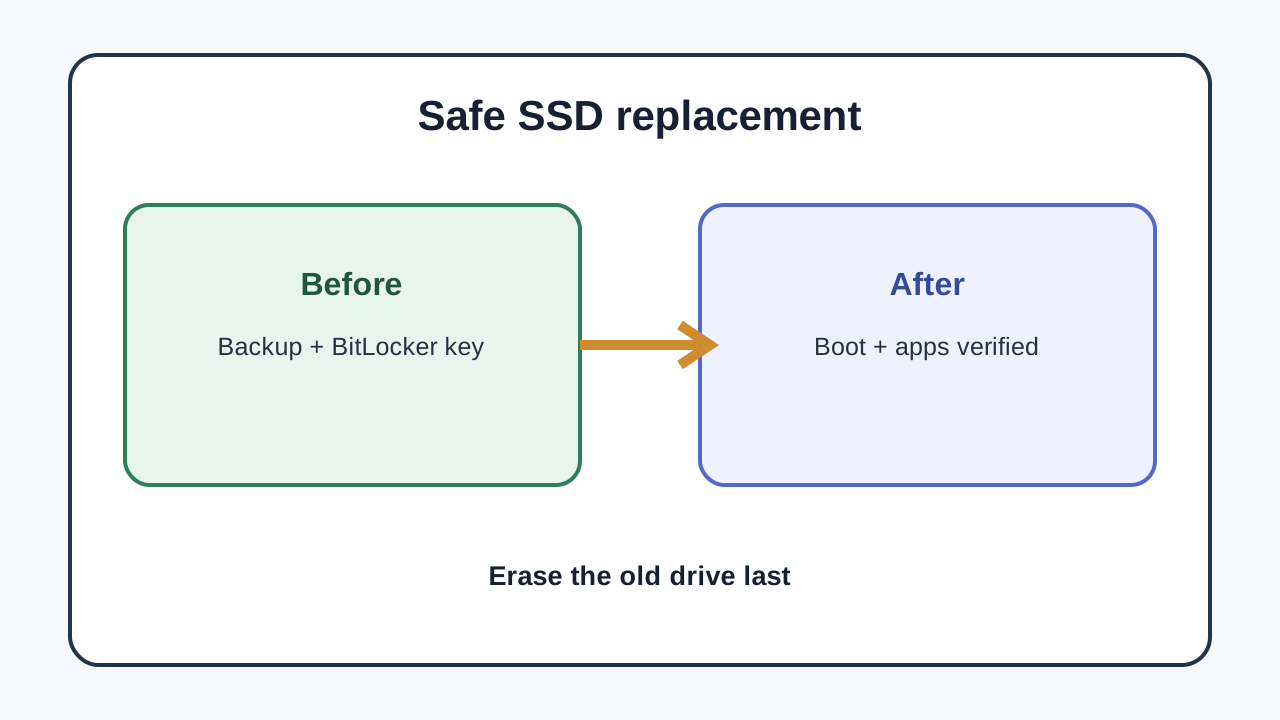
1. Make a separate, verified backup of irreplaceable files. 2. Save the BitLocker recovery key and record activation or license details. 3. Check source used space, target usable capacity, partition style and boot mode. 4. Connect the SSD reliably and close unnecessary applications. 5. Review every pending migration operation before applying it. 6. Boot explicitly from the new SSD while the source drive is still intact. 7. Test Windows, network access and critical applications; restart at least once. 8. Keep the old drive unchanged until the new installation has passed your own acceptance checks.
This workflow follows the shared safety themes in the AOMEI, Box, ITPro and HP material: prepare, verify capacity, preserve a fallback, confirm the new boot path and only then retire the original drive.
Checkout decision checklist
Buy the migration tool only if you can answer yes to these questions:
- Is the current Windows installation healthy enough to preserve? - Would reinstalling applications and settings cost more than the license? - Is the target SSD compatible and large enough? - Do you have a separate backup and the BitLocker recovery key? - Will you verify boot and applications before erasing the source?
If the first answer is no, stop. A clean install is the safer default. If all five answers are yes, AOMEI's Migrate OS workflow can be a rational time-saving purchase. The decisive benefit is continuity—not a promised performance boost.