TOOLNAVIA / BUYING GUIDE
AOMEI FastRecovery Windows Data Recovery: 500MB Free Test Before You Pay
The short answer
At a glance
- Best for
- Windows logical-loss recovery where the drive is healthy enough to scan and previews confirm the needed files.
- Price model
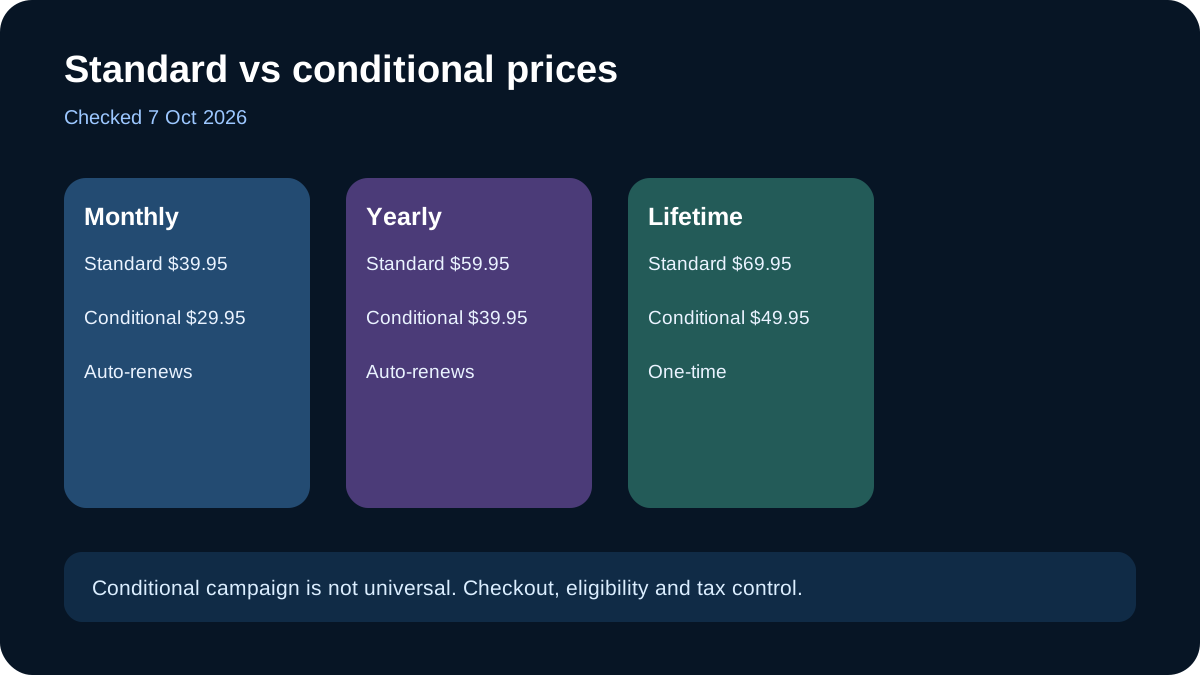
- Standard: $39.95 monthly / $59.95 yearly auto-renew; $69.95 lifetime. Conditional campaign is lower; verify checkout.
- Check first
- Windows-focused; physical damage and unallocated-space recovery are out of scope; standard and conditional prices differ; free-limit wording varies by official page.
Verdict
AOMEI FastRecovery Professional is worth considering only after its free scan and preview show the files you actually need. For a Windows PC with logical data loss, the $69.95 lifetime license is the clearest repeat-use value because it is only $10 above the $59.95 auto-renewing annual plan. Do not buy it for a physically damaged drive, and do not treat a vendor success-rate claim as proof that your files will return.
Test the free edition before paying
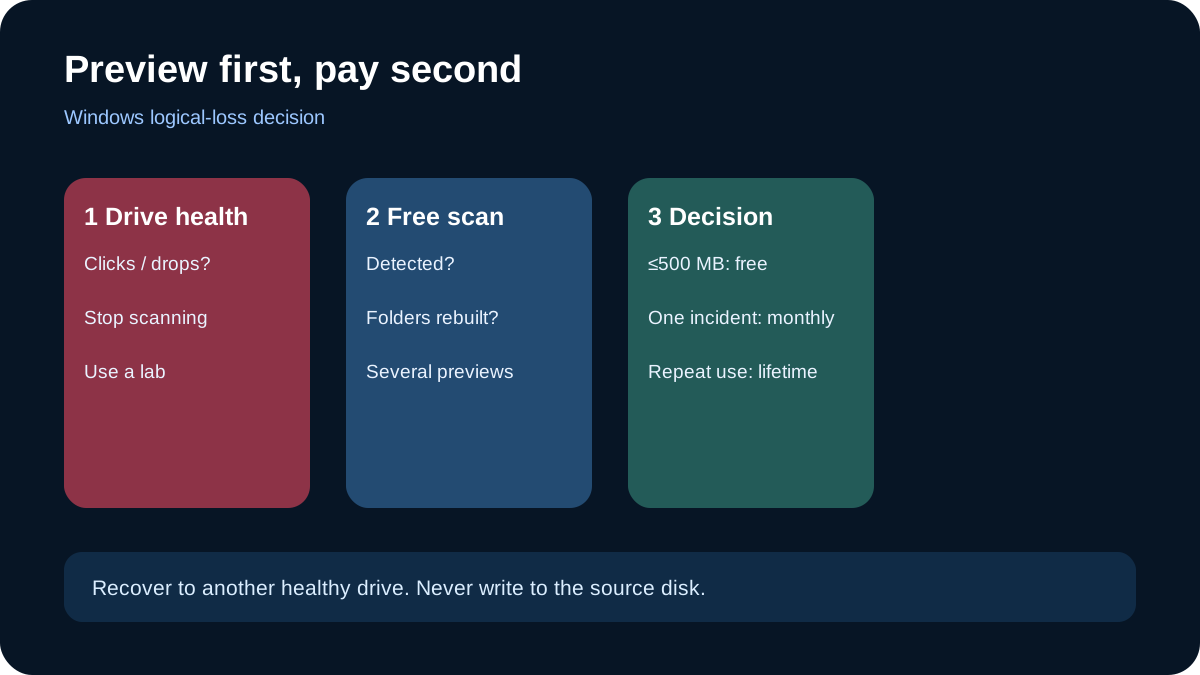
Start with the free edition, not checkout. AOMEI's public download page says FastRecovery Free can recover up to 500 MB. A separate installed-user partner page describes 30 MB per recovery operation. Read those statements together: the public total allowance is 500 MB, while one flow may impose a smaller per-operation cap. Either limit is enough to test disk detection, folder reconstruction and several intact previews before payment. If the files do not open correctly in preview, unlimited recovery will not improve the underlying scan.
Four practical recovery benefits
First, FastRecovery covers common logical-loss cases: deleted files, formatted volumes, lost partitions, emptied Recycle Bin, USB drives, SD cards, HDDs and SSDs. Second, Quick Scan can surface recent deletions while Deep Scan searches more broadly when file-system records are missing. Third, filters and preview help you avoid restoring a large pile of unusable files. Fourth, bootable WinPE media can help when Windows will not start but the storage device is still detected. These are workflow benefits, not guarantees of recovery.
Standard prices, renewal and conditional offers
The standard US store showed $39.95 monthly and $59.95 yearly, both auto-renewing for one computer, plus a $69.95 lifetime option described as a one-time payment with lifetime upgrades. The annual-to-lifetime gap is therefore $10. Monthly makes sense only for a controlled one-off emergency that you will cancel promptly; repeated Windows use points to lifetime after the preview test succeeds.
A separate official uninstall-campaign page showed lower conditional prices of $29.95 monthly, $39.95 yearly and $49.95 lifetime. That is not the general store, so this article does not present those figures as standard pricing. Verify the final checkout total, eligibility, tax and renewal language on the purchase date.
Important boundaries
FastRecovery is Windows-focused. Mixed Windows/macOS households should compare cross-platform alternatives. AOMEI's FAQ says physical disk damage is outside the tool's scope; stop scanning a clicking or intermittently disappearing drive and consider professional recovery. It also says unallocated-space recovery is not currently supported. Never install the software on, or restore files to, the same drive that lost data because new writes can overwrite recoverable sectors.
What independent coverage can and cannot prove
Independent coverage is still thin. UrRecover says it had not bench-tested FastRecovery, while iTechGuides and Softpedia mainly describe its feature set, free allowance and scanning workflow. A hands-on note discloses a vendor-provided license, and TechRadar's broader category comparison gives EaseUS, Stellar and Disk Drill more testing history. That does not prove FastRecovery is ineffective; it means your own scan and preview should control the decision.
Next step
Download the free edition to a different healthy drive, scan the affected device, preview several high-value files, and save any recovery to another disk. If previews work and you need more than the free allowance, choose lifetime for repeated Windows use or monthly for a single incident. Toolnavia has no approval evidence for this product and market, so affiliate tracking remains hidden.