TOOLNAVIA / BUYING GUIDE
AOMEI FoneBackup for WhatsApp Business: Is Pro Worth It Without iCloud?
The short answer
# AOMEI FoneBackup for WhatsApp Business: Is Pro Worth It Without iCloud?
The paid shortcut is useful only after WhatsApp’s free route fails its eligibility test—and only if you control the target-phone overwrite risk.
> **Affiliate disclosure:** Toolnavia may earn a commission if you buy through the AOMEI link. This does not change the price you pay or the overwrite risks described here.
**Verdict:** FoneBackup Professional can be worth paying for when iCloud is unavailable or deliberately avoided and both iPhones can connect to a Windows PC. It is not a no-risk merge tool. AOMEI’s transfer instructions say the target phone’s WhatsApp data is overwritten, so protect the target first and validate the result before treating the migration as complete.

The three gates in one minute
Buy only if all three answers line up:
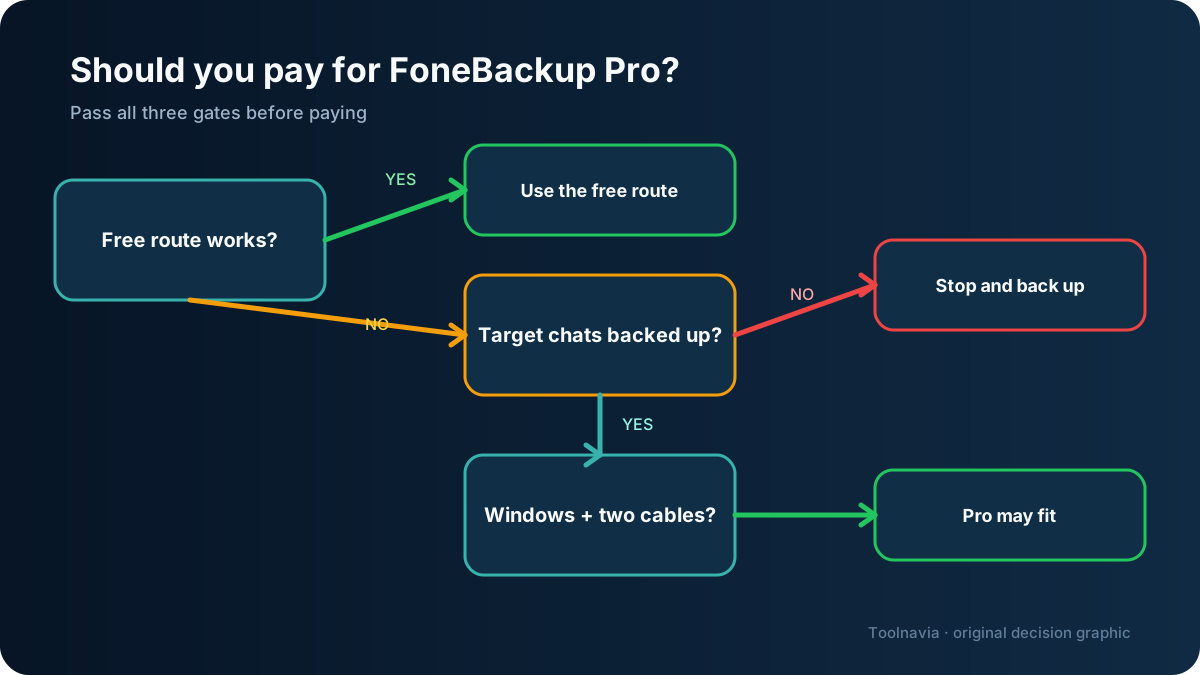
1. **WhatsApp’s free route does not fit.** You cannot or do not want to use old-device chat transfer or iCloud restore under their current conditions. 2. **The target phone is protected.** Existing WhatsApp or WhatsApp Business history on the target has been backed up or exported, because the documented AOMEI workflow overwrites it. 3. **The paid workflow fits your equipment.** You have a Windows PC, two data-capable USB cables, stable power, time to verify the result, and a use case worth paying to solve.
If the free route works, use it. If the target history cannot be replaced, stop. If you have only a Mac, this documented AOMEI workflow is not the right fit.
[Check the current FoneBackup Pro offer](https://www.tkqlhce.com/click-101895278-17143106?url=https%3A%2F%2Fwww.aomeitech.com%2Fphone-tool%2F) only after those gates pass.
At a glance
- Best for
- Windows users moving WhatsApp/Business between iPhones without iCloud after protecting target chats.
- Price model
- Official pages showed $35.95–$39.95 yearly and $53.95–$59.95 lifetime on 2026-10-31; checkout controls.
- Check first
- Windows and two cables required; target WhatsApp data is overwritten; no guaranteed merge; versions and Business-specific objects require validation.
Gate 1: Can WhatsApp’s free transfer solve this?
Start with WhatsApp’s own routes. They are the correct price baseline: free.
An iPhone-to-iPhone move may use WhatsApp’s old-device chat-transfer flow. An iCloud restore is a different route. Each has conditions. You may need access to the old phone, the same phone number and account, security verification, enough device and cloud storage, and the password or key for an end-to-end encrypted backup. Messages created after the latest backup are not part of that backup.
That means “avoid iCloud” is not automatically a reason to buy software. First ask:
- Is the old iPhone still working and available? - Can the same WhatsApp or WhatsApp Business number be verified on the new iPhone? - Does the official device-to-device route appear during setup? - If you prefer iCloud, is there enough storage and do you have the encrypted-backup credential? - Can you keep both phones powered and untouched long enough to finish and verify the move?
If the official route works and its conditions are acceptable, paying for FoneBackup adds little. The paid case starts when the native route is blocked, unsuitable, or deliberately rejected for a clear reason—not merely because a third-party button looks easier.
Gate 2: What are you actually paying for?
AOMEI’s product pages discuss local WhatsApp backup without iCloud, encrypted backups, restore, and direct transfer. Those are not one identical entitlement.
The important buying boundary is this: the documented direct iPhone-to-iPhone WhatsApp/WhatsApp Business transfer and restore workflow uses FoneBackup Professional. Do not read “backup” language as proof that the complete migration path is free.
The practical value of Pro is therefore not “a better iCloud.” It is a Windows-based local workflow that can:
- create a local copy of supported WhatsApp data; - retain that copy outside iCloud; - restore supported data to another iOS device; and - move WhatsApp or WhatsApp Business between two connected iPhones.
AOMEI’s help page lists messages and common media types such as photos, videos, documents, audio, stickers, and links in its WhatsApp backup scope. It also warns that encryption passwords are needed later and that app-version differences can cause abnormal results.
For a broader look at local iPhone backup pricing and licensing, see our [FoneBackup local iPhone backup guide](/software/aomei-fonebackup). If your main concern is preparing an encrypted copy before repair, use the [encrypted pre-repair backup checklist](/software/aomei-fonebackup-encrypted-local-backup-before-iphone-repair).
Do not lock in an old promotional price
AOMEI displays yearly and lifetime choices, but checkout prices, renewal wording, taxes, refunds, and included upgrades can change. This article deliberately does not freeze an earlier promotional number. Recheck the final checkout and license terms on the day you buy. If device or PC limits matter, read our [FoneBackup device-limit and license-transfer guide](/software/aomei-fonebackup-professional-device-limit-license-transfer).
Gate 3: Accept the target-chat overwrite contract
This is the decision most “easy transfer” summaries miss.
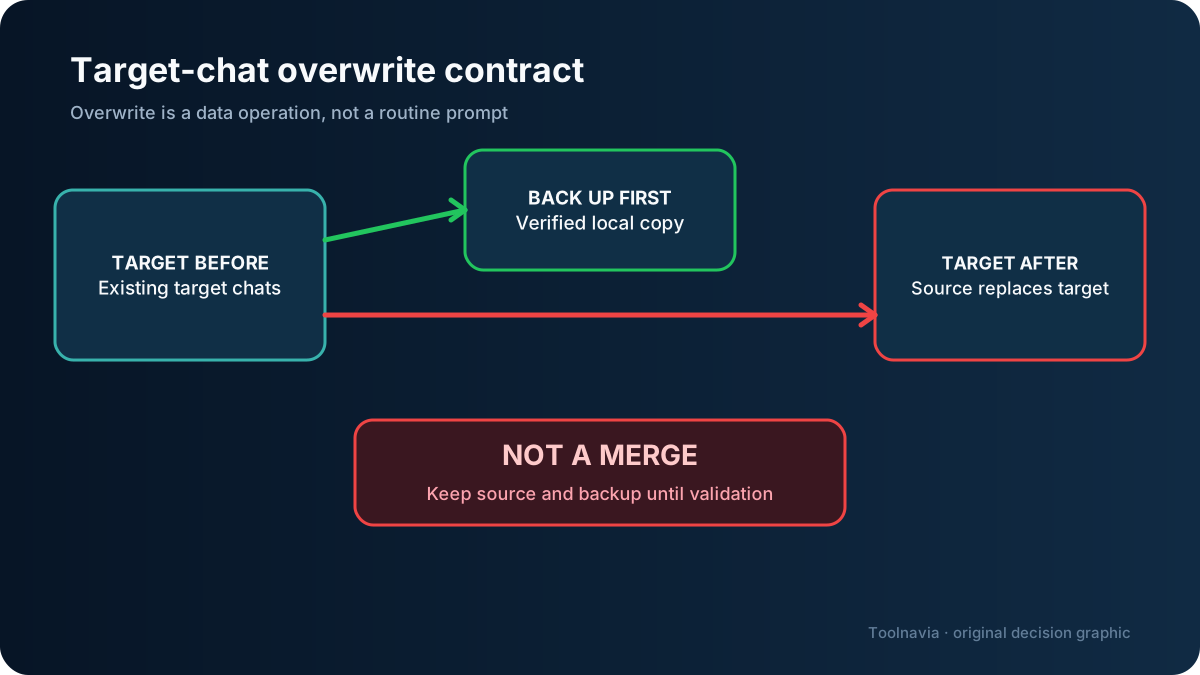
AOMEI’s support workflow says the target phone’s WhatsApp data is overwritten. That is replacement, not merging. The source history may arrive successfully while useful chats already on the target disappear.

Before connecting the phones:
1. Open the target iPhone and identify any chats, media, documents, labels, or business records that must survive. 2. Create a separate backup or export for that target-side material. 3. Verify that the backup is readable or restorable; the existence of a file is not proof of recovery. 4. Save any encryption password outside the phone. 5. Keep the source iPhone unchanged until the target passes post-transfer checks.
A competitor may advertise a merge option in a particular direction. That does not prove AOMEI merges chats. MobileTrans, for example, documents both overwrite and merge choices for some workflows, while also saying iOS-to-iOS transfers overwrite target WhatsApp data. Tenorshare similarly warns about target replacement in its documented flow. These differences are product- and direction-specific.
The safe AOMEI assumption is simple: **protect the target, expect replacement, and verify afterward.**
The Windows and two-cable preflight
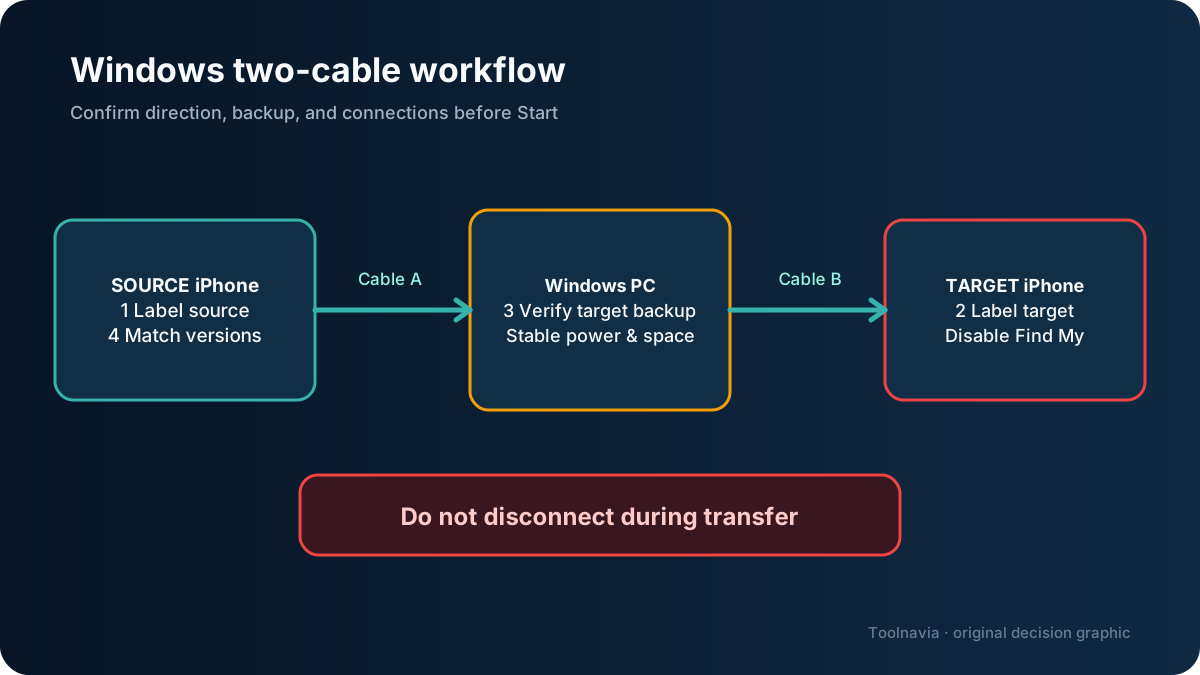
AOMEI’s current direct-transfer instructions use a Windows computer and two USB cables. A clean preflight reduces avoidable mistakes.

Before you press Start
- Label one phone **SOURCE** and the other **TARGET**. - Use two cables that carry data, not charge-only leads. - Connect the Windows PC to stable power and confirm adequate local disk space. - Back up the target chats and verify that backup. - Update or align WhatsApp/WhatsApp Business versions where practical. - Stop active messaging during the transfer window. - Disable Find My iPhone on the target when AOMEI’s workflow requires it. - Record encryption credentials somewhere recoverable.
Inside FoneBackup, inspect the source/target direction before proceeding. Treat the overwrite warning as a real data operation, not a routine confirmation box. Do not disconnect either device until the tool reports completion. If the target restarts or presents setup prompts, follow the vendor’s documented steps rather than improvising a merge.
This workflow is different from adding ordinary files from a PC. Our [PC-to-iPhone transfer guide](/software/aomei-fonebackup-pc-to-iphone-without-erasing) covers that separate, non-WhatsApp purchase question.
When Pro is worth it—and when it is not
Pro may be worth considering when
- iCloud is full, unavailable, or intentionally avoided; - the WhatsApp native route is not eligible or has failed for a documented reason; - both phones are iPhones and a Windows PC is available; - existing target chats have been protected; - a local encrypted copy is valuable after the move; and - the time saved is worth more than the verified current license cost.
Skip it when
- WhatsApp’s free transfer works; - you only need a one-off local backup, not paid restore or direct transfer; - you have only a Mac; - the target history cannot be overwritten; - you require a guaranteed merge of source and target chats; or - app-version, account, MDM, or cable problems remain unresolved.
| Route | Cost baseline | Desktop requirement | Target-history handling | Best fit | |---|---:|---|---|---| | WhatsApp old-device transfer | Free | Usually no desktop | Follow WhatsApp’s current prompts | Eligible users with the old phone | | iCloud restore | Free software; storage may matter | No Windows PC | Restores the selected backup state | Users with account, storage, and backup credentials | | AOMEI FoneBackup Pro | Paid | Windows, two cables for direct iOS-to-iOS flow | AOMEI documents overwrite | Local, non-iCloud workflow with a protected target | | MobileTrans | Paid | Desktop workflow | Overwrite or merge depends on direction/mode | Users who verify the exact direction before buying | | iCareFone Transfer | Paid | Windows or Mac product options | Vendor warns of target overwrite in relevant flows | Users who verify platform and license limits | | Dr.Fone WhatsApp Transfer | Paid | Desktop workflow | Varies by direction and feature | Users who verify the exact transfer path |
Only the AOMEI offer is linked commercially here because it is the approved offer mapped to this article. The comparison is not a promise that another product preserves every WhatsApp Business object.
Do not call it done until these checks pass
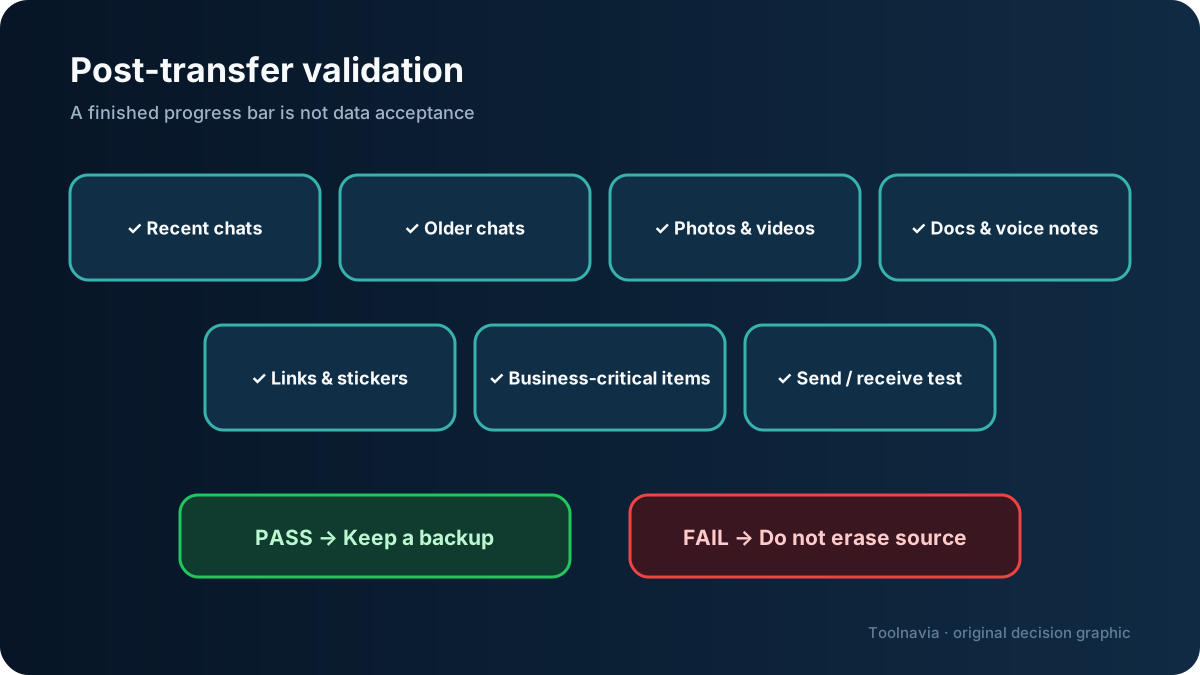
A progress bar is not acceptance. Open the target phone and inspect real content.

Check:
- several recent chats and several older chats; - text, photos, videos, documents, voice notes, stickers, and links; - group threads and one-to-one threads that matter; - WhatsApp Business profile details and any labels or business-critical items you rely on; - a send-and-receive test only after the history checks; and - the source phone and local backup are still intact.
AOMEI’s documentation describes major chat and media categories, but it does not justify promising that every business-specific setting survives every version combination. Test the items your operation depends on. If anything important is missing, stop using the target as the sole copy and keep the source and backups untouched.
Who should buy it?
FoneBackup Pro fits a narrow but real case: an iPhone-to-iPhone WhatsApp or WhatsApp Business migration that must avoid iCloud, can use Windows, and has a protected target phone.
It is a poor fit for Mac-only users, anyone who cannot tolerate target-chat replacement, or anyone who needs guaranteed merging. It is also unnecessary when WhatsApp’s free route works.
Quick questions
**Is the direct transfer free?** AOMEI’s documented direct transfer and restore workflow is a Professional function. Do not confuse free/local backup language with the full migration path.
**Does FoneBackup merge source and target chats?** Do not assume that. AOMEI documents target overwrite for this workflow.
**Is iCloud required?** No for the local AOMEI workflow, but you still need a Windows PC, working cables, device access, and a safe backup plan.
**Does it work on Mac?** The AOMEI direct-transfer documentation reviewed for this guide specifies Windows. This article does not claim a Mac workflow.
**What should I back up first?** Anything on the target phone that must survive, plus any encryption credentials needed to open or restore that backup.
If those limits fit your case, [recheck FoneBackup Pro pricing and license terms](https://www.tkqlhce.com/click-101895278-17143106?url=https%3A%2F%2Fwww.aomeitech.com%2Fphone-tool%2F) before paying. Preserve the source phone and backup until the target passes every validation step.
Sources checked
- [AOMEI FoneBackup product page](https://www.aomeitech.com/phone-tool/) - [AOMEI WhatsApp transfer help](https://www.aomeitech.com/phone-tool/help/whatsapp-transfer.html) - [AOMEI WhatsApp transfer product page](https://www.ubackup.com/phone-tool/whatsapp-transfer.html) - [AOMEI official store](https://www.ubackup.com/phone-tool/store.html) - [AOMEI WhatsApp backup help](https://www.ubackup.com/phone-tool/help/whatsapp-backup.html) - [MobileTrans overwrite behavior](https://support.wondershare.com/how-tos/mobiletrans/why-data-is-erased-when-transferring-whatsapp.html) - [MobileTrans cross-platform workflow](https://support.wondershare.com/how-tos/mobiletrans/how-to-make-cross-platform-whatsapp-data-transfer.html) - [Tenorshare iCareFone Transfer FAQ](https://www.tenorshare.com/faq/icarefone-for-whatsapp-transfer-backup-restore.html) - [Tenorshare WhatsApp transfer guide](https://www.tenorshare.com/guide/whatsapp-transfer-backup-restore.html) - [Dr.Fone WhatsApp transfer](https://drfone.wondershare.com/whatsapp-transfer.html?from=topnav) - [WhatsApp Help Center: changing phones](https://faq.whatsapp.com/1197347060992858/?cms_platform=iphone&helpref=platform_switcher) - [WhatsApp Help Center: backup and restore](https://faq.whatsapp.com/589979312881396/?cms_platform=iphone) - [WhatsApp Help Center: restore routes](https://faq.whatsapp.com/618575946635920/?cms_platform=iphone)