TOOLNAVIA / BUYING GUIDE
AOMEI FastRecovery After SSD TRIM: Preview Before You Pay
The short answer
**Quick answer:** Do not buy AOMEI FastRecovery merely because an SSD scan shows filenames. On a TRIM-enabled SSD, Windows can tell the drive that deleted blocks are no longer needed, and the SSD may deallocate or erase them. Software cannot reverse blocks that are already gone. Pay only after the source SSD is stable and detected, the files you actually need can be previewed intact, and a different healthy drive is ready for recovery output.
[Check the approved AOMEI FastRecovery offer](https://www.jdoqocy.com/click-101895278-17232584). The current official store presents Professional as one computer per license with monthly, yearly and lifetime choices. Confirm the live term, price, tax, renewal and license scope at checkout because AOMEI's own store pages show inconsistent lifetime reference prices.
*Affiliate disclosure: Toolnavia may earn a commission if you buy through the approved AOMEI link, at no extra cost to you. Microsoft, CleverFiles, Stellar, EaseUS, Ubuntu and Rossmann Group are editorial sources only.*
At a glance
- Best for
- Stable, detected Windows SSDs where required files preview intact and a separate healthy destination is ready.
- Price model
- Focused store showed monthly, yearly and lifetime choices, but official pages conflicted; live checkout controls.
- Check first
- Cannot reverse TRIM-cleared blocks or repair physical failure; never recover to the source SSD.
The decision is recoverability, not scan depth
TRIM changes the buying question. On a hard drive, deleted file contents may remain until overwritten. On an SSD, Windows can issue a delete notification for unused ranges; the controller may then reclaim those blocks. Microsoft documents retrim as an SSD optimization operation and documents delete notifications as a way for storage to deallocate unused ranges. That does not prove the exact second a particular SSD erased a particular file, but it explains why a later deep scan cannot promise to recreate discarded content.
AOMEI's current SSD recovery guidance says success depends on deletion method, overwriting and TRIM. It explicitly says disabling TRIM after deletion does not restore data already erased. Its recommended response is to stop writes, avoid formatting, install the recovery software on a different drive, scan the affected SSD, preview supported files and save recovered output to another drive.
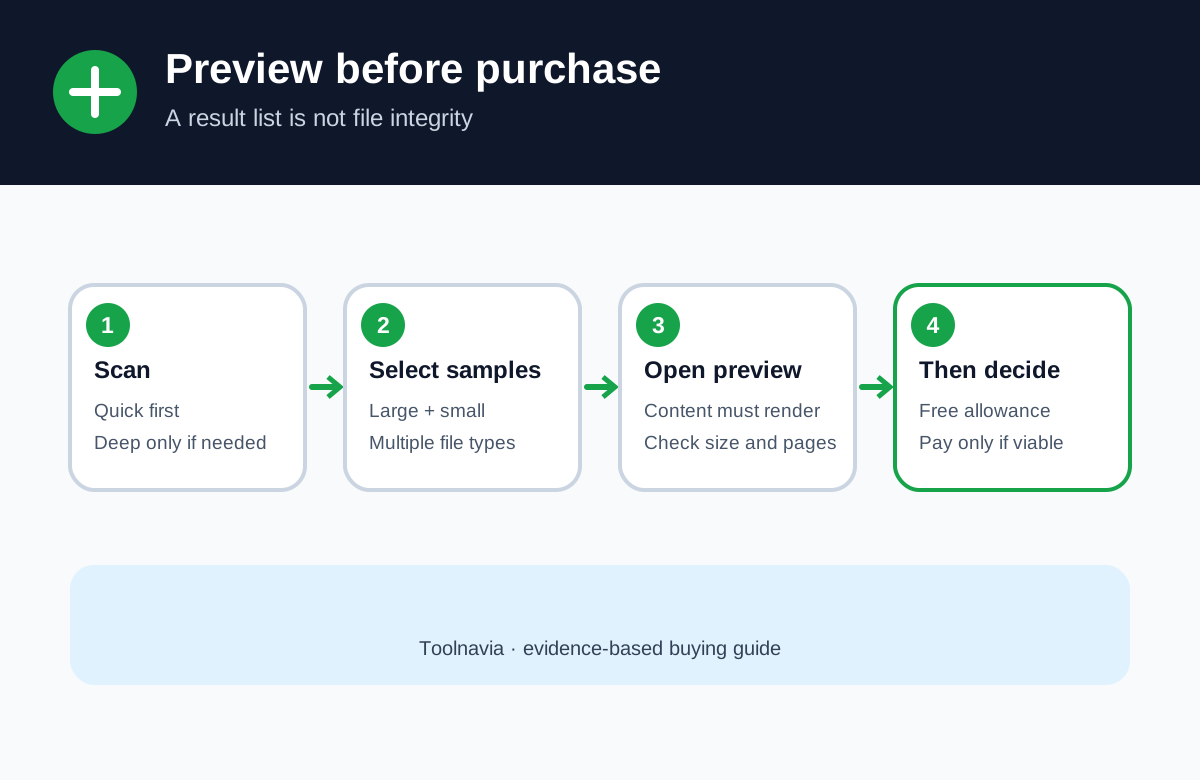
That sequence is the basis of this guide. The number of found entries is not the purchase gate. A working preview of representative, high-value files is stronger evidence.
Four checks before paying
| Check | Proceed when | Stop or escalate when | |---|---|---| | Device state | The SSD is detected consistently, reports the expected capacity and does not disconnect. | It vanishes, disconnects repeatedly, overheats, reports hardware faults or prevents stable access. | | TRIM exposure | The files were deleted recently, use stopped quickly, and previews show intact content. | Previews are blank/corrupt, the SSD remained in use, or the blocks appear cleared. | | Preview quality | Several important files open in preview with plausible size and content. | Only filenames appear, large files fail, or representative files cannot be previewed. | | Destination readiness | A separate healthy physical drive has enough free space. | The only destination is the affected SSD or another partition on the same physical device. |
AOMEI says FastRecovery can preview found files after quick or deep scan. It also says physically damaged disks cannot be recovered by the program, and that the disk must be detected by the computer. Those limits matter more than any marketing phrase about “unlimited data.”
Why filenames are not proof
A deleted directory entry can survive after file content has been cleared or overwritten. That is why a result list may contain an original name, path and size even when the file no longer opens. CleverFiles warns that TRIM can leave metadata visible while the underlying data is gone, and recommends treating a successful preview as the best indication that content survived.
Stellar makes the same practical distinction: continued writes, formatting and delay reduce recovery chances; physically damaged or unrecognized media needs a different path. Its current material says TRIM-enabled deletion often makes software recovery impossible. EaseUS also acknowledges the TRIM boundary while still suggesting a scan.
These are vendor pages, so they have a commercial incentive to keep users trying software. Their shared warning is still useful: no vendor can guarantee content that the SSD has already deallocated.
A safe five-step attempt
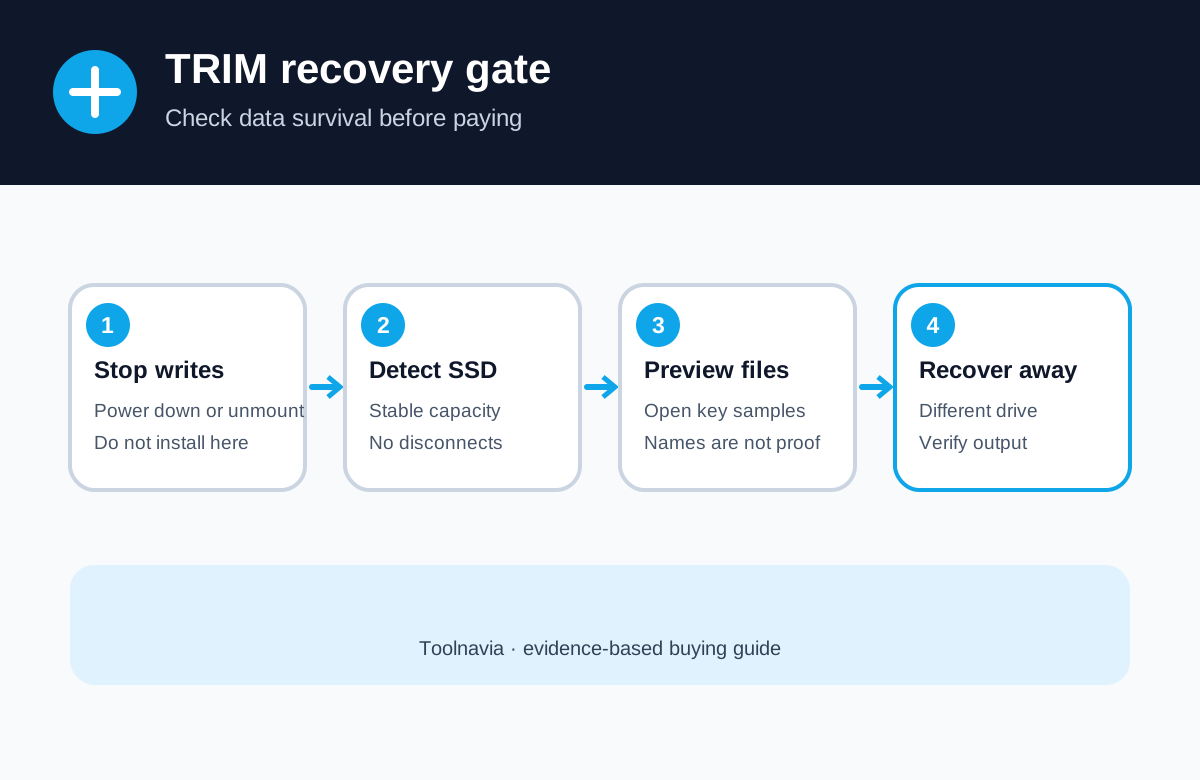
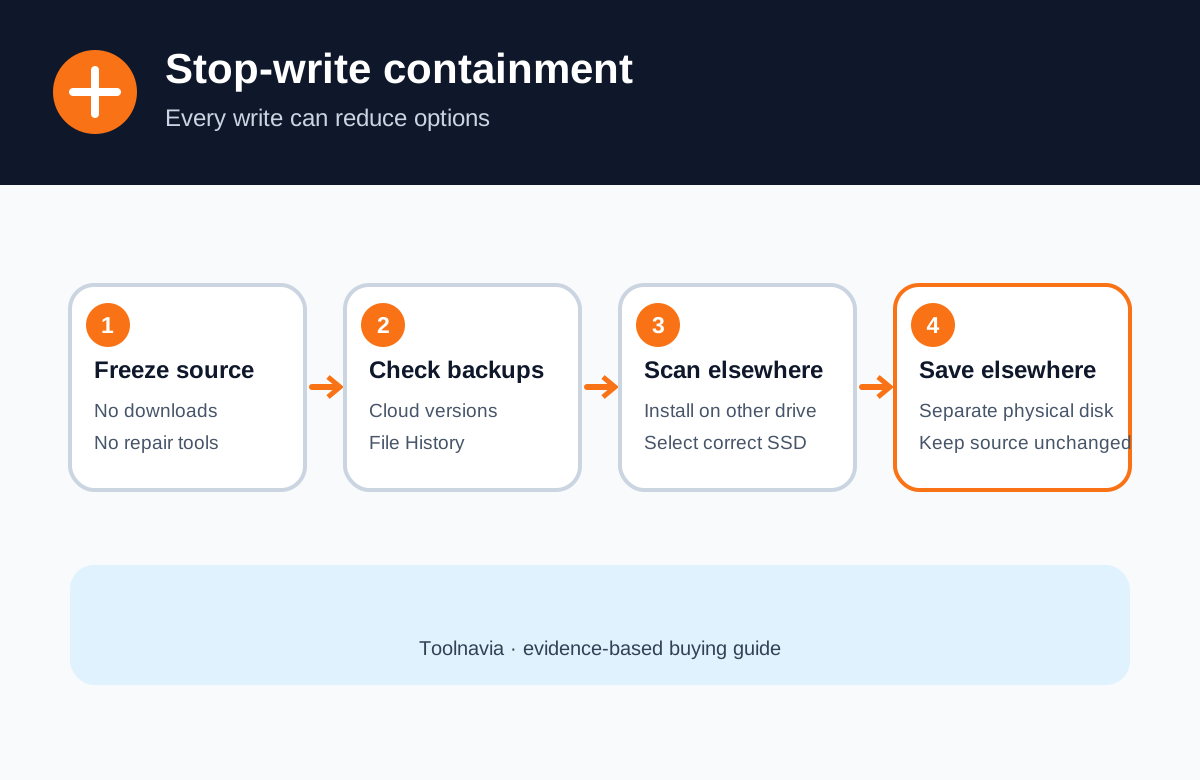
1. **Stop the affected computer or unmount the SSD.** Do not download, install updates, browse, copy files or run repair tools on the source. 2. **Check backups first.** Recycle Bin, File History, cloud version history and another device may produce a safer result than scanning. 3. **Use another system or drive for the software.** Never install FastRecovery onto the affected SSD. AOMEI explicitly recommends a different drive. 4. **Run the least invasive scan and preview important files.** Start with the relevant logical volume. Use deeper scanning only if needed. Preview several file types, including one or two large files, before paying. 5. **Recover to a different physical drive and open the output.** A successful copy is not enough; open representative documents, photos, archives and videos from the destination.
If the data is irreplaceable, Ubuntu's recovery guidance recommends imaging damaged media and working from the image rather than repeatedly touching the original. That workflow may require specialist tools and experience. AOMEI’s help overview also defines the supported Windows and file-system scan scope, while specialist guidance notes that some USB bridges may not pass TRIM; neither point is proof that a particular deleted file survived.
When FastRecovery is a reasonable buy
**Buy after preview** when the SSD is stable and detected, several required files preview correctly, the free allowance is too small for the remaining restore, and a separate destination is ready. AOMEI's current download page says the free edition recovers up to 500 MB while Professional enables unlimited recovery; verify the current allowance and edition terms on the live page.
**Wait** when you have not stopped writes, have not checked backups, or only see filenames without intact previews. Paying cannot improve blocks that TRIM has already cleared.
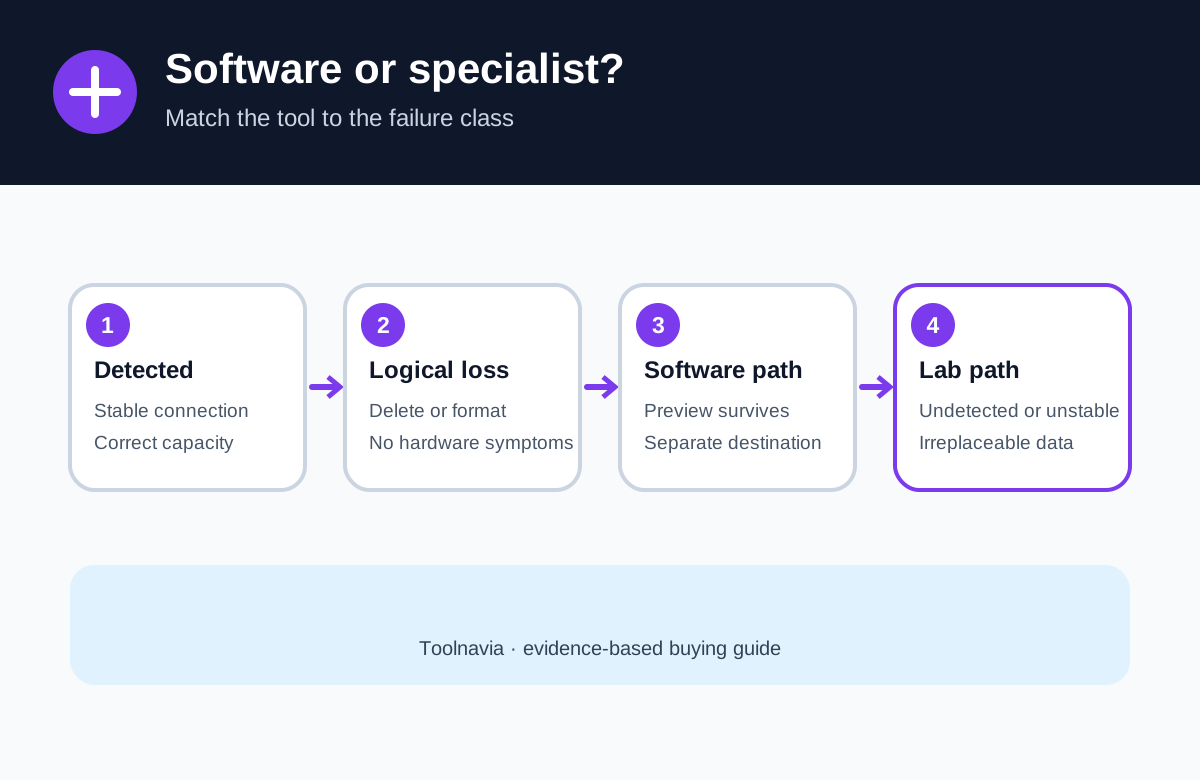
**Choose a lab or specialist workflow** when the SSD is unstable, repeatedly disconnects, is not detected, contains irreplaceable data, or would need hardware-level access. Repeated DIY scans can add risk.
**Do not buy for a guarantee.** FastRecovery is a logical-recovery tool, not a promise that any specific SSD file will survive TRIM.
Price and license notes
At the time of review, AOMEI's focused FastRecovery store displayed Professional for one computer with monthly, yearly and lifetime options, while another official store page showed a different lifetime reference price. The article therefore does not calculate a fixed break-even point. Use the approved direct link, select the exact Professional term, and record the checkout price, tax, renewal status and refund language before payment.
The commercial value is not “unlimited recovery” in the abstract. It is the ability to recover more than the free allowance **after** preview has shown that the needed content still exists.
Bottom line
AOMEI FastRecovery can be worth paying for on a stable, detected SSD when representative files preview correctly and a separate destination is ready. It is not worth buying merely because a scan lists filenames, and it cannot undo TRIM after blocks have been deallocated. Stop writes, check backups, preview before payment, recover elsewhere, and escalate physical or irreplaceable cases instead of forcing another scan.