TOOLNAVIA / BUYING GUIDE
AOMEI FastRecovery: Why Recovering to the Same Drive Risks Your Files
The short answer
At a glance
- Best for
- Stable source drives with a separate healthy physical destination ready.
- Price model
- Verify current Professional term, tax and renewal at official checkout.
- Check first
- Do not recover to the source physical drive; not for clicking, unstable or undetected hardware.
Verdict
Do not recover files back to the same physical drive you are trying to rescue. AOMEI’s current guidance says to install FastRecovery on a different drive, prepare another healthy drive for the output, and avoid treating another folder or partition on the source disk as “separate.” Every new write can occupy sectors that still contain recoverable data. A successful scan therefore does not make the restore safe by itself. Buy FastRecovery Professional only when the source is stable and detected, a second healthy physical destination has enough free space, representative files preview correctly, and you can open the recovered copies afterward.
Another folder is not another drive
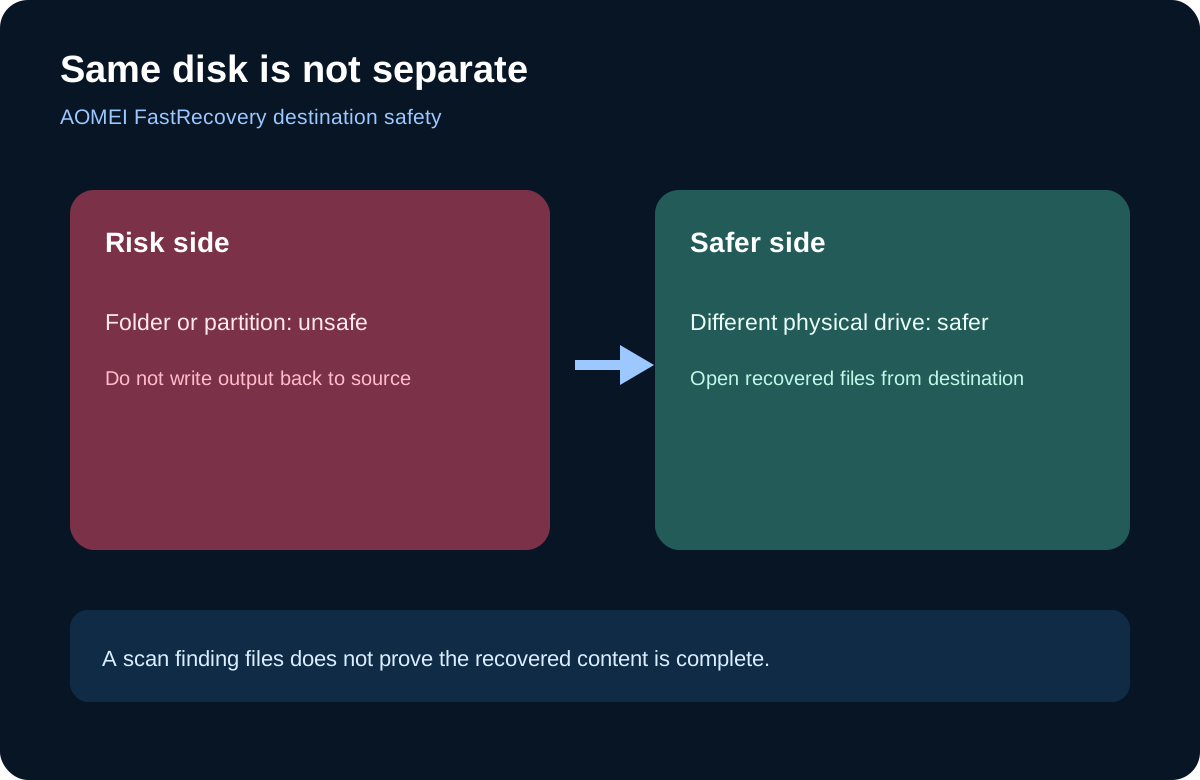
AOMEI’s preview-and-recover help tells the user to choose a destination folder. Its more detailed recovery guidance supplies the missing safety boundary: the destination should be on another healthy drive, not merely another folder on the affected physical disk. Those statements are compatible only when “destination folder” means a folder on a separate device. We disclose that distinction because the shorter wording could otherwise encourage a risky choice.
A second partition is not enough if both partitions share one physical disk. Writing recovered output to D: can still overwrite recoverable sectors on C: when C: and D: are only logical volumes on one device. The purchase checklist should name the hardware destination, its capacity and its connection before scanning.
Preflight before the first scan
Stop ordinary writes to the source. Do not format it, create partitions, download the installer onto it or use it as the browser’s download location. AOMEI’s partition-recovery guidance also stresses stable power and connection and warns against formatting or creating partitions.
Install FastRecovery on a healthy system or destination drive. Confirm Windows can keep the source connected and FastRecovery detects the correct physical disk, filesystem and capacity. Quick Scan may start first for hard-drive recovery, while Deep Scan reads more broadly and takes longer. Unallocated-space and physical-damage boundaries still apply; a drive that clicks, disappears or repeatedly disconnects is not a normal DIY software case.
Estimate destination capacity. The scan’s “found” total is not proof of final usable data, but the healthy target needs room for the selected recovery set plus margin. A nearly full destination can turn a good scan into a failed restore.
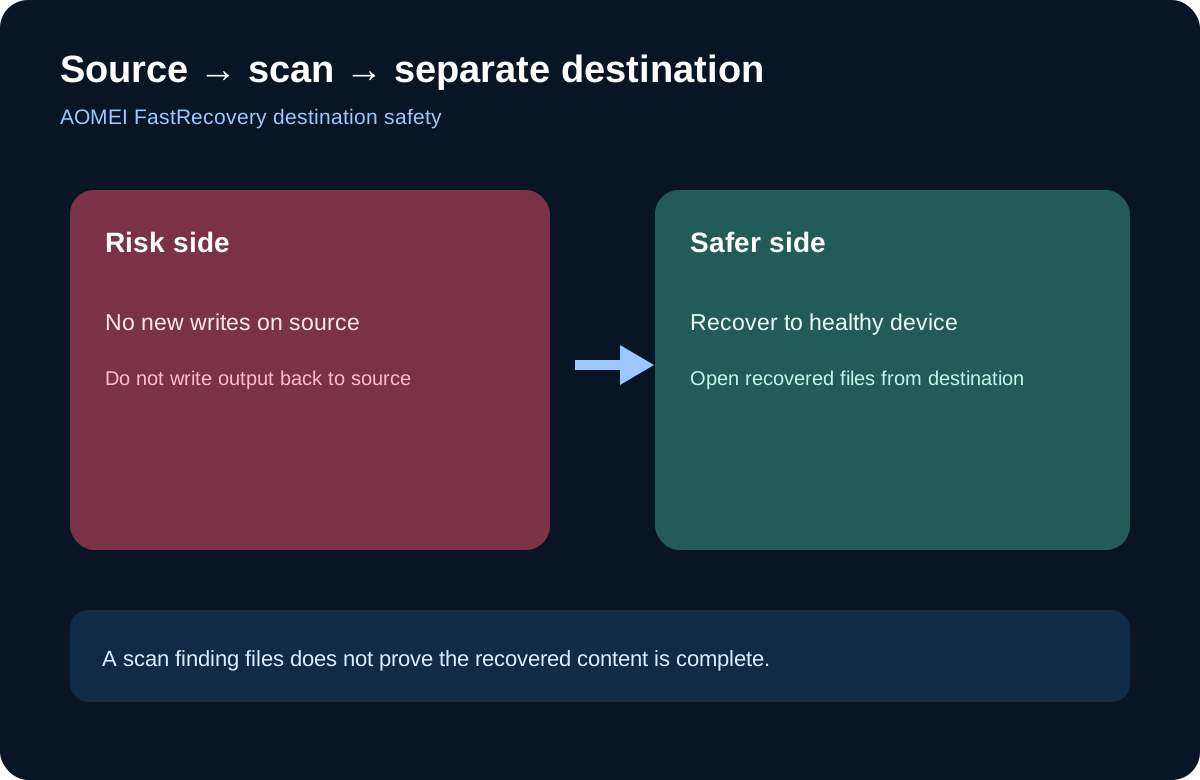
A safe FastRecovery workflow
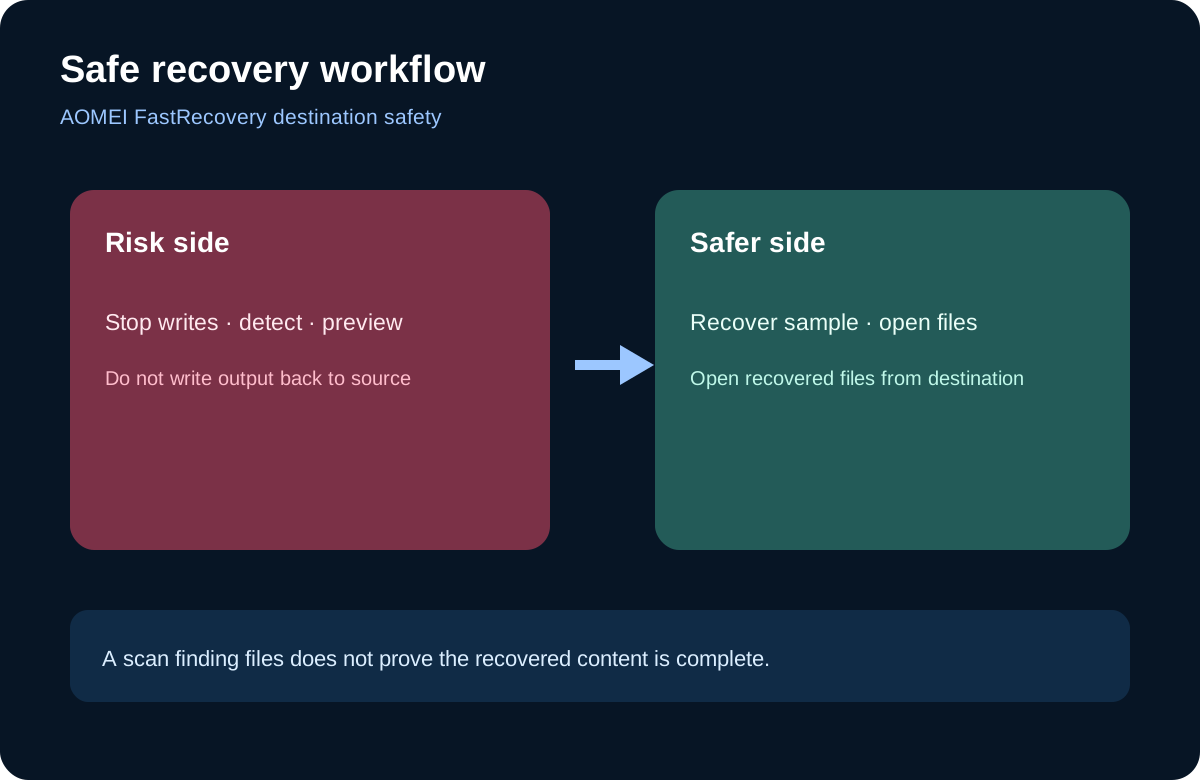
Run the least invasive scan that can locate the target data. Preview representative high-value files rather than checking filenames alone. Documents should render, archives should open, and photos or videos should display more than a thumbnail. Select only important files for the first restore, direct them to the separate healthy drive and open the copies from that destination.
The first batch is a validation sample, not a success-rate claim. If the copies are intact, expand the restore in controlled batches while preserving the source. If they are corrupt, stop and reassess the scan mode, file selection and hardware health instead of writing more output. AOMEI’s documentation supports the source–scan–destination workflow, but does not promise that every found entry is complete.
What independent evidence proves
UrRecover describes broad FastRecovery coverage but explicitly says it has not run its own complete six-scenario benchmark. That is an evidence-gap disclosure, not proof of a universal recovery rate. iTechGuides summarizes Windows, preview, drive, card, lost-partition and bootable-recovery coverage, yet feature coverage cannot predict whether one buyer’s damaged file contents are intact.
A note.com hands-on report used a safer pattern: output went to the PC rather than back to the source SD card, and the author opened recovered JPEG and NEF files afterward. That one environment supports the workflow, not a generalized percentage. Our recommendation is procedural: keep the source read-only, use a different physical destination and validate real files.
Buy, delay or stop
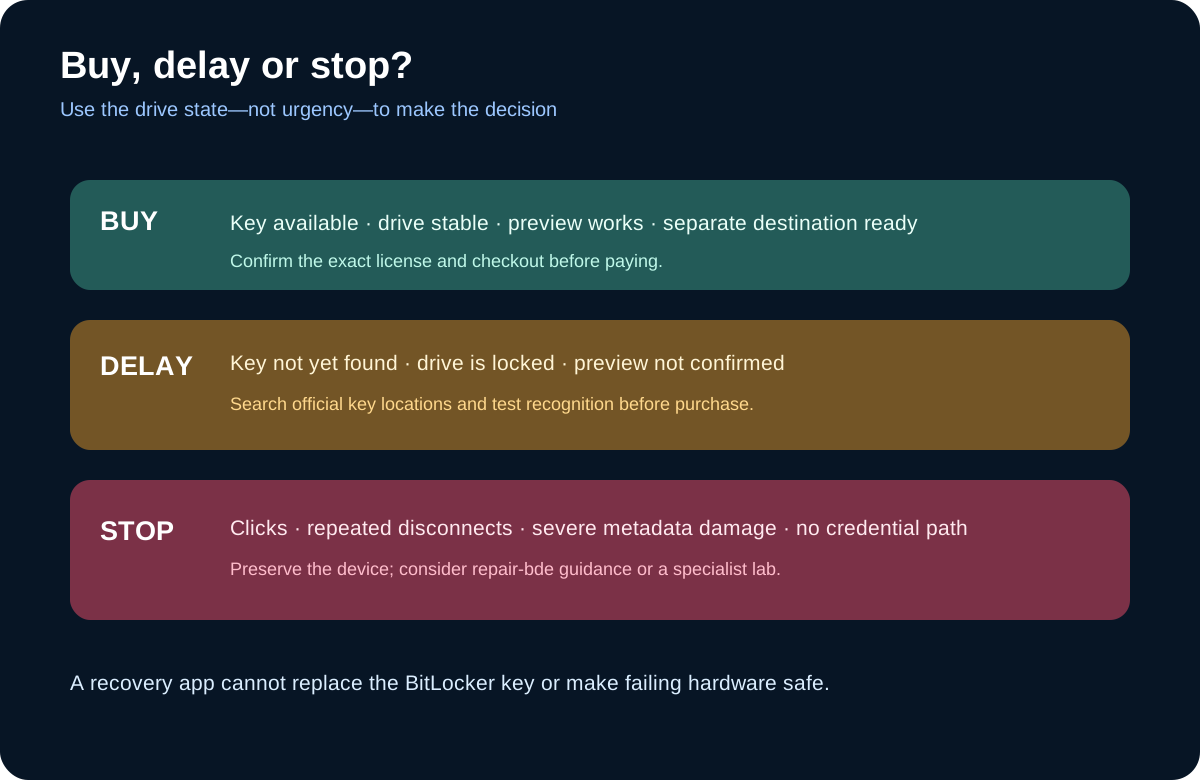
Buy when the source is stable, FastRecovery detects it, representative previews are usable, and another healthy physical drive is ready. Toolnavia’s approved AOMEI link goes to the exact FastRecovery product landing; checkout controls the current term, price, tax and renewal. We may earn a commission if you buy through that link.
Delay when you have only one physical drive, insufficient destination space, unclear partitions or no verified previews. A spare external or internal drive belongs in the recovery budget because it protects remaining source data.
Stop DIY recovery when the device clicks, heats unusually, repeatedly disconnects, is not detected consistently, or contains irreplaceable data whose loss exceeds the cost of a laboratory. Software is for logical recovery on stable, readable hardware. The decision is not “Can the scan find names?” but “Can I recover to a separate device and prove the files open without risking the source?”