TOOLNAVIA / BUYING GUIDE
AOMEI Backupper: Intelligent or Sector-by-Sector Clone for a Smaller SSD?
The short answer
At a glance
- Best for
- Healthy Windows system migrations where used partitions fit the target and the user can back up and boot-test.
- Price model
- Professional checkout varies; buy only for paid System Clone or another verified Pro capability.
- Check first
- Mechanically failing drives, targets too small for required partitions, or buyers who need only free data-disk cloning.
Bottom line
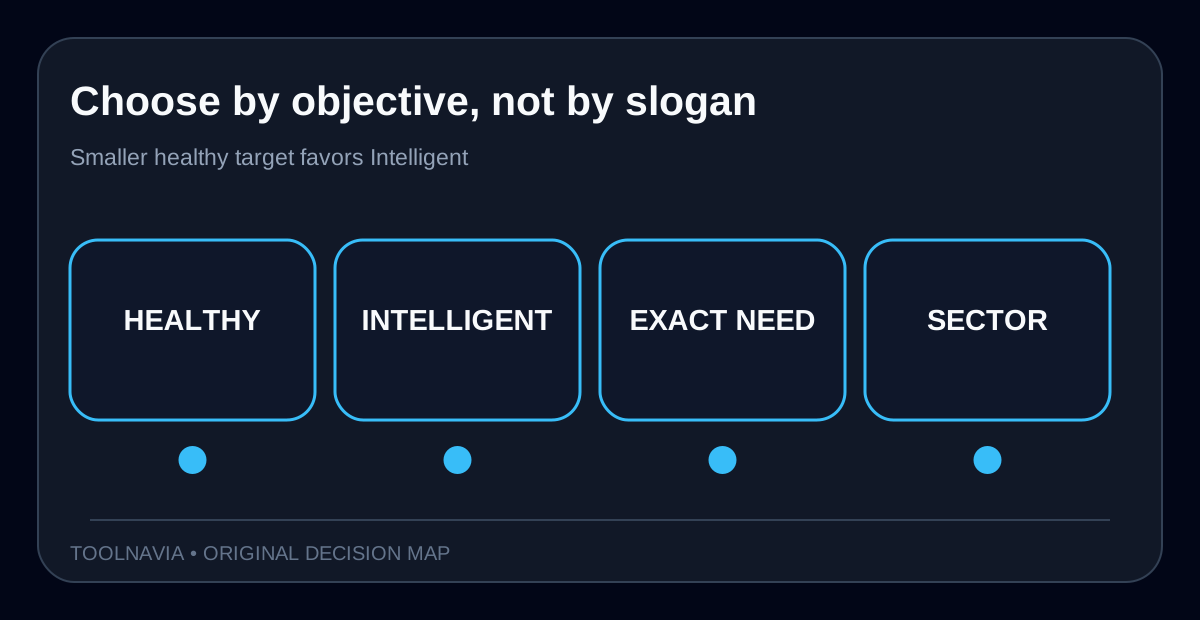
For a healthy Windows disk moving to a **smaller SSD**, AOMEI Backupper’s Intelligent Clone is normally the safer default: it copies used sectors, skips unused space and can fit when the destination is smaller than the source’s physical capacity but still larger than the data that must move. Sector-by-sector is not the “better quality” switch. It copies every sector—including unused or logically bad sectors—so the destination must be at least as large, the job takes longer, and a same-size target can still hit temporary-cache limits.
Buy AOMEI Backupper Professional only if you need its paid **System Clone** path or other Pro capability. AOMEI’s own comparison says the free edition’s disk clone is limited to data disks, while System Clone is paid. Do not pay merely to tick sector-by-sector on a normal smaller-SSD migration.
> **Affiliate disclosure:** Toolnavia may earn a commission if you buy through the approved AOMEI link. This does not change the destination-size, backup or boot-test gates below.

First separate used space from physical disk size
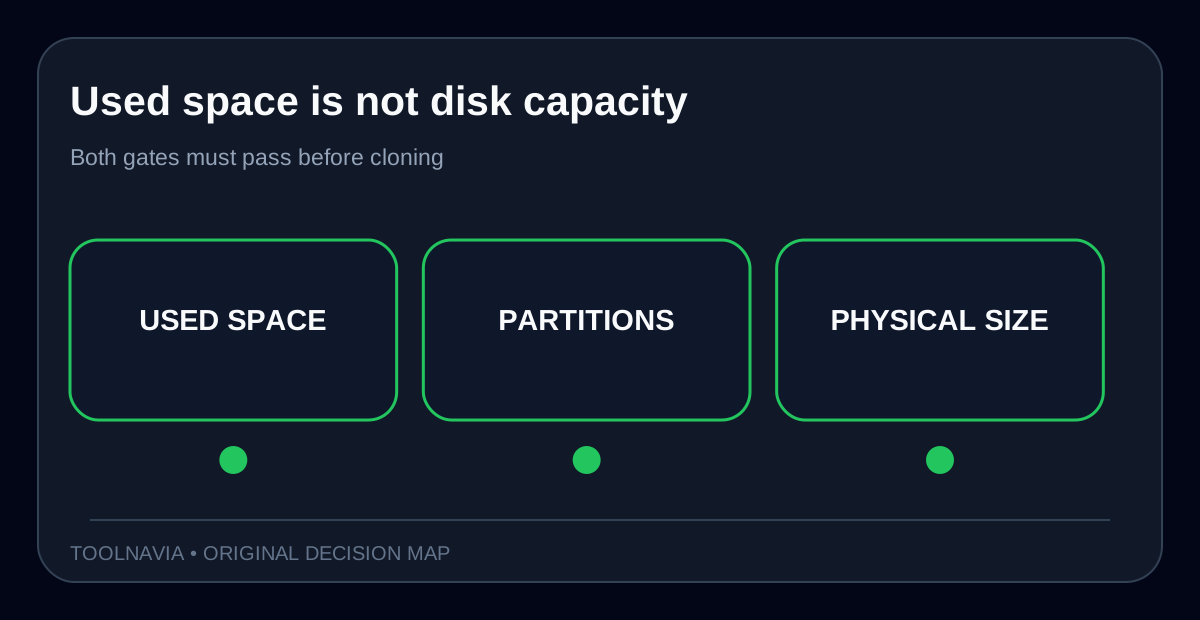
A 1 TB source drive with 220 GB of used data can sometimes move to a 500 GB SSD, but only if every required partition can be resized to fit. “Source disk is larger” and “source data is too large” are not the same statement. AOMEI says System Clone needs destination space at least equal to the used space of the system partitions. Its Intelligent Clone copies used sectors, which is why it can support a smaller target.
Before cloning, open Windows Disk Management and record the source’s partition order, used space, GPT or MBR style, and any recovery or EFI partitions. Disk Management can shrink ordinary volumes and shows the partition layout, but it is not a clone tool. Leave margin for updates, page files and future growth; a target that barely fits today is a poor migration choice.
The destination will be overwritten. Back up irreplaceable files to a third device before attaching the new SSD, label both drives by model and capacity, and disconnect unrelated external disks to reduce the chance of selecting the wrong target.
Intelligent Clone versus sector-by-sector
**Choose Intelligent Clone** when the source file system is healthy, the target is smaller, and you want a normal Windows migration. It skips unused sectors and AOMEI says it can skip bad sectors. That reduces time and target capacity, but “skip bad sectors” is not data recovery: if a bad sector contained needed data, the resulting file may still be damaged. Run file-system and SMART checks, preserve the source, and verify important files after boot.
**Choose sector-by-sector** only when the target is equal to or larger than the source and you have a specific reason to preserve the physical layout. AOMEI says it copies every sector, takes longer and requires more space. Its error guide notes that BitLocker or non-NTFS/FAT32 cases can force sector behavior even when Intelligent Mode was selected.
Do not select sector mode just because the phrase sounds more complete. Copying empty space adds no user data, and copying logically bad sectors can carry defects or trigger failure. Macrium makes the same distinction: Intelligent Sector Copy moves used blocks, while Forensic Sector Copy moves all blocks and can take much longer.

| Situation | Better starting mode | Why | |---|---|---| | 1 TB healthy disk, 220 GB used, 500 GB SSD | Intelligent | Used data can fit; unused sectors need not move | | Equal-size healthy replacement | Intelligent first | Faster and easier to verify | | Exact physical layout required | Sector-by-sector | Copies every sector; target cannot be smaller | | BitLocker or unsupported file system | Inspect forced mode | AOMEI may fall back to sector copy | | Clicking or failing drive | Neither as first move | Stop DIY writes and consider professional recovery |
Four gates before pressing Start Clone
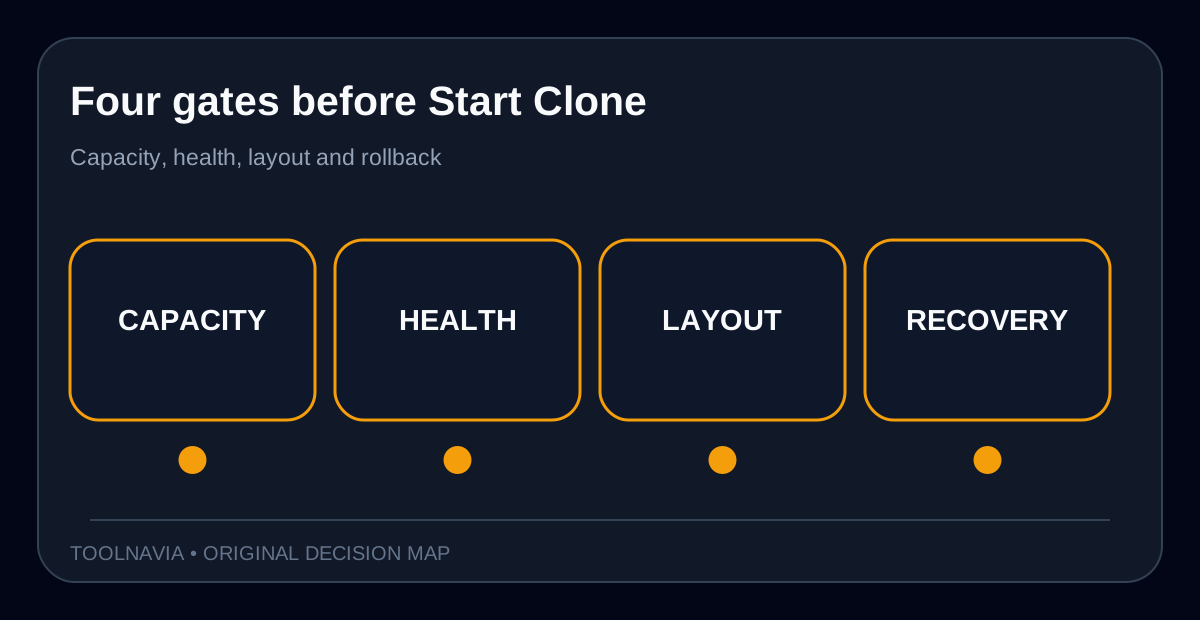
1. **Capacity gate.** Sum the used space of every required system partition, not just C:. Confirm the target has comfortable free margin. If the final source partition extends beyond the target boundary, shrink or reorganize before cloning. 2. **Health gate.** Review SMART warnings and file-system errors. A clone is not a substitute for a backup, and repeatedly reading a mechanically failing disk can worsen recovery odds. 3. **Layout gate.** Record GPT/MBR, UEFI/legacy boot mode, BitLocker state and recovery partitions. Do not decrypt, resize or convert merely to make the wizard proceed unless you understand the recovery-key and boot consequences. 4. **Recovery gate.** Create bootable media, keep the old disk unchanged, and define a rollback. After cloning, first boot with the old disk disconnected so Windows does not silently use the wrong EFI partition.
AOMEI recommends SSD Alignment for an SSD target. Treat it as a performance-layout option, not proof of bootability. If the new disk is larger, decide whether to add unused space automatically or resize partitions manually. If it is smaller, never tick sector-by-sector: AOMEI explicitly says the clone will fail.

What competing tools reveal
Macrium’s documentation separates Intelligent Sector Copy, file-system verification, Rapid Delta Clone and SSD TRIM. That separation is useful: capacity, integrity, repeat-copy speed and SSD optimization are different decisions, not one “best clone” checkbox.
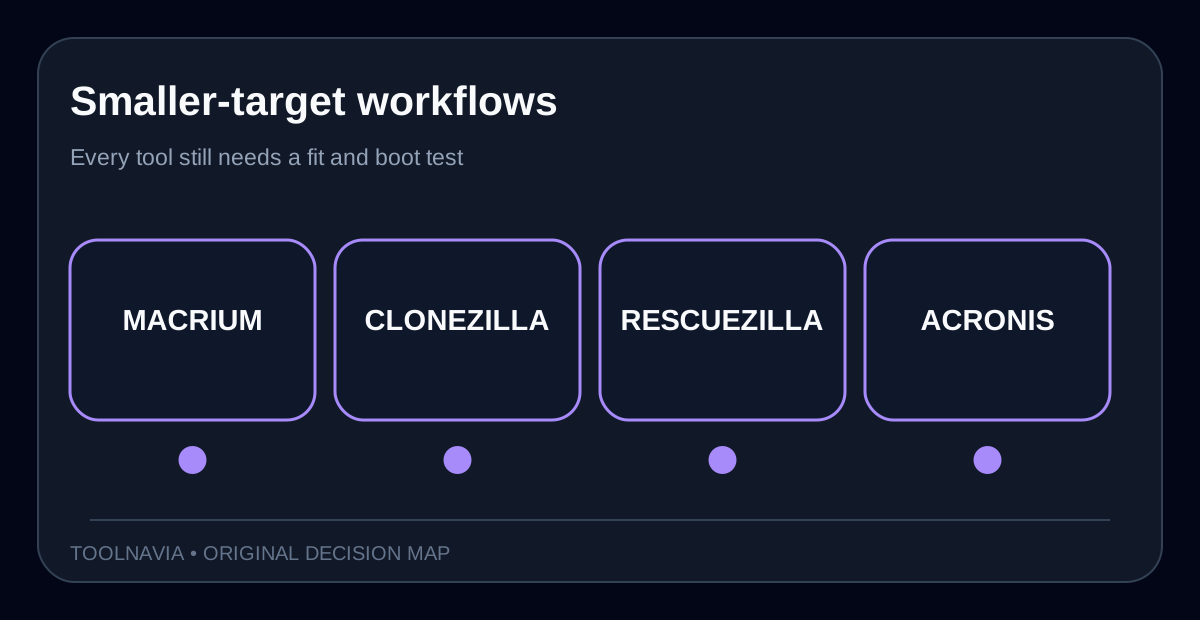
Clonezilla can work with a smaller destination only through expert options when the data and partition boundaries really fit. Its own documentation warns that the override requires knowing what you are doing. Rescuezilla is more conservative: its current help requires shrinking with GParted first and recommends preserving an unmodified backup image on a third drive.
Acronis allows proportional resizing when the target is smaller, but blocks the operation if safe fitting is impossible. Across all four workflows, the consistent lesson is that “used data fits” is necessary but not sufficient: partition boundaries, boot records, file-system health and rollback still matter.

When Professional is worth paying for
Professional is rational when the job is a Windows **system migration** that the free data-disk clone does not cover, the representative destination and boot test pass, and the saved reinstall time exceeds the license cost. Use a break-even model:
**Value = reinstall-and-reconfigure hours avoided × value of your hour − verification and rollback time.**
Run a rehearsal with a noncritical machine or a current backup. Count BitLocker preparation, cloning, first boot, driver checks, Windows activation, application launches and file verification. If you cannot afford the verification time, you cannot afford an untested clone.
Do not buy if you only need to copy a data disk that the current free edition supports, if the source is mechanically failing, or if the target cannot comfortably hold all required partitions. The exact checkout, tax, renewal and device scope can change, so verify them on the approved destination before paying.
Conflicts, limits and recommendation
AOMEI’s marketing page presents Intelligent Clone as able to skip bad sectors, while sector-by-sector is described as the complete copy. The reader-visible conflict is that “complete” can mean slower, larger and more failure-prone—not more recoverable. Resolve it by choosing the least destructive mode that fits the migration objective and by keeping a third-device backup.
A second conflict is entitlement: Disk Clone exists in the free edition for data disks, but System Clone is a paid trigger. The mode choice does not itself prove you need Professional. First classify the job as data-disk copy or Windows system migration, then evaluate the license.
**Recommendation:** for a healthy system moving to a smaller SSD, use Intelligent Clone, preserve a backup, verify partition fit, enable SSD Alignment, and boot-test with the old disk disconnected. Reserve sector-by-sector for equal-or-larger targets with a documented layout need. Buy Professional for the paid system-migration workflow—not for the reassuring sound of “every sector.”
[Check the approved AOMEI Backupper Professional offer](https://www.jdoqocy.com/click-101895278-17143105)