TOOLNAVIA / BUYING GUIDE
AOMEI Backupper Rescue Test: Will the Backup Be Visible?
The short answer
A backup that finishes successfully is not yet a recovery plan. The buying question for AOMEI Backupper Professional is narrower: can its rescue environment boot **your** PC, see **your** backup, and reach a restore preview without discovering missing drivers or keys during an outage? This guide turns that question into a non-destructive rehearsal. It does not claim that Toolnavia restored a physical machine, and it does not ask you to overwrite the production disk merely to prove a point.
> **Affiliate disclosure:** Toolnavia may earn a commission if you buy through the approved AOMEI link below, at no extra cost to you. The recommendation remains conditional on the rehearsal gates and the live checkout.
At a glance
- Best for
- Buyers with an existing AOMEI backup process, a specific Windows PC to protect, access to firmware and recovery keys, and time for a non-destructive boot-and-visibility drill.
- Price model
- Official pages checked 2026-10-29 showed Professional from US$39.95; live checkout controls tax, term, renewal, device count and upgrade rights.
- Check first
- Anyone expecting a guaranteed restore, universal hardware support, recovery of files never backed up, or permission to overwrite a production disk merely to test. Business, server and paid-technician use require separate rights.
The purchase gate: recovery readiness, not a green backup badge
AOMEI lists Create Bootable Media, Check Image and restore-from-bootable-media capabilities, while the Professional page presents the paid personal-Windows edition and current starting price. Those facts matter, but they answer different questions:
- **Check Image** tests the stored backup file's integrity. It does not prove that firmware will boot the USB, that WinPE has the storage or network driver, that BitLocker material is available, or that the correct target can be identified. - **Create Bootable Media** produces USB, ISO or optical media; the WinPE flow can add drivers. A created file is not proof that the actual PC boots it. - **Recovery Environment** adds an on-disk boot path, but AOMEI says C-drive loss can invalidate it. It is convenient, not a substitute for external media in that failure class. - **Universal Restore** addresses different hardware and is separate from this same-machine readiness drill.
If you only need a free bootable-media tool and Standard already covers the required function, do not justify Professional solely by the existence of rescue-media creation. Professional is worth considering only when its broader paid backup/restore workflow, automation or other edition-specific capabilities fit your needs and this rehearsal succeeds.
At the time checked, AOMEI showed Professional from US$39.95 for a personal Windows PC. Another current official plan page showed US$39.95 yearly and US$69.95 Lifetime for one PC. Prices, tax, renewal terms, device count and upgrade rights can change; verify the exact cart before paying.
[Check the current AOMEI Backupper Professional offer](https://www.jdoqocy.com/click-101895278-17143105)
Four gates a useful rescue setup must pass
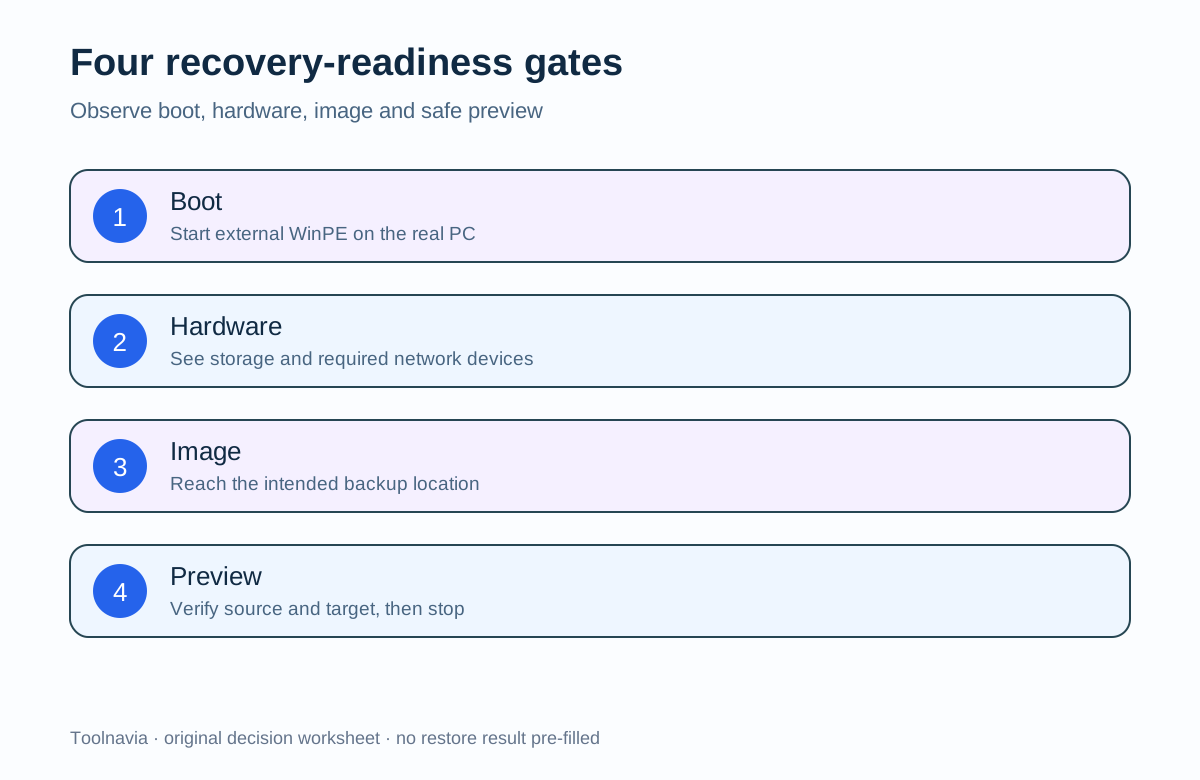
| Gate | What to observe | What it does **not** prove | |---|---|---| | 1. Boot | The real PC starts the external WinPE media in the intended firmware mode | That the backup is intact or the target is correct | | 2. Hardware visibility | Keyboard, display, storage controller and—if needed—network adapter are usable | That every future hardware change will work | | 3. Image visibility | The intended local, USB or network backup location is reachable and the expected image appears | That the image is internally valid | | 4. Safe preview | Check Image completes and the restore wizard can identify source and intended destination | That a destructive restore has been performed successfully |
A pass must be an observation from your equipment, not a pre-filled vendor promise. Record firmware mode, Secure Boot state, media build date, application version, storage path and any driver added. Leave an untested result blank.
Build external media without sacrificing the wrong USB
AOMEI's creator offers WinPE or Linux and can write USB, ISO or optical media; its WinPE flow includes Add Drivers. For this rehearsal, WinPE is the better documented path because Microsoft's recovery tooling and driver guidance make the storage/network dependency explicit.
Before clicking through:
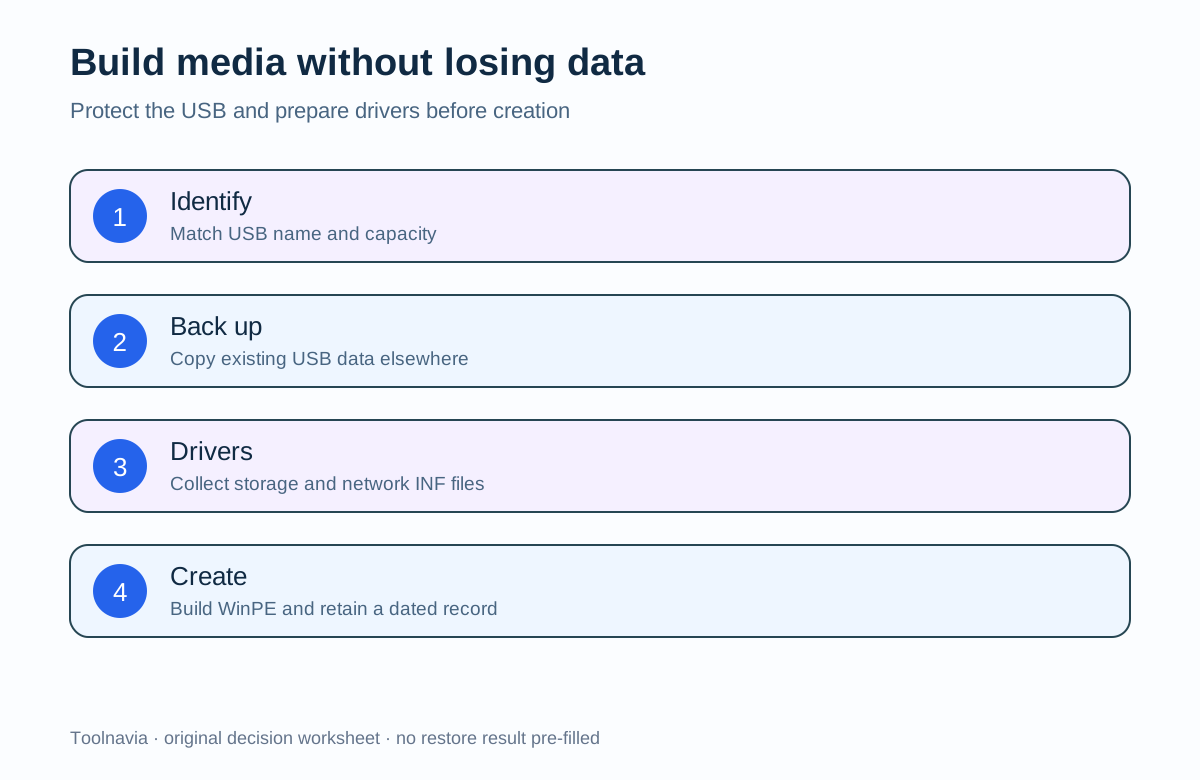
1. Back up anything on the candidate USB. Microsoft's WinPE creation process reformats the selected device. 2. Confirm the USB identity by capacity and device name. Disconnect unrelated removable disks if practical. 3. Export or obtain the storage and network drivers for the exact PC. Prefer vendor-supplied INF packages where possible. 4. Store the BitLocker recovery key or other decryption material somewhere reachable without the failed PC. 5. Save an ISO copy if your process allows it, but still test the physical medium you expect to use.
The **Add Drivers** control improves the odds that WinPE can see the controller or network adapter; it is not a universal compatibility guarantee. If the rescue environment cannot see the backup disk or network share, stop and rebuild the media with the missing driver rather than treating the backup as recoverable.
Run a non-destructive rehearsal on the real machine
Schedule a maintenance window, save open work, and make sure you can return to the installed system. Then:
1. Record whether the machine uses UEFI or Legacy mode and whether Secure Boot is enabled; AOMEI documents Legacy/MBR and UEFI/GPT recovery paths. 2. Boot from the external media using the firmware's one-time boot menu. Do not change unrelated firmware settings merely to force a pass. 3. Confirm input, display, local disks and any required network adapter are visible. 4. Browse to the intended backup location. For a network share, verify credentials are available offline. 5. Select the expected backup and run **Check Image**. 6. Open the restore workflow far enough to confirm the correct source and intended destination are distinguishable. 7. **Stop before any confirmation that writes, deletes, repartitions or overwrites the destination.** Take screenshots or notes, exit the rescue environment, and boot normally.
Microsoft's recovery documentation treats system-image recovery as destructive to the current state. A production-PC rehearsal should therefore end at source/target verification. A true end-to-end restore belongs on spare hardware, a disposable lab disk or an explicitly approved recovery window with its own rollback plan.
Interpret failures before buying—or before trusting the plan
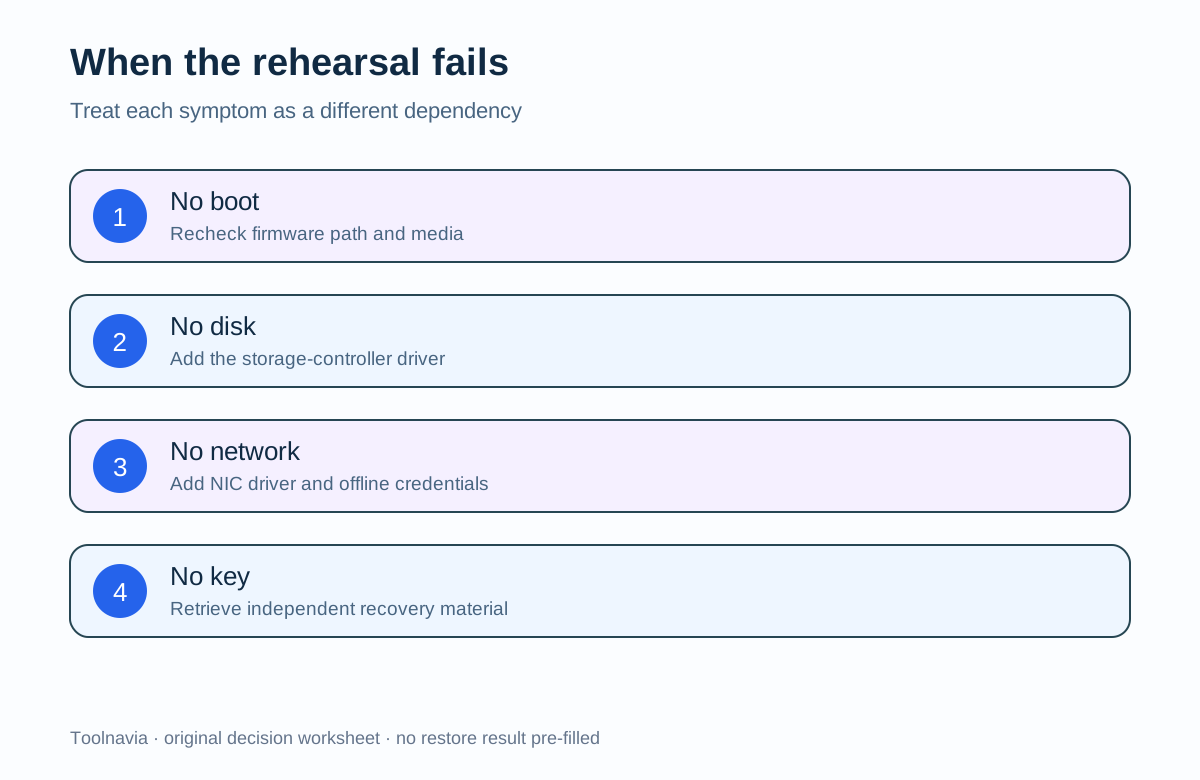
- **USB will not boot:** rebuild for the intended firmware path, recheck media integrity and consult the PC vendor. Do not promise that switching security settings is harmless. - **Internal disk is absent:** add the correct storage-controller driver to WinPE, rebuild and retest. - **Network backup is absent:** add the network driver, verify link, address and offline credentials, or maintain a separate local recovery copy. - **Backup is visible but Check Image fails:** keep the failing evidence, do not overwrite the only copy, and test another retained image or storage path. - **Encrypted volume cannot be opened:** retrieve the correct recovery key from the independent location. Do not assume a Windows login password is enough. - **Source and target are ambiguous:** stop. Label disks by model, capacity and serial number and redesign the runbook. - **On-disk Recovery Environment works but external USB does not:** the plan remains exposed to the C-drive-loss case described by AOMEI.
Macrium's independent rescue guidance reaches the same operational conclusion: external recovery environments should be boot-tested, hardware visibility matters, and the media should be refreshed after significant changes. That is context, not evidence that AOMEI and Macrium behave identically.
Retest triggers and cost boundary
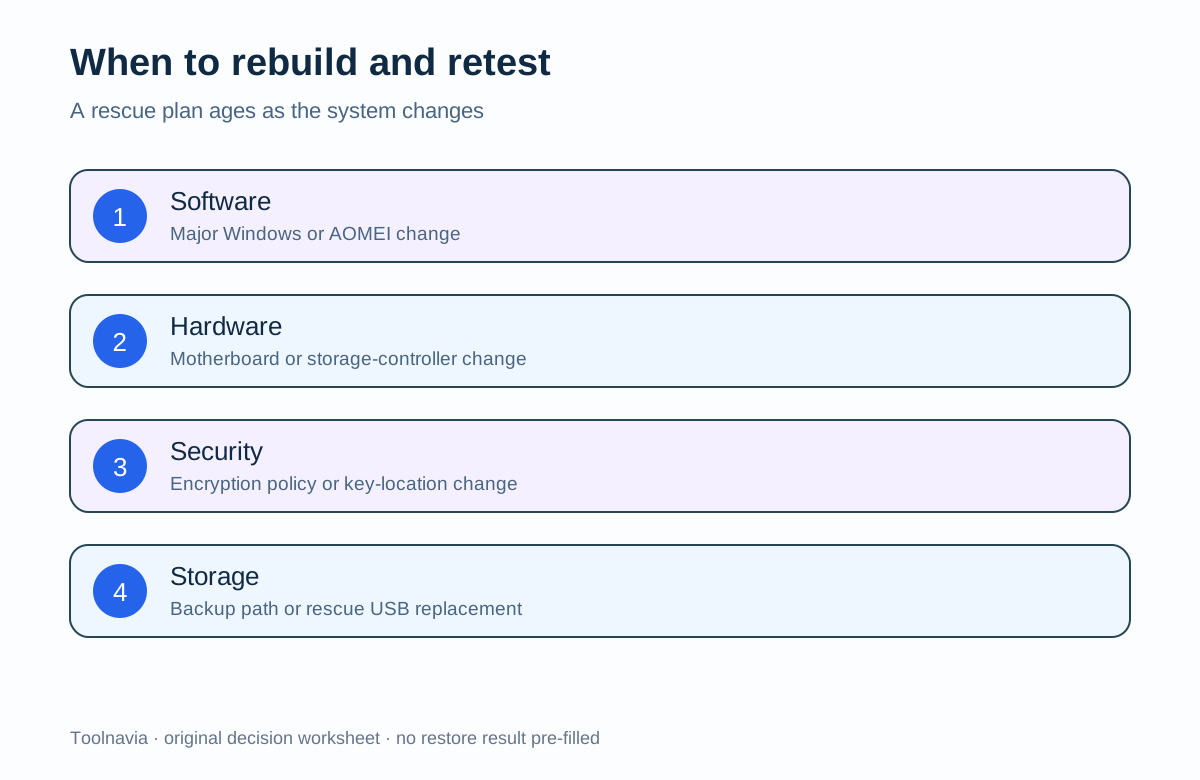
Repeat the drill after a major Windows update, AOMEI version change, motherboard or storage-controller change, encryption-policy change, replacement of the recovery USB, or relocation of the backup. Also retest periodically if the plan is business-critical. Record the date and the next trigger.
The software price is only one line of the recovery budget. Include a dedicated USB, a second backup location, possible spare storage, network access, staff time, and any independent Windows or application licensing. The current AOMEI personal offer does not grant business, server or paid-technician rights merely because recovery media exists.
Verdict
AOMEI Backupper Professional is a reasonable purchase candidate when its broader paid workflow fits the buyer **and** the real machine passes all four non-destructive gates: boot, hardware visibility, image visibility and safe restore preview. A successful backup plus a created USB is not enough. If drivers, keys, target identification or external-media boot remain unresolved, fix those gaps before paying—or before calling the existing backup recoverable.
[Verify the exact AOMEI plan and live checkout](https://www.jdoqocy.com/click-101895278-17143105)
No search-volume, ranking, restore-success or universal-compatibility claim is made. Sources were checked on 2026-10-29; live product and checkout terms control.