TOOLNAVIA / BUYING GUIDE
AOMEI Backupper Encryption: Does BitLocker Protect the Backup File?
The short answer
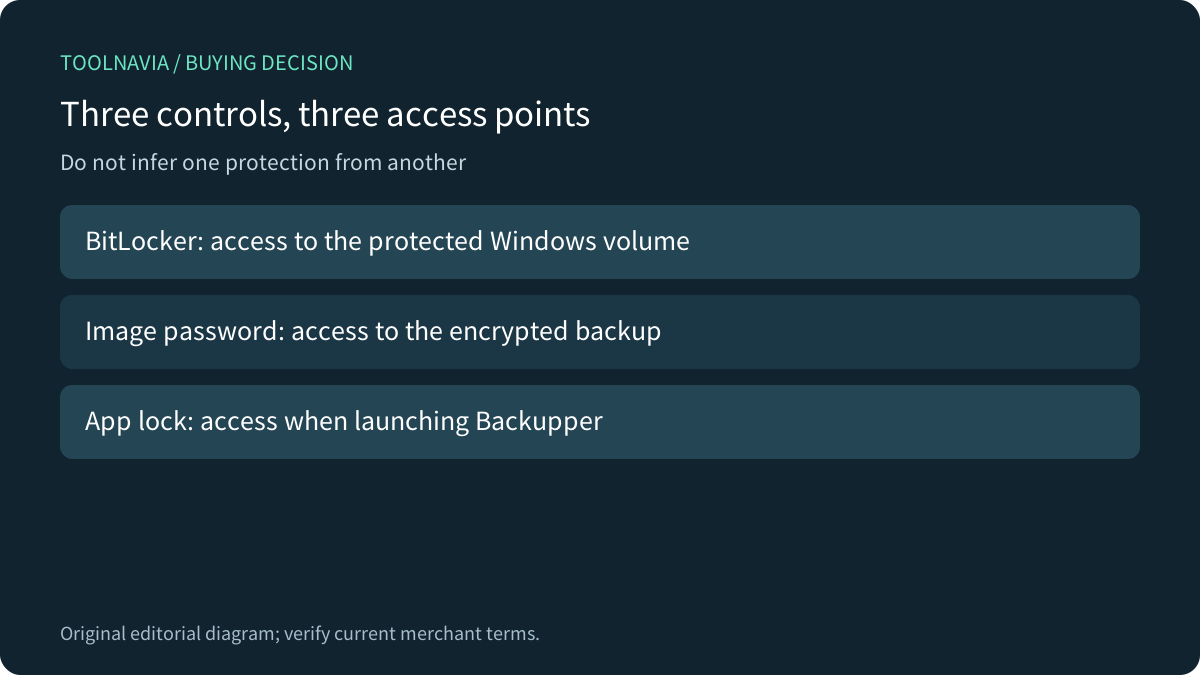
BitLocker on the source laptop does not, by itself, prove that a copied Backupper image is protected. Before buying Professional for sensitive personal backups, separate three controls: the Windows drive key, the backup-image password and the password that opens the Backupper app. They protect different access points.
At a glance
- Best for
- Sensitive personal Windows images with a tested independent password and recovery path.
- Price model
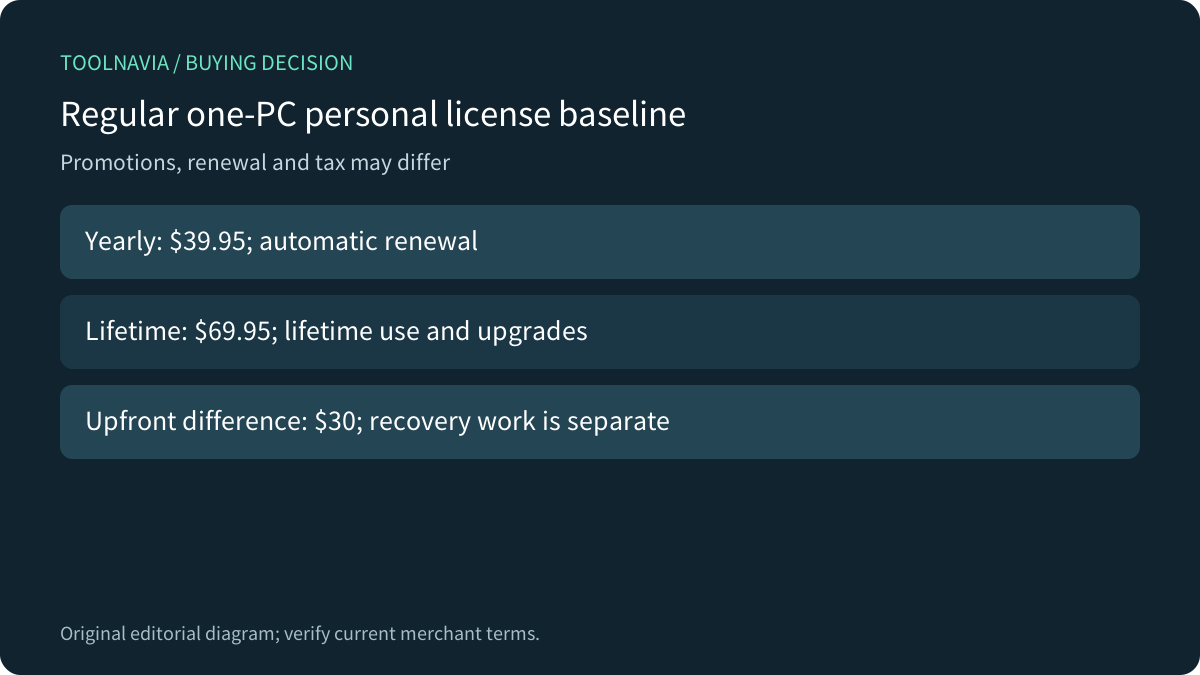
- Regular one-PC Professional: $39.95/year or $69.95 lifetime; promotions and tax may differ.
- Check first
- Source BitLocker and the app lock do not establish portable-image protection; official24/64-character limits conflict.
Decide what must remain protected away from the PC
A backup on a removable disk or another storage location can outlive the original computer. Your purchase test should therefore follow the archive: can someone who receives that copy browse or restore its contents without the intended image password? The source laptop's padlock icon does not answer that question.
AOMEI documents image encryption as an explicit backup option, including in its system-backup workflow. It describes using a password with AES to protect image data. That supports evaluating the feature; it does not establish that every existing task has encryption enabled, or constitute an independent cryptographic assessment.

Keep the three credentials separate
BitLocker recovery information unlocks a protected Windows volume. Microsoft recommends keeping recovery passwords securely and separately from the device. It is not a substitute for the password you selected for a Backupper image. You may need both when a recovery copy sits on an encrypted external drive.
Backupper's app lock is another control. Its settings ask for a password when the program launches and allow that lock password to change. The image-encryption documentation describes a different password and says an existing encrypted image's password cannot be changed. Do not infer archive protection from a successful app-lock prompt, or assume changing that prompt rotates old backup passwords.
Make a credential map before committing: which secret unlocks the storage, which opens the image, and how will an authorized recovery operator retrieve each when the original PC is unavailable? Keep secrets out of ordinary job notes and screenshots.
Read the real password-length conflict before choosing
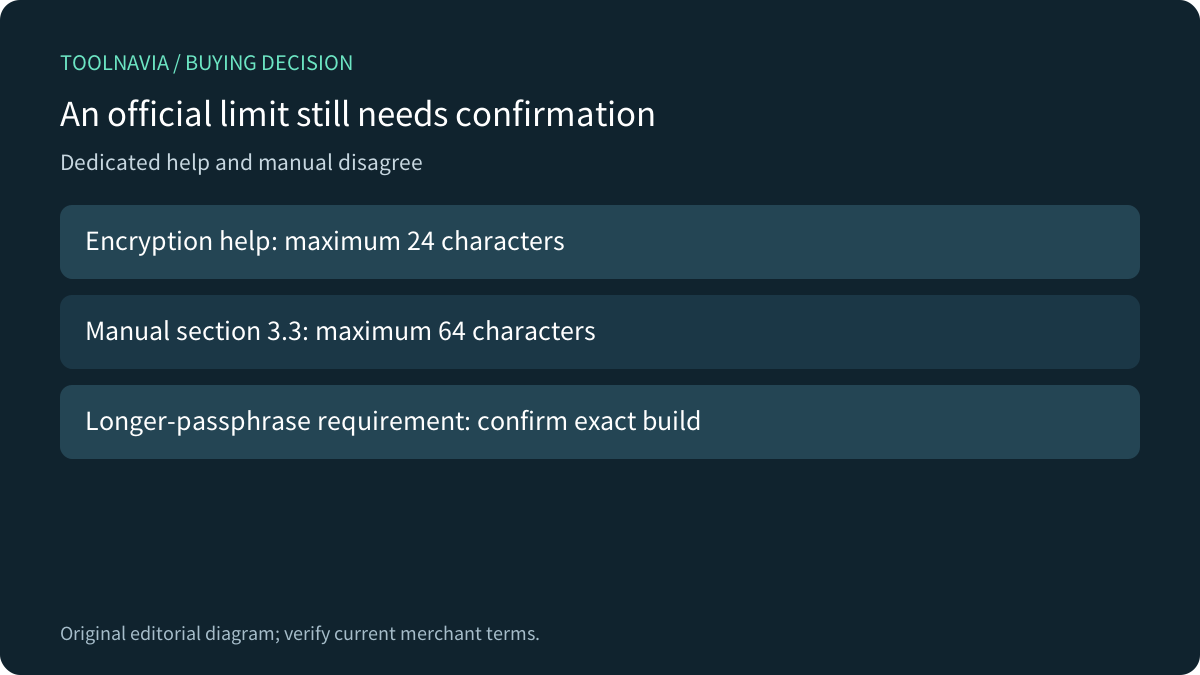
AOMEI's dedicated encryption help, updated June 3, 2026, lists a maximum of 24 characters. The linked user manual's section3.3 lists 64 characters. We have not tested an installed build to resolve that difference. If your purchase requires a longer passphrase, obtain a build-specific answer and test the actual field before relying on it.
Both sources agree on the consequence of losing the image password: recovery is not available through a forgotten-password shortcut described there. They also say the password of an already created encrypted image cannot be changed. Plan a fresh, verified backup set if your operational policy requires a different image password; do not assume editing a saved task rewrites historical archives.

Compare backup behavior without borrowing a competitor's promise
Macrium's BitLocker documentation explains a concrete case: when it images an unlocked BitLocker volume, the file system in the image is unencrypted, and it recommends separate AES backup-file encryption. This illustrates why source-drive protection and archive protection are distinct. It does not prove that every Backupper capture mode produces the same result.
Veeam's documentation separately describes restore outcomes that change with location, resizing and whether a volume can be unlocked. Some paths restore unencrypted data. Again, these are Veeam's documented paths, not an AOMEI guarantee. They establish a useful acceptance question: after recovery, what is the destination's actual encryption state? Verify that instead of inferring it from the original machine or the backup filename.

Test the copied image and the recovery path
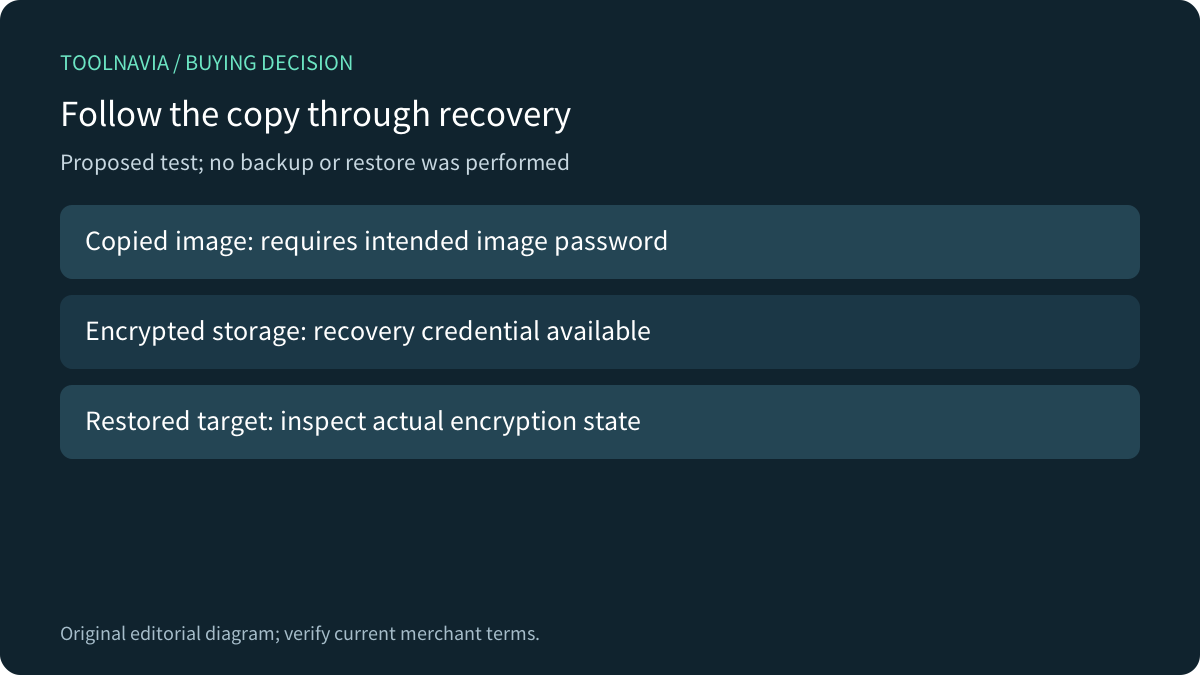
Use a small disposable dataset and the current supported build. Select image encryption deliberately, record the relevant settings without recording the secret, and create a test image. Copy it to the intended destination. In a separate authorized test session, attempt to browse or restore the copy without relying on a saved password; confirm that the intended image credential is required. Then verify that the correct credential permits recovery.
If the storage itself uses BitLocker, test retrieval of its recovery information separately. Restore only to a disposable target, inspect representative files, and check the restored volume's protection. Keep the evidence with the build number and task scope. These are proposed checks; we created no backup, attempted no unlock and performed no restore for this article.
Buy the license after the protection test
The regular Professional page currently lists one personal Windows PC at $39.95 per year with automatic renewal, or $69.95 for lifetime use and upgrades. The upfront difference is $30. This is a regular-page comparison, not the lowest promotion or a future renewal guarantee; official campaigns and tax may change the selected order. Professional personal rights are distinct from business or server licensing.

Consider Professional when the required backup features fit and copied-image access, independent credentials and recovery all pass. Pause if the only evidence is BitLocker on the source or an app-launch password. [Check Backupper Professional](https://www.jdoqocy.com/click-101895278-17143105) after testing the exact build and selected rights. This article contains an affiliate link; Toolnavia may earn a commission from an eligible purchase.