TOOLNAVIA / BUYING GUIDE
HostPapa Essentials PHP Versions: Upgrade Safely—or Keep the Old Runtime?
The short answer
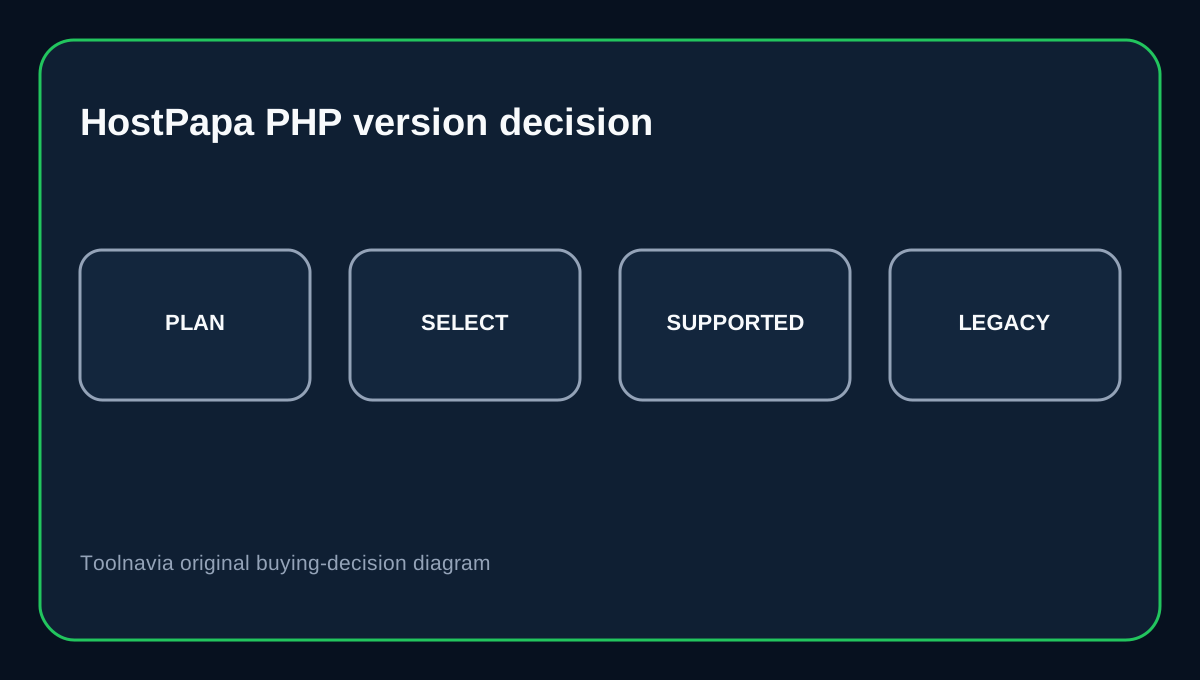
HostPapa Essentials is a reasonable fit for a small WordPress site that needs **cPanel-level PHP switching without moving to a VPS**, but the buying decision is not simply “pick the newest PHP.” HostPapa’s October 2026 guide lists PHP 5.6, 7.0, 7.2–8.5 in its selector, while the current hosting-plan table shows an even broader legacy list. WordPress recommends PHP 8.3 or newer. The practical rule is to buy the plan for its selectable runtime, then test your theme and plugins before changing production.
At a glance
- Best for
- Small WordPress sites needing cPanel PHP selection without VPS administration.
- Price model
- Current long-term promotional entry from $2.95/mo; live checkout and renewal terms control.
- Check first
- Legacy PHP availability is not perfectly consistent across HostPapa's current public pages; confirm obsolete-version requirements before paying.
What the current Essentials plan actually gives you
The current HostPapa web-hosting page advertises Essentials from $2.95/month on the long-term introductory path and exposes “Select Your PHP Version” as a server feature. HostPapa’s cPanel overview also places Select PHP Version under Software and says the account can choose PHP versions and modules/options.
That is useful when a plugin or application is not ready for the server default. It gives you a compatibility lever without requiring root access. The boundary is important: this is shared-hosting runtime selection, not control of the underlying PHP packages or operating system.
WordPress compatibility should drive the target version
WordPress currently recommends PHP 8.3 or greater, MariaDB 10.11+ or MySQL 8.0+, and HTTPS. It still notes that older PHP can run in legacy environments, but warns that end-of-life versions may expose a site to security problems.
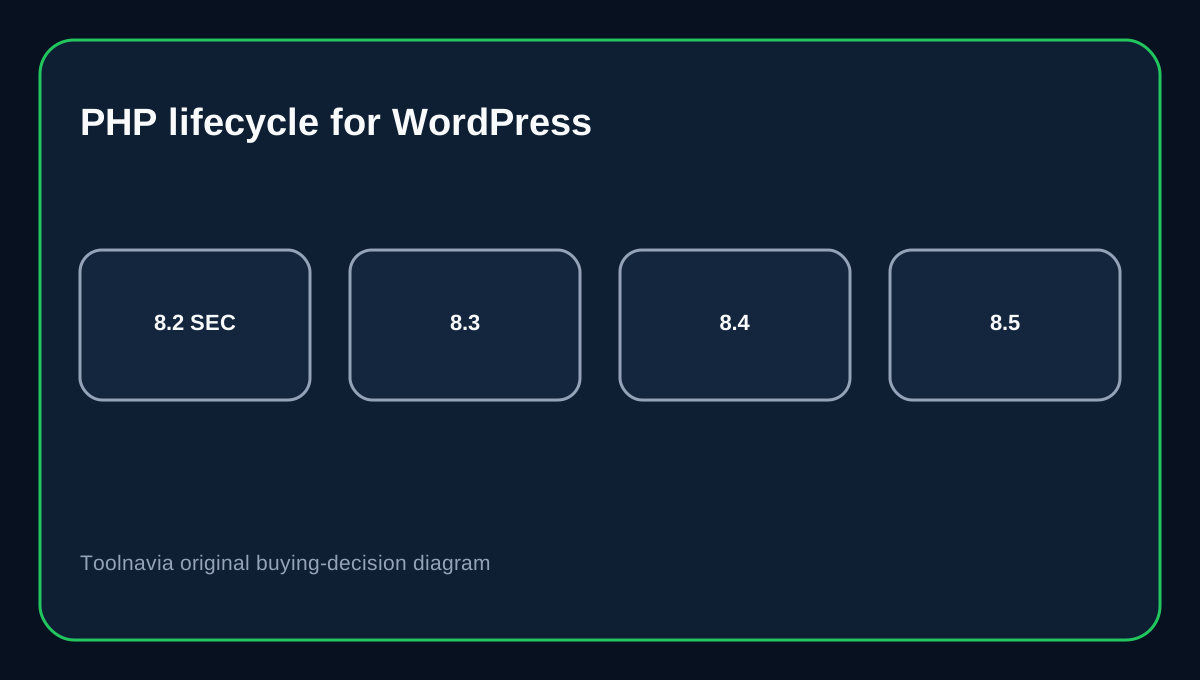
PHP’s own support table makes the lifecycle clearer: PHP 8.2 is in security-only support through the end of 2026, while 8.3, 8.4 and 8.5 have longer support windows. For a new WordPress build, that favors a supported 8.x branch rather than an old version merely because the selector still displays it.
Change the runtime in cPanel, then verify the site
HostPapa’s current instructions use cPanel → Software → Select PHP Version, then choose a version and set it as current. The same screen can enable or disable extensions and adjust selected PHP options. cPanel’s own MultiPHP documentation similarly treats PHP selection as a domain-level configuration controlled by what the hosting administrator makes available.
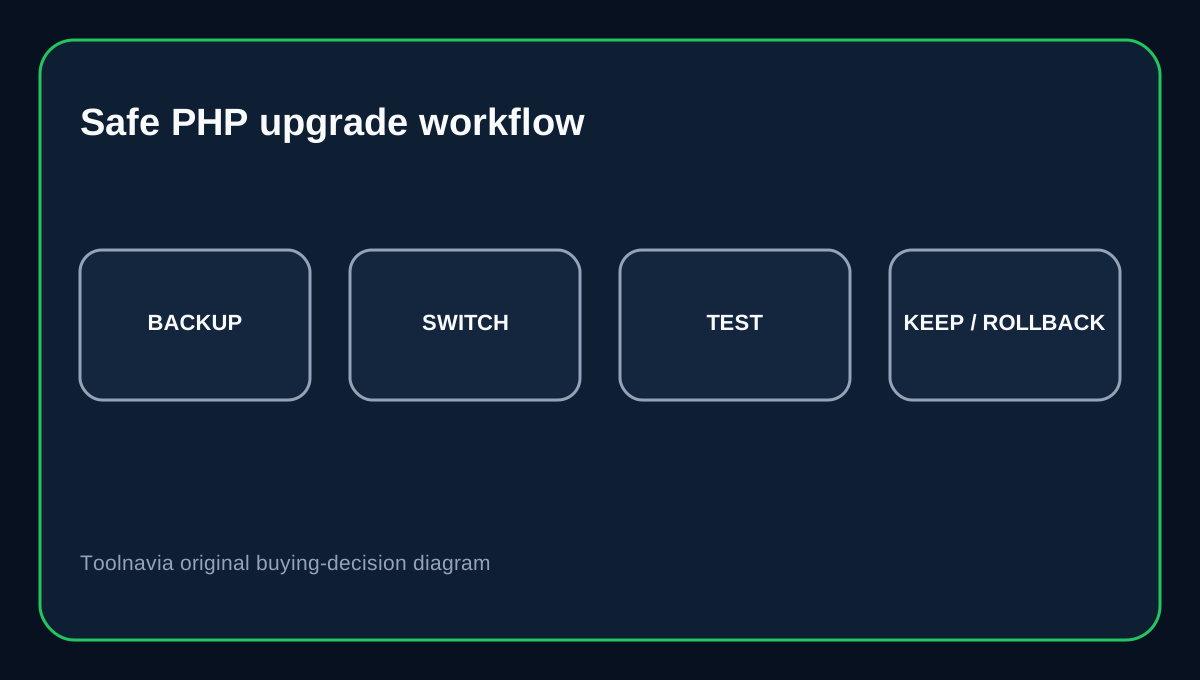
Before changing production, record the existing PHP version, take a current backup, update WordPress core/plugins/themes, and test critical flows after the switch. Check login, forms, checkout, scheduled jobs, image processing and any plugin that calls external APIs. A successful homepage load is not enough evidence that the whole site is compatible.
The old-version list has an official-source conflict
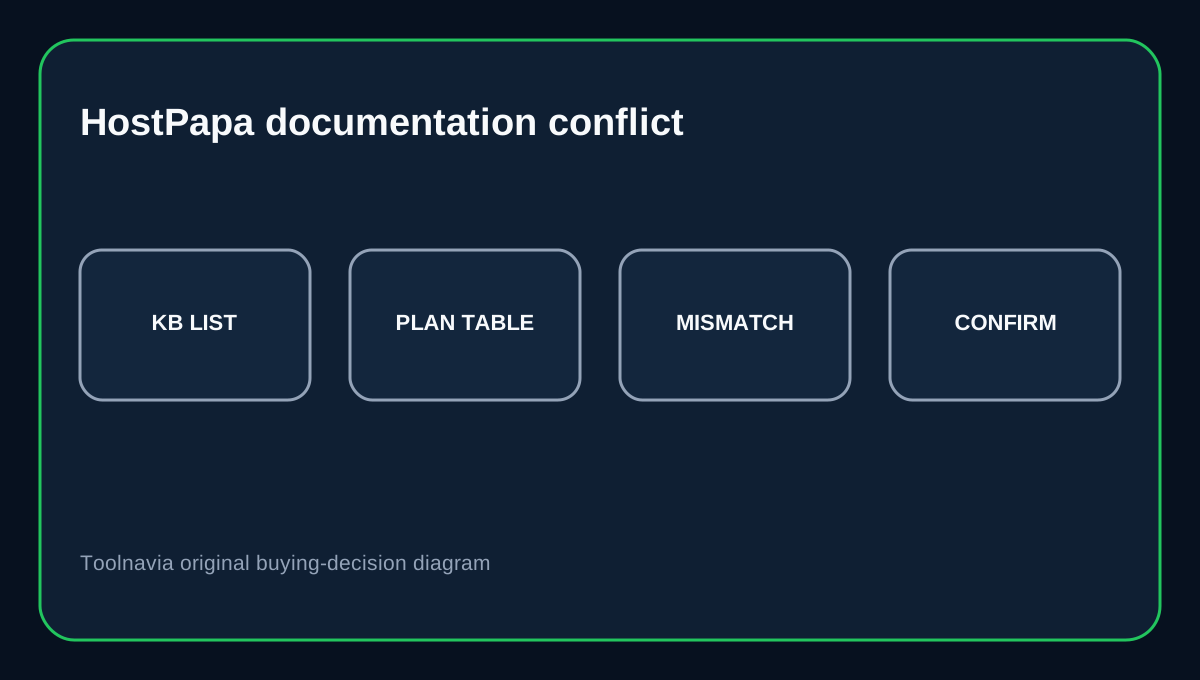
There is a real documentation mismatch worth knowing before purchase. HostPapa’s October 1 knowledge-base article lists PHP 5.6, 7.0, 7.2, 7.3, 7.4 and 8.0–8.5 as currently supported. The live hosting-plan table also displays 5.1–5.4 and 7.1.
Those two official pages do not fully agree on the oldest selectable branches, so Toolnavia does not treat the marketing table as proof that every legacy branch is available on every Essentials server. If an old application absolutely requires one of those legacy versions, confirm the exact server/account availability with HostPapa before paying.
A rollback is a compatibility tool, not a long-term security plan
If a plugin fails after an upgrade, moving back to the previous working PHP branch can restore service while you diagnose the incompatibility. HostPapa’s selector makes that operationally simple. But a rollback should have an exit plan because unsupported PHP branches stop receiving normal security fixes.
GreenGeeks’ cPanel PHP guidance provides a useful comparison: it also recommends newer versions by default and treats older branches as compatibility choices rather than the preferred steady state. That is the right mental model here too.
Buying decision
Choose HostPapa Essentials if you want inexpensive shared hosting with a cPanel PHP selector and you can keep the site on a supported PHP branch after testing. Avoid buying it solely because a very old PHP number appears on a feature table. If a legacy application depends on a specific obsolete runtime, first get account-specific confirmation—or plan the application upgrade before migration.
Affiliate disclosure: Toolnavia may earn a commission from an eligible HostPapa purchase. The documentation conflict and compatibility limits above are included regardless of that relationship.