TOOLNAVIA / BUYING GUIDE
HostArmada Web Warp: Which Cache Serves the Page?
The short answer
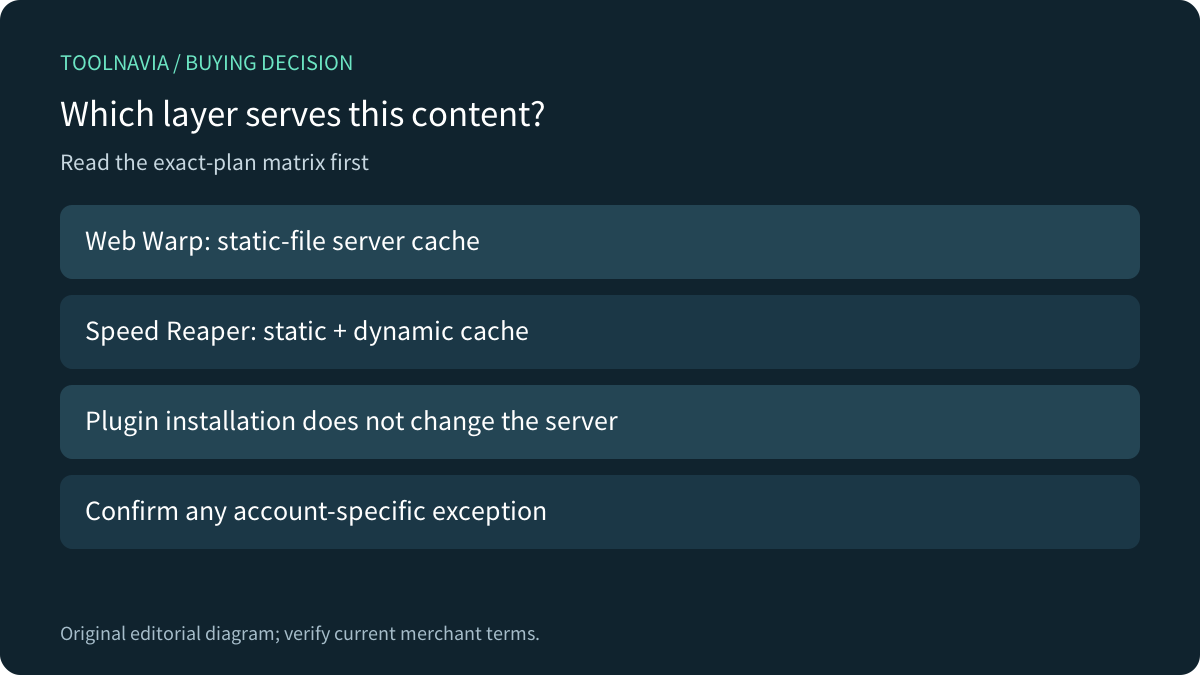
Before buying Web Warp for WordPress, identify which layer will cache which content. The current HostArmada plan matrix lists static-file caching for Web Warp and static plus dynamic caching for Speed Reaper. Installing a plugin called LiteSpeed Cache does not change that server entitlement.
At a glance
- Best for
- Buyers who understand the static-server cache and can own the site cache workflow.
- Price model
- Check current Web Warp term and renewal; separate optional plugin/CDN costs.
- Check first
- Installing a plugin does not add a LiteSpeed server or prove private-page correctness.
Start with the exact plan's cache scope
HostArmada's plan-specific knowledge base describes Web Warp as Apache with NGINX serving static resources; Speed Reaper uses LiteSpeed. The current comparison matrix agrees with that distinction. Treat Web Warp's included server cache as static-file caching when making the purchase decision.
A broader Cache Commander blog describes static and dynamic caches and includes Web Warp among its NGINX plans. That general wording is broader than the exact-plan matrix. This guide follows the current, more specific matrix and knowledge base; it does not promise NGINX full-page HTML caching on Web Warp. If support describes a different account configuration, request its current scope in writing before buying.

Separate plugin optimization from its cache engine
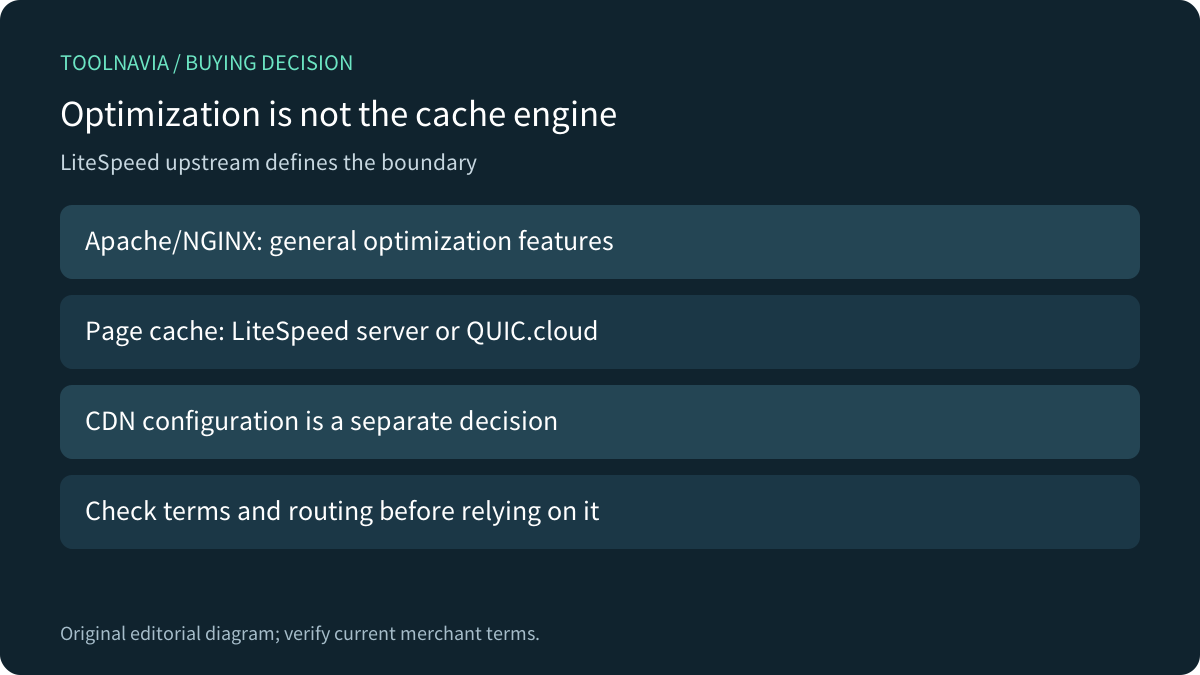
LiteSpeed's current installation documentation says the WordPress plugin's optimization functions can work on Apache or NGINX. Its caching functionality requires a LiteSpeed server or QUIC.cloud CDN. The publisher's WordPress listing makes the same general-versus-exclusive feature distinction.
That leaves a meaningful choice: use compatible optimization functions on Web Warp, deliberately configure a supported external cache service, or choose hosting that supplies the required server engine. A successful plugin installation alone proves none of those configurations is complete.
QUIC.cloud is an important exception to the assumption that Apache can never use the plugin's cache features. It is also a separately configured service: do not assume the Web Warp purchase automatically includes every CDN capability or paid allowance. Check the selected service's current terms and the site's actual routing.
Give every cache a named owner
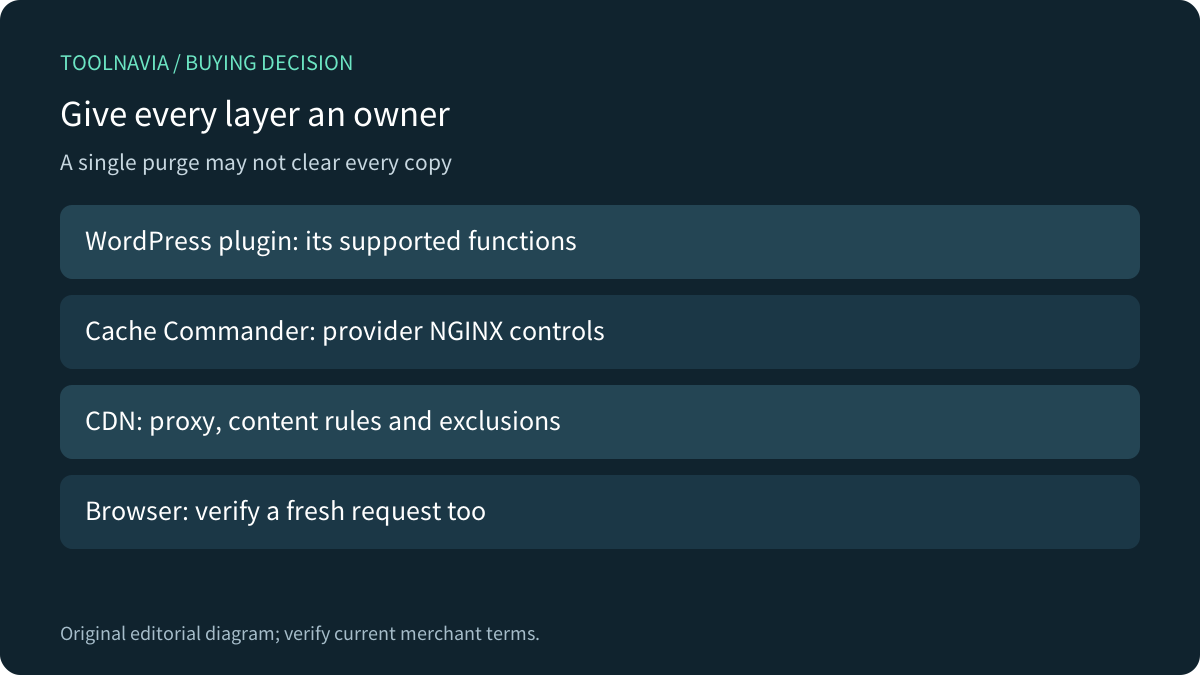
Cache Commander is HostArmada's cPanel interface for managing its NGINX cache. The provider's tutorial shows domain-level status and cache clearing. It is a separate control surface from a WordPress optimization plugin or a CDN dashboard.
The tutorial dates from2020 and its Activate/Deactivate wording is easy to misread around domain exclusions. This article therefore gives no button-by-button toggle recipe. Ask support what the current account controls include or exclude, and verify that interpretation on a noncritical page before changing production behavior.
WP Rocket provides a useful comparison: it works with NGINX, but its documentation says synchronizing NGINX cache purges through Nginx Helper requires server configuration changes. Installing another plugin is not proof that HostArmada's server cache will be purged with it. This is integration guidance, not a claim that Web Warp includes WP Rocket or those server changes.

Treat the CDN and browser as additional layers
Cloudflare caches eligible static resources by default, while dynamic HTML is not cached by default; additional rules are needed for that behavior. DNS-only traffic does not receive the proxied cache. A Cloudflare account or a fast image response therefore does not establish that the WordPress page itself is cached.
For a site using several layers, keep a short map: content type, cache owner, exclusion rules and purge action. A WordPress edit, a changed CSS file and a personalized cart need different checks. Browser cache can also preserve an old asset after a server purge, so verify a fresh request rather than relying on one open tab.
Avoid enabling overlapping optimizations merely to collect more cache labels. Assign one owner for each intended transformation or cache behavior and introduce changes separately. That makes a stale page or broken interaction easier to trace without assuming that every layer shares the same exclusions.

Accept correctness before comparing speed
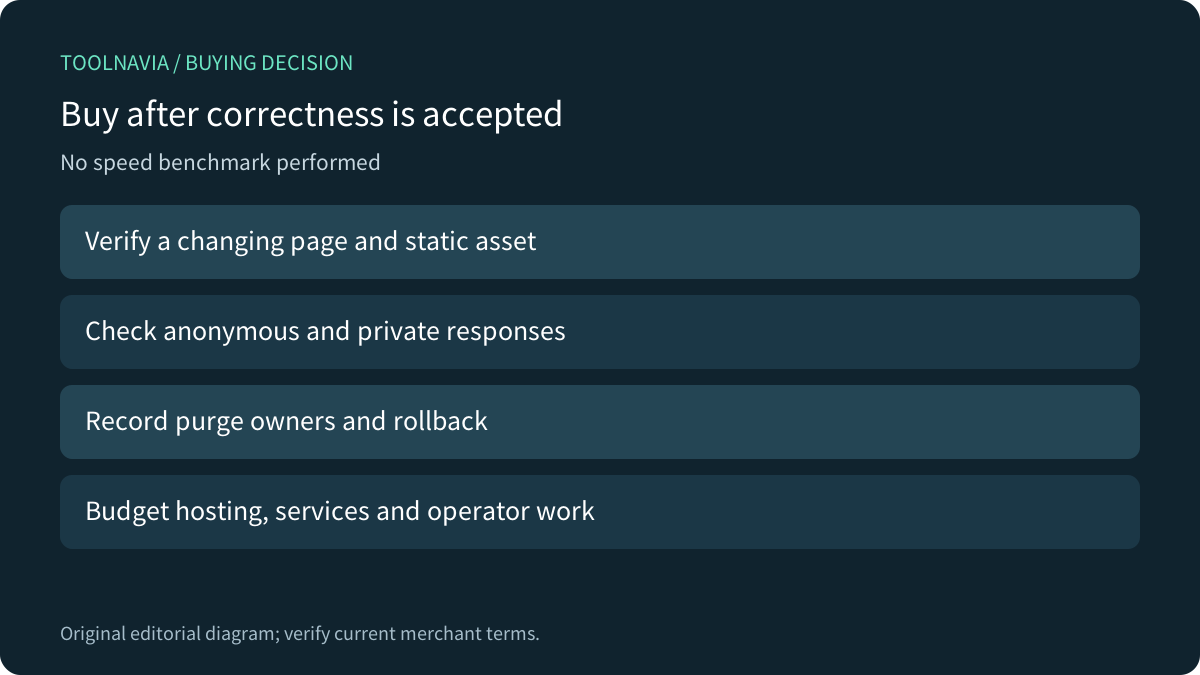
Use a disposable or noncritical page and a static asset with clearly distinguishable revisions. Ask the provider which response headers or other evidence identify the actual cache layer, then observe fresh requests before and after an authorized purge. A header from one layer does not prove that all other layers were refreshed.
Check anonymous and signed-in views separately. For a store or membership site, verify that cart, account and other private responses remain appropriate for each user. A quick homepage load does not establish those boundaries. Do not deploy a broad HTML-cache rule merely because static caching appears to work.
Record the expected result, the layer changed and the rollback route. This article proposes an acceptance process; Toolnavia did not install WordPress, operate a hosting account, clear caches or measure a speed improvement.
Buy the workflow that fits the site
Web Warp can fit a site whose needs match its documented static-server cache and a deliberately chosen application workflow. If the purchase specifically depends on a LiteSpeed server cache, compare Speed Reaper's current entitlement and obtain confirmation for the intended site. A plugin name alone is not a reason to upgrade.

Confirm the exact hosting term, initial charge and renewal, plus any separately chosen plugin or CDN service and the work needed to maintain it. No numeric hosting invoice is asserted here. After confirming scope and ownership, [review the current HostArmada Web Warp offer](https://affiliates.hostarmada.com/scripts/q1yoac4x8oq?a_aid=toolnavia). Toolnavia may earn a commission from eligible purchases.