TOOLNAVIA / BUYING GUIDE
GreenGeeks Lite Cron Jobs: Is a 15-Minute Schedule Enough?
The short answer
GreenGeeks Lite suits small WordPress sites whose background tasks can wait for a 15-minute trigger. A one-minute deadline needs another solution. Include execution time in that decision: a trigger is only the start. This official-documentation analysis includes a suggested acceptance workflow, not a hosting benchmark.
At a glance
- Best for
- Small WordPress sites with short tasks that tolerate a 15-minute trigger interval.
- Price model
- $35.40 prepaid for the first 12 months; displayed renewal $167.40 per 12 months before tax and changes.
- Check first
- Not for strict sub-15-minute deadlines; Lite website count differs between sales and older support pages.
What the 15-minute limit means
GreenGeeks lists cron support for EcoSite shared hosting at intervals no shorter than 15 minutes; its acceptable-use policy also prohibits more frequent cron jobs. A cron job is a command launched on a schedule. Do not treat a panel accepting a five-minute expression as permission, or buy an external scheduler to sidestep the host's rule.
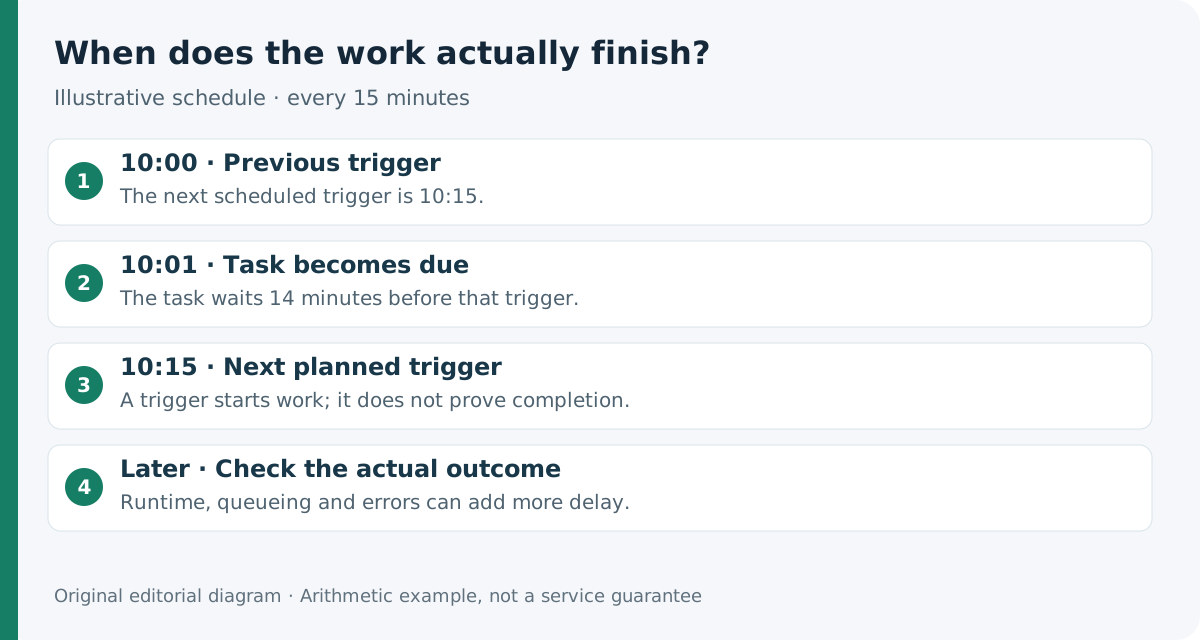
Our timing example separates three events: a job becomes due at 10:01, the next scheduled trigger is 10:15, and processing finishes later. The first wait is 14 minutes, before runtime, queueing or failures. This is arithmetic, not a promised maximum delay. Fifteen-minute scheduling creates 96 planned trigger opportunities per day; hourly scheduling creates 24.
For a quiet brochure site, publishing a routine post or refreshing a daily report may tolerate that delay. A shop promising a stock update within two minutes does not. Write down the acceptable end-to-end delay before choosing hosting.
Four practical benefits for a small site
**Manage jobs beside the website.** GreenGeeks documents Manage → Dev Tools → Cron Jobs. A small business can keep the schedule and command in the hosting dashboard instead of buying a separate scheduler simply to run a periodic task. You still need a correct application command.
**Run a defined command, not just a WordPress preset.** The dashboard accepts a command plus a custom or preset timetable. That can support short maintenance scripts as well as WordPress tasks; the command must fit shared resources and provider policy.
**Reduce dependence on visits.** WordPress normally checks scheduled work during page loads. An external system trigger can wake due work even when nobody visits. GreenGeeks describes replacing that trigger through cPanel, while WordPress documents the underlying configuration. It does not guarantee delivery of every plugin job.
**Keep diagnostic output visible.** Cron notification email can reveal command errors during setup. Check actual output and the task's result; an empty notification queue or a successful HTTP request alone is not proof that a post, export or message completed.
First-year cost, renewal and a plan discrepancy
The current US-dollar Lite page shows $2.95/month prepaid for 12 months: **$35.40 upfront**. Its displayed renewal is $13.95/month, equivalent to **$167.40 for another 12 months** if unchanged. Tax, optional services and later price changes are extra. Two years of hosting at those displayed rates total $202.80 before those additions; this is a calculation, not a cart quote.
One detail needs confirmation: the current sales card lists **five websites**, but the older official pricing knowledge-base table still lists **one hosted domain** for Lite. This guide evaluates one WordPress installation and does not promise five independent sites. Confirm the exact entitlement in your order before consolidating sites. Both pages show 25GB of storage.
There is no documented shorter shared-hosting cron interval for Pro or Premium in the EcoSite row. Paying for more storage or CPU therefore does not establish permission for one-minute scheduling. Ask for the exact alternative service and its written policy if frequent jobs are essential.
Replace WP-Cron without leaving scheduling disabled
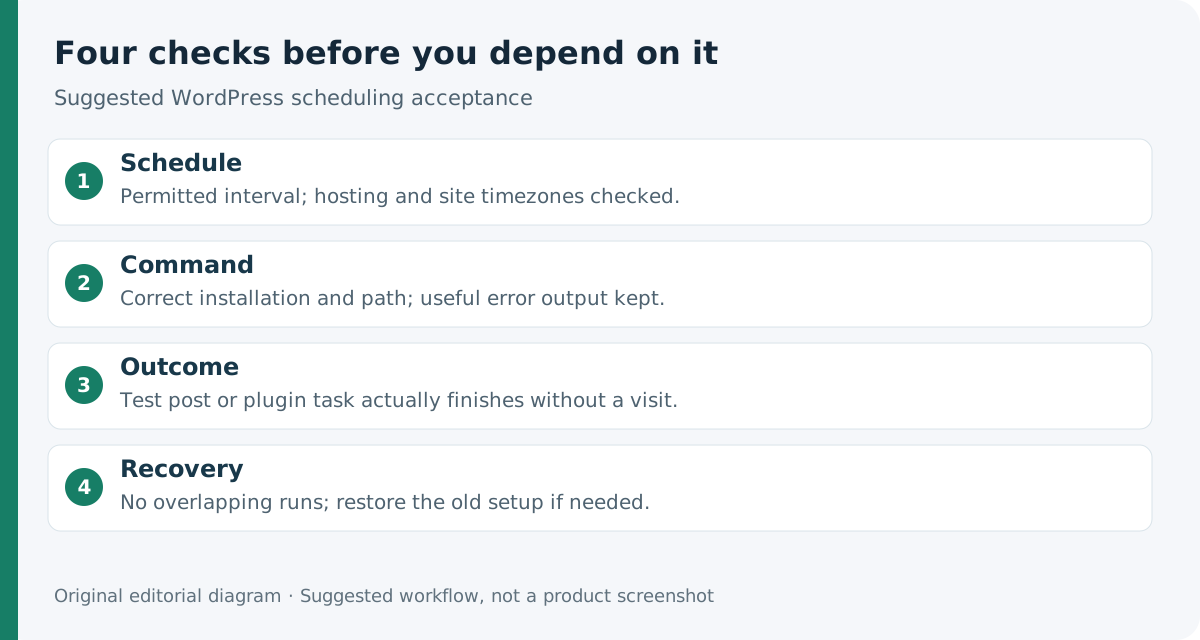
Prepare a recoverable copy of wp-config.php and record any existing scheduler. In the dashboard or cPanel, identify the exact WordPress installation, command path and account timezone. Check the site's timezone too; do not assume they match.
Create and test one replacement job at a permitted interval. WordPress illustrates the schedule expression `*/15 * * * *`; the command is separate. Use the real account path or approved HTTPS endpoint, not another host's sample path. Only after the replacement is ready, disable the page-load trigger with `define('DISABLE_WP_CRON', true);`. Avoid a prolonged gap with both triggers off.
GreenGeeks' older tutorial discusses disabling the default trigger; our recommendation is to complete the replacement in the same maintenance window. SiteGround's separate tutorial uses a different host-specific path and timetable, illustrating why commands should not be copied blindly between providers.
Test outcomes and prevent overlapping runs
Schedule a harmless test post just after a trigger boundary. Record its due time, next trigger, actual publication time and any error output. Check an additional plugin task you rely on. Repeat while nobody visits; restore the original configuration if scheduled work stops.
cPanel warns that a second run can start before the previous one finishes. If a 15-minute job needs 18 minutes, increasing frequency worsens the overlap. Shorten or split the workload, use application-supported locking, or choose a longer interval that still meets the business requirement. An interval is not a resource reservation.
During initial testing keep useful output available. After stable operation, reduce routine noise without hiding failures. Record the command owner, expected result and recovery procedure so a future plugin or PHP change does not silently break scheduling.
When Lite is worth buying
Choose Lite for a modest site with short, delay-tolerant tasks and someone able to check failures. Its dashboard, command scheduling and diagnostic output can be enough without a separate automation subscription.
Keep the current arrangement if it already runs correctly and migration has no concrete benefit. Choose another suitable hosting or job-running service when the workload requires sub-15-minute execution, strict deadlines or long-running workers. Compare its full recurring bill and maintenance responsibility, not just an introductory rate.
Before paying, verify the live Lite term, renewal, website entitlement and your exact command. The decision is whether the schedule fits the task; an upgrade label cannot answer that.
Affiliate disclosure: Toolnavia may earn a commission from an eligible GreenGeeks purchase through its existing approved direct referral link.