TOOLNAVIA / BUYING GUIDE
UniConverter DVD Burner: Will the Disc Play on Your DVD Player?
The short answer
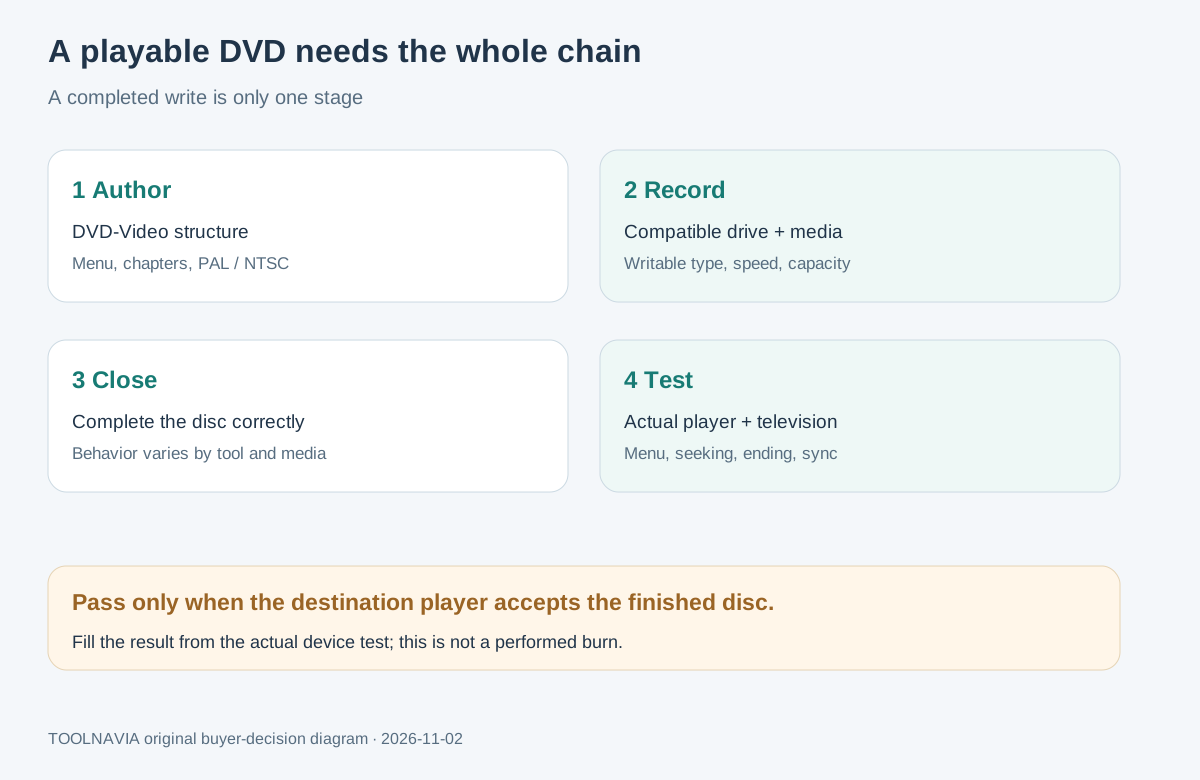
A UniConverter burn is worth paying for only if you need an authored DVD-Video workflow and can test the finished disc on the actual player. “Burn completed” proves that data reached the disc; it does not prove that the disc type, TV standard, authoring structure and player are compatible.
*Official-documentation analysis, November 2, 2026. No disc was burned and no player was tested.*
At a glance
- Best for
- Personal Windows users considering UniConverter to author physical DVD-Video discs for a known television and DVD player.
- Price model
- Exact approved Windows yearly offer; confirm version, total, tax, renewal and add-ons.
- Check first
- A buyer without a writable optical drive, needing universal playback guarantees, direct protected-disc copying, commercial/Mac rights, or Blu-ray creation without compatible hardware.
Fast verdict: prove the playback chain, not just the burn
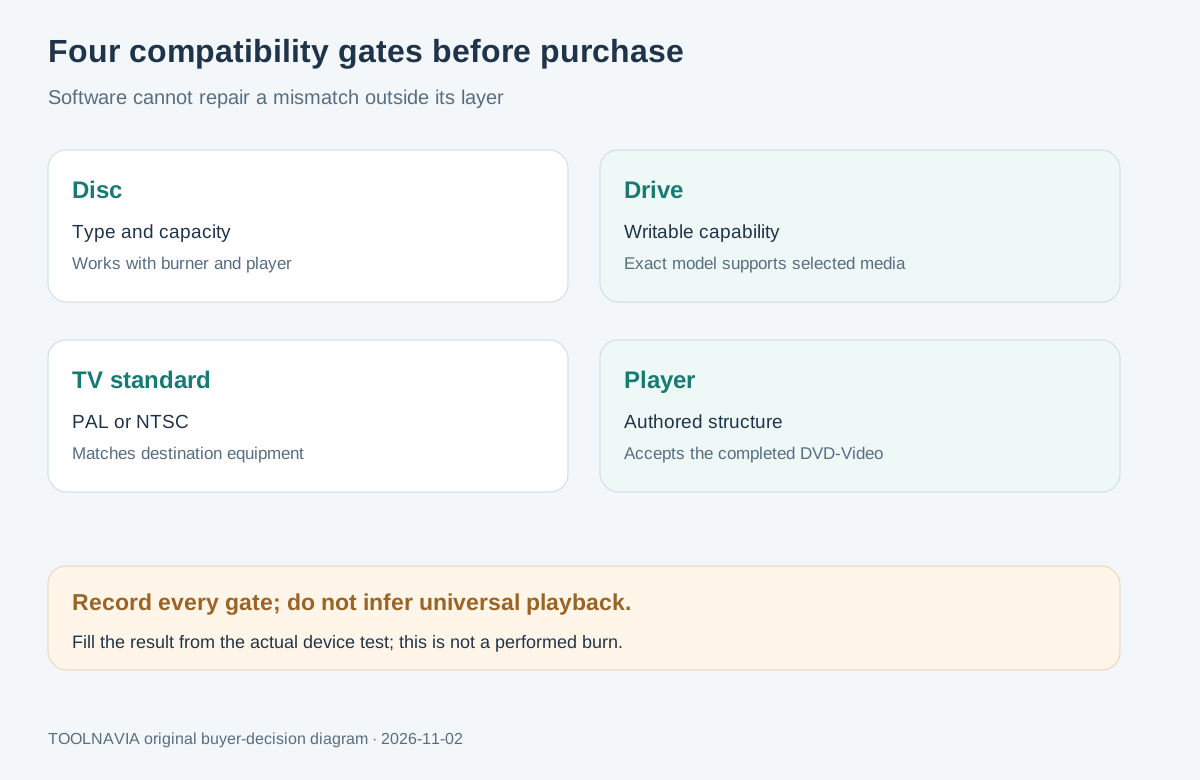
Wondershare's own support tells users to confirm that the blank disc works with the target DVD player and to choose the correct PAL or NTSC TV standard. Its burner guide then adds menu, aspect-ratio, quality and media choices. Those are separate checks, so the software cannot remove a mismatch elsewhere in the chain.
| Check | What must match | | --- | --- | | Authoring | DVD-Video structure rather than a folder of arbitrary files | | Recorder | Drive supports the selected writable media | | Disc | Type and capacity suit both recorder and player | | Video standard | PAL or NTSC matches the destination system | | Playback | The actual television/DVD player accepts the completed disc |
DVD-Video is not the same as a data DVD
A data DVD can store video files, but the player still needs to understand the file container and codec. Microsoft explicitly frames data-disc playback as device-dependent. For a living-room DVD player, use an authored DVD-Video workflow when that is what the device expects; copying MP4 files to a disc is a different result. Roxio likewise separates authored video discs from raw data storage in its own workflow.
UniConverter documents adding video, choosing a menu and settings, previewing, and burning to a disc, DVD folder or ISO. That can be useful when you want chapters and remote-control navigation. It does not make every source, blank disc or player compatible. The broader product page markets the burner but does not remove those support conditions.
Direct disc-to-disc duplication is also outside the documented workflow. Wondershare says to copy or convert the source first and then burn the result to a new disc. That extra stage does not bypass copyright, encryption or regional restrictions.
Check the drive, blank media and target player
Software cannot turn a reader-only optical drive into a burner. As an independent comparison, CyberLink requires a DVD±R/RW burner for DVD creation and a Blu-ray recorder for Blu-ray output. Verify the exact drive model, supported media and blank-disc speed before purchasing for physical discs.
Wondershare's quality support recommends updating the optical-drive driver and confirming that the blank media works with the drive. Its player-compatibility support separately asks whether the disc works with the target player. A disc can therefore burn successfully yet fail at playback.
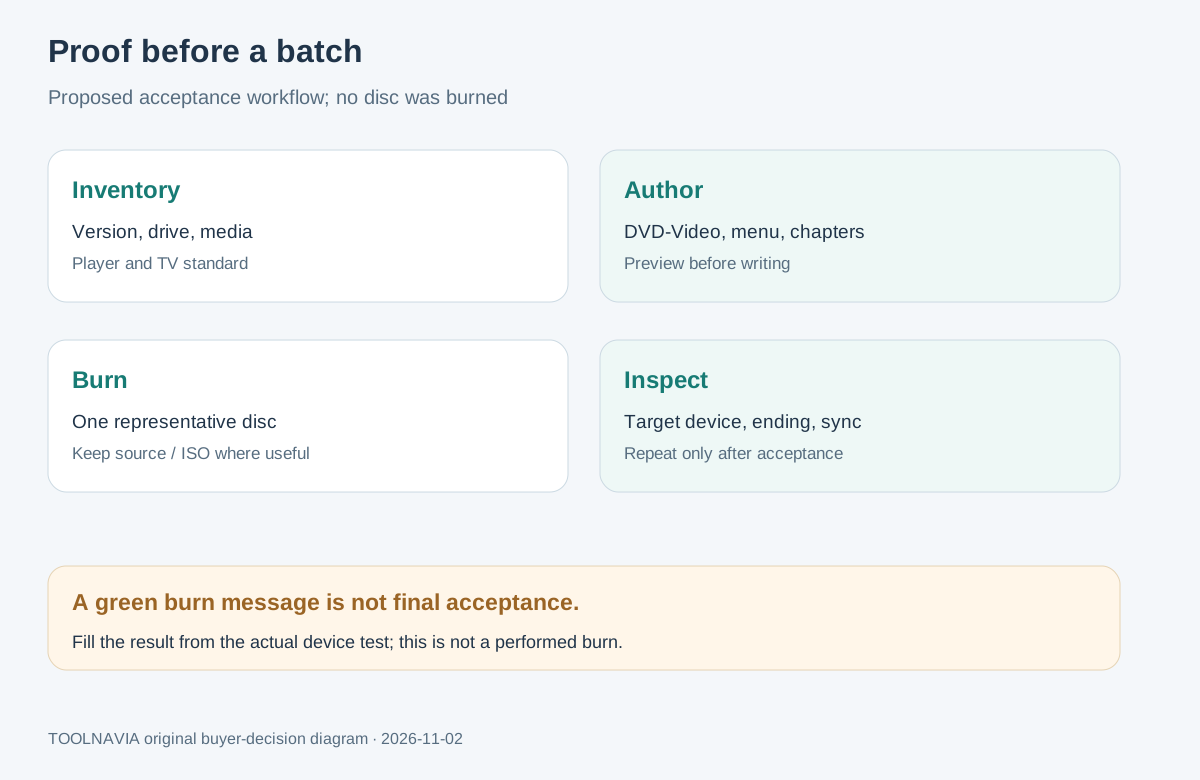
Use one inexpensive test disc—or rewritable media where the drive and player both support it—before committing a batch. Keep the source file and, where useful, an ISO or DVD folder so a failed physical burn does not force you to rebuild the project.
Choose PAL or NTSC, menus and capacity deliberately
Select the TV standard for the destination equipment, not simply the computer on which you author the disc. Wondershare flags PAL/NTSC as a playback-compatibility choice. Confirm the television and player manual when the destination region or hardware is uncertain.
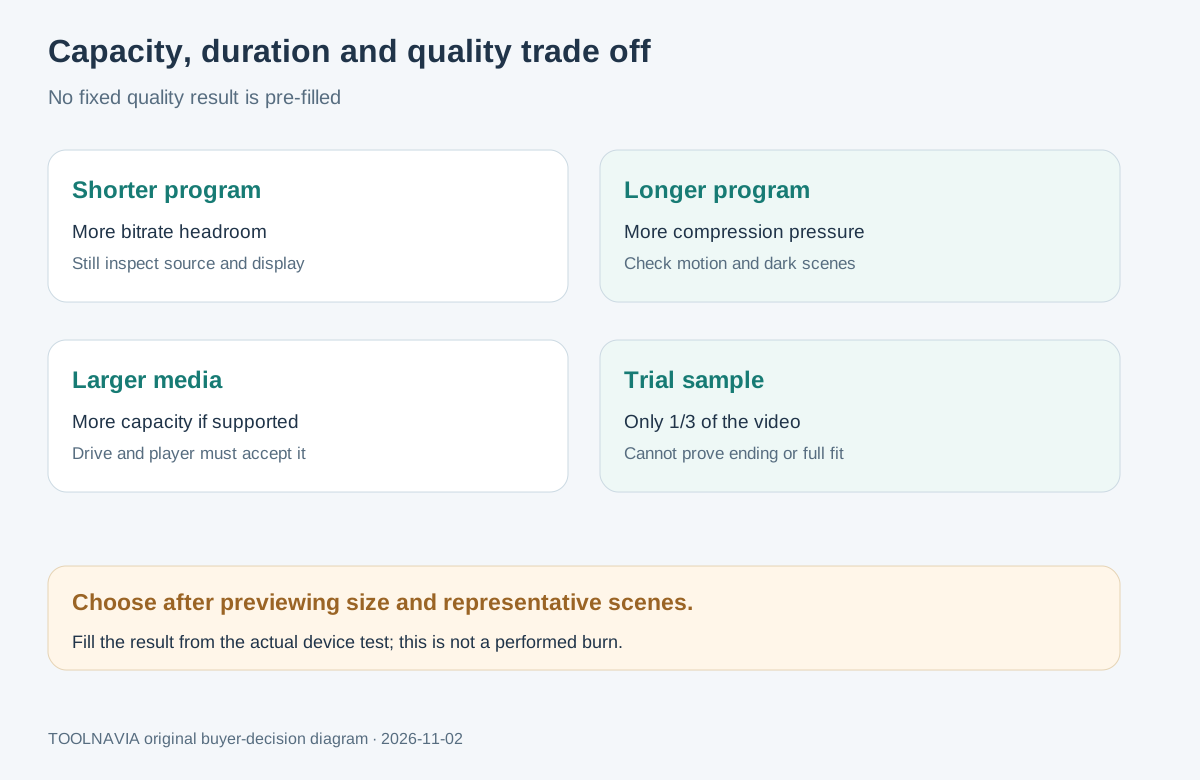
Longer content must fit finite disc capacity. Nero's support explains the general tradeoff: reducing quality can fit a longer movie, while larger media can preserve more bitrate. That principle is useful context, but its exact calculation and controls are Nero-specific. UniConverter buyers should preview the menu, check estimated size, avoid squeezing an unknown overage, and inspect motion, text and dark scenes on the target display.
Finalization is another boundary. Nero and Roxio document their own close/finalize behavior, with differences by disc type. Their guidance shows why a disc left open can be less compatible, but it does not prove how the current UniConverter build finalizes each media type. Verify the resulting disc on the destination player rather than asserting a hidden implementation detail.
Use a five-step proof workflow before relying on a batch
1. **Inventory the chain.** Record the Windows build, UniConverter version, optical-drive model, blank-disc type/capacity, target player and television standard. 2. **Make the right deliverable.** Choose DVD-Video authoring when the player expects it; do not confuse a data disc with a navigable video disc. 3. **Author a short representative project.** Include motion, fine text, dark scenes, chapters and menu navigation. Choose the destination PAL/NTSC standard and preview the menu. 4. **Burn and inspect.** Eject and reinsert the disc, play it on the actual target device, test chapter/menu controls, seek near the end, and listen for sync or dropout problems. 5. **Repeat only after acceptance.** If the disc fails, isolate media, drive, standard, capacity or player compatibility before buying more blanks or processing a batch.
The official trial burns only one-third of a video to DVD. That can test a sample and basic navigation, but it cannot prove the ending, full capacity, or complete-disc playback.
Who should buy—and who should hold
This Windows offer can fit a personal user who regularly authors DVD-Video, owns a compatible burner, knows the destination standard and can test on the real player. It is a poor fit if the computer has no writable optical drive, the destination accepts only a different disc/standard, you need direct protected-disc copying, or you require guaranteed playback without testing.
Confirm the supplied version, personal-use license, Windows platform, initial total, tax, renewal and any add-ons in the live checkout. The stable registry offer name does not promise that checkout supplies version 17, a Mac license, commercial rights or Blu-ray hardware.
*Affiliate disclosure: Toolnavia may earn a commission from the approved personal Windows purchase link. No exclusive discount, universal playback or measured quality result is promised.*
Bottom line
Pay for the authoring workflow only after the whole chain passes: authored DVD-Video, compatible recorder and blank media, correct PAL/NTSC choice, acceptable capacity/quality, and successful playback on the actual device. A green burn message is the middle of that chain—not the finish.