TOOLNAVIA / BUYING GUIDE
UniConverter Screen Recording: Will System Audio and Mic Both Work?
The short answer
UniConverter can record system audio and a microphone together, but that feature is worth paying for only after it works on the computer, account and operating-system permissions you will actually use. A 60–90 second acceptance recording is more useful than assuming the feature list guarantees clean audio.
*Documentation analysis completed October 29, 2026. We did not install UniConverter, record a screen or inspect a live checkout.*
At a glance
- Best for
- Buyers willing to run a short two-source acceptance recording and verify permissions, sync, webcam placement and saved-file behavior before paying.
- Price model
- Official pages show several Windows yearly variants; current V18 campaign shows US$47.49/year through October 31, 2026. Confirm selected version, tax and renewal.
- Check first
- Anyone expecting OS-permission bypass, separate editable audio/webcam tracks, guaranteed long-session stability from a one-minute trial, or a Mac/commercial entitlement from the approved personal Windows offer.
The purchase question is two audio paths, not one toggle
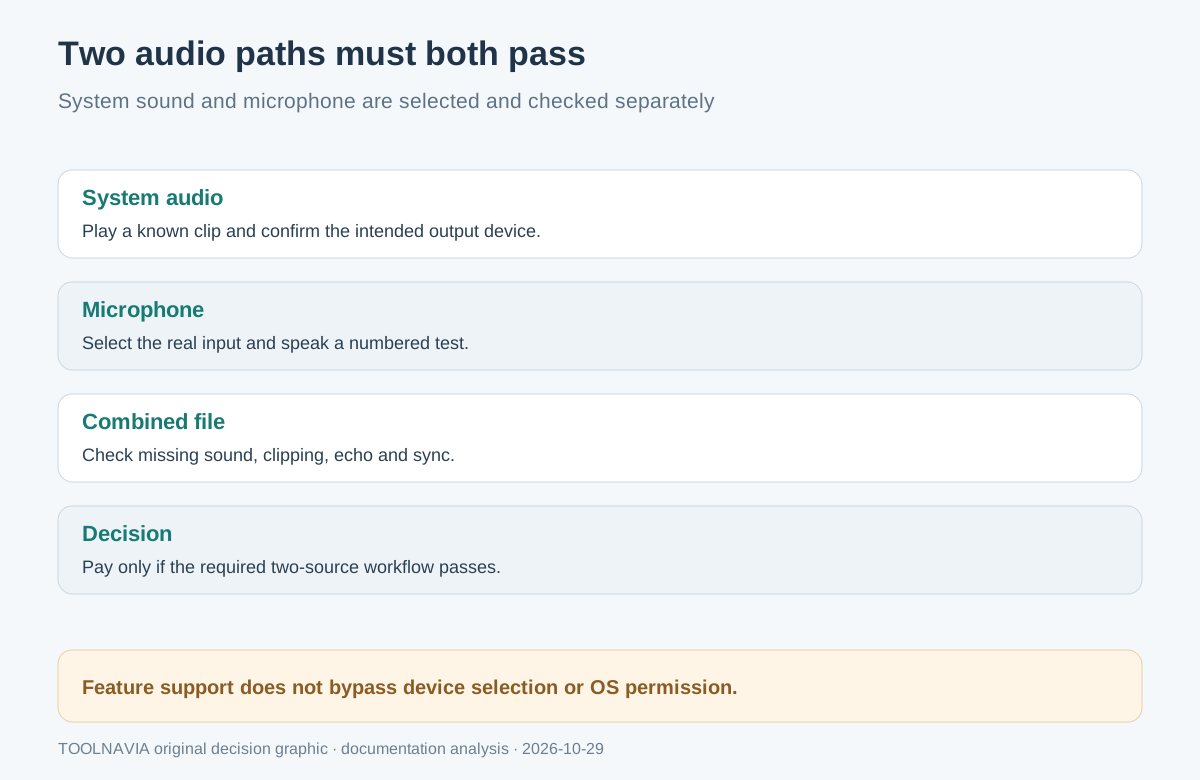
The current recorder workflow exposes **System Audio** and **Microphone** separately. System Audio captures what the computer plays; Microphone captures a built-in mic, USB mic or audio interface. Turning on one does not prove the other is authorized, audible or synchronized.
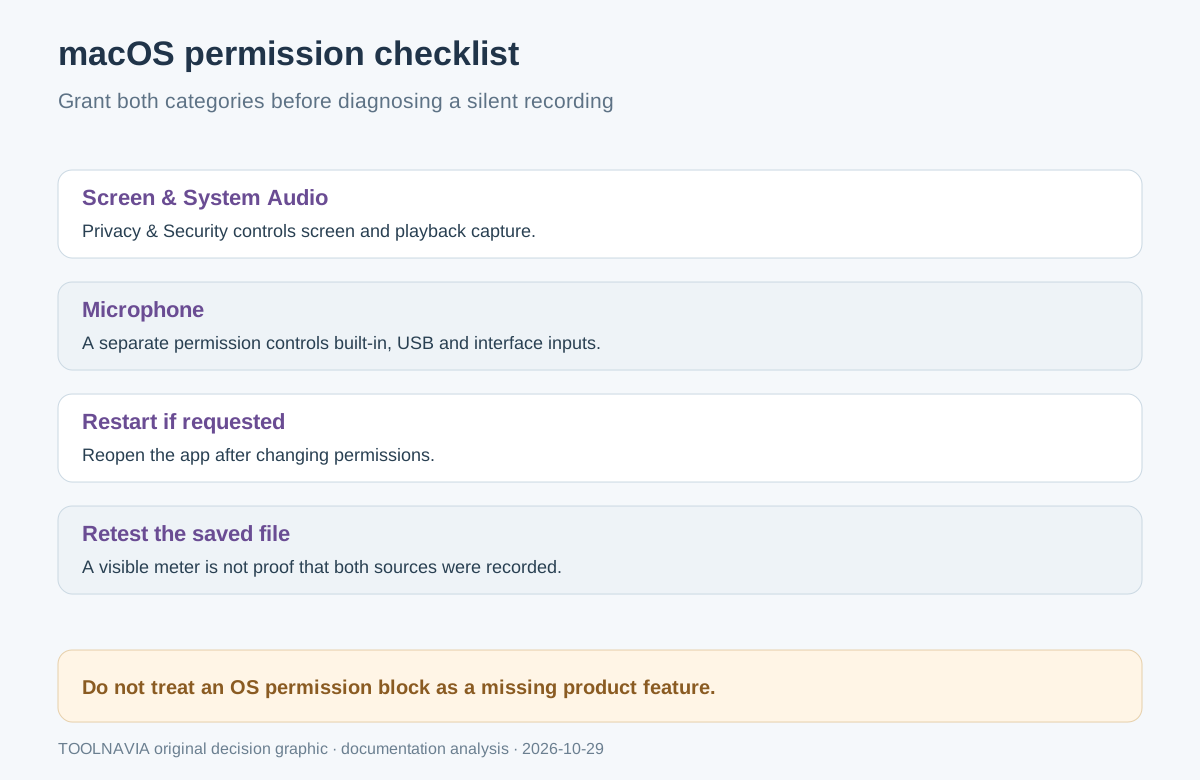
On macOS, screen/system-audio recording and microphone access are separate Privacy & Security permissions. A product can support both sources while the operating system blocks one until the user grants access. This is a prerequisite, not evidence that the advertised feature is absent.
| Before buying | Pass condition | | --- | --- | | System audio | A known clip is present, clear and at the expected level | | Microphone | Speech is present without the wrong input device | | Combined result | Both sources remain synchronized through the sample | | Output | File location, format, resolution and webcam placement are usable |
Four capabilities that matter
- **Select sources independently.** The recorder lets a buyer choose system audio and a microphone instead of relying on an undefined mixed input. The boundary is that device names and permissions still need local confirmation.
- **Capture screen, camera and audio together.** Current material documents simultaneous screen, system audio, microphone and optional webcam capture. The webcam overlay may be baked into the recording rather than delivered as a separately editable track.
- **Control the capture before it starts.** Area, quality, frame rate, timer and scheduling controls can make repeat sessions easier. A published feature does not prove that a long recording will remain synchronized on a specific machine.
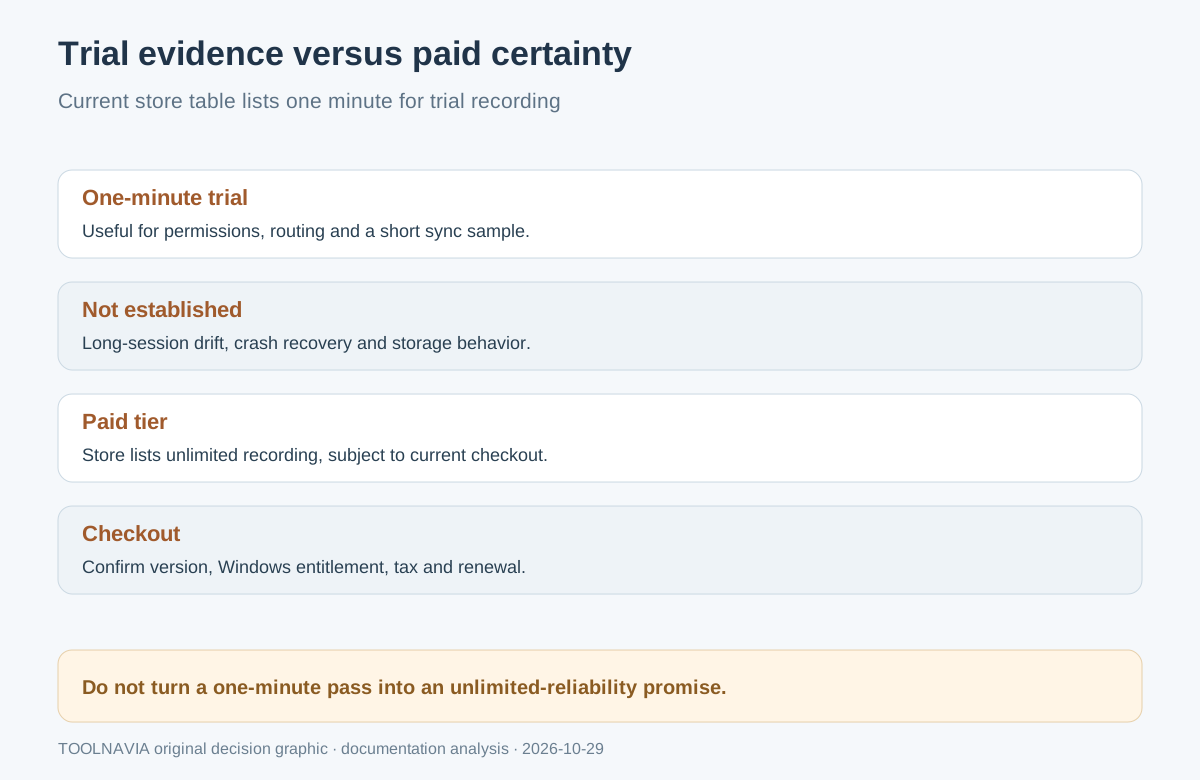
- **Use a short trial as an acceptance test.** Official tables currently show one minute of recording for the free trial and unlimited recording for paid tiers. That minute is enough to test routing and sync, not long-session stability.
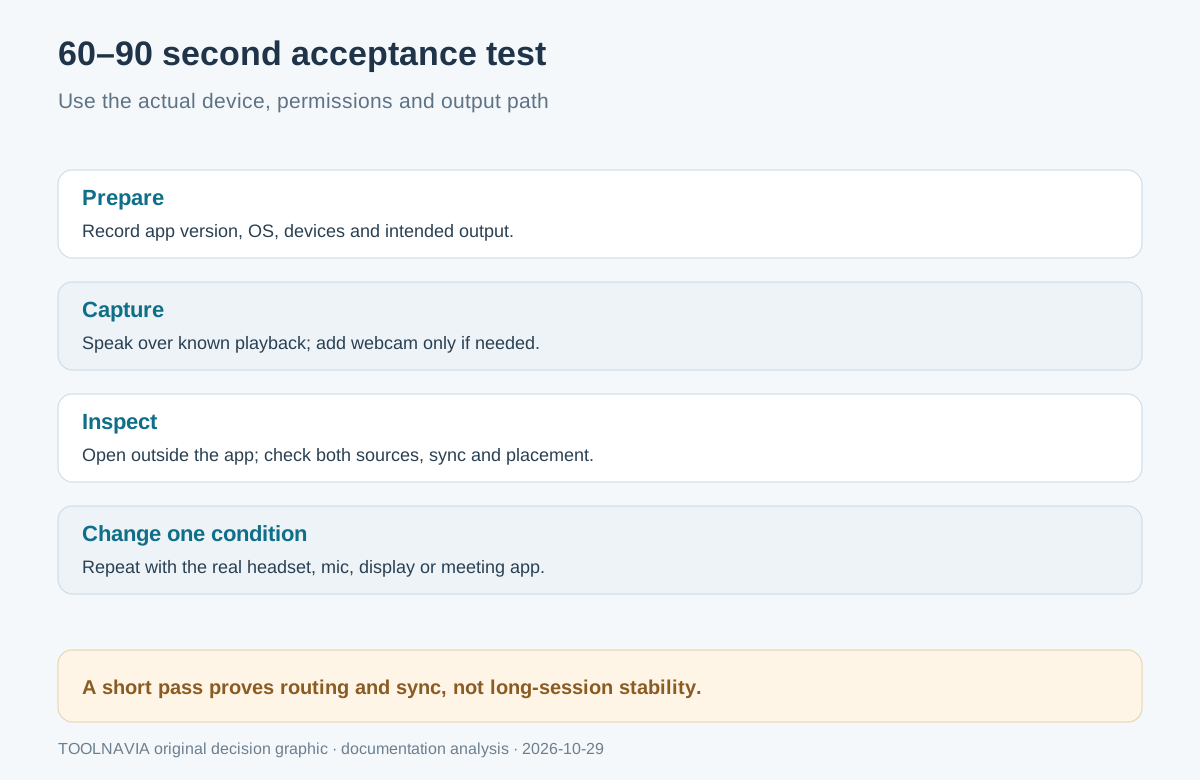
Run a 60–90 second acceptance recording
1. Update the app and record its exact version, operating system and audio devices. On macOS, enable Screen & System Audio Recording and Microphone permissions, then restart the app if requested.
2. Play a known clip through the intended output device. Select that system-audio device, then select the actual microphone. Do not leave either source on an unverified default.
3. Record while speaking a numbered count over recognizable moments in the clip. If a webcam is needed, place it where it will not cover controls or captions.
4. Open the saved file outside UniConverter. Listen to system audio and speech separately and together. Check missing channels, clipping, echo, drift, lip sync, resolution, frame rate, webcam placement and the saved-file path.
5. Change one real condition—Bluetooth headset, USB mic, display, sleep/wake or meeting app—and repeat. Buy only if the workflow you need passes, not merely the easiest test.
TechRadar reported an easy permission flow and a successful one-shot result, but its review also says the webcam position is burned into the recording. Capterra comments can suggest common use cases, yet they are anecdotal and cannot replace the local acceptance file. An iSkysoft workflow independently describes combined system and microphone audio, but it is vendor-family guidance rather than current Wondershare entitlement proof.
Keep old version claims and current limits separate
The V12 announcement is historical: it documented system audio, microphone and scheduled capture while saying PiP was forthcoming. The current guide now documents PiP, so the older page must not be used to deny the present feature or define current limits.
Wondershare’s current marketing says Windows and Mac can capture system audio plus microphone simultaneously. Apple’s permission documentation explains why a Mac can still produce silence until both permissions are granted.
Price, trial and license boundary
The approved Toolnavia association is the personal Windows yearly offer. Official pages expose several price blocks, while the current V18 campaign advertises **$47.49/year for October 15–31, 2026**. The selected checkout amount, tax, supplied version and renewal were not confirmed; Windows and Mac entitlements must not be assumed identical.
The store comparison currently lists **one minute** for trial screen/webcam/audio recording and unlimited recording for paid tiers. Official support uses the broader phrase “record limited video.” Treat the table as the current concrete boundary and still verify the installed build.
*Affiliate disclosure: Toolnavia may earn a commission from the personal Windows purchase link. We do not promise separate editable audio tracks, unlimited trial recording, permission bypass or platform-identical behavior.*
Buy only after both audio paths pass
Choose the paid plan when the actual device, permission and output test captures system audio and microphone together with acceptable sync and placement. Hold when either source is silent, the intended device cannot be selected, the overlay cannot be repositioned acceptably, or a longer paid workflow remains untested.