TOOLNAVIA / BUYING GUIDE
UniConverter 17 License: One PC, New Computer, or Two Devices?
The short answer
UniConverter 17’s current licensing guide says a **one-PC license authorizes one device**. Replacing an old PC is a transfer problem; keeping a desktop and laptop active together is a multi-device problem. The annual Windows offer here is the exact approved offer, but subscription length does not increase the device count.
At a glance
- Best for
- Individual Windows buyers replacing one computer or checking whether two active PCs need a different entitlement.
- Price model
- US$49.99/year observed on the exact Windows page; checkout controls current price and renewal.
- Check first
- Exact order controls. One-PC is one active device; self-service unbinding can vary by activation state; Windows and Mac are separate purchases.
Start with the one-PC rule
Wondershare says purchased plans have device limits. A 1-PC license works on one device; a two-PC or multi-user entitlement supports only the simultaneous devices named by that order. “One user” does not mean every computer owned by that user.
The exact Windows yearly page displayed US$49.99 per year when checked and labels the plan auto-renewing. This is a dated observation, not a permanent quote: checkout controls current price, tax and localization. Read device count separately from price and term.
Replacing one computer is not using two computers
If the old PC will be retired, install the correct version on the new Windows computer and sign in with the Wondershare ID tied to the purchase. Older licenses may instead require the licensed email and registration code. When the device allowance has been reached, UniConverter says it asks the user to disable a device or upgrade.
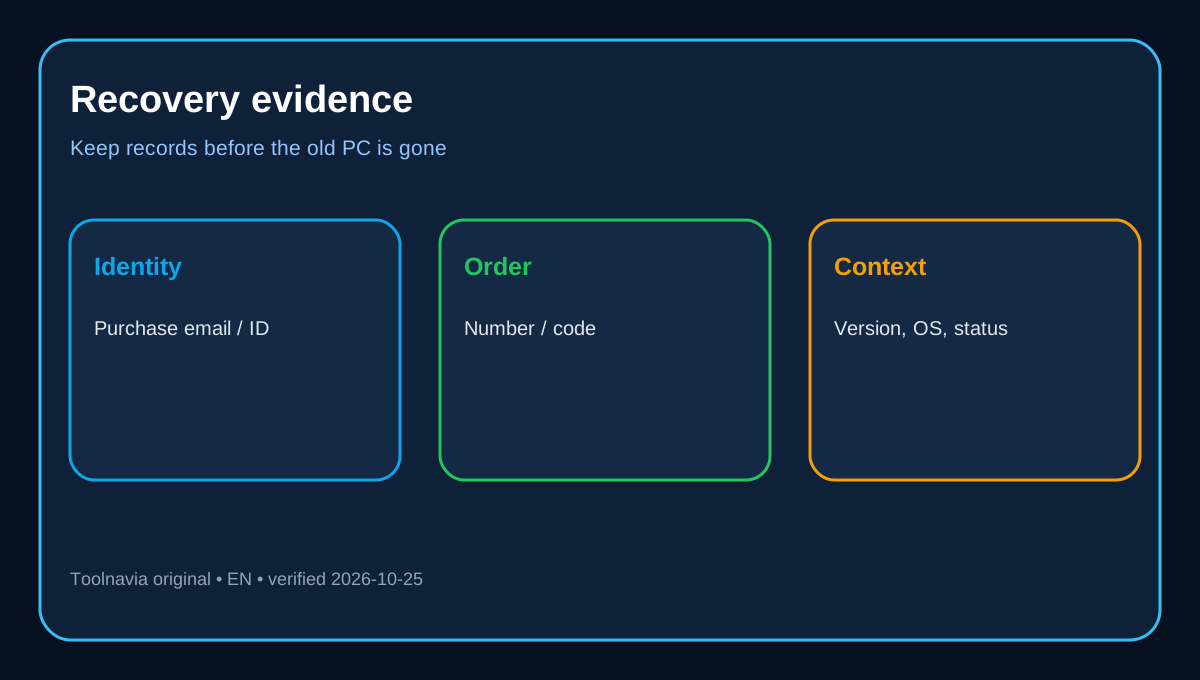
Follow that prompt before buying another copy. Keep the purchase email, order number, licensed email, registration code when applicable, product version and both operating systems together. Wondershare’s reinstall guidance says these records matter, especially when the original machine is broken or unavailable.
What the official pages do—and do not—promise
The evidence has a specificity gap. The English device guide promises a disable-device prompt, and Wondershare’s general Account Center says users can manage products and devices. A UniConverter Japanese support page adds that unlinking the old computer or extra verification may be required depending on activation. None publishes a guaranteed identical self-service path for every legacy license and failed computer.
Do not assume that uninstalling automatically releases the seat. If the prompt or Account Center clears the old device, continue there. If it does not—or the old PC cannot start—contact official support with purchase records.
Two active computers need a different entitlement
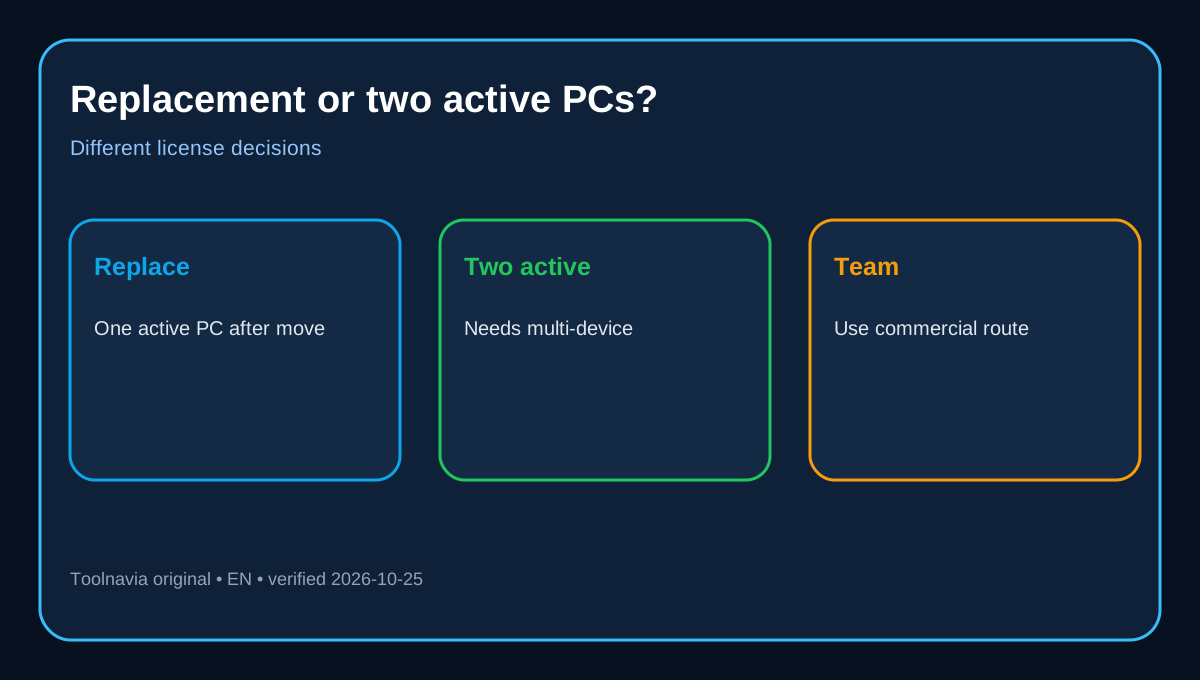
A replacement means one active PC after the move. Simultaneous desktop-and-laptop use means two active PCs, so the order must explicitly allow two devices or multiple users. Do not use annual versus perpetual as a proxy for device count.
For one machine at a time, the exact one-PC yearly offer can fit. For two always-available workstations, confirm a two-PC or multi-user option before checkout. Teams should use the appropriate team or commercial route; Wondershare’s upgrade rules exclude team, commercial and multiple-quantity licenses from ordinary self-upgrade and direct those customers to support.
Annual, perpetual, Windows and Mac are separate
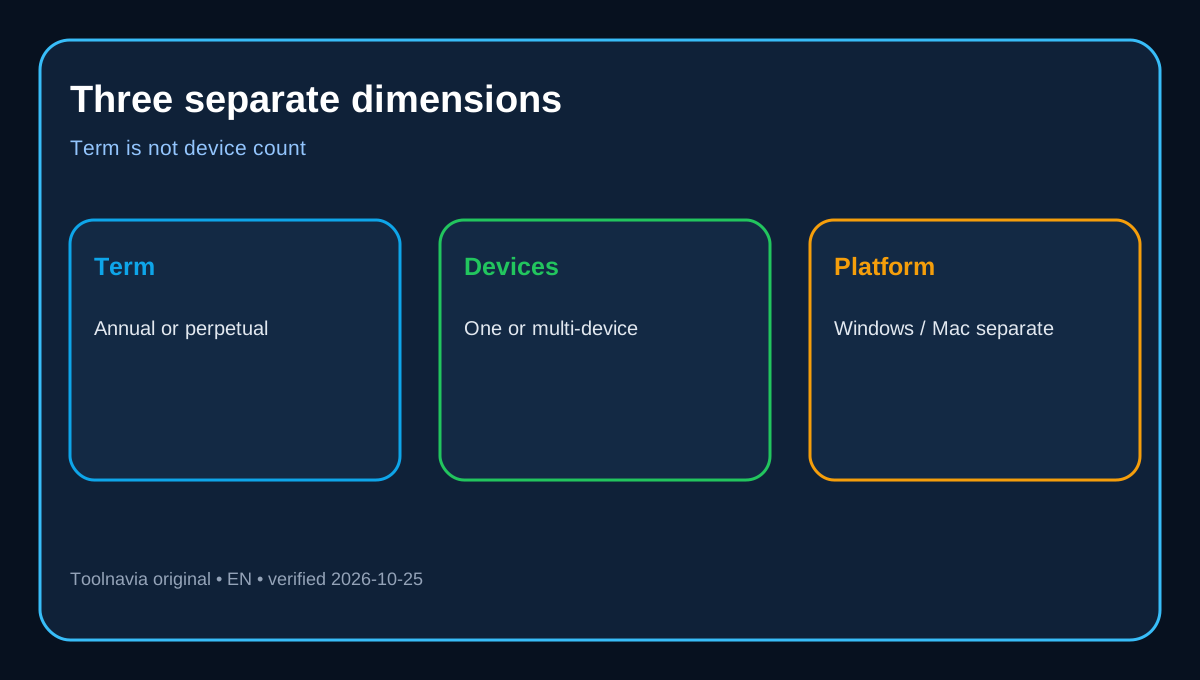
Annual versus perpetual answers **how long** the entitlement lasts, not **how many devices** can be active. The exact store says perpetual is limited to the purchased major version, while annual renews unless cancelled. Our [UniConverter 17 yearly-versus-perpetual guide](/software/wondershare-uniconverter) covers that cost decision.
The same store says Windows and Mac versions are separate purchases. A Windows order is not automatically cross-platform. If the replacement changes operating systems, verify the exact product before paying.
Move files separately from the license
License recovery activates the application; it does not migrate source videos, presets, output folders, fonts or third-party assets. Back up what you need, install from the official source, sign in, and run a short conversion before wiping the old computer.
Independent reviews describe UniConverter as a broad conversion and AI-media suite, but their prices and experience reports cannot override the exact order or official device rules. G2 and Trustpilot add mixed support and account-management context; those anecdotes are signals, not policy.
A low-risk transfer checklist
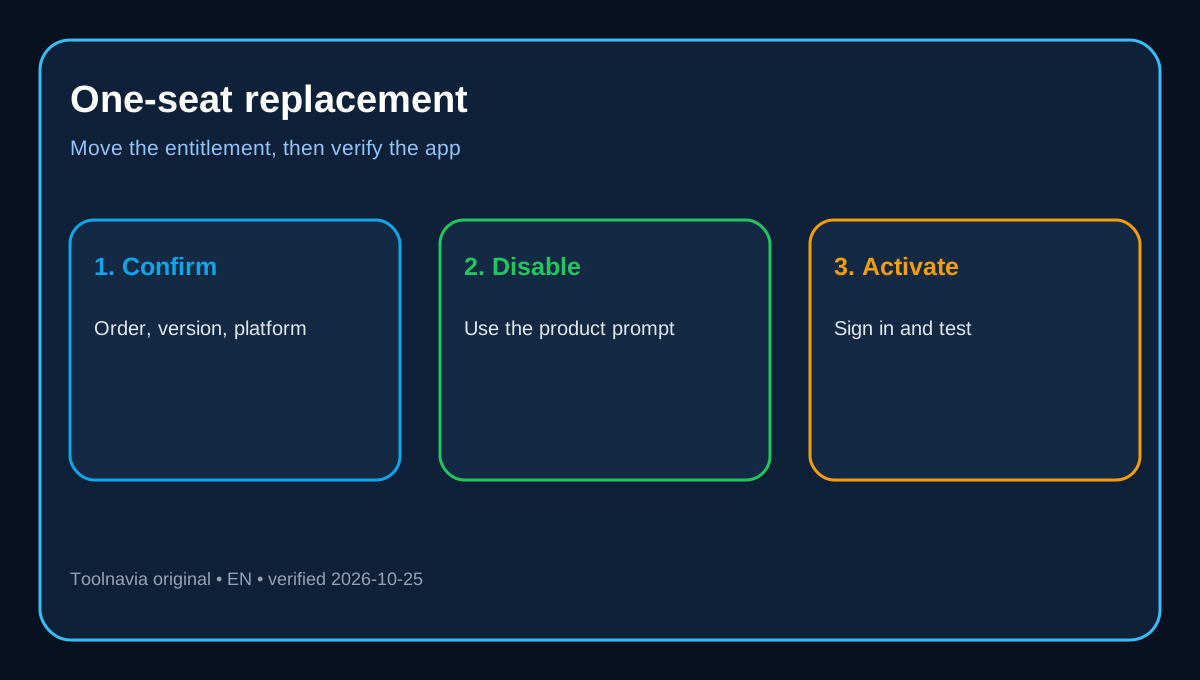
1. Confirm product, version, platform, term and device count in the order email.
2. Back up source media, output files and reusable settings.
3. Install the correct Windows version from the official source.
4. Sign in with the purchase-linked Wondershare ID, or legacy email and registration code when applicable.
5. At the device limit, use the disable-device prompt or Account Center.
6. If the old PC is unavailable or the device does not clear, send support the order information and old-PC status.
7. Run a short test conversion before decommissioning the old machine.
Choose one-PC when one active workstation is enough and the old machine will be replaced. Choose an explicit multi-device entitlement when both computers must remain active.