TOOLNAVIA / BUYING GUIDE
Recoverit for a PC That Will Not Boot: Prepare a File Rescue
The short answer
When Windows will not start, the immediate goal may be to retrieve tomorrow's presentation rather than repair the whole computer. Recoverit Premium includes a bootable recovery route for this situation. Its value depends on whether the original drive remains readable and whether you can prepare the right equipment without confusing source and destination.
At a glance
- Best for
- Two-PC jobs needing bootable, NAS/Linux/RAID, disk-image or enhanced media recovery.
- Price model
- $59.99 month; promotional $69.99 year; $129.99 perpetual
- Check first
- Seven-day refund page, auto-renewing subscriptions, promotion and physical-drive limits.
Separate file rescue from system repair
Write down the files you must preserve before considering a reset or reinstall. The official Windows recovery page recommends rescuing accessible data before changes to the system disk. A bootable recovery environment is a route to files, not proof that Windows or the underlying hardware has been repaired.
If the disk is physically damaged or not detected, a software purchase may not solve the problem. Seek qualified recovery help for unstable or irreplaceable media. This guide concerns an authorized owner and a readable storage device.
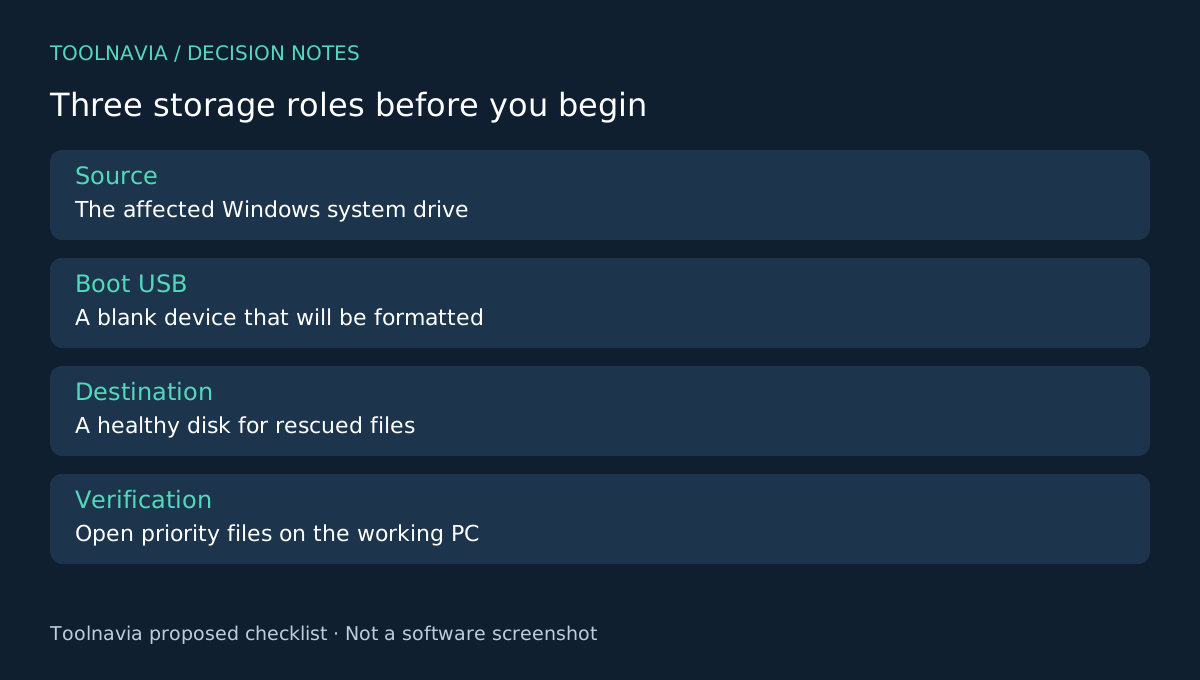
Prepare three clearly identified storage roles
You need another working computer, a USB device for boot media and a healthy destination for rescued files. The affected system drive is the source. Label each device by its role, model and capacity before connecting everything.
Creating Recoverit's bootable USB formats that USB and erases its existing contents. Use a blank device or back up anything on it first. Do not select the rescue destination or the affected disk as the boot-media target. Wondershare's support instructions explicitly describe the formatting step.
Reserve enough destination space for the important files and additional candidates. Keep a written priority list near the working computer so the urgent document does not get lost among a much larger archive.
Four capabilities that make the route useful
Boot-media creation prepares an environment outside the failed Windows installation. USB startup can provide access when the normal operating system will not load. The documented Hard Disk Copy option offers a copying route, while Data Recovery scans for recoverable files.
Choose the operation that matches the observed problem instead of assuming every unbootable PC has deleted data. Startup keys and firmware behavior differ by computer; follow the computer manufacturer's instructions and the current Recoverit guide. Do not assume encryption credentials or organizational access controls disappear in a recovery environment.
Verify the rescue on the healthy computer
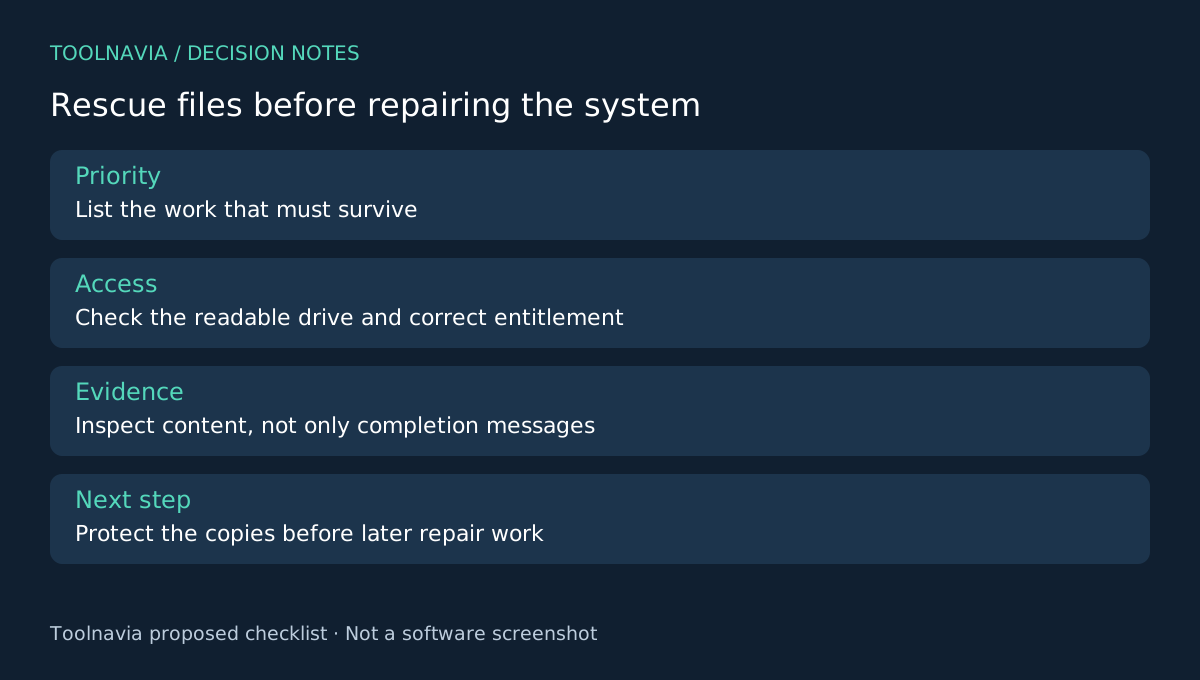
Save results to the separate destination, then inspect them on the working computer. Open the urgent presentation, move through every slide and check embedded media. For other file types, inspect the part that makes the file valuable rather than merely confirming that an icon exists.
Record the original location, destination and verification result for each priority item. If an application reports damage, keep that candidate separate and investigate another available version. A completed copy or scan message is not the same as a usable document.
This is a preparation and acceptance plan based on documentation. Toolnavia has not booted a test machine with this workflow or measured its success on a crashed system. Keep the rescued copies protected before beginning any later repair work.
Choose Premium for the needed recovery scope
The Premium shop lists crashed-PC recovery and bootable media alongside its other recovery capabilities. Confirm the exact platform and entitlement before payment; ordinary desktop scanning and bootable recovery are not interchangeable purchase requirements.
R-Studio's documentation offers another image-processing direction, while EaseUS and PhotoRec describe different file-recovery workflows. They are comparison starting points, not evidence that each has the same boot environment. See the [Recoverit plan guide](/en/software/recoverit) for term and renewal context. Toolnavia may earn a commission through the official affiliate link; no successful rescue or repaired PC is guaranteed.