TOOLNAVIA / BUYING GUIDE
pCloud Third-Party Backup: Is a 28-Day Import Enough?
The short answer
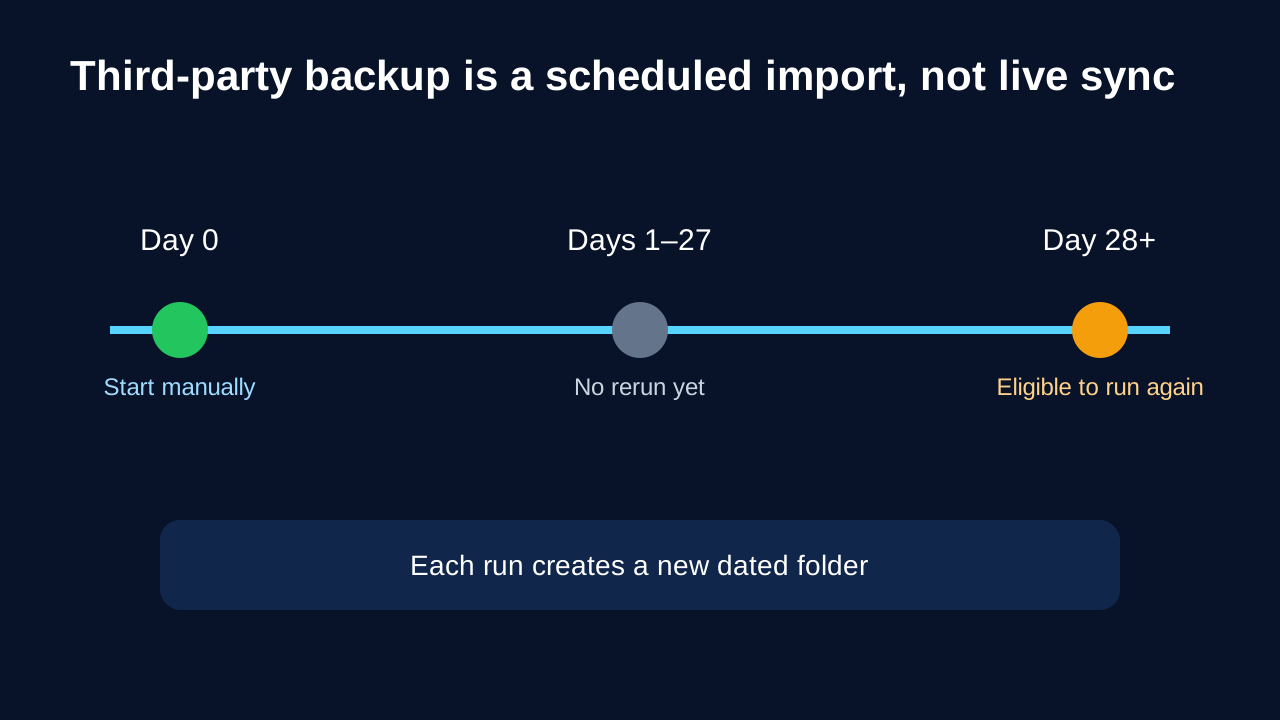
**Quick verdict:** pCloud Third-party Backup is useful when you want a second cloud copy of Google Drive, Dropbox, Dropbox Business or OneDrive without downloading everything first. It is not live cloud-to-cloud sync. Those sources are manual, one-time imports that pCloud says can normally be run again after 28 days, and each run creates a new dated folder.
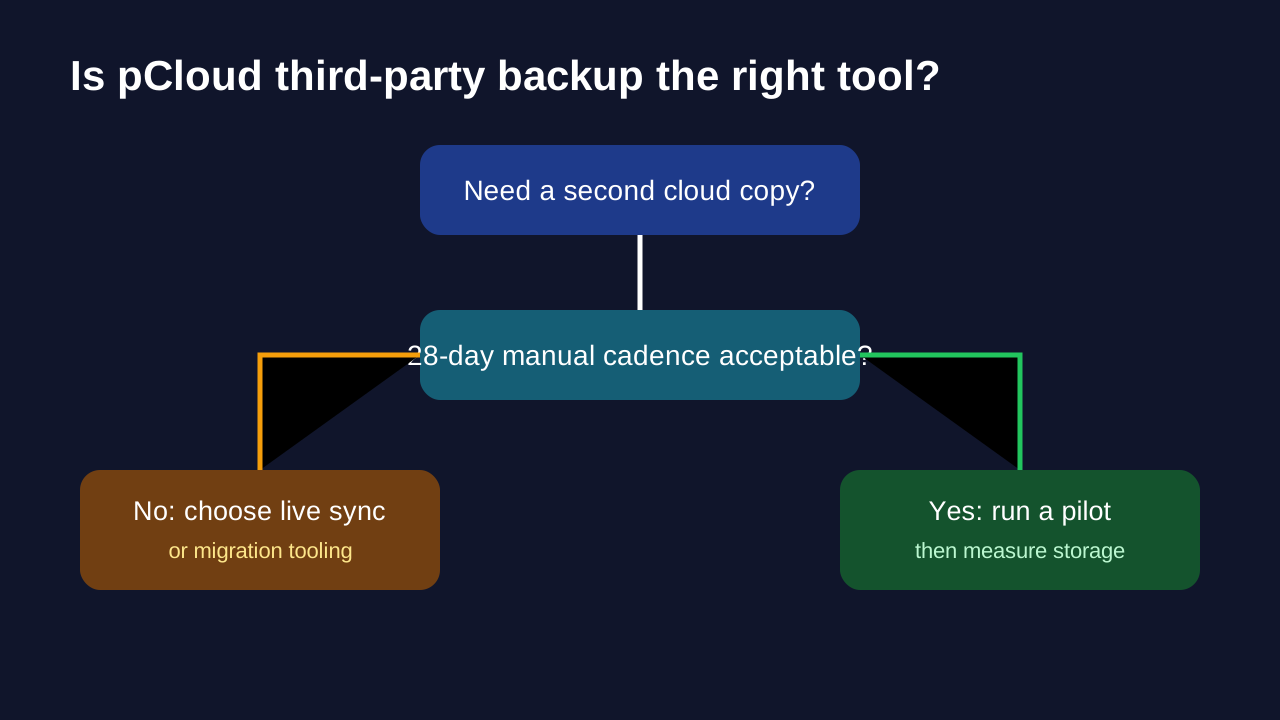
That boundary changes the buying decision. Premium 500 GB can be a sensible landing zone for a periodic safety copy or a staged migration. It is a poor replacement for continuous collaboration, immediate failover or a migration tool that must track every change today.
> **Affiliate disclosure:** Toolnavia may earn a commission if you buy through the direct pCloud link below. The recommendation and limitations do not change because of that relationship.
At a glance
- Best for
- Periodic second-cloud copies that fit inside 500 GB with rerun headroom.
- Price model
- Live Premium checkout controls; 500 GB capacity confirmed, no fixed campaign-price claim.
- Check first
- Manual one-time imports, normally repeatable after 28 days; not live sync or immutable backup.
What pCloud actually imports
In the pCloud web app, the path is **Backups → Third-party**. You choose a supported service, connect the account, grant access and start the job. The current Help page lists Google Drive, Dropbox, Dropbox Business, OneDrive, Google Photos and Facebook.
The operating model differs by source:
- Google Drive, Dropbox, Dropbox Business and OneDrive are manual one-time backups. - They can normally be run once every 28 days. - Every run is stored in a new dated folder. - Google Photos is also one-time, but pCloud currently allows up to 2,000 photos per backup and says it can be run again immediately. - Facebook is the current ongoing integration and runs every seven days. - Instagram and ongoing Google Photos backup are no longer available because of external API changes.
This is closer to a periodic import than to a live mirror. The distinction is not cosmetic: a document edited tomorrow in Google Drive will not automatically appear in yesterday’s pCloud import.

What happens when you run it again
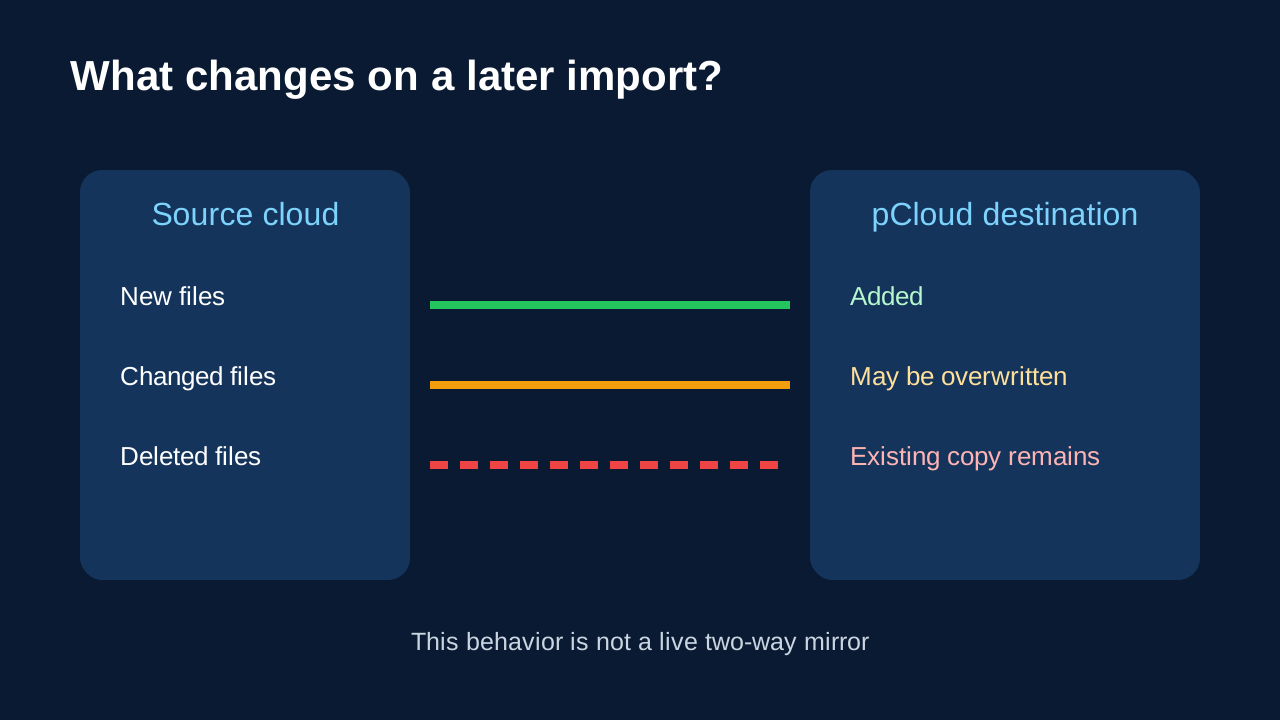
The current official behavior is unusually important. pCloud says new files are added, existing destination files may be overwritten, and files deleted from the source remain in pCloud. That gives the destination a different deletion relationship from a two-way sync.
For a buyer, this means:
1. A source deletion does not automatically erase the pCloud copy. 2. A later rerun can add new material. 3. A file that still exists at the destination may be overwritten when the rerun encounters its current source version. 4. Because each run creates a dated folder, repeated imports can consume more capacity than the current source size suggests.
Do not treat “deleted files remain” as immutability. Account access, destination edits, plan storage limits and pCloud’s service rules still apply. The feature gives you a retained destination copy; it does not make that copy offline, write-once or immune to account compromise.

The 28-day gap is the real buying constraint
Suppose a team changes files every day. A manual import on day zero captures that moment. During days 1–27, the pCloud copy does not receive new Google Drive, Dropbox or OneDrive changes through this integration. On day 28 or later, you may start another import.
That gap is acceptable for:
- a monthly secondary copy of relatively stable personal documents; - a one-off cloud migration that you will validate and then finish with another method; - a periodic snapshot before closing an old cloud account; - a small archive where immediate recovery-point objectives are unnecessary.
It is not acceptable for:
- active team documents that must be mirrored continuously; - a compliance rule requiring daily or hourly copies; - a cutover that must preserve changes made during the migration window; - a disaster-recovery plan promising near-current failover.
If your requirement is “anything changed today must exist in the second cloud today,” choose live sync, a dedicated cloud-migration service, or an independent backup platform with the required schedule. pCloud Third-party Backup does not meet that requirement.
Capacity math for Premium 500 GB
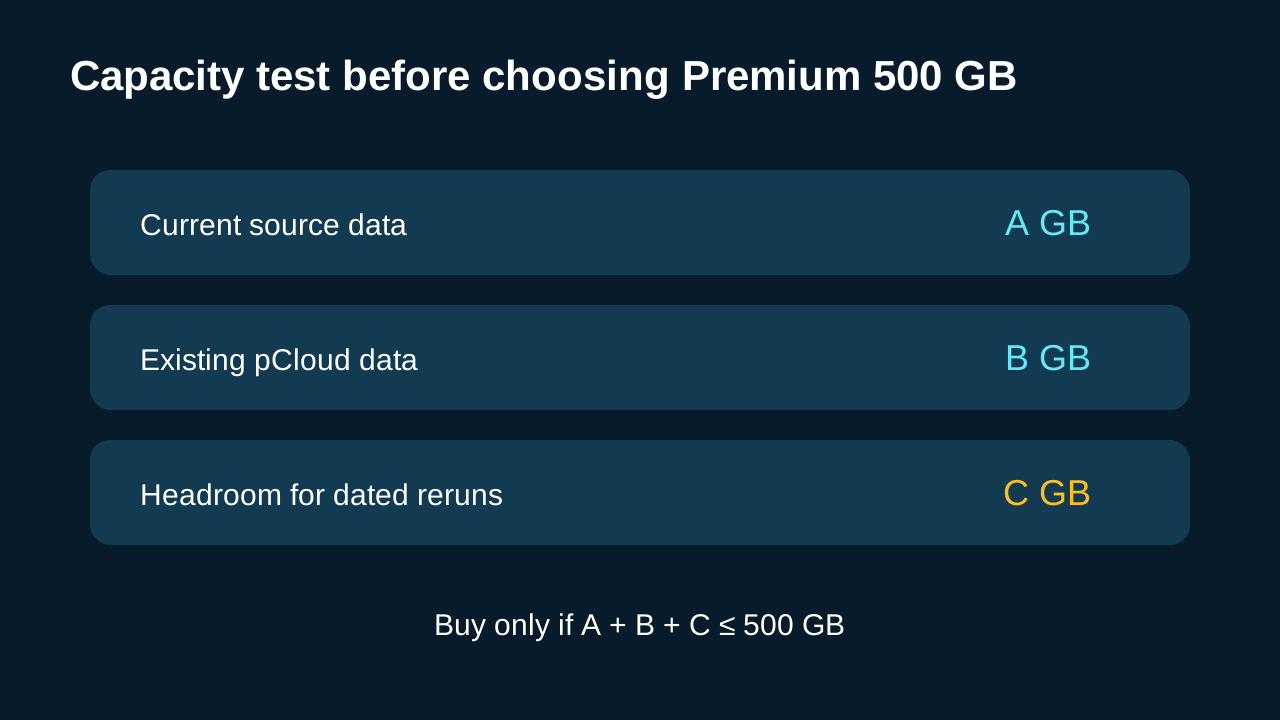
The exact approved offer is pCloud Premium 500 GB. The current plan page confirms the 500 GB storage tier, while checkout pricing is dynamic by market, billing term and campaign. This guide therefore evaluates capacity and workflow rather than promising a price.
Use a simple pre-purchase budget:
**source data + existing pCloud data + rerun headroom ≤ 500 GB**
Example: if your Google Drive holds 310 GB and pCloud already holds 90 GB, only 100 GB remains. A new dated rerun could exceed the tier even if the source has grown by only a little, because destination folders and overwritten-versus-retained behavior determine actual use.
Run a pilot with a small source folder, note the destination size, then estimate the full import. Leave headroom for normal uploads, version history and the next dated run. If the arithmetic is tight, a larger pCloud tier or a tool that deduplicates migration state is safer.

A five-step pilot before paying
1. Define the recovery objective
Write down whether you need a monthly safety copy, a one-time migration or continuous replication. Only the first two fit this feature well.
2. Inventory the source
Measure total data, very large files, shared items, cloud-native documents and any content owned by someone else. Authorization may not make every shared or provider-native object exportable in the same way.
3. Import a controlled sample
Create a small folder containing an ordinary document, a renamed file and a subfolder. Start the third-party backup and record the dated destination folder.
4. Test a change and deletion
Modify one source file, add another and delete a third. The official rules predict that new files will be added, existing copies may be overwritten, and the deleted source file will remain in pCloud on a later run. Do not wait 28 days solely for a sales test; confirm the live Backups screen’s next-eligible date and use the first run to validate structure and accessibility.
5. Estimate storage and exit
Confirm that imported files open correctly, that the account owner understands connected-account permissions, and that total capacity leaves a comfortable margin. Also decide how you will disconnect the source and delete obsolete dated imports later.
Current documentation conflict: 28 days versus 30 days
The dedicated current Help page and current official pCloud blog describe a 28-day rerun cadence. An older general upload/organizing page still says one-time backups are available every 30 days. This article follows the newer, more specific 28-day documentation, discloses the conflict, and treats the next-eligible date shown inside the live Backups screen as controlling.
The difference is small for casual archiving but material for a documented monthly process. If your policy literally requires “every 30 days,” either cadence may fit. If it requires 28 days or less, take a screenshot of the signed-in next-eligible date before relying on it.
How this compares with other approaches
Independent reviews consistently notice the convenience of importing another cloud without building a large local sync tree. Their terminology varies: one review calls the online-service copy a true backup, while another emphasizes that it is a one-off import rather than live sync. The current pCloud Help page controls the behavior described here.
A local pCloud Drive **Back up** job is different: it can keep selected computer folders updated. pCloud **Sync** is also different because it mirrors changes between selected locations. Neither distinction turns the third-party Google Drive/Dropbox/OneDrive import into a real-time bridge.
Buy, wait or skip
**Buy Premium 500 GB** if your source and existing pCloud data fit with headroom, a manual 28-day cadence is acceptable, and a pilot confirms the connected account and imported files behave as expected.
**Wait** if the source size is close to 500 GB, the live Backups screen does not show a clear next-eligible date, or you have not tested cloud-native/shared items.
**Skip this use case** if you need continuous cloud-to-cloud sync, hourly recovery points, immutable retention, automatic migration cutover or guaranteed export of every provider-specific object.

Final recommendation
pCloud Third-party Backup is a practical periodic import and a low-friction way to create a second cloud copy. Its value comes from avoiding a large local download and keeping source-deleted files at the destination. Its main cost is operational: a manual cadence, dated folders and storage consumption that you must measure.
Before buying, open the current pCloud pricing page, confirm the Premium 500 GB checkout shown for your market, then run the smallest possible pilot. If the 28-day boundary and capacity math fit, [check the current pCloud Premium 500 GB offer](https://partner.pcloud.com/r/157872). If they do not, choose a live-sync or migration product instead.