TOOLNAVIA / BUYING GUIDE
pCloud Drive Cache: Will 500 GB Fit a Low-Storage Laptop?
The short answer
pCloud Premium 500 GB can put a large cloud library within reach of a small laptop, but “virtual drive” does not mean zero local-disk use. pCloud Drive keeps the full library online by default, while accessed files, uploads, cache, Sync folders and anything marked for offline work can still occupy the SSD. Buy for a low-storage computer only after a representative disk-space test proves that the working set fits.
At a glance
- Best for
- Low-storage laptop owners who want 500 GB in the cloud but must verify cache, offline copies, Sync mirrors and large-file staging before buying.
- Price model
- Premium 500 GB; verify checkout and run the local-disk test
- Check first
- On-demand avoids a full mirror by default, but active files, uploads, offline copies and Sync folders still consume local storage.
Short verdict
The current pCloud Drive settings documentation says the app reserves local headroom, uses temporary cache during transfers and recommends a cache of at least 5,120 MB; the default minimum-free-space floor is 2,048 MB. Those numbers do not mean every workload fits inside 5 GB. A single large video, archive or design project can need more temporary space while it is opened, edited, uploaded or downloaded.
The right buying question is therefore not “Can 500 GB live on a 128 GB laptop?” In principle, the virtual-drive model can expose much more cloud capacity than the laptop can hold. The useful question is “Can my normal working set, cache and largest transfer fit alongside the operating system with safe free space left?”
What the virtual drive saves
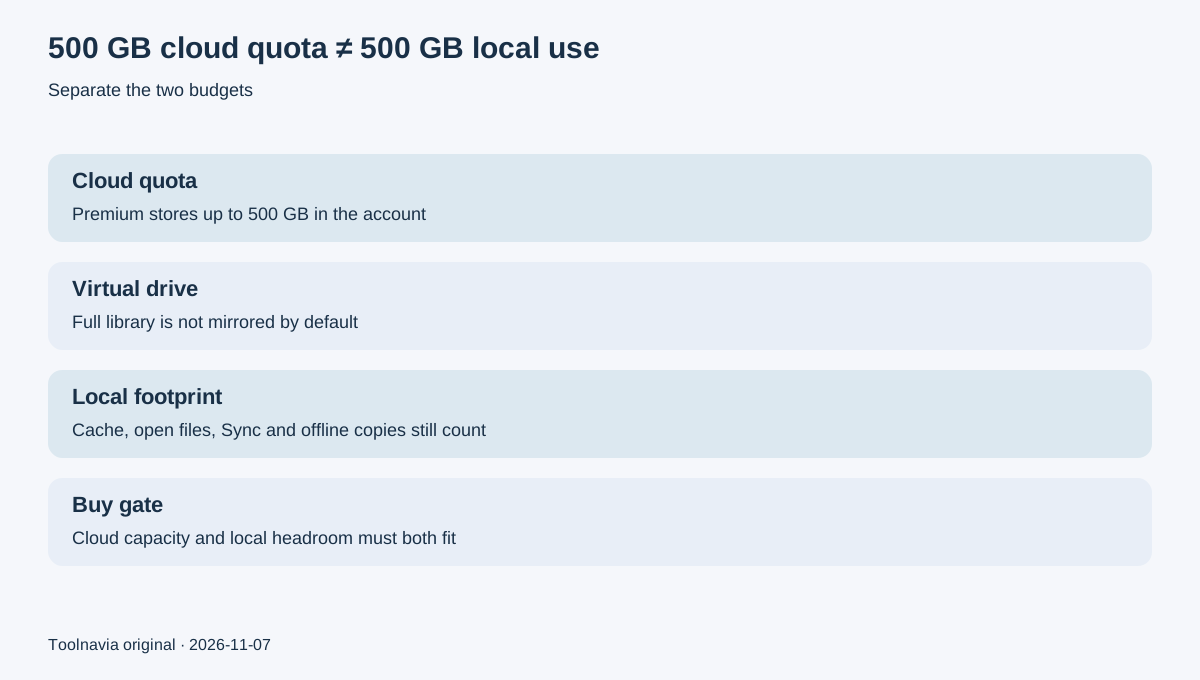
pCloud Drive exposes cloud files through a virtual drive and does not store the entire library locally by default. That is valuable on a laptop where internal storage cannot hold the full 500 GB plan. You can browse the library, open only the files you need and avoid a permanent one-for-one local mirror.
This benefit is strongest for archives, finished media, reference files and projects that are opened occasionally. It is weaker for a daily workload that repeatedly touches the same large files, needs constant offline access or performs write-heavy editing. Frequently accessed content still needs local transfer and cache activity, so the label “online” should not be treated as a guarantee of negligible SSD use.
A cloud quota and a local footprint are different budgets. Premium 500 GB determines how much the account can store. The laptop still needs enough room for the operating system, applications, caches, open files, temporary exports and whatever the user deliberately keeps offline.
What cache still consumes
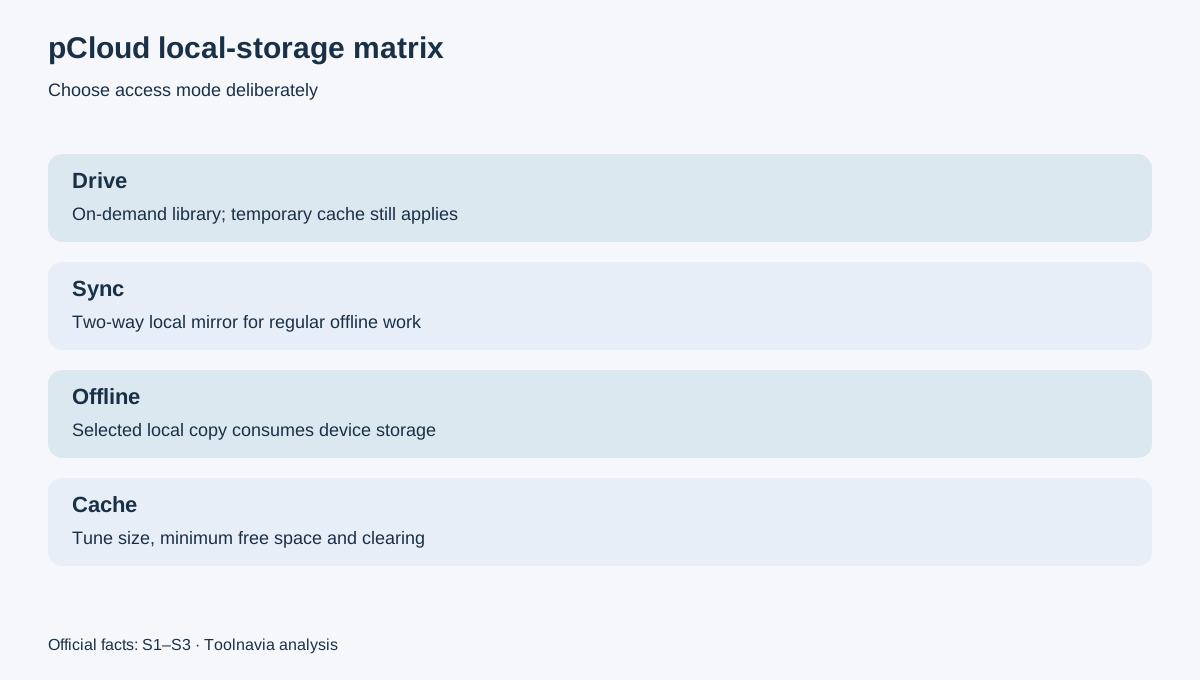
The Disk usage panel lets users set a minimum-free-space threshold, adjust cache size and clear cached data. pCloud documents 2,048 MB as the default minimum free space and 5,120 MB as the minimum recommended cache. It also says uploads and accessed files temporarily use local disk space to improve performance and tolerate unstable connections.
Treat those values as configuration references, not a universal forecast. A 20 GB video upload cannot be made harmless by quoting a 5 GB recommended cache. The actual temporary footprint depends on the file, transfer method, current cache contents, free space and application behavior.
Before purchase, note the laptop's true free space after updates and normal applications are installed. Leave a safety margin above pCloud's threshold rather than tuning the threshold to the last available megabyte. A system drive near full capacity can slow down, fail updates or interrupt other work even if pCloud itself has not yet stopped.
Clearing cache may recover space, but it can also remove the performance benefit for recently used content. The goal is not to keep cache at zero; it is to set a sustainable working budget.
Drive, Sync and offline files are different
pCloud Drive is the on-demand layer. Sync creates a two-way mirrored local folder, so the selected files exist locally and changes propagate between the computer and pCloud. Sync is the right choice for folders that must remain available offline and current on both sides, but it consumes local capacity roughly in line with the selected working set.
Desktop offline work is therefore a storage decision, not merely a checkbox. pCloud's offline-access guide distinguishes desktop Sync from mobile offline files: desktop Sync is bidirectional, while mobile offline files are one-way downloads in app-managed storage and edited mobile copies may need manual upload. The same guide says Crypto Folder files cannot be made available offline on mobile.
Do not confuse Sync with an independent backup. A deletion or unwanted edit can propagate. Keep a separate backup of irreplaceable work, especially before changing Sync relationships or clearing local folders.
Run a large-file disk-space test
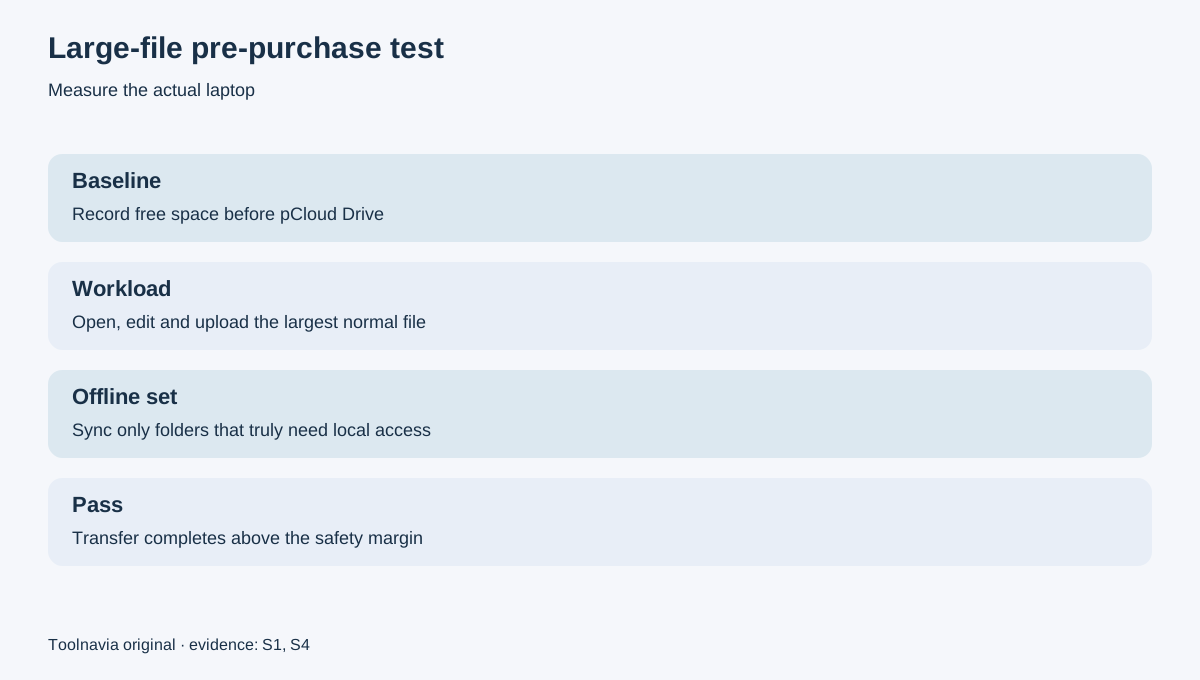
Use the free account and the actual laptop before committing to 500 GB.
1. Record available disk space with pCloud Drive closed. 2. Set a realistic cache and minimum-free-space floor in Disk usage. 3. Open a representative large file from pCloud Drive, then edit and save it if that matches the real workflow. 4. Upload the largest typical project using the method you plan to use. 5. Mark only the folders that genuinely need offline access, then measure the local footprint again. 6. Clear cache only after confirming that uploads and edits are fully synchronized.
pCloud's file-management guide says desktop uploads and accessed files use temporary cache, and its Uploads feature can send files or folders from local or external media. It also warns that a different file with the same destination name can overwrite the existing file. Test both storage pressure and file-handling behavior.
A pass means the largest expected transfer completes, the laptop stays above its safety margin, required offline folders fit, and reopening common files is acceptably fast. A failure means the user should reduce the offline set, move working files to a larger drive, choose a different transfer method, or delay the purchase until local storage is upgraded.
How Dropbox, Google Drive and OneDrive frame the same tradeoff
Competitors use different implementations, but their official documentation confirms the same purchase problem.
Dropbox says online-only files do not consume the full local file size, yet opening them downloads a local copy; available-offline files use device storage. Dropbox also documents a hidden cache used for performance and transfer staging.
Google Drive says streaming still stores file data in a local cache. The cache partition's available space can limit uploads, and cache location or limits differ by platform and policy. Its stream-versus-mirror guide says streaming uses local space for opened, offline, recent and frequently used files, while mirroring keeps a full local copy and may better suit write-heavy editing.
Microsoft's Files On-Demand similarly keeps online-only files off the device until needed; “Always keep on this device” downloads them and consumes local storage.
These comparisons do not prove identical eviction, caching or offline behavior in pCloud. They show why every on-demand cloud product still needs a local-footprint test.
Who should buy, wait or change the storage plan
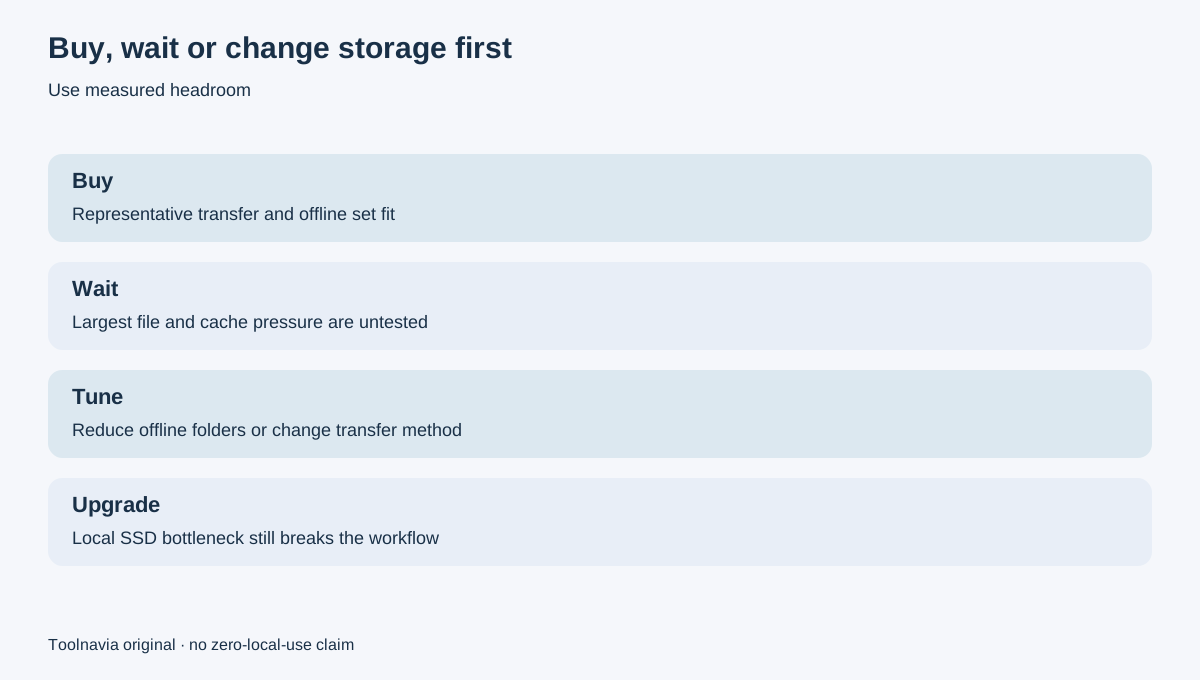
Buy Premium 500 GB when the virtual-drive model lets the full library stay online, the representative transfer passes, required Sync/offline folders fit comfortably, and the exact approved checkout offer solves a real capacity problem.
Wait when the free account is enough to test the workflow, local SSD headroom is uncertain, or the largest files have not been tried. The 500 GB cloud quota does not compensate for a laptop that cannot stage its normal transfers.
Change the setup first when daily work requires a large mirrored set, video or design applications constantly rewrite huge files, or the system drive is already near full. A larger local SSD, an external working drive or a deliberately smaller offline set may improve the workflow more than a larger cloud plan.
At checkout, verify the current plan, currency, tax, promotion and renewal terms. The registered pCloud Premium 500 GB offer is approved, enabled and market-confirmed, but checkout remains authoritative.
Affiliate disclosure: Toolnavia may earn a commission if you buy through the approved direct pCloud link, at no extra cost to you. The recommendation is unchanged: measure cache, working files, offline copies and the largest transfer first. Buy only when both cloud capacity and local headroom fit the real job.
Affiliate note: the pCloud link in this guide is the exact approved direct referral route for Premium 500 GB. Verify the current official price and checkout terms before purchase.