TOOLNAVIA / BUYING GUIDE
pCloud Mobile Offline Files: Storage Cost & Edit Limits
The short answer
At a glance
- Best for
- Travelers and mobile users who keep a large cloud library but only a small offline working set.
- Price model
- Uses the Premium 500 GB cloud offer; live checkout controls price and terms.
- Check first
- Offline files consume device storage, stay app-only, require manual upload after editing, and exclude Crypto Folder files.
The buying answer
pCloud Mobile Offline Files are useful when you need selected documents, audio, video or reference material without a connection. They are not a way to expand a phone's storage. The selected files are downloaded into the device's system memory, stay accessible through the pCloud mobile app, and consume local space until you remove their offline status. pCloud also says an edited offline copy does not automatically replace the cloud version; you must upload the updated copy yourself.
That boundary matters before paying for Premium 500 GB. A large cloud allowance does not create more phone capacity, and the mobile feature does not behave like pCloud desktop Sync. Premium is a sensible fit if you want a larger cloud library but can keep only a small working set offline. It is a poor fit if your main requirement is automatic two-way editing of many files on a low-storage phone.
> Affiliate disclosure: Toolnavia may earn a commission if you buy pCloud through the verified direct link in this guide. That does not increase your price. No coupon, discount or guaranteed saving is claimed.
Three storage locations, not one
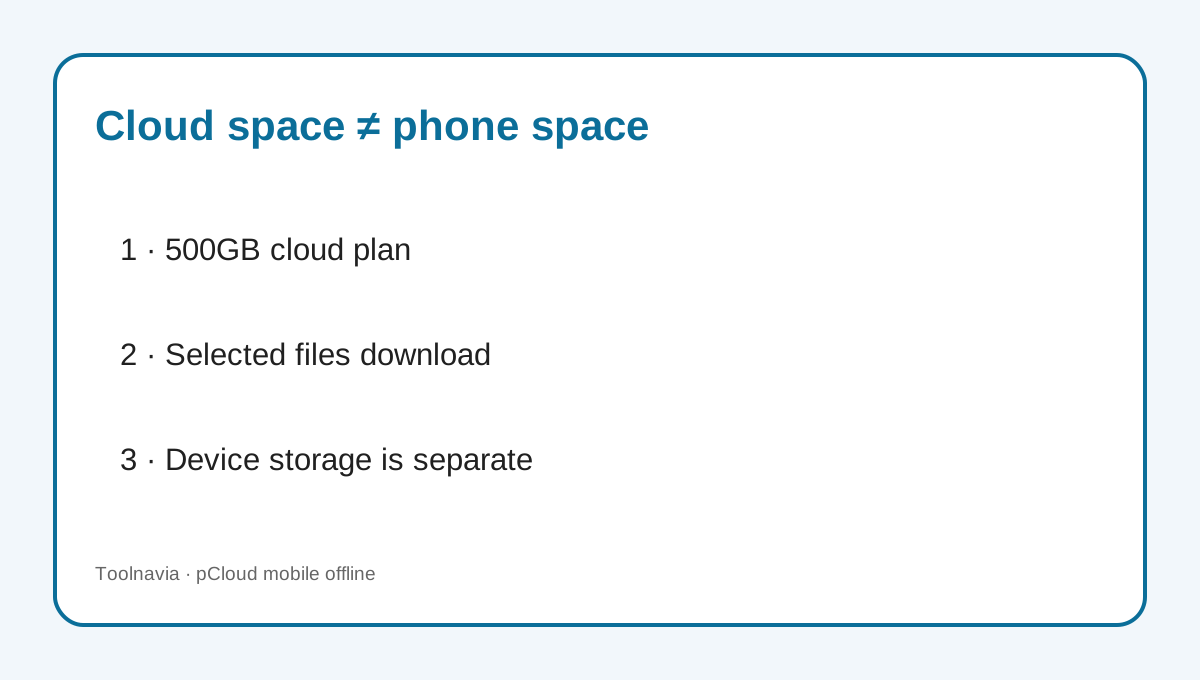
Treat pCloud as three separate storage decisions. First is the cloud account, where Premium 500 GB defines the remote capacity. Second is the phone or tablet, where every item marked Offline uses device memory. Third is any desktop Sync folder, which creates a local two-way copy on a computer. pCloud Drive's virtual-drive model is cloud-primary, while desktop Sync and mobile Offline Files create different kinds of local copies.
This explains the common surprise: a 500 GB pCloud plan can still fill a 128 GB phone. Marking a 20 GB video folder offline asks the phone to hold that 20 GB locally. The cloud quota and the phone's free-space meter are independent. Keep a margin for the operating system, camera, app caches and the temporary space needed during downloads or exports.
Before a trip, download a representative folder and check the device's storage screen, not only the pCloud cloud-capacity bar. If the phone becomes tight, remove offline status from files you no longer need. Removing the local offline copy should not be confused with deleting the cloud item; verify the menu label and confirm the file remains visible online before clearing a large batch. Apple documents the same cloud-versus-local distinction through its separate Remove Download control, which is useful context but not a pCloud instruction.
Offline does not mean automatic edit sync
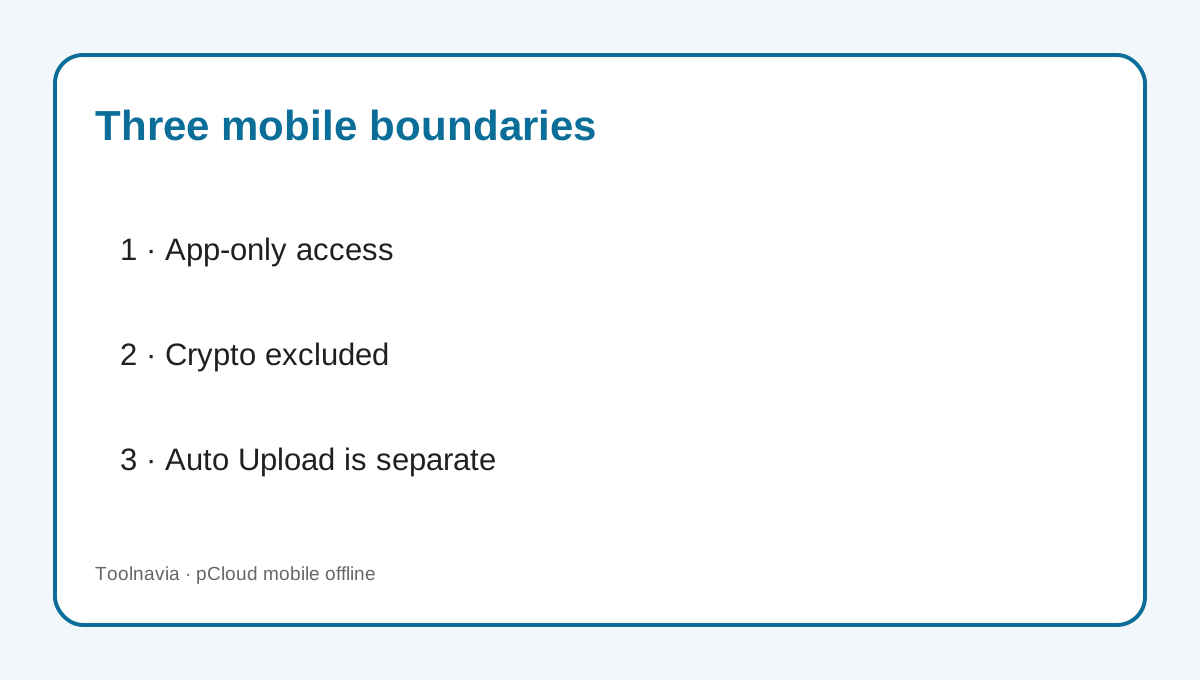
The current pCloud help page draws a precise line: mobile offline files are app-only downloads, and edited copies must be uploaded back manually. That is different from desktop Sync, where changes inside the paired local folder are designed to travel both ways. It is also different from Automatic Upload, which sends mobile photos and videos toward pCloud but is not a general document-edit synchronization system.
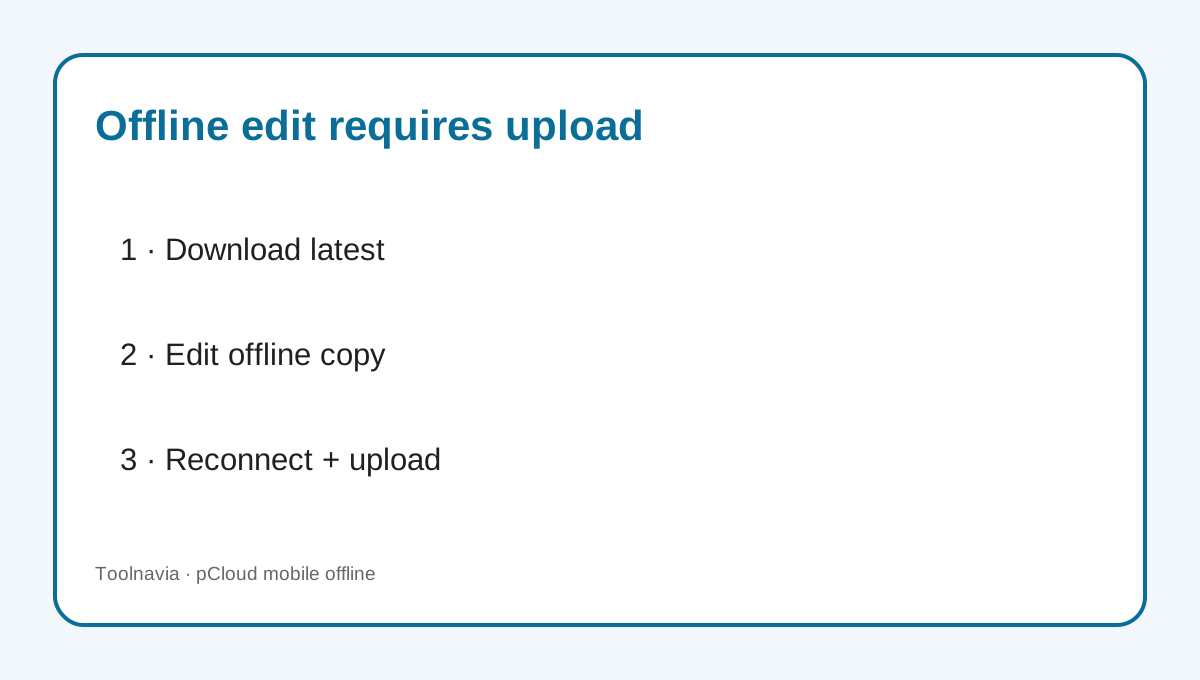
Use a safe edit workflow: open the latest online version before disconnecting, make an offline copy, edit in the chosen app, reconnect, upload the updated file with a versioned name, then compare before replacing anything. If another person may edit the cloud original while you are offline, agree on ownership or use a collaborative service. File history can help with recovery decisions, but it does not remove the need to avoid silent overwrites.
Competitors document different behavior. Dropbox says offline changes sync after reconnection; Google Drive supports offline editing for its native Docs, Sheets and Slides apps; OneDrive says supported Office edits update after reconnection. Those are competitor-specific promises, not pCloud features. Current cross-service comparisons also distinguish pCloud mobile Offline Files from desktop Sync and from Dropbox-style reconnection sync; pCloud's own help remains controlling.
Crypto Folder, media and mobile upload boundaries
pCloud says Crypto Folder files cannot be made available offline in the mobile app. If zero-knowledge encrypted files are the ones you need on a flight or at a remote job site, test the exact workflow before buying. Do not assume the ordinary Offline Files control applies inside Crypto.
Media libraries are a better fit when you deliberately choose a small set of albums, training videos or audio files. The app can stream cloud media while connected and keep selected items offline when disconnected. However, high-resolution video can exhaust local space quickly. Use folder size, not file count, as the preflight metric.
Automatic Upload solves another problem: backing up phone photos and videos to pCloud. It is one-way intake, not proof that you can erase local originals without checking the cloud copy. Verify upload completion, open several cloud files, and understand the app's free-device-storage control before removing originals.
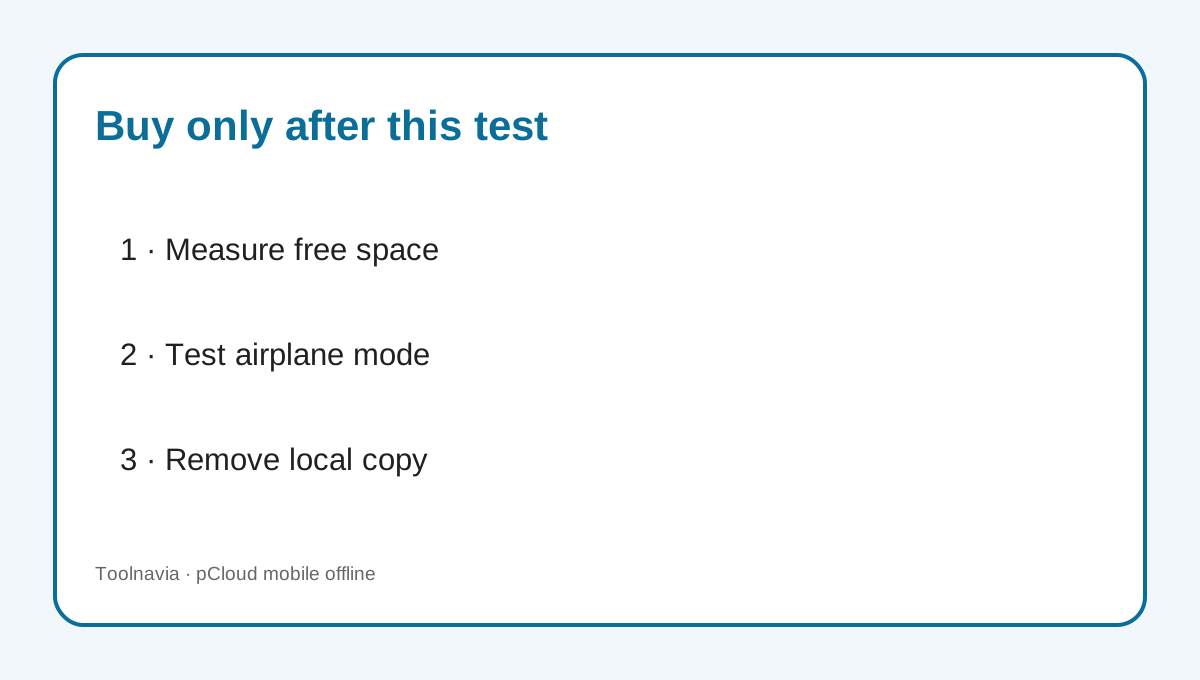
A practical mobile offline test
1. **Measure free space.** Record available device storage before downloading anything. 2. **Choose a representative set.** Include a large video, a PDF, an Office file and a folder with many small items. 3. **Mark them Offline.** Wait for the app to finish and confirm each file opens in airplane mode. 4. **Check local consumption.** Compare device storage before and after; keep safety headroom. 5. **Edit one copy.** Make a visible change while offline, reconnect and verify that pCloud requires the updated copy to be uploaded. 6. **Test removal.** Remove offline status from one file, confirm local space returns and verify the cloud original remains. 7. **Test Crypto separately.** Do not promise offline Crypto access where pCloud explicitly excludes it. 8. **Record the result.** Keep the tested app version, device, file sizes and date because mobile behavior can change.
Run this test on the actual iPhone, iPad or Android device you will use. A reviewer's phone and a desktop browser cannot prove your storage headroom, file-provider integration or third-party editor behavior.
When Premium 500 GB is worth it
Premium 500 GB fits a user who wants a sizable cloud library, selects only a bounded travel set for offline access, and accepts manual upload after mobile offline edits. It can also suit photographers who use Automatic Upload as a backup path while treating offline albums as temporary device copies. Live checkout controls the current price, term, currency and campaign.
Do not buy it solely to fix a nearly full phone. Cloud capacity and device capacity solve different problems. Also pause if your workflow requires seamless conflict handling, automatic offline edit synchronization, offline Crypto files, or folder-wide collaboration with multiple editors. Dropbox, Google Drive and OneDrive document different offline-edit models, so compare the exact file types and apps you use rather than comparing storage numbers alone.
Search results for “pCloud mobile offline files device storage” emphasize local-memory use and app-only access, while results for “pCloud offline edit sync” surface the manual-upload boundary and comparisons with automatic reconnection sync. That is why this guide focuses on local capacity and edit ownership instead of repeating the general pCloud pricing page.
Final recommendation
Buy Premium 500 GB for cloud capacity only after a representative offline test shows that your device can hold the working set. Keep the cloud library large and the mobile offline set small. Treat offline edits as exported copies that need deliberate upload, keep Crypto files out of the offline promise, and verify Automatic Upload before freeing local photos.
If that workflow is acceptable, use the verified pCloud direct link and review the live checkout. If you need automatic offline edit synchronization, compare a service that explicitly documents it before paying.