TOOLNAVIA / BUYING GUIDE
Intego ONE Mac Antivirus: Permissions to Check Before Buying
The short answer
Intego ONE Essential is worth considering when your Mac is compatible and you can approve Full Disk Access and its network extension. Check administrator access before paying: those permissions determine whether the scanner and firewall can perform the jobs you are buying.
*Official-documentation analysis, checked October 28, 2026; no installation or detection benchmark.*
At a glance
- Best for
- A compatible one-Mac buyer who can obtain administrator approval and grant the required permissions.
- Price model
- Observed localized JPY5100 first-year total; JPY6800 annual renewal plus applicable tax. Live currency, tax and terms control.
- Check first
- No supported new-purchase route below macOS 12.4; administrator and permission blockers require resolution before buying.
Four checks before paying
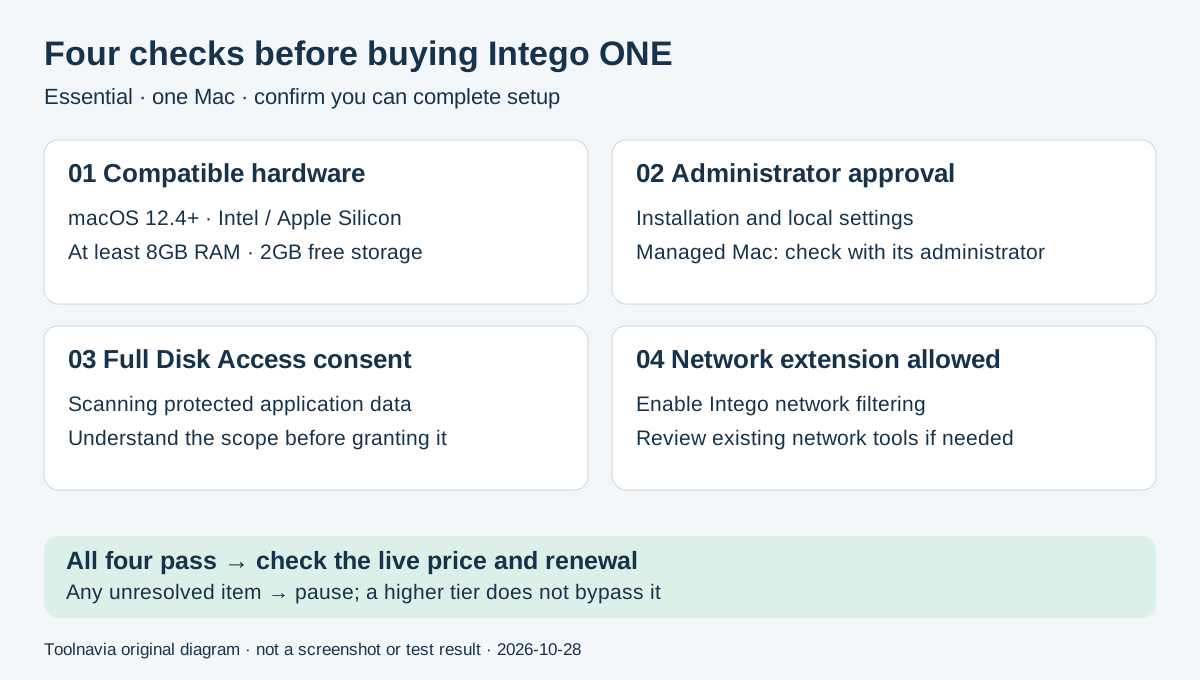
| Purchase check | What must be true | | --- | --- | | The actual Mac | macOS 12.4 or later, Intel or Apple Silicon, at least 8GB RAM and 2GB free storage | | Local approval | You can obtain the Mac administrator's approval for installation and settings changes | | Required access | You accept Full Disk Access and permission to enable Intego's network filtering | | The subscription | Essential, one Mac, one year; antivirus and firewall, with an annual renewal commitment |
The hardware requirements are minimums, not a promise that every Mac will feel equally fast. A Mac running an older Monterey release also needs checking: “Monterey” alone does not establish macOS 12.4 compatibility.
For a new customer below macOS 12.4, Intego currently offers no supported Mac purchase route: X9 is no longer sold for these Macs. Existing X9 subscribers have separate continuity options.
What the enabled security tools let you do
Four capabilities make Essential useful once the required access is in place:
- **Inspect a particular file or folder.** Custom scans give an unfamiliar download a deliberate review step. A clean result is not proof that every threat is absent.
- **Keep checking between manual scans.** Real-time protection monitors activity in the background, reducing reliance on remembering a scan. It still needs the required permissions and current software.
- **Manage application connections.** The firewall lets you allow or block application traffic. That helps someone who wants to understand an app's network behavior, provided the network extension is enabled.
- **Choose how much attention alerts require.** Setup offers more automation or more manual connection decisions. The latter gives involvement at the cost of more prompts; choose a mode you will actually maintain.
Essential already includes the antivirus and firewall. SmartClean and VPN are higher-tier decisions; paying for them does not remove the same installation prerequisites.
Check the first charge and the renewal separately
The localized public checkout reviewed on October 28 displayed **¥5,100 for one Mac's first year**, a ¥0 tax line and ¥5,100 total. Its renewal terms displayed **¥6,800 per year plus applicable VAT/tax**, subject to change with advance notice. This was a JPY cart, not a U.S. dollar quote or a guaranteed worldwide price.
The year is paid as a term, not as monthly installments. Confirm the live currency, billing-country tax, device count, term and renewal before paying. The current cart controls; a reference price elsewhere does not lock your bill. Turn off automatic renewal in the account before the applicable deadline if you do not want another term.
*Affiliate disclosure: Toolnavia may earn a commission if you buy through its Intego links, at no extra cost to you. The link opens Intego's store; select the intended plan and local quote there.*
Understand what each permission allows
**Full Disk Access** lets an approved application reach protected files, including data from Mail, Messages and Safari. Apple describes this as broad access, not merely permission to read a Downloads folder. Intego needs it to scan protected data as intended. Grant it only when you are comfortable trusting the installed application with that scope.
**Network Protection** uses a network extension—a macOS component that can provide a content filter—to manage connections. It is separate from the Intego account login. The Mac administrator's password approves local changes; your Intego password activates your subscription.
On a company-managed Mac, confirm administrator approval before buying. Changing brands does not automatically avoid disk permissions: Malwarebytes and Bitdefender also document Full Disk Access requirements for their Mac protection. That is a setup comparison, not a detection or performance ranking.
Complete one setup, then check the result
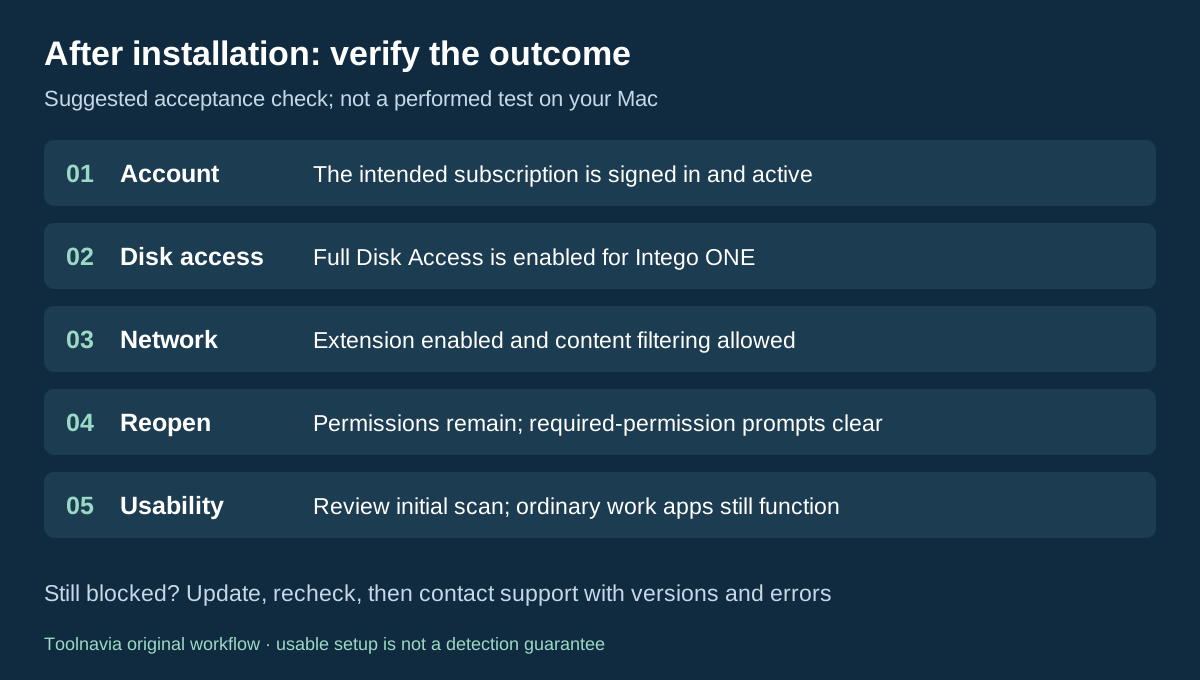
The following is a suggested acceptance workflow based on official instructions. Save your work and have the authorized Mac administrator available. The menu example uses Sequoia 15 or Tahoe 26.
1. Download the current installer from your Intego account, install it and sign in with the subscription's account. 2. In **System Settings → Privacy & Security → Full Disk Access**, enable Intego ONE and approve the change. 3. In **General → Login Items & Extensions → Network Extensions**, enable Intego ONE. Reopen the app and allow network-content filtering when prompted. 4. Choose the alert mode, allow notifications and start the initial ONE Scan.
**Version caveat:** Intego's October 17 general permissions article and October 22 network-extension article give different menu paths for older macOS releases. This guide does not assume one path works everywhere. On Monterey, Ventura or Sonoma, confirm the version-specific instructions with support if the menus do not match.
Our acceptance check is to reopen the app, confirm both permissions remain enabled, check that required-permission prompts have cleared, review the scan result, and verify normal browsing and work applications. These checks confirm usable setup, not malware-detection effectiveness.
If a permission will not stay enabled, update the app and recheck it. Give support the Mac model, macOS version and exact prompt if the issue continues. Another network filter can be involved; do not remove a workplace security tool without its administrator's direction.
Buy when the setup conditions and the need both match
Proceed with Essential when the four checks pass and you want its scanner and connection controls. Pause when the Mac is incompatible or the required permissions cannot be approved; a higher tier does not fix those conditions.
Already paying for an eligible X9 bundle? Check the [X9 migration route](/en/software/intego-x9-one-migration) before placing a second order. Still deciding whether to pay for another security layer? Read the [Essential versus macOS built-in protection guide](/en/software/intego-one-essential-vs-macos-built-in-security). Once the fit is clear, compare the current first-year total and annual renewal for the exact Mac you will protect.