TOOLNAVIA / BUYING GUIDE
EverDoc OCR: Which Scanned PDFs and Images Actually Become Searchable?
The short answer
EverDoc supports a broad document archive, but “file format supported” and “OCR text extracted” are not the same promise. Its official feature description lists PDF, Office documents and common image formats, while specifically describing OCR for image files such as JPG, GIF and BMP. If your archive contains scanned PDFs, PNG screenshots or several languages, test those exact files before buying on the assumption that every page will become searchable.
At a glance
- Best for
- Windows users who need a searchable local archive and want to verify OCR on their real scan formats.
- Price model
- Locale storefronts show different version and price information; verify country, version and licence on live checkout.
- Check first
- Official OCR examples explicitly name JPG, GIF and BMP; image-only PDF, PNG and language support should be tested rather than assumed.
Separate archive support from OCR support
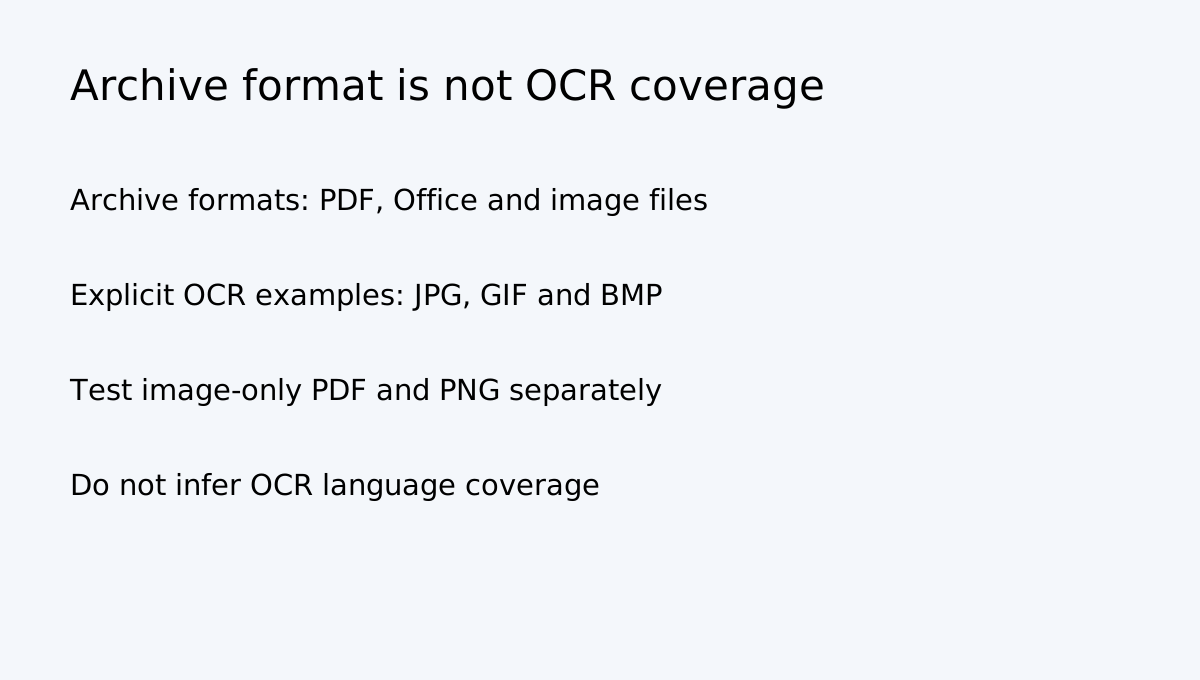
Abelssoft lists PDF, DOC, DOCX, XLS, XLSX, RTF, ODT, GIF, PNG, JPG, JPEG and BMP as formats EverDoc can manage. Its OCR section specifically names image formats such as JPG, GIF and BMP and says recognized image text can be found through full-text search. The product page does not clearly promise that every image-only PDF or every listed image format receives the same OCR treatment.
A PDF exported from Word may already contain selectable text. A scanned PDF may contain only page images. A JPG receipt is an image file. These are different test cases, even though all may appear in the same document library.
Run a four-file OCR acceptance test
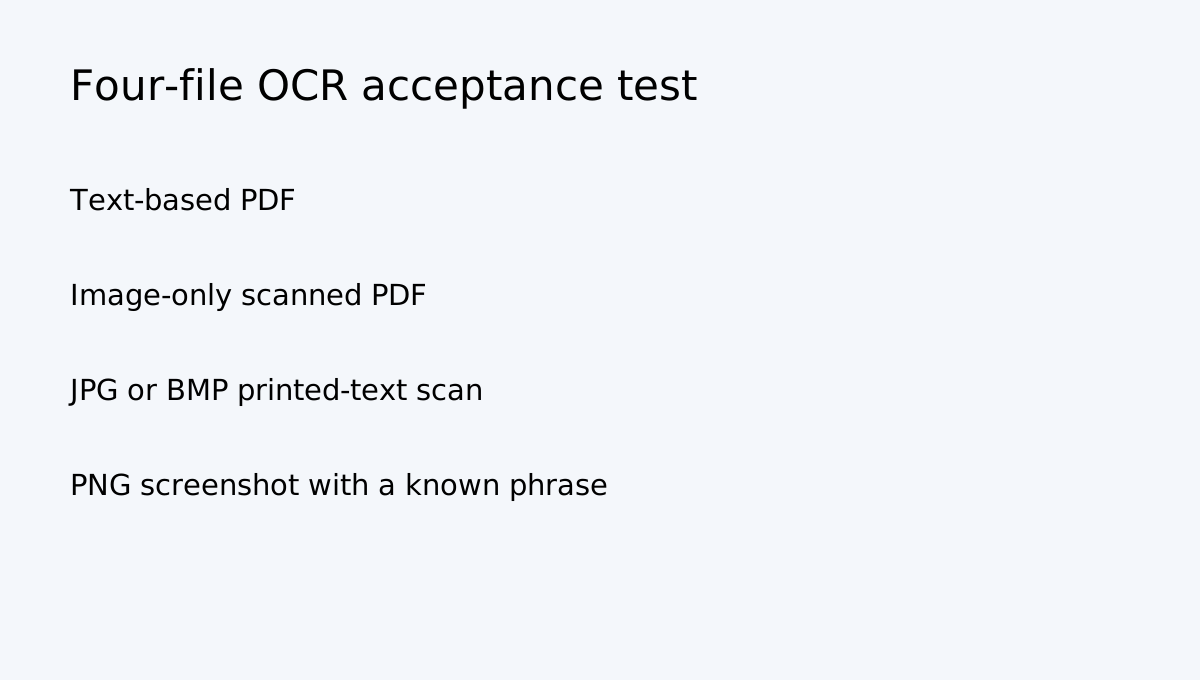
Before moving a large archive, prepare a text-based PDF, an image-only scanned PDF, a JPG or BMP scan containing a clear printed sentence, and a PNG screenshot with a short phrase. Add each file using the method you plan to use in production. Search for an exact phrase that appears only inside the document, not in its filename or tags. Record whether the result is found, whether the preview points to the right file and whether the recognized words are accurate. Repeat with a second language if your archive is multilingual. The official OCR description explicitly names JPG, GIF and BMP; treat PDF, PNG and language coverage as items to verify rather than assume.
Check the whole search pipeline
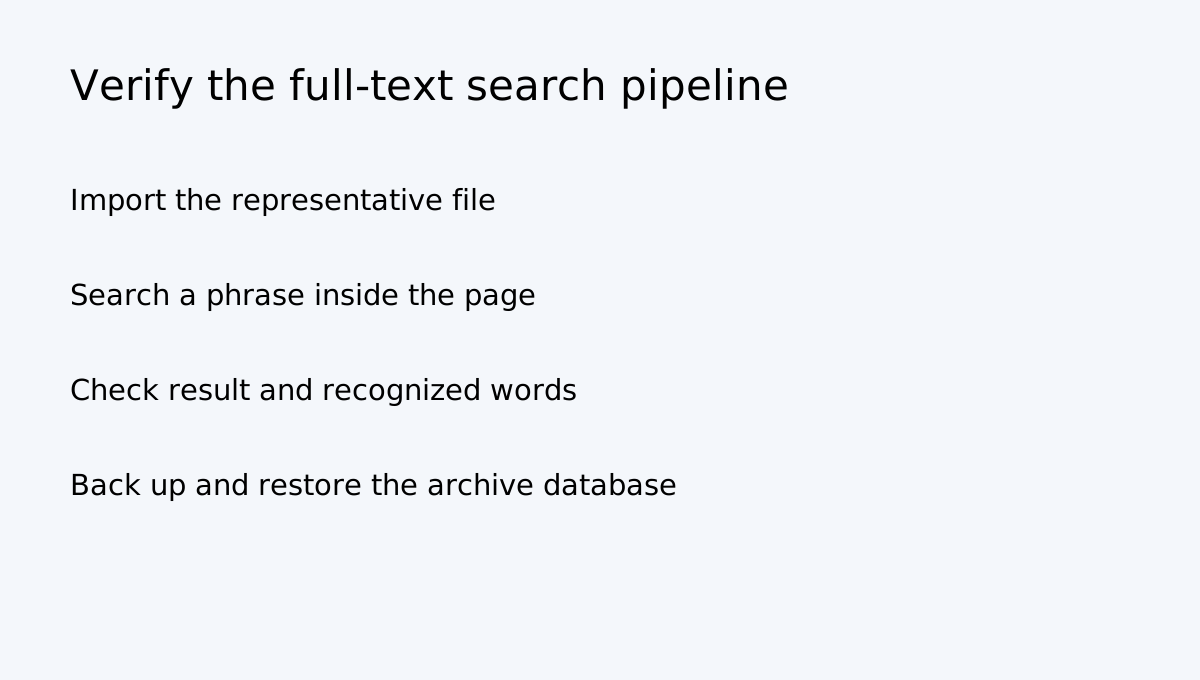
EverDoc also describes sorting by date, title and keywords, plus full-text search. Use a small test collection and verify that the file is imported, the original remains readable outside EverDoc, filename and manually assigned keywords are searchable, OCR text inside the image is searchable, duplicates do not create confusing results, and the archive database can be backed up and restored.
Do not treat a filename result as proof of OCR. Search a phrase that exists only inside the scanned page. If a scanned PDF fails the phrase test, run a separate OCR tool first or keep a searchable PDF copy; do not assume EverDoc converts every PDF scan automatically.
Scanner capture has its own dependency
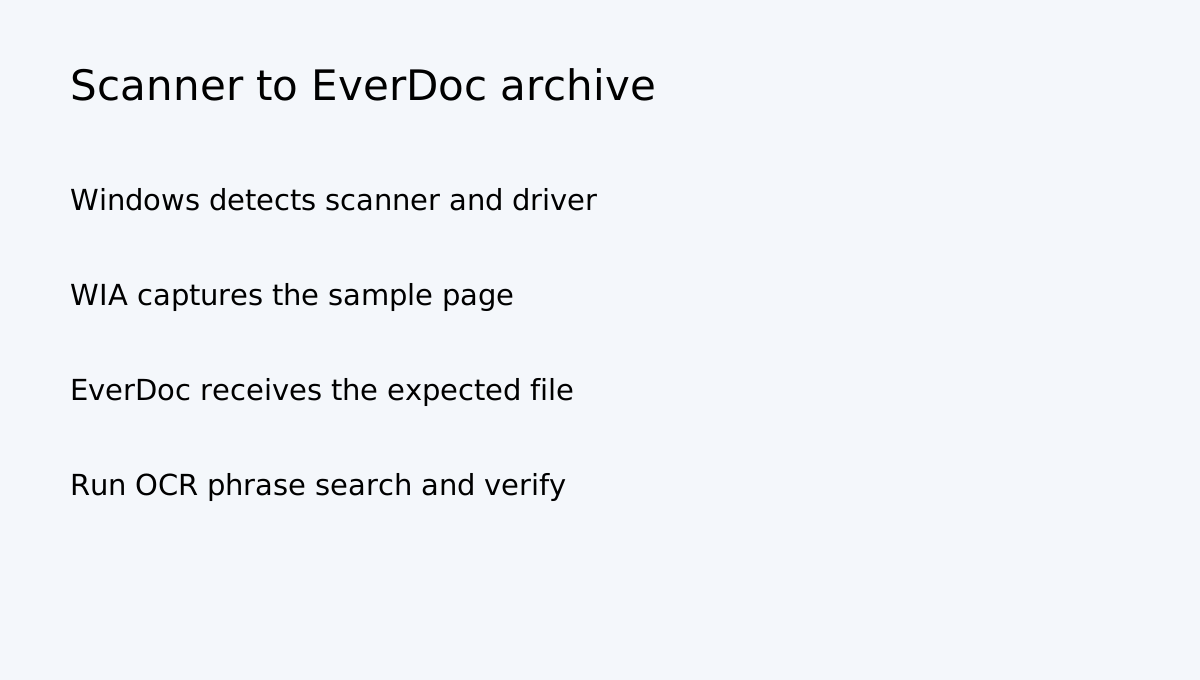
EverDoc says it can add documents after scanning through WIA 2.0. Confirm Windows recognizes the scanner, the manufacturer's driver is installed and the scan appears in the format you expect. Microsoft documents WIA as the Windows image acquisition interface and provides scanner setup guidance. A scanner working in Windows does not prove the EverDoc hand-off works, so test the exact scanner model and driver with a sample page.
Version and checkout can differ by locale
The Abelssoft German product page checked for this guide displays version 2026 (v2026.11.04) and EUR29.95, while an Ashampoo English-US route displays EverDoc 2026 with a different version string and USD price. These are different storefront routes, so do not transfer a price or version from one locale to another. Check the exact country, currency, version delivered, licence term and update period on your checkout page.
EverDoc or a dedicated OCR workflow?
| Document mix | First test | Buying implication | |---|---|---| | Text PDFs and Office files | Search a phrase already embedded in the file | Archive/search convenience may be enough | | JPG/GIF/BMP scans | Test OCR phrase search on each format | Clearest documented OCR use case | | Image-only PDFs | Test directly; do not infer OCR from format support | Keep a separate PDF OCR step if it fails | | PNG screenshots | Test a known phrase; PNG is listed as managed format, not specifically named in OCR examples | Verify before migrating a large image library | | Multilingual forms | Test each language and scan quality | Do not assume language coverage |
EverDoc is a candidate when you want a Windows document archive, keyword and full-text search, mobile photo intake and backup in one desktop workflow. It is not a substitute for a dedicated OCR conversion pipeline unless your own test files prove the formats and languages you rely on are recognized. For high-volume business capture, compare a specialist OCR/DMS product and check batch processing, metadata extraction and retention controls.
Buy, wait or use a separate OCR tool
**Consider EverDoc** if your important image scans are mainly JPG, GIF or BMP, the exact files pass the phrase-search test, and you want local document organization as well as OCR.
**Wait** if the archive is dominated by scanned PDFs or PNGs and you have not verified OCR behavior, or if the scanner driver and WIA path have not been tested.
**Use a separate OCR step** if you need guaranteed searchable PDFs, multilingual recognition, batch OCR or conversion controls that the current EverDoc feature page does not explicitly promise.
The purchase decision should be based on a small representative archive test—not the number of file extensions in the supported-format list.