TOOLNAVIA / BUYING GUIDE
CorelDRAW CMYK & Spot Colors: Is Soft Proofing Enough Before You Buy?
The short answer
# CorelDRAW CMYK & Spot Colors: Is Soft Proofing Enough Before You Buy?
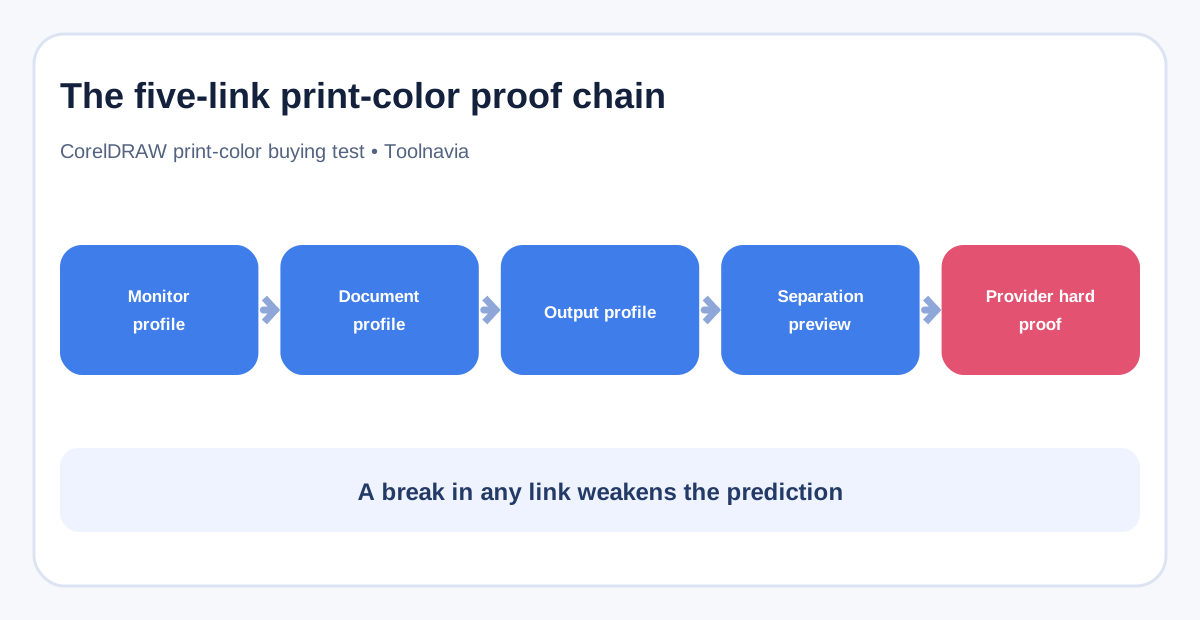
**Verdict:** CorelDRAW Graphics Suite is worth considering for print-color work only after one representative job survives an end-to-end proof chain: a known monitor profile, the intended document profile, the print provider’s output profile, a separation check, and a provider-approved hard proof. Its soft-proof, gamut-warning, spot-color, overprint, and PDF color-management controls can reduce uncertainty. They cannot promise that an unknown press, paper, ink set, or uncalibrated display will match your screen.
This is a buying test, not a claim that CorelDRAW is uniquely capable. Adobe Illustrator, Affinity Designer, and QuarkXPress document comparable profile, spot-color, and proofing controls. The deciding question is whether CorelDRAW fits your actual provider and handoff—not whether a feature appears in a menu.
> **Affiliate disclosure:** Toolnavia may earn a commission if an eligible US or Canada purchase is made through the approved CorelDRAW Graphics Suite link. That does not change the price you see. We do not claim a discount. Verify the current cart, plan, renewal terms, and market before paying.
At a glance
- Best for
- Provider-profile-aware CMYK and spot-color delivery with a hard-proof path.
- Price model
- Use the live US/Canada cart; official numeric contexts conflict. Add calibration, profiles, proofs and training.
- Check first
- Soft proofing cannot guarantee unknown paper, ink, press or display behavior.
What software cannot solve for you
A soft proof is an on-screen simulation. CorelDRAW can simulate a selected output device, show out-of-gamut colors, apply a rendering intent, and optionally preserve CMYK numbers. Those controls are valuable only when the profile represents the production condition you will actually buy.
If your printer says “use CMYK” but cannot name the press condition, paper class, ink set, or ICC profile, the workflow still has an unresolved input. A generic coated-paper profile may be a reasonable working assumption, but it is not evidence that a particular sign printer, digital press, or packaging line will reproduce the file as shown. ICC profiles connect device values to a standard color space; the source profile, destination profile, and rendering intent form a conversion chain. A wrong destination makes a technically correct conversion irrelevant to the real job.
The display matters too. A bright, uncalibrated monitor can make a proof look more saturated and open than the print. Buying new design software without budgeting for display calibration, current profiles, and at least one physical sample can move the uncertainty instead of removing it.
CMYK or spot color: ask before converting
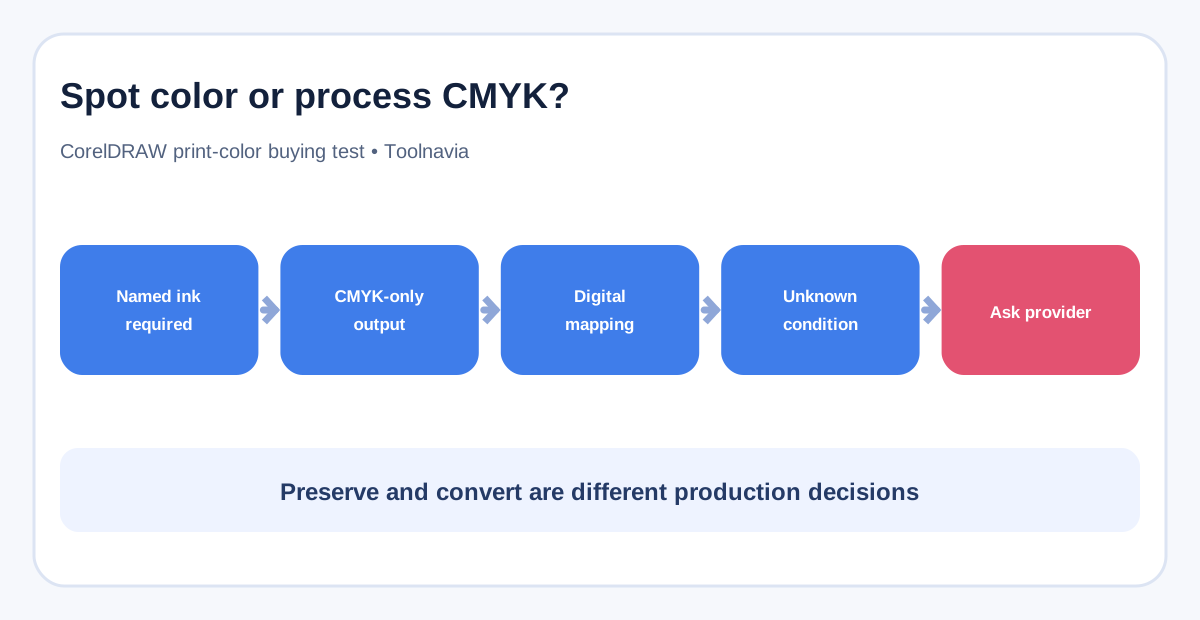
“Spot color” and “CMYK color” are not two quality levels. They are different production instructions.
- Keep a named spot plate when the provider will run that ink, the brand specification requires it, and the quoted job includes the plate or channel. - Convert to process CMYK when the provider’s device is CMYK-only or the quote explicitly excludes spot inks. - Do not guess when a digital printer accepts a named spot but maps it internally. Ask whether it wants the spot name preserved, a Lab definition, or a process conversion.
CorelDRAW’s PDF controls can preserve spot colors or convert them to process color, embed profiles, apply proof settings, and preserve overprints. That flexibility creates responsibility: preserving and converting are mutually different decisions. The provider’s written specification should decide which one you use.
Manufacturer spot libraries can improve consistency, but a library swatch is not a physical guarantee. Adobe documents Lab definitions for precise spot-color handling and still requires correct device profiles. Paper whiteness, coating, ink density, lamination, surrounding colors, and press variation remain outside the swatch definition.
Build the proof chain before judging CorelDRAW
Use five linked checks rather than one attractive preview.
1. **Monitor condition.** Record the calibration date, white point, luminance target, and monitor profile. If you cannot do this, label the screen review “directional,” not “approved.” 2. **Document condition.** Confirm the document’s RGB or CMYK profile and the source of placed artwork. Unmanaged images can enter the file with assumptions that differ from the document. 3. **Output condition.** Install the profile supplied or approved by the provider. Record whether the provider or your application owns the conversion. 4. **Separation condition.** Inspect process plates, named spot plates, overprints, and objects that unexpectedly disappear or move to the wrong plate. 5. **Physical condition.** Obtain a contract proof, calibrated proof, or representative production sample, then record who approved it and what tolerances apply.
Corel notes that some output paths have different color-space capabilities: GDI is limited to RGB and grayscale, while PostScript workflows can support multiple spaces. Adobe likewise warns against letting both the application and printer driver manage the same conversion. The purchase test therefore has to include the route you will use, not just the document on screen.
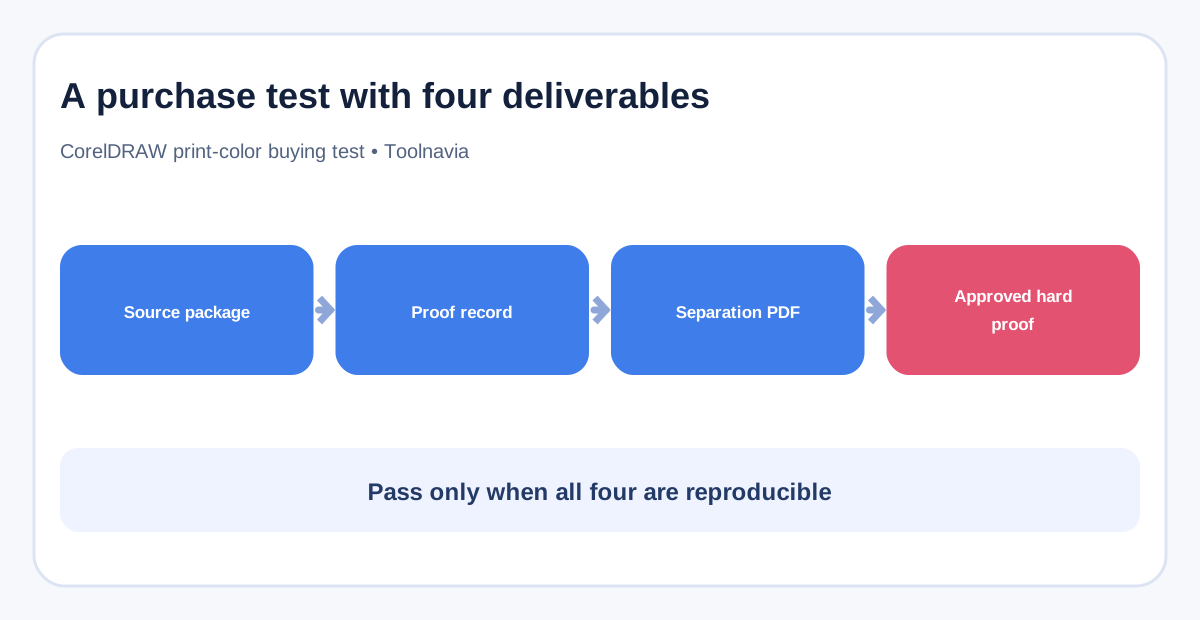
Run a four-deliverable purchase test
Do this during the available trial or before moving a team. Use a real, non-confidential job containing photographs, rich black, small neutral text, transparency, overprint, one named spot, and one deliberately out-of-gamut color.
1. Source package
Keep the original CorelDRAW file, linked assets, fonts or outlined equivalents, the document profile, the provider profile, and a short readme. The goal is reproducibility: another operator should be able to tell which color assumptions were intentional.
2. Proof record
Save a screenshot-free text record of the proof profile, rendering intent, preserve-CMYK setting, gamut-warning choice, and viewing date. A pretty screenshot is weak evidence if the settings are unknown.
3. Separation PDF
Export the provider’s required PDF standard. Check that the named spot remains one plate when it should, process objects do not create accidental spots, black behaves as specified, and overprints survive. Corel’s PDF color-management options support these choices. Separation preview is still incomplete: Adobe states that it does not show trapping, printer’s marks, halftone screens, or resolution and recommends verifying those with the printer and physical proofs.
4. Approved hard proof
Ask the provider to output a calibrated proof or representative sample from the intended condition. Compare it under controlled lighting. Record approved deviations instead of chasing a mathematically impossible “identical” screen match.
Pass the software only when all four deliverables are repeatable. If the source opens correctly but the provider rejects the separations, the test failed. If the separations pass but the hard proof misses the brand tolerance, investigate the profile, substrate, ink recipe, and expectation before blaming the application.
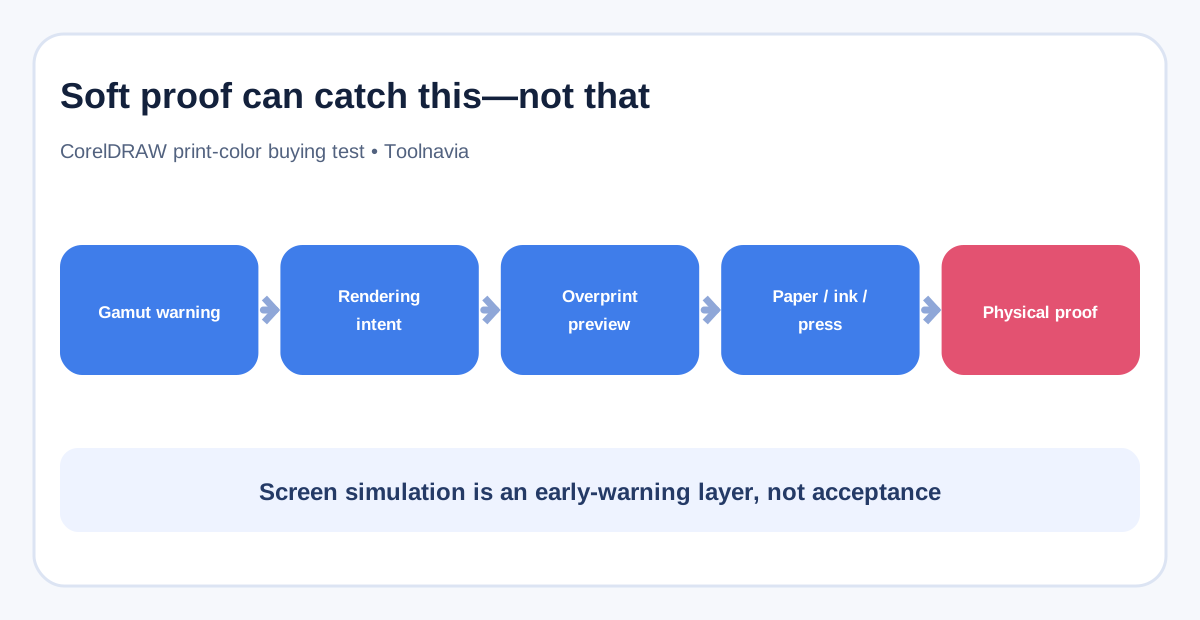
Soft proofing can catch this—not that
Soft proofing can reveal likely gamut compression, rendering-intent differences, some overprint effects, and obvious profile mismatches. It can help compare two output conditions without wasting material.
It cannot reliably predict undocumented trapping, screening, registration, finishing, substrate texture, fluorescent or metallic inks, optical brighteners, press drift, or operator choices. Nor can it turn a consumer display into a certified proofing system. Treat it as an early-warning layer, not the acceptance authority.
Are the alternatives weaker?
Not by default. Illustrator supports device-aware printing, spot-color Lab values, and separation preview. Affinity Designer supports assigned and embedded profiles and spot colors in PDF output, while advising users to consult the print provider. QuarkXPress provides source/output setup-based soft proofing and spot-to-process previews.
CorelDRAW may still be the better fit if your team prefers its illustration tools, existing CDR archive, imposition or signage workflow, Windows environment, or provider templates. Keep your current tool if it already produces accepted files and switching would mainly recreate profiles, presets, training, and automation without solving a measurable defect.
Count the whole cost
Corel’s current product page presents annual, monthly, and one-time routes plus a 15-day trial. A Corel newsroom release dated September 15, 2026 lists $269 per year and a $549 one-time suggested retail price, while an official special-offers page exposed $439 per year including VAT in another context. Those figures do not share a clearly aligned market, tax, and promotion context, and the product page itself did not expose stable numeric amounts in readable output. This guide therefore does not select one as a universal current price. Use the live market-specific cart at checkout.
Add the costs outside the license: a calibration device or service, profile creation, proof prints, rejected-job allowance, staff training, preset governance, and time spent validating archived files. A lower license price can be poor value if the provider rejects one packaging run; a higher price can still be poor value if your existing tool already passes every proof.
Who should buy—and who should wait
**Buy or trial seriously** if you receive provider-specific profiles, need controlled spot/process decisions, can produce a separation PDF, and have a hard-proof approval path. CorelDRAW can then become a useful control point in a documented chain.
**Wait or keep the current tool** if the provider cannot state its condition, the team has no calibration practice, approval happens only by looking at office monitors, or the main requirement is “make print exactly match the screen.” No application can safely satisfy that last promise.
The practical buying rule is simple: pay for CorelDRAW when one representative job proves that the whole chain works. Do not pay merely because the soft proof looks convincing.