TOOLNAVIA / BUYING GUIDE
AOMEI Partition Assistant Free vs Pro: Is WinPE USB Worth Paying For?
The short answer
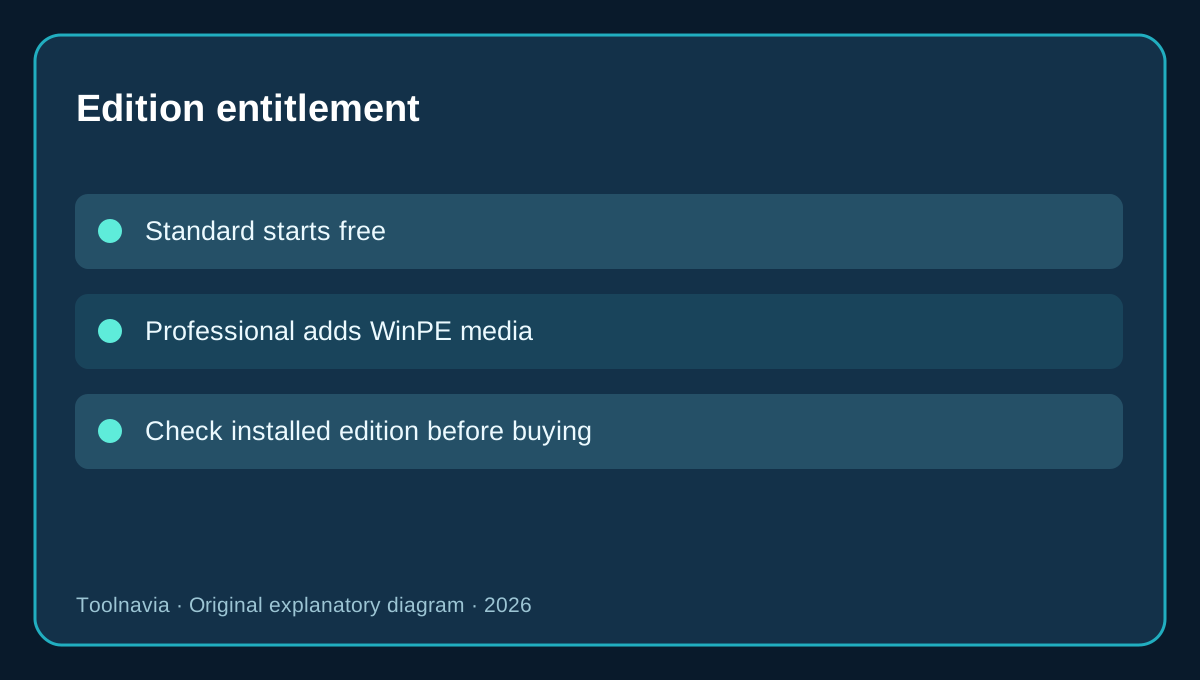
AOMEI Partition Assistant Standard is free, while the official **Professional** feature list explicitly adds **Create Bootable Media**. The current AOMEI download page lists Professional for two PCs at **$49.95 yearly** or **$59.95 lifetime**, subject to your actual checkout, currency and tax. The practical buying question is not whether every Windows user needs a rescue USB: it is whether you need to run AOMEI's partition tools **outside the installed Windows system** and whether your current edition grants that ability.
**Source conflict:** Some third-party reviews continue to say Standard can create WinPE media. Current AOMEI product and technical documentation instead describes the function as part of paid Professional or higher editions. Edition and version may explain the mismatch. Do not promise a free function based on old reviews: check your installed version, the current official comparison and the actual button or upgrade prompt before spending money.
At a glance
- Best for
- Buy Pro only for required offline AOMEI partition workspace with tested boot media.
- Price model
- Pro 2-PC $49.95/year or $59.95 lifetime as official display, subject to checkout.
- Check first
- Independent edition claims conflict; USB erasure, driver/firmware uncertainty; not personal-file backup.
Start with Standard if Windows still works
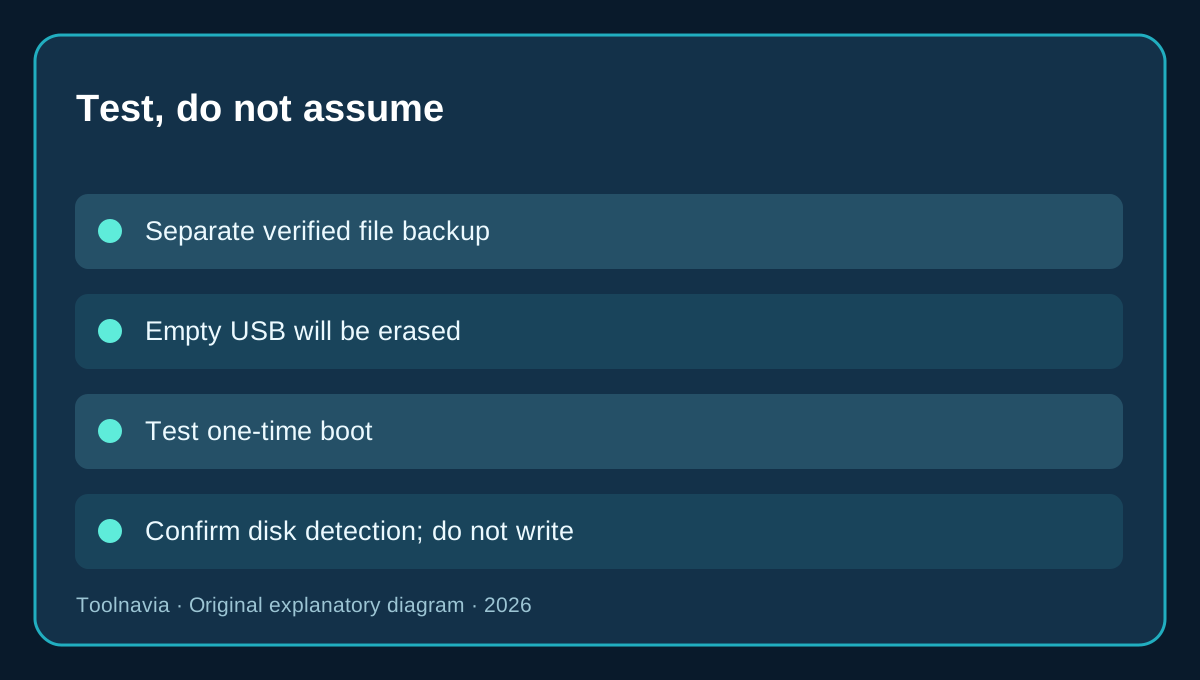
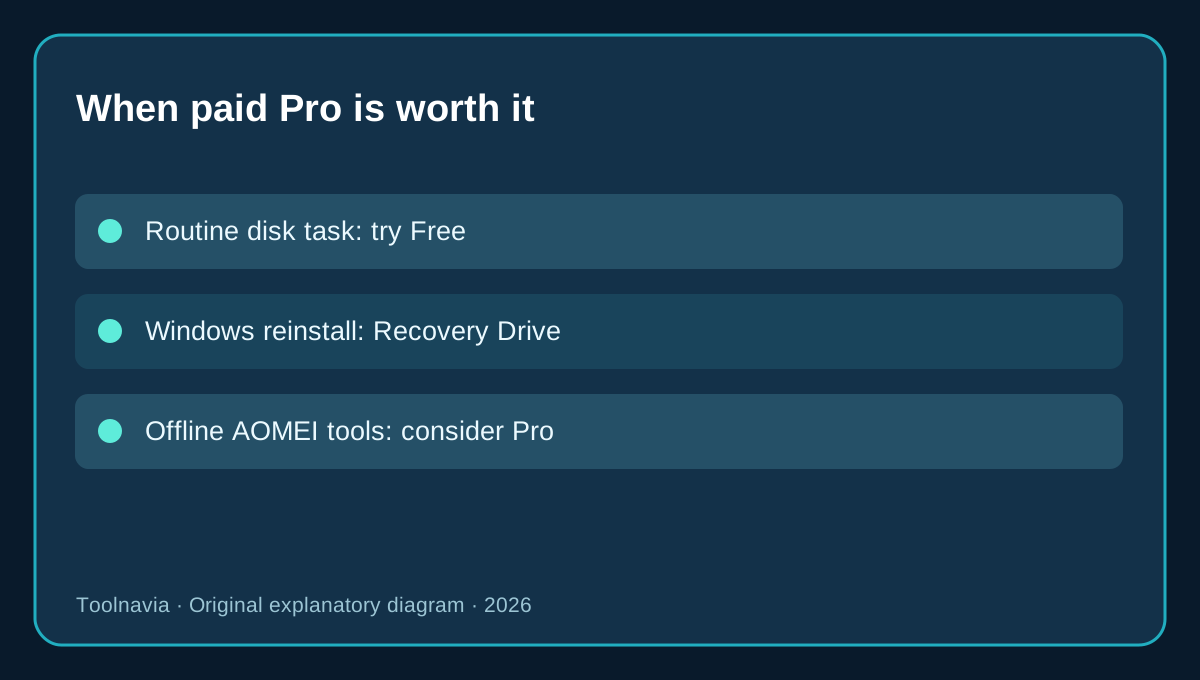
For a normally booting computer, free Standard is a sensible first test if it supports the partition creation, inspection, shrinking or moving operation you need. Paying for bootable rescue media when you only want a routine data-disk adjustment wastes money. But even a free partition change is not risk-free: power failure, a failing SSD and selecting the wrong disk can cause serious damage. Back up valuable files to separate storage and check a sample restore first.
Professional becomes more attractive if the installed Windows environment itself will not boot or if a particular advanced disk operation cannot be completed inside Windows, and you require an AOMEI-specific offline workspace. Creating a WinPE USB in advance allows AOMEI's tools to be loaded without relying on the damaged Windows installation. It does not make a failing drive healthy or retrieve files that are already overwritten. Protect irreplaceable data before experimenting with repair operations.
USB, ISO or optical media: choose for the actual machine
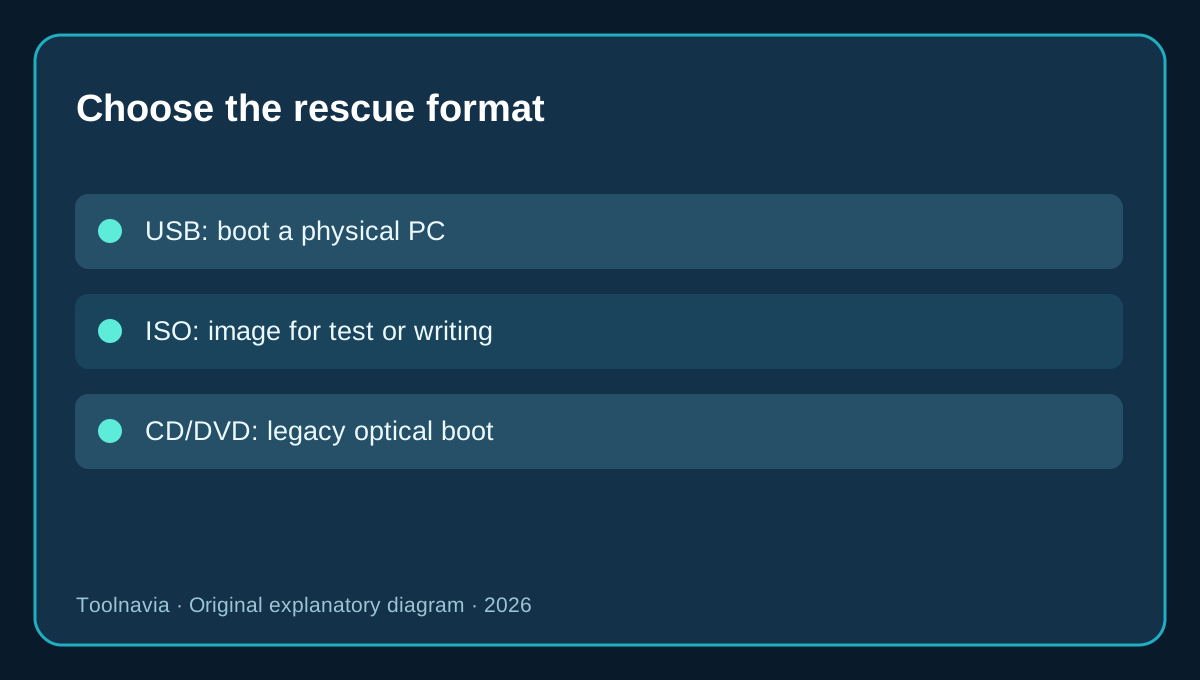
AOMEI's own guide offers three outputs. A **USB Boot Device** suits most present-day physical PCs; creating it formats and erases the chosen stick. An **ISO file** is an image useful for controlled virtual-machine testing or later burning; simply copying the .iso onto a USB drive does not necessarily make that drive bootable. **CD/DVD** is a niche alternative for older machines with optical boot support. The decision depends on how the failed machine can start, not on which output appears most impressive in a product comparison.
You normally build the media on a running Windows machine. If the target PC has already become unbootable and you have no prepared USB, you may need a second working PC. Use a spare, empty USB and identify its volume name and capacity before confirming the destructive formatting step. When prompted, add only drivers relevant to the target storage controller or device. If the wizard cannot find a usable recovery environment, AOMEI notes that Windows ADK and the separate WinPE add-on or replacement recovery components may be needed. These requirements vary by Windows build; do not assume every buyer will need to install ADK.
A bootable file is not the same as a tested recovery plan
Once media creation succeeds, use your PC's **one-time firmware boot menu** to test the actual stick. Confirm the expected AOMEI interface launches and detects the correct internal drives; then quit without applying a partition, repair, conversion, format or clone action. Keep the USB separate from regular backups and label it with the edition and creation date. For storage controllers absent in WinPE, rebuilding with correct drivers is safer than assuming the disk vanished.
UEFI and Secure Boot settings are machine-dependent. Older instructions sometimes recommend disabling Secure Boot, but this is not a universal or risk-free fix. Follow the OEM's current procedure, check AOMEI compatibility instructions and record the exact boot error first. Microsoft also documents Secure Boot revocation changes that can affect older recovery media. A premium license alone cannot promise boot success on untested hardware.
Compare against the free Windows Recovery Drive
Windows includes **Recovery Drive**, a utility for preparing a USB that can restore or reinstall Windows on the original device. Microsoft's guidance explicitly says this media **does not include personal files**, that creating it **erases the USB**, and that rebuilding the media periodically includes newer Windows files. This can be the better no-cost route if you only need to restore your PC, not use AOMEI partition tools in an offline environment.
The tools are not interchangeable. Recovery Drive is not a feature-complete AOMEI partition manager; the AOMEI WinPE workspace is not a personal-file or full-system image backup. For a computer that will not start, begin with the type of recovery you actually need. If the task is Windows reinstallation, evaluate Microsoft's free tool first. If it is a partition operation only AOMEI can perform and the current Standard version does not permit offline media, a paid Pro license can be justified.
Is yearly or lifetime Pro worth it?
The October 28, 2026 official USD display shows **$49.95 yearly versus $59.95 lifetime** for two PCs. The $10 display difference is informative, but only after you account for yearly auto-renewal, cancellation, updates, license transfer and the real checkout price. Do not confuse Professional with Family, Server or Technician editions. Treat promotional percentages as date-specific, not guaranteed final discounts. The approved Toolnavia CJ affiliate link goes directly toward the official AOMEI Professional purchase page, not a hidden Toolnavia redirect.
Choose **no purchase yet** if Standard supports your operation; choose **Windows Recovery Drive** if basic Windows recovery suffices; consider **Professional WinPE** if your offline AOMEI partition requirements justify both license cost and testing work. Before paying, verify current edition entitlement, Windows/firmware/storage-driver compatibility, backup status and final cart. Before relying on the result, test the actual boot media without writing to the disk. Neither an actual purchase nor an emergency boot on real customer hardware was performed for this guide.
Independent comparisons and their limits
Other third-party partition-software roundups describe bootable environments under more advanced or paid product editions, broadly in line with the current vendor classification. Neither roundup is an AOMEI license agreement, an assurance of free-version compatibility or evidence that your exact PC will boot the USB.