TOOLNAVIA / BUYING GUIDE
AOMEI Dynamic to Basic: Pay to Avoid Delete-All?
The short answer
At a glance
- Best for
- Healthy supported simple-volume layouts with a tested backup and costly delete-and-restore downtime.
- Price model
- Professional observed $49.95 yearly or $59.95 lifetime for 2 PCs; Family Lifetime $89.95 for 5 PCs; final cart controls.
- Check first
- Not for unverified backups, failing disks, excluded >2TB/spanned/striped/RAID-5 layouts or unclear cross-disk topology.
Verdict: pay only when the disk layout fits
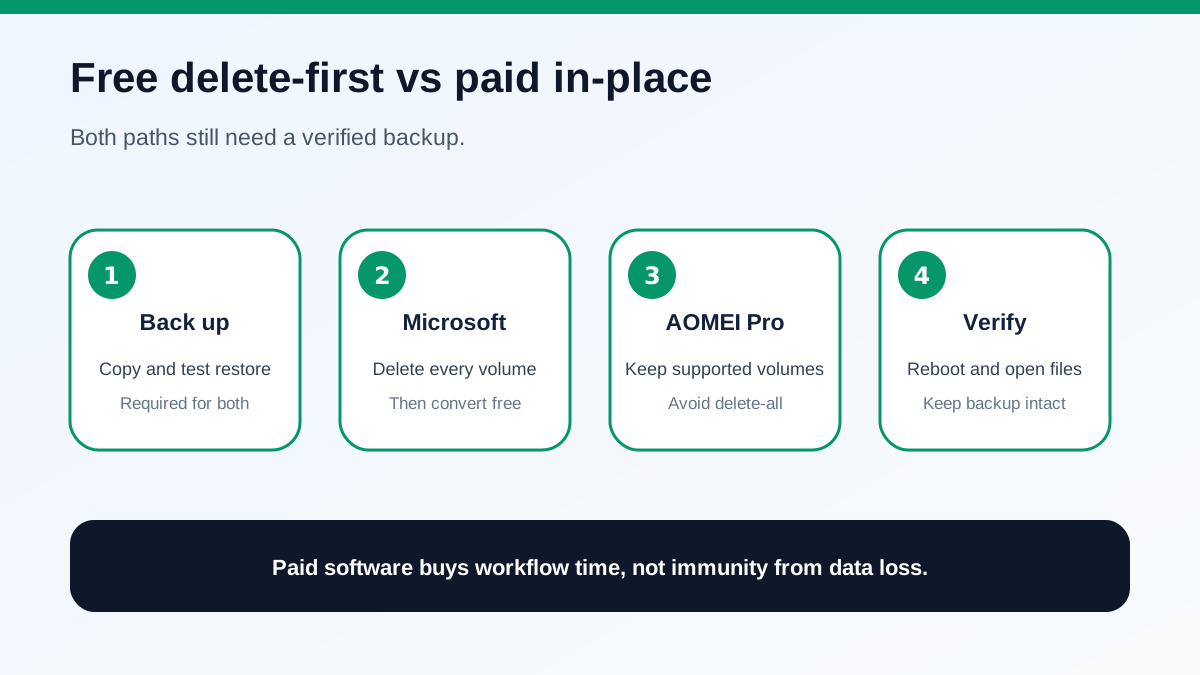
Windows can convert a dynamic disk to basic for free, but Microsoft's built-in path requires an empty disk: back up the data, delete every volume, convert, recreate partitions and restore. AOMEI Partition Assistant Professional sells a different path for supported layouts: convert without first deleting the volumes. That can save a long backup-copy-delete-restore cycle, but it is not a “no-risk” button.
The buying rule is narrow. **Back up and test a restore first. Then buy only when the target is a supported simple-volume layout, the disk is healthy, the exact conversion plan is understood, and avoiding delete-and-restore is worth more than the license.** AOMEI documents important exclusions for disks over 2 TB and spanned, striped or RAID-5 volumes.
This article uses an approved AOMEI affiliate link. We may earn a commission if you buy, at no extra cost to you. The relationship does not change the requirement for a verified backup, exact disk inventory and current checkout review.
Identify the disk before changing it
Open Disk Management and record the physical disk number, capacity, partition style, every volume, file system, health state and whether a volume extends across disks. Do not rely on drive letters alone. Take screenshots and export or write down BitLocker recovery keys before touching the layout.
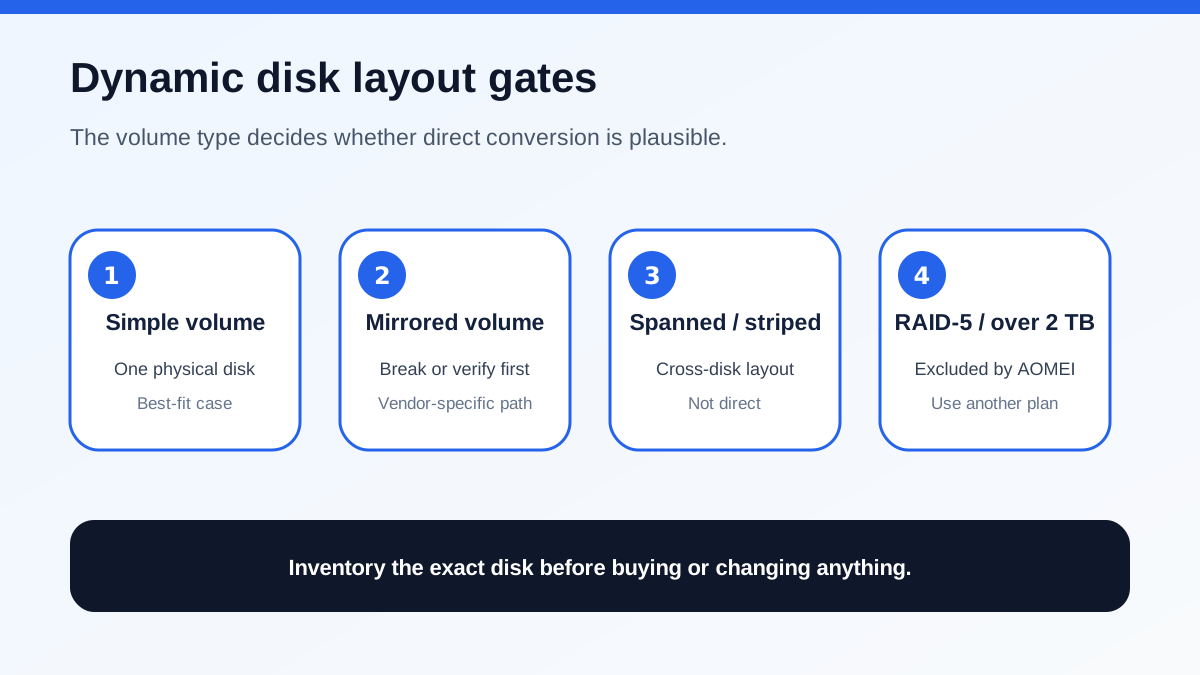
The safest AOMEI case is a healthy dynamic disk whose volumes are simple and live entirely on that one disk. AOMEI says its Dynamic Disk Converter cannot directly handle a dynamic disk larger than 2 TB or spanned, striped and RAID-5 volumes. It also documents a multi-slice simple-volume case that may require shrinking or another route. The paid-edition FAQ confirms dynamic-disk management is not in the free edition.
Competitors impose similar boundaries. MiniTool says its conversion feature is paid and supports simple or mirrored volumes, not every dynamic layout. DiskGenius requires all volumes to be simple and contained on one physical disk. EaseUS supports simple and mirrored volumes, tells mirrored-volume users to break the mirror first and still recommends a backup. Those limits are evidence that “dynamic disk” is not one uniform case.
The free Microsoft route deletes first
Microsoft says dynamic disks are deprecated for new deployments and recommends basic disks or Storage Spaces for new resilience designs. Its Disk Management procedure tells you to back up, close programs, delete every volume, convert the now-empty disk and restore later. DiskPart's `convert basic` command also requires an empty selected dynamic disk.
That route costs no software license, but it costs time and another trusted destination with enough capacity. It is reasonable when you already have a verified backup, can schedule downtime and want the most transparent vendor-neutral workflow. It is not reasonable to treat “backup completed” as proof. Open representative restored files or perform a test restore before deleting the source volumes.
For spanned, striped or RAID-5 layouts, the free path may be the clearer plan because the data must be reorganized anyway. Preserve the files elsewhere, document which volume spans which disk, and rebuild intentionally rather than forcing an unsupported in-place conversion.
What AOMEI Professional changes
AOMEI's current feature table places Dynamic Disk Management and dynamic-to-basic conversion in Professional rather than Standard. Its guide presents a direct converter that keeps supported volumes in place, avoiding the mandatory delete-all step in Microsoft's tools. This is a workflow advantage, not a data-loss guarantee.
The meaningful value is downtime avoided. If copying, deleting, recreating and restoring several terabytes would consume many hours, a supported in-place conversion may justify the price. If the disk contains only a small amount of data, the free backup-and-restore route may be simpler and easier to audit.
AOMEI still cannot make unhealthy storage reliable, turn a cross-disk spanned volume into an ordinary partition by magic, or replace a backup. Power loss, controller problems, file-system corruption, encryption mistakes and unsupported geometry remain real risks. Do not run conversion on a disk that reports I/O errors, disconnects, clicks or shows unstable SMART health.
Run a preflight and rollback test
Before purchase or conversion:
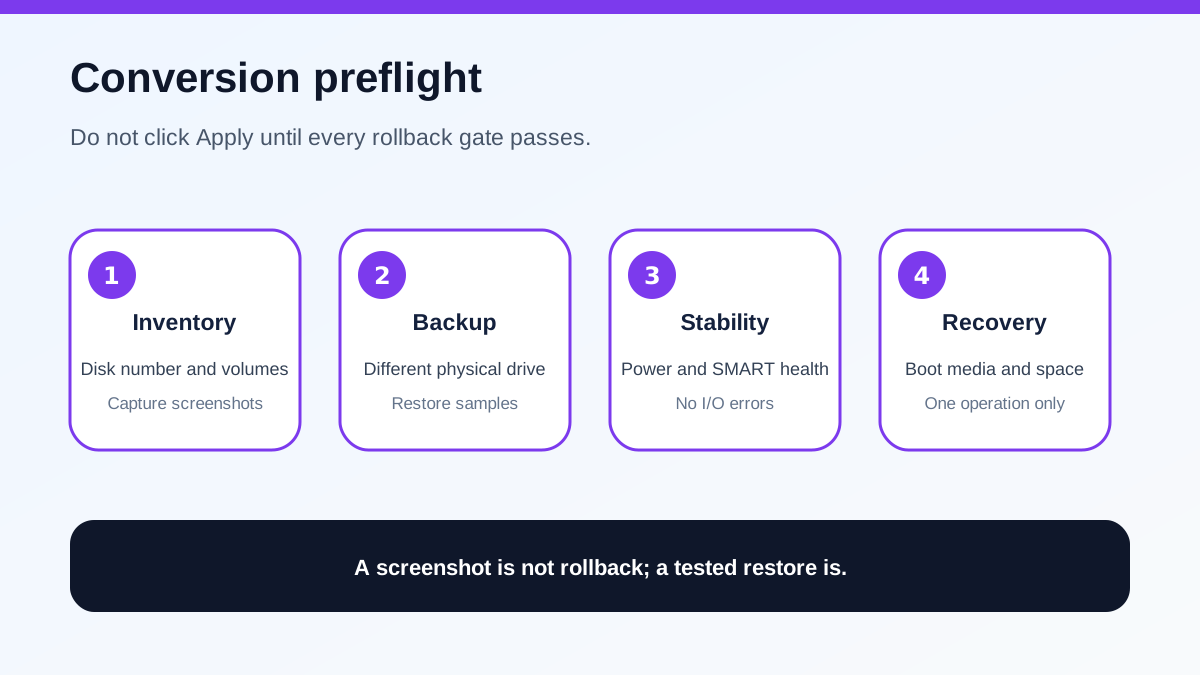
1. Finish a full backup to a different physical device. 2. Restore several large and small files to a third location and open them. 3. Record the disk number, size, partition style and all dynamic volume types. 4. Confirm no volume is spanned, striped or RAID-5; inspect mirrored and multi-slice cases carefully. 5. Confirm the disk-capacity and Windows-version limits on the current AOMEI build. 6. Save BitLocker keys and suspend protection only if the documented operation requires it. 7. Connect stable power, close applications and pause jobs that write to the disk. 8. Prepare bootable recovery media and enough space for a full restore. 9. Do not queue unrelated resize, move, clone or alignment operations in the same run. 10. After conversion, verify every volume, run read-only checks first and open representative files.
A screenshot of the preview is not a rollback plan. The backup plus a successful restore test is the rollback plan.
Price and buy, pause or skip
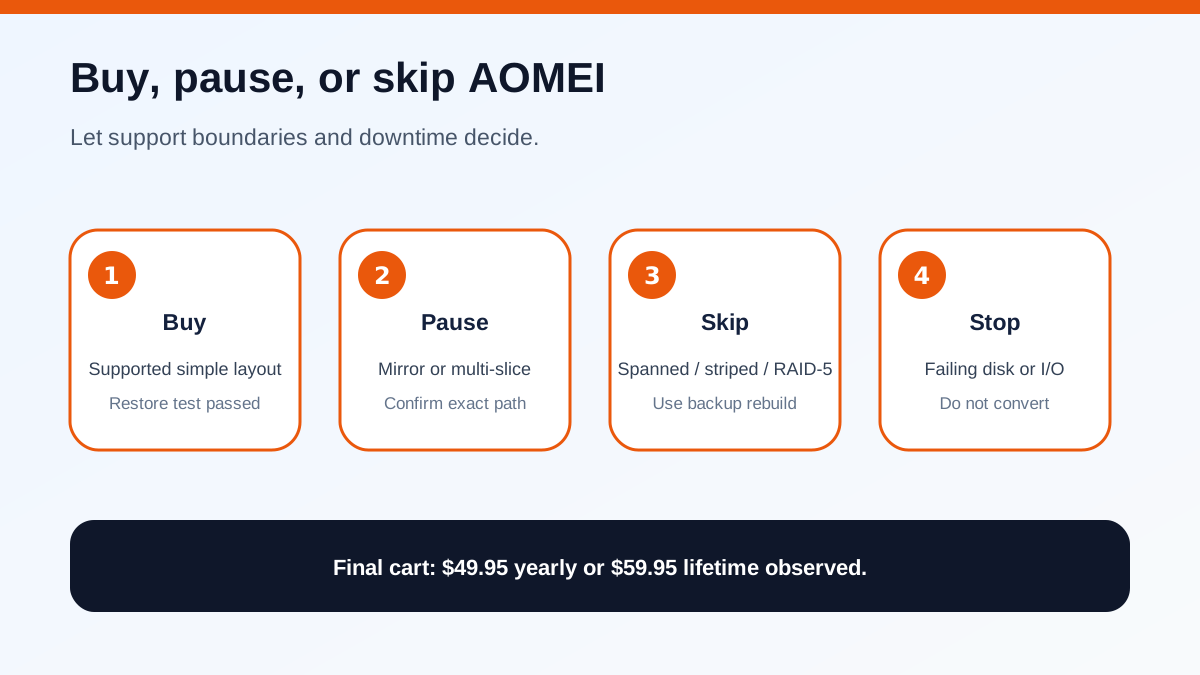
On 2026-11-07, AOMEI's official page showed Professional Yearly at $49.95 for two PCs with auto-renewal, Professional Lifetime at $59.95 for two PCs, and Family Lifetime at $89.95 for five PCs. Tax and the final cart control. The small displayed gap between yearly and lifetime can make lifetime look obvious, but only if this feature and future use justify buying at all.
Buy when the layout is explicitly supported, the disk is healthy, the backup restore test passed, and avoiding delete-and-restore saves more time than the price. Pause when the volume type, capacity, encryption state or cross-disk relationship is unclear. Skip when the disk is failing, the layout is excluded, the backup is untested, or the free destructive route is acceptable after a verified copy.
Safe acceptance after conversion
Success is not the message “operation completed.” Reopen Disk Management and confirm the disk is Basic, expected partitions exist, sizes and file systems match, drive letters are correct and no volume is RAW or missing. Reboot once, open representative documents, photos, archives and databases, and confirm dependent services can read their paths.
Keep the pre-conversion backup until several normal work cycles pass. Do not immediately repurpose or erase it. If the result differs from the inventory, stop writing to the converted disk and restore or investigate before making more partition changes.
Microsoft's destructive route, its dynamic-disk deprecation guidance, AOMEI's feature and limitation pages, and three competitor workflows all point to the same practical conclusion: the paid converter can reduce downtime for a supported layout, but the verified backup decides whether the operation is responsible.