TOOLNAVIA / BUYING GUIDE
AOMEI BitLocker Resize: Decrypt First—or Pay for Pro?
The short answer
At a glance
- Best for
- A current build that proves the exact BitLocker operation after an off-device key and tested backup.
- Price model
- Professional observed $49.95 yearly or $59.95 lifetime for 2 PCs; Family Lifetime $89.95; final cart controls.
- Check first
- Unverified backups, missing keys, failing drives, unclear layouts, or a free Windows shrink that already works.
Verdict: prove the exact operation before paying
AOMEI Partition Assistant can help when Windows cannot place free space where you need it, but AOMEI's current BitLocker guidance is too inconsistent for a blanket promise. One page says the encrypted partition is decrypted before resize; another describes unlocking and resizing; the FAQ separates an unsupported Extend Partition Wizard from the main console; another product note says BitLocker cannot be resized.
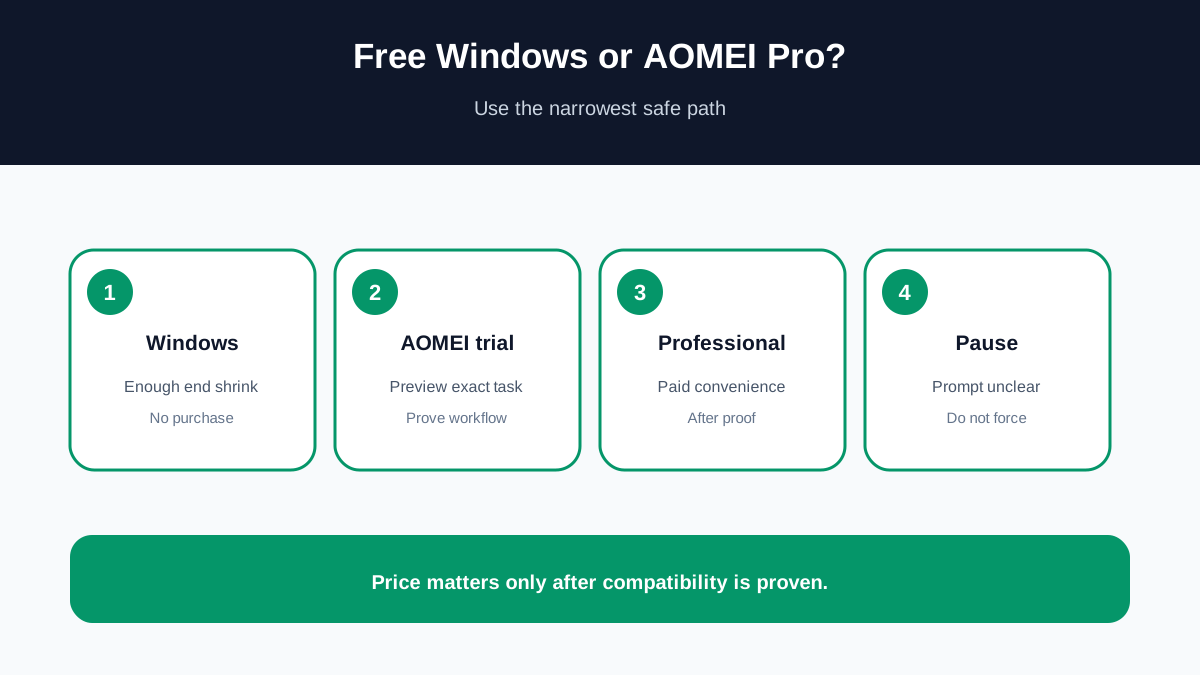
**Do not buy Professional because a page says “resize BitLocker.” First install the current build, save the recovery key away from the PC, verify a restorable backup, and confirm that the exact partition and boundary operation appear correctly in Pending Operations.** Buy only if the free Windows path cannot do the job and the current build proves the paid workflow you need.
This article uses an approved AOMEI affiliate link. We may earn a commission if you buy, at no extra cost to you. That relationship does not change the compatibility, backup or recovery-key gates.
Start with the free Windows baseline
Windows can shrink a supported basic NTFS volume from its end. DiskPart shrink applies to NTFS or a volume without a file system and excludes OEM, EFI and recovery partitions. The maximum available shrink can also change.
Disk Management creates contiguous unallocated space at the end. Paging files, shadow copies, other unmovable files and bad clusters can stop the boundary earlier than the free-space number suggests. If Windows offers enough space in the correct place, use that path after backup; there is no reason to buy.
A partition manager becomes relevant when you must move a partition, change its starting boundary, or put free space beside another volume. Encryption makes those operations more sensitive—not safer.
Unlocked, suspended and decrypted are different
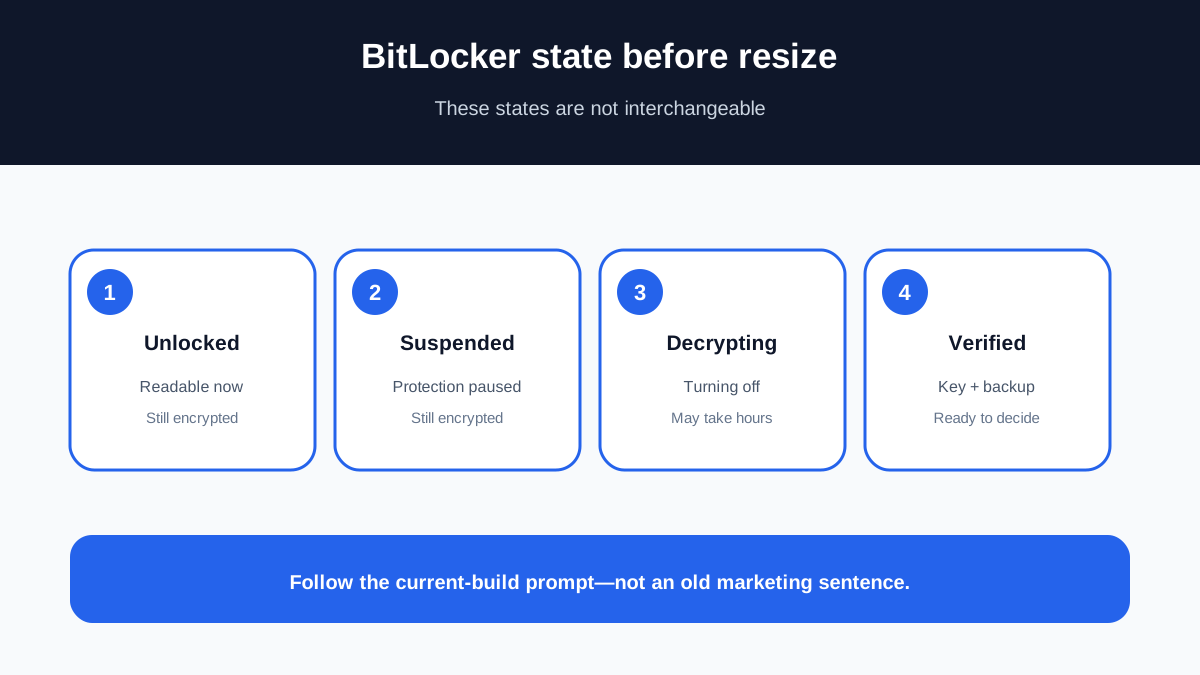
Unlocked means the volume is readable in this session. Suspending protection normally keeps data encrypted. Turning BitLocker off decrypts the volume and may take hours. These states are not interchangeable.
AOMEI's resize help says Partition Assistant decrypts a BitLocker partition before the operation. Its FAQ says Extend Partition Wizard does not support BitLocker and directs users to turn it off before using the main console. Another AOMEI article says entering the password unlocks the volume and presents a resize screen without advance decryption. Product documentation also contains a cannot-resize note.
Treat the prompt from your installed version as the authority for this operation. If it says decrypt, allow enough time and stable power. If it only asks to unlock, verify that the pending operation preserves the intended encryption state. If the option is absent or greyed out, stop instead of forcing another wizard.
The boundary matters more than the slider
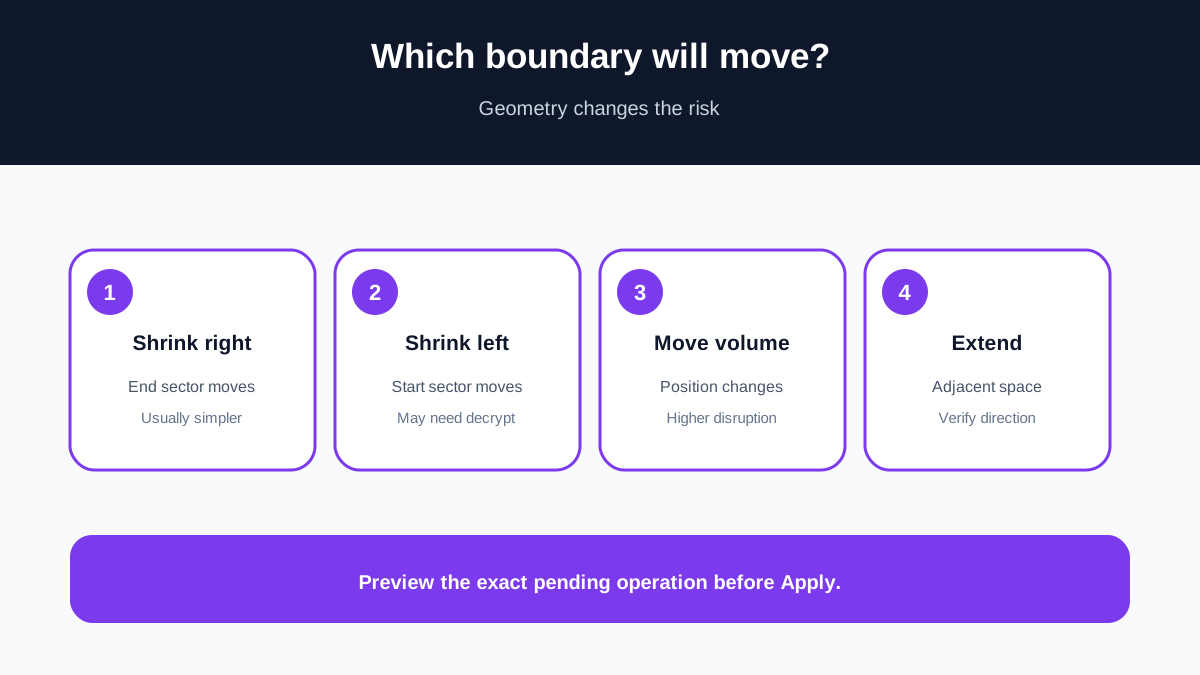
Shrinking from the right changes the ending boundary. Moving a partition or shrinking from the left changes the starting sector and is generally more disruptive. MiniTool's same-intent guide distinguishes an unlocked data-volume resize from a starting-sector change, which requires turning BitLocker off. EaseUS similarly documents right-border limits, unlock requirements and cases where full decryption is needed.
Those competitor rules do not prove AOMEI behavior, but they show why geometry matters. Record the disk number, partition style, file system, start and end positions, system-versus-data role, adjacent unallocated space and whether the target is boot or recovery related. “Resize D:” is not a complete plan.
Do not queue move, resize and merge together. Several changes in one Apply operation make failures harder to identify and recovery more complex.
Preflight before any paid operation
1. Export the BitLocker recovery key and confirm it can be read from another device. 2. Make a full backup to a different physical disk. 3. Restore and open representative files; a completed job alone is not proof. 4. Stop for I/O errors, disconnects or unstable SMART warnings. 5. Verify the exact AOMEI version, edition and Windows build. 6. Identify whether the start sector moves, only the end shrinks, or the volume extends. 7. Save the Pending Operations preview before Apply. 8. Use stable AC power, close applications and pause writes. 9. Keep bootable recovery media available. 10. Reboot after completion and verify size, files, BitLocker status and recovery behavior before deleting backup.
System, recovery or unclear layouts deserve a maintenance window or vendor support. A graphical slider does not make metadata changes routine.
Is Professional worth the price?
On 2026-11-10, AOMEI's official page displayed Professional Yearly at $49.95 for two PCs with auto-renewal, Professional Lifetime at $59.95 for two PCs and Family Lifetime at $89.95. Tax, locale, discounts and final cart control.
Buy when the current build recognizes the exact operation, Windows cannot place space correctly, every recovery gate passes, and saved time is worth more than the license. Pause when the encryption prompt, starting-sector change or edition support is unclear. Skip when Windows already works, the drive is unhealthy, the backup is untested, or the current build does not expose the operation.
A paid license buys a workflow, not immunity from power loss, corruption, wrong geometry or recovery-key mistakes.
Strict acceptance after resize
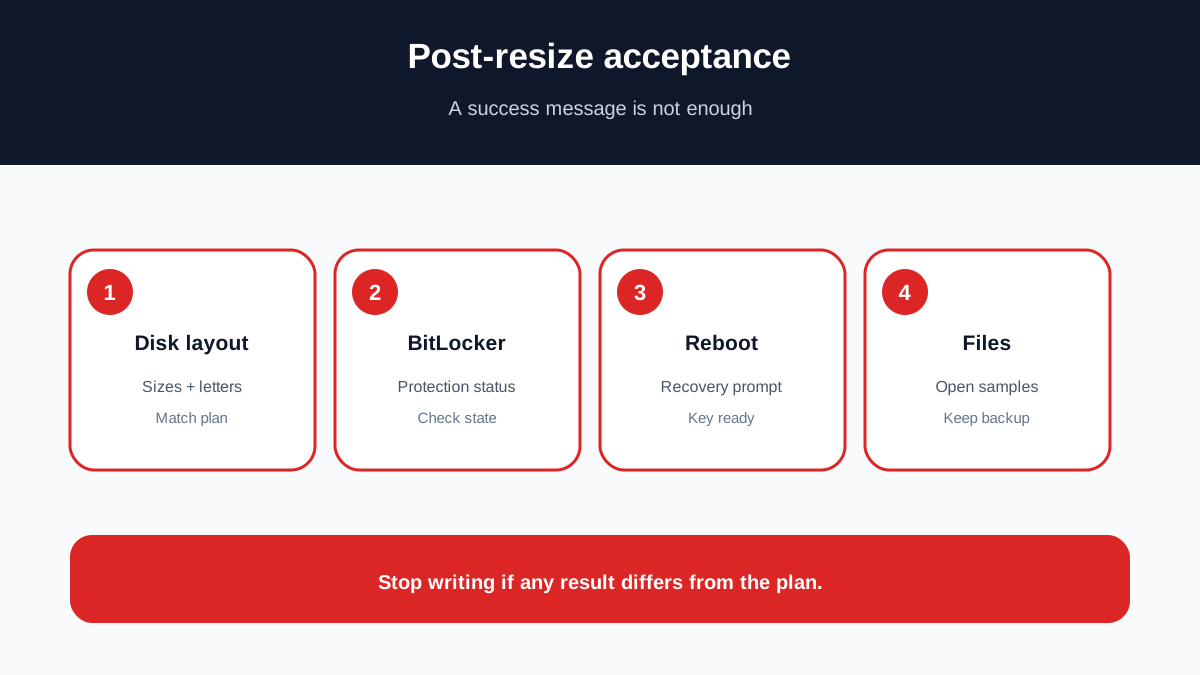
Reopen Disk Management and confirm every partition, size, file system and drive letter. Run `manage-bde -status` or open the BitLocker panel and confirm protection and encryption state. Reboot once, keep the recovery key ready, open representative large and small files, and test applications that depend on the volume.
Keep the backup through several normal work cycles. If size, encryption state or file access differs from the plan, stop writing and investigate before another resize.
AOMEI may be worth paying for only when the current build proves the exact BitLocker operation and Windows cannot provide the required geometry. Because AOMEI's own pages conflict, disclosure and a current-build preview are part of the buying decision.