TOOLNAVIA / BUYING GUIDE
AOMEI App Mover: Move Installed Programs Without Reinstalling?
The short answer
AOMEI Partition Assistant Professional’s App Mover can help when a nearly full C: drive contains large supported desktop programs. It is not a universal “move anything” button. Buy it only after Windows’ free Move option, the application’s own library manager, and a clean reinstall have been ruled out for the apps that matter.
This is a documentation-based buying guide. We did not relocate a paid application or run a physical benchmark. The acceptance routine below is work for the buyer to perform on the exact PC, app version and destination drive.
At a glance
- Best for
- Several large supported desktop apps on the same PC with a tested backup and restore path.
- Price model
- Professional Yearly $49.95/2 PCs with auto-renewal; Lifetime $59.95/2 PCs; tax may apply. Checked 2026-11-11.
- Check first
- Same PC only; not every app or data component moves; system folders and low-level tools need vendor methods.
Start with the installation type
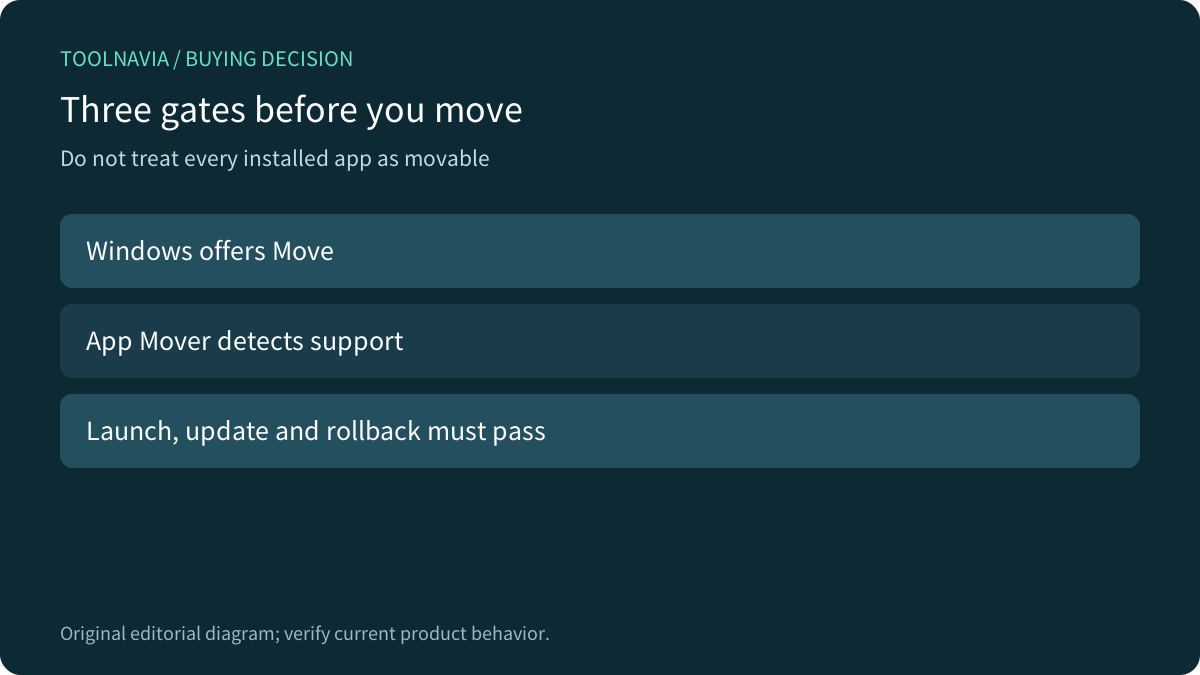
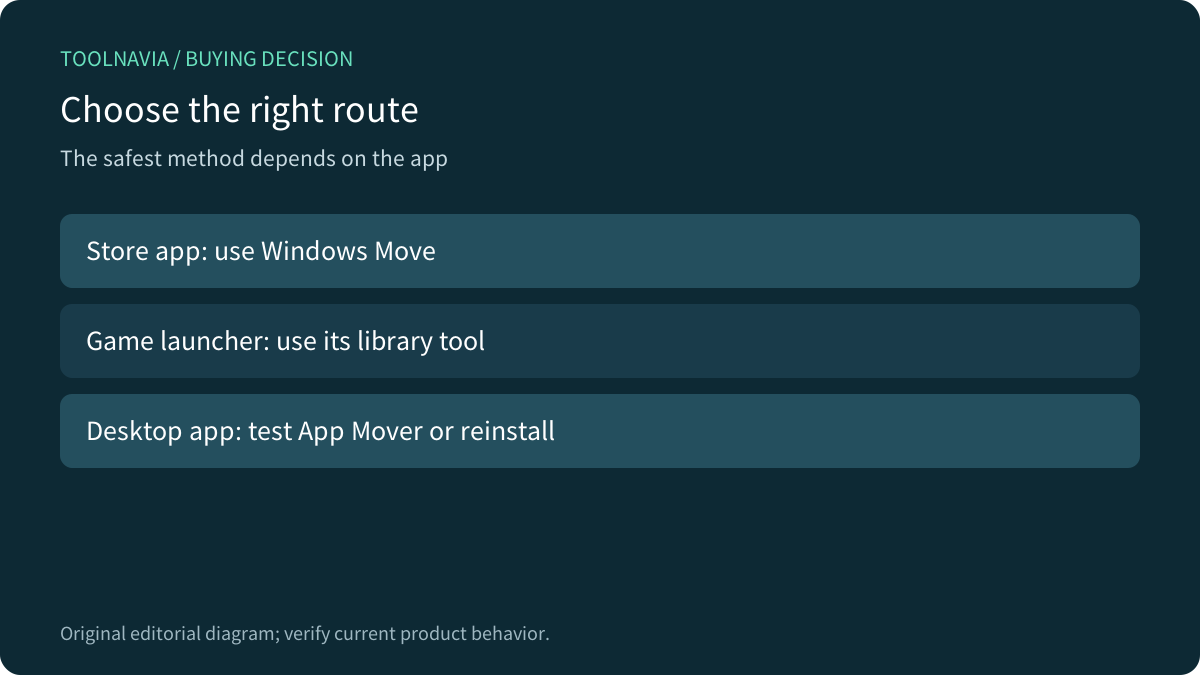
Windows Settings can relocate some Microsoft Store packages. Traditional EXE/MSI desktop software often has no Move control. Game launchers may provide their own library-moving command. Those first-party paths are usually the cleanest because the platform already knows the package or library layout.
Do not drag an installed program folder to D:. Registry values, services, shortcuts, scheduled tasks, licensing files and shared components may still point at C:. A successful copy is not evidence that updates, file associations or background services will work.

What AOMEI App Mover actually does
The current AOMEI help places App Mover under Free up. It scans a source partition, lists detected movable applications, asks for a target location and can close running applications before the move. A Manage/Restore area records moves and can return supported apps to the original location. The dedicated feature page independently confirms same-drive or cross-drive movement and restore.
The same documentation draws firm boundaries. App Mover works within the same PC; it is not a computer-to-computer migration tool. AOMEI says User, ProgramData, Program Files and other system or boot-related folders cannot be moved as arbitrary folders. It also warns not to delete the small source-location shortcut it leaves behind and not to manually relocate the moved directory afterward.
The buying question is therefore not “Can AOMEI move apps?” It is “Does it detect the specific large apps I want to move, and do those apps pass a controlled post-move test?”
Compare the safer routes first
For a Store app with a working Windows Move button, use that free route first. For Steam, Epic, Battle.net or another managed game library, prefer the launcher’s move or install-location function. For a conventional desktop app with a small installer and recoverable settings, uninstalling and reinstalling to the destination may be slower but cleaner.
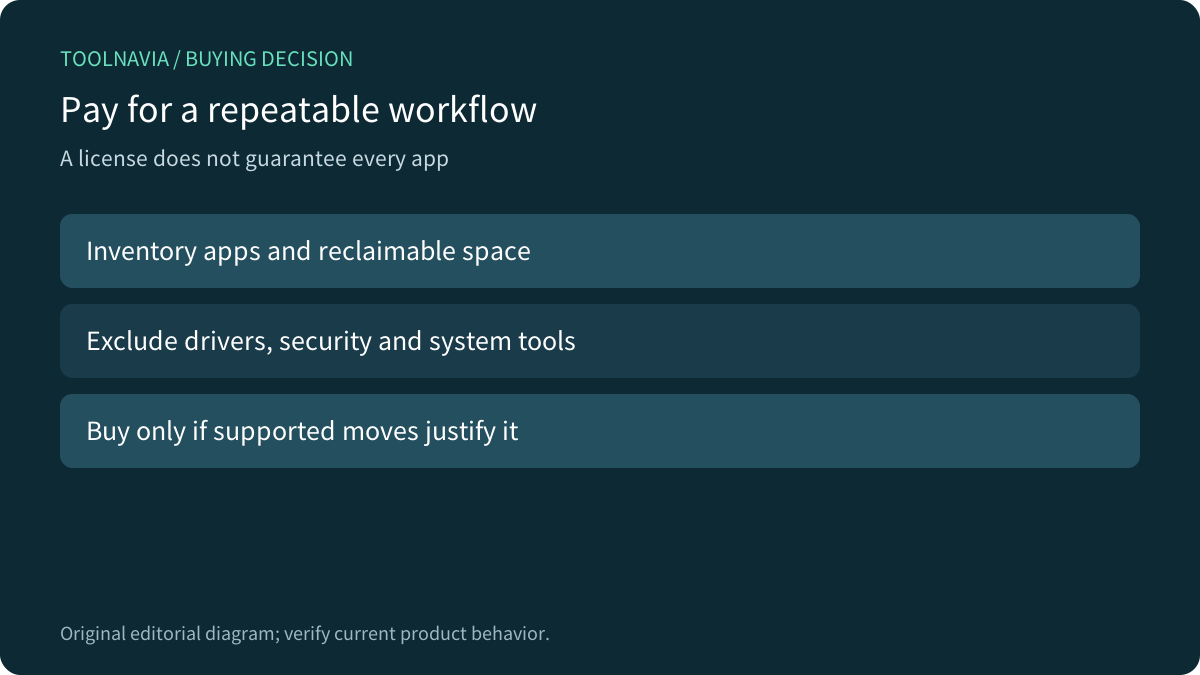
App Mover becomes more attractive when the installer is hard to recover, the download is large, the app is detected as movable, and a rollback path matters. It is a poor first choice for antivirus, VPN clients, storage drivers, database engines, device utilities or software that installs low-level services. Those categories are an editorial risk screen, not an AOMEI compatibility list.

Use a one-app pilot, not a bulk gamble
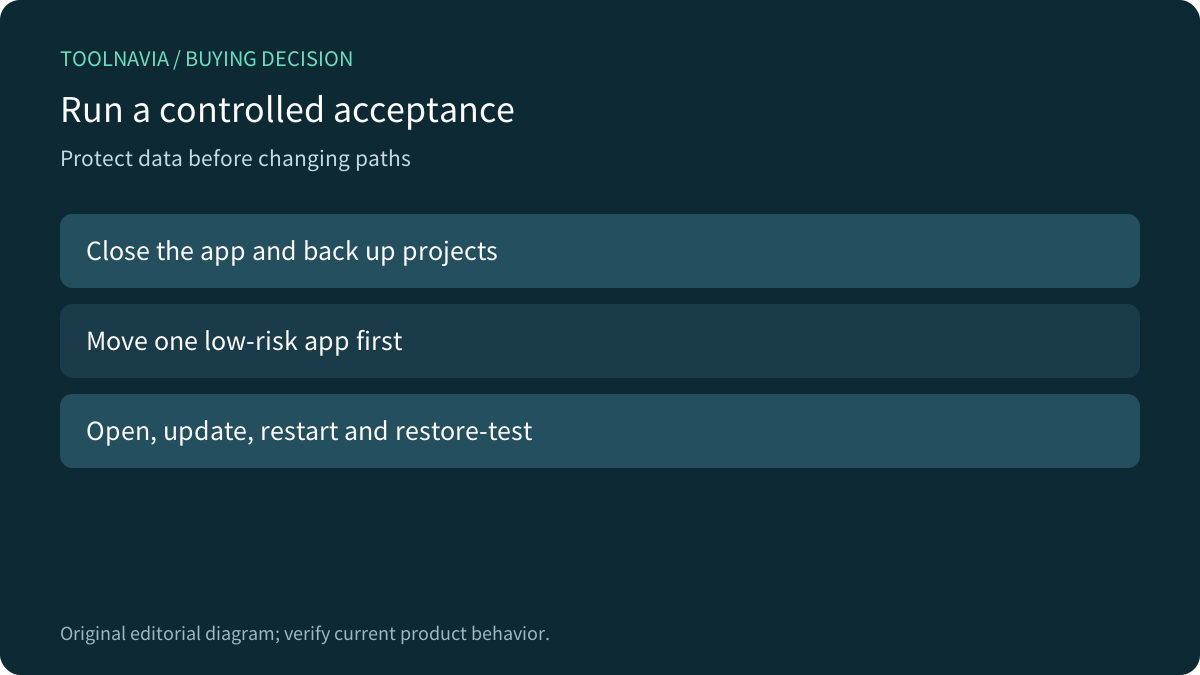
Before moving anything, make a verified backup of irreplaceable projects and license information. Check that the destination is a stable internal drive with enough free space. Close the target app and related launchers. Start with one low-risk, replaceable application rather than a whole workstation.
After the move, open a real project, save a copy, invoke file associations, check plug-ins, sign-in state and background services, then reboot Windows. Run the application’s updater. If the destination can be disconnected, test that condition deliberately; an app stored on an absent drive cannot run.
Finally, use AOMEI’s Manage/Restore function on the pilot. A rollback that has never been tested is only a promise. Record the app version, original and target paths, free space before and after, launch result, update result and restore result.

What may remain on C:
Moving an application does not necessarily move user profiles, caches, documents, shared runtimes, Windows Installer data or every component. IObit’s same-intent comparison notes that associated data may remain on the system drive. AOMEI’s own restrictions on User and ProgramData reinforce that boundary.
Measure reclaimed C: space after the pilot. If a 40 GB application releases only a small amount because libraries, caches or projects remain elsewhere, the purchase case is weaker. Conversely, a few reliably movable creative or engineering tools may recover enough capacity to delay an SSD replacement.
Resolve the documentation tension honestly
AOMEI describes moved applications as able to work at the destination, while independent same-intent guidance says compatibility varies by application and fixed paths, services or components can complicate relocation. We treat the vendor claim as the intended supported workflow, not a guarantee for every third-party app.
The practical resolution is detection plus acceptance. If App Mover does not list the app, do not force it by moving folders manually. If it lists the app but the post-move test fails, restore it and use the vendor’s reinstall or library-move method.
Decide on value without a stale price claim
The approved product is AOMEI Partition Assistant Professional. We do not quote a fixed price because the official store can vary by license type, device count, billing period, market and campaign. Open the current official Professional page and record the selected cart, tax, renewal or lifetime terms, refund conditions and device allowance before paying. The canonical store currently lists Professional Yearly at $49.95 for two PCs with auto-renewal and Professional Lifetime at $59.95 for two PCs; tax can be added by location.
Estimate value with a simple worksheet: supported apps that passed the pilot, gigabytes actually reclaimed, reinstall hours avoided and the cost of a larger drive or clean reinstall. Do not count apps that were not detected, system folders that cannot be moved, or data that remained on C:.

App Mover is worth considering when several large supported desktop apps must stay installed on the same PC and a tested restore path reduces downtime. It is not for moving Windows, migrating to another computer, or replacing backups. Toolnavia may earn a commission through its approved AOMEI link; no compatibility, capacity or performance outcome is guaranteed.