TOOLNAVIA / BUYING GUIDE
AOMEI FastRecovery or a Recovery Lab? When to Stop Scanning
The short answer
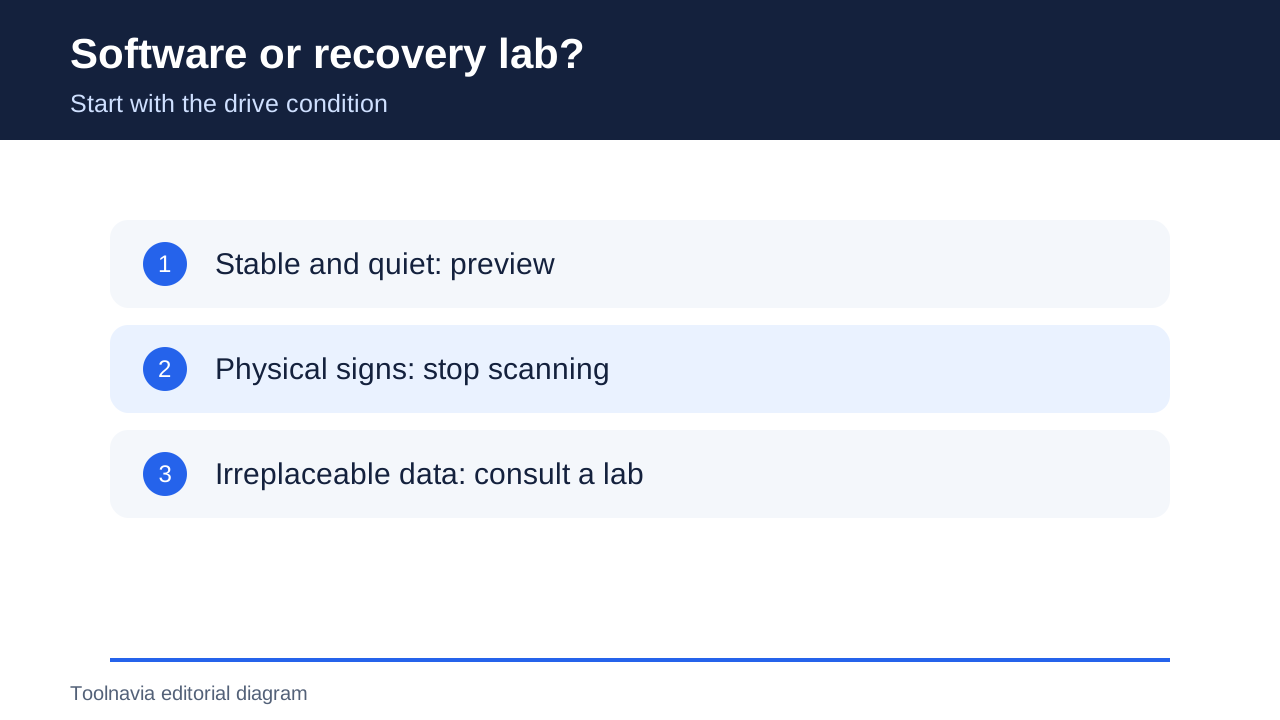
Use AOMEI FastRecovery for logical loss on a quiet, consistently detected external drive. If it clicks, was dropped, disconnects repeatedly or shows physical damage, stop scanning and ask a qualified recovery lab.
At a glance
- Best for
- Windows users with a quiet, stable, detected external drive and logical data loss.
- Price model
- US$39.95 monthly, US$59.95 yearly or US$69.95 lifetime on the public store
- Check first
- Not for clicking, dropped, intermittently detected or physically damaged drives; no recovery outcome is guaranteed.
Quick decision: software or a lab?
| What you observe | Safer next move | Why | |---|---|---| | Drive is detected consistently, quiet and reports the expected capacity | Preview with recovery software | Symptoms fit logical loss | | Files were deleted or a healthy volume was formatted | Software can be a cost-controlled first attempt | FastRecovery is designed for those scenarios | | Clicking, beeping, grinding, repeated disconnects or wrong capacity | Stop and use a lab | Repeated reads can worsen mechanical failure | | Data is unique, legally sensitive or impossible to recreate | Prefer a lab consultation before scanning | The value of preservation exceeds the software price |
AOMEI's technical FAQ is explicit: FastRecovery needs the disk to be detected, and physical damage is outside its recovery scope. Its dropped-drive guide adds a practical threshold—no abnormal sound and normal detection—before trying software.
When FastRecovery is the practical first attempt
Software makes sense when the hardware is stable and the loss is logical. Typical examples are accidental deletion, an emptied Recycle Bin, a formatted but still detected external drive, or a lost partition on a disk that behaves normally. Start with the free scan and preview. Finding the correct files is more useful evidence than a marketing recovery-rate claim.
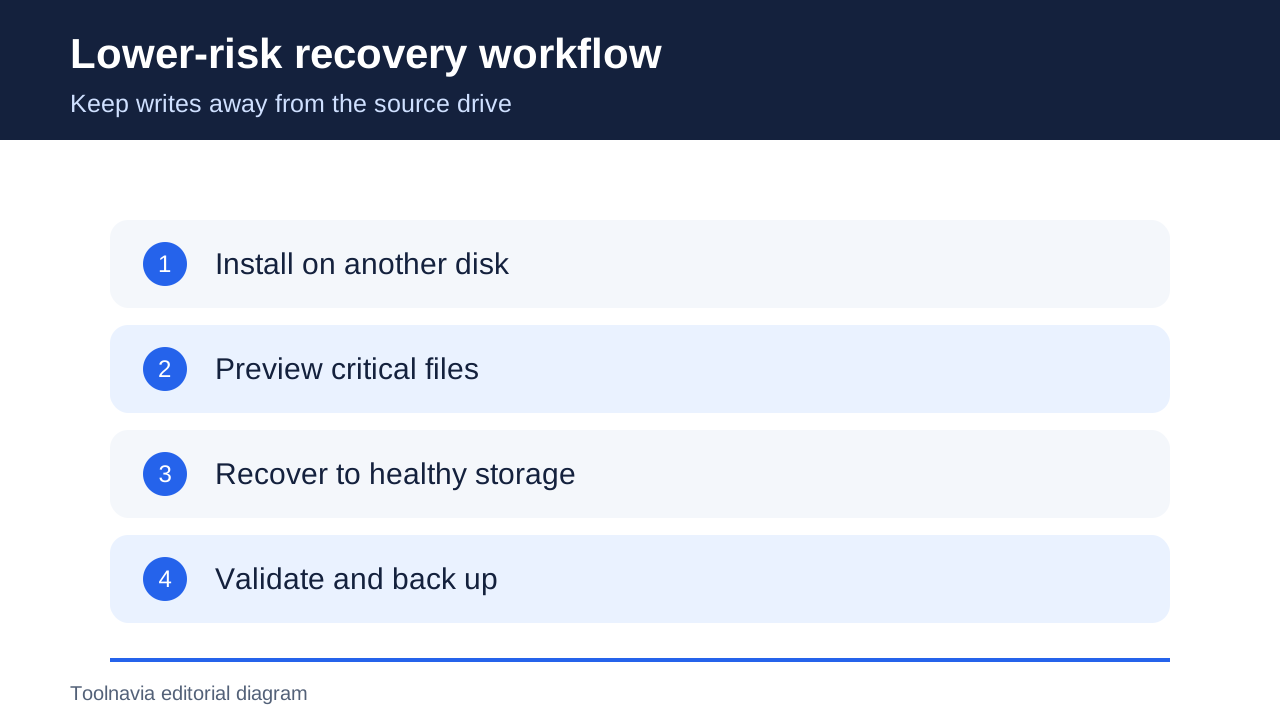
Do not install FastRecovery on the affected drive, and do not restore files back to it. AOMEI tells users to recover to a new location because writes can overwrite the data you are trying to save. For a large or valuable drive, a sector image created with appropriate tooling can reduce repeated reads of the original; TechRadar likewise recommends imaging when the chosen utility supports it.
Stop signs: when another scan is the wrong move
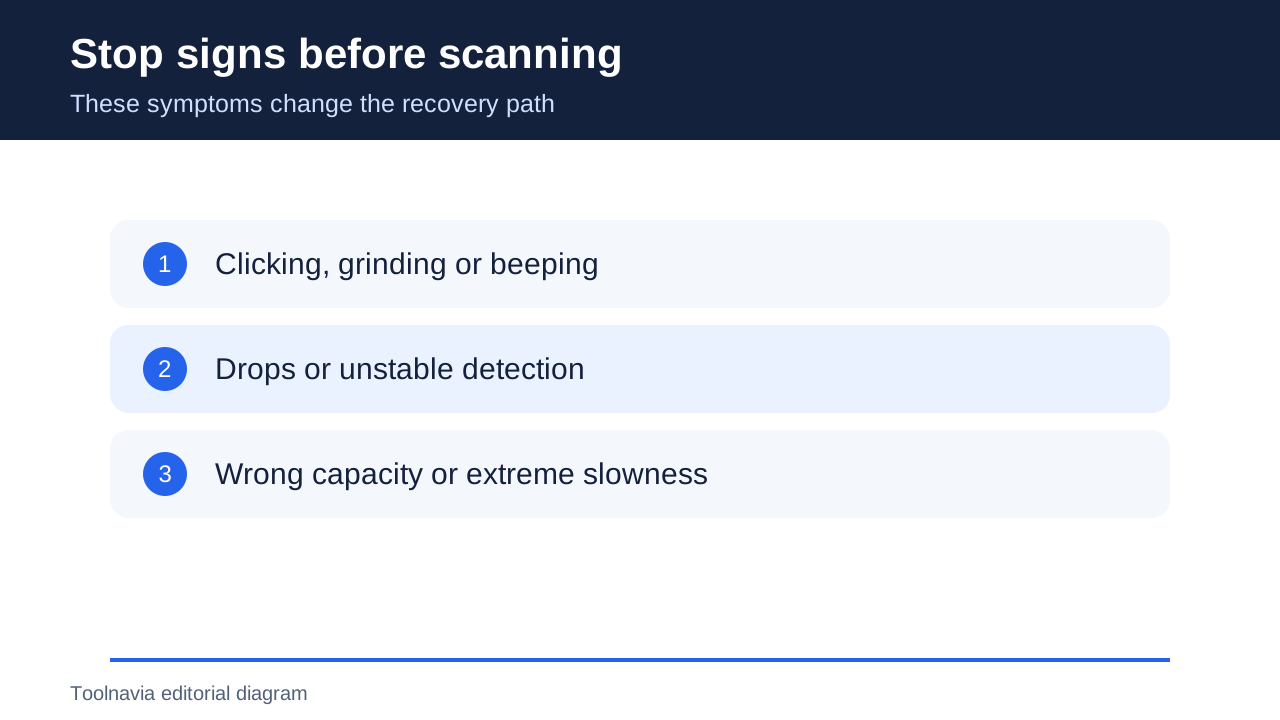
Clicking, grinding or beeping; a recent drop; a drive that vanishes and reappears; a device showing the wrong capacity; extreme slowness; or visible water/fire damage all move the decision toward a lab. Disconnect the drive instead of running CHKDSK, formatting it, opening the enclosure, or repeating deep scans.
This is not alarmism. Rossmann says recovery software reads sectors aggressively and can accelerate failure on mechanically damaged media. Flashback Data makes the same logical-versus-physical distinction, while SalvageData notes that labs use specialized workflows for hardware failure but still cannot guarantee success.
What the software purchase actually costs
The official store currently lists FastRecovery Professional for one computer at **US$39.95 monthly**, **US$59.95 yearly**, or **US$69.95 lifetime**. Monthly and yearly subscriptions renew automatically; lifetime is a one-time fee with lifetime upgrades.
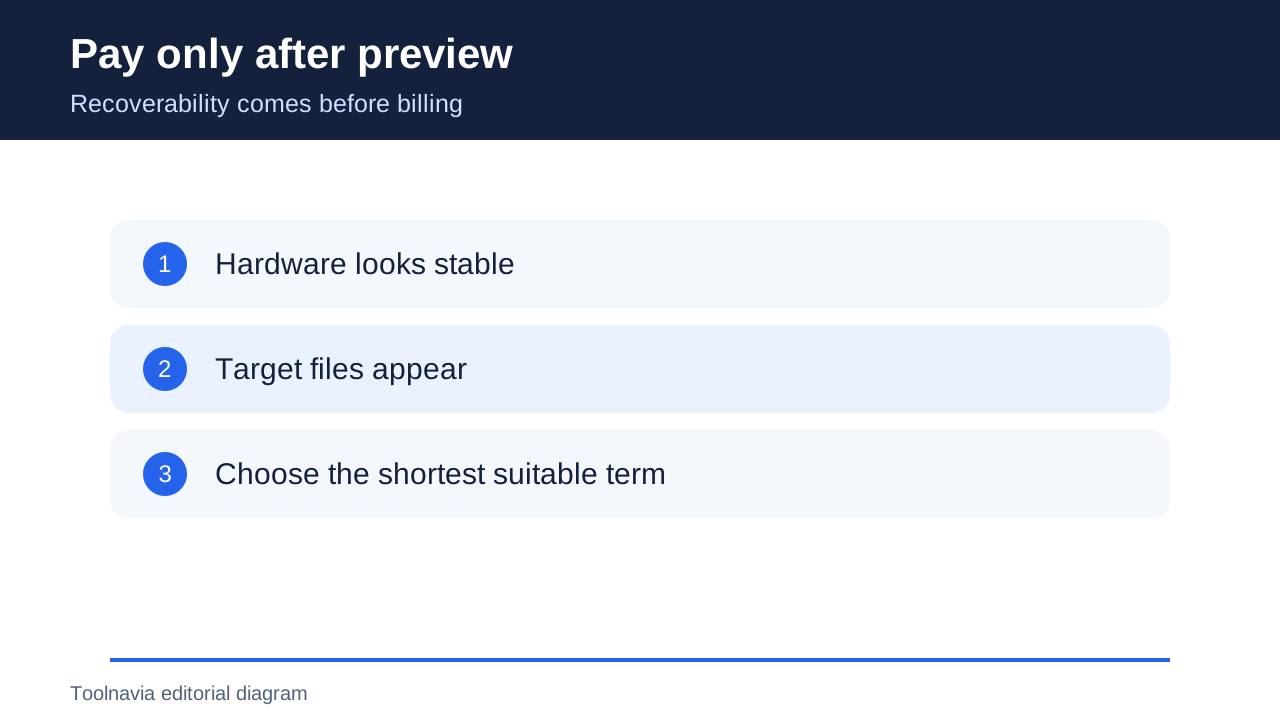
Those prices matter only after a safe scan has found the files. Paying does not convert physical failure into logical loss and does not guarantee that a previewed file is complete. If one recovery project can finish inside a month, monthly has the lowest upfront cost. If work reaches a second paid month, yearly is cheaper than US$79.90 in monthly charges. Lifetime is only US$10 above yearly, but the separate pricing article already covers that billing decision in depth.
A low-risk recovery workflow
1. Stop writing to the affected external drive. 2. Listen for abnormal sounds and confirm stable detection and expected capacity. 3. If physical symptoms appear—or the data is irreplaceable—stop and contact a reputable lab. 4. For a stable drive, install FastRecovery on a different disk. 5. Run the least aggressive useful scan, then preview several critical files. 6. Recover selected files to another healthy drive. 7. Open and validate the recovered files before declaring success. 8. Preserve the original drive until the recovery set is independently backed up.
Official wording needs a boundary
The store uses broad marketing language suggesting many scenarios can be handled, but AOMEI's own technical FAQ and dropped-drive guide draw a narrower line: physical damage is not recoverable by the software, and abnormal sounds or failed detection call for professional service. This guide follows the specific technical limitation, not the broadest promotional wording.
Independent pages agree on the boundary but have commercial interests of their own. Labs benefit when users escalate; software publishers benefit when users scan. The observable condition of the drive—not either seller's headline—should control the decision.
Buying rule
Use FastRecovery when the drive is quiet, consistently detected and suffering logical loss; verify the target files with the free preview before paying. Use a professional lab when there are physical symptoms, unstable detection or irreplaceable data. The best outcome is not “software wins” or “lab wins”—it is avoiding the action most likely to reduce the remaining recovery chance.
Disclosure: Toolnavia participates in AOMEI's CJ affiliate program and may earn a commission from purchases through affiliate links.