TOOLNAVIA / BUYING GUIDE
AOMEI Universal Restore: New Hardware, Drivers and Windows Activation
The short answer
AOMEI Backupper Professional can be worth paying for when you already have an AOMEI Windows image and need to recover it onto different hardware. Universal Restore addresses startup adaptation; you still need usable drivers, applications and licenses. This is official-documentation analysis, not a performed restore.
At a glance
- Best for
- Personal Windows users with a valid AOMEI system/boot-disk image, compatible replacement hardware and an actual dissimilar-hardware restore need. Users willing to boot-test rescue media, prepare target drivers and verify Windows/application licensing independently.
- Price model
- One personal Windows PC: US$39.95/year with automatic renewal, or US$69.95 Lifetime with lifetime upgrades. Verify tax, selected term and order.
- Check first
- Someone with only loose file backups or a Windows/other-vendor image. Routine same-PC backup or a same-hardware restore that does not need the paid setting. An unsupported hardware/architecture conversion, a guaranteed unattended migration or recovery of files never backed up. Business PCs, servers or paid technician deployment under the personal Professional offer.
Confirm the image before spending
**Quick choice:** Professional is a personal Windows, one-PC product. The October 28, 2026 storefront shows US$39.95/year with automatic renewal or US$69.95 Lifetime with lifetime upgrades. Consider it for hardware adaptation alongside image checking, WinPE recovery and selection of an existing recovery point. Ordinary same-hardware recovery alone is not the reason to upgrade.
You need an AOMEI-created system image or a disk image containing the boot system. Loose files, a Windows backup or another vendor’s image do not meet this requirement. A system image captures the saved Windows environment; another computer’s image recreates that computer, not the failed machine’s unbacked-up files.
Four capabilities that support recovery
- **Adapt the saved installation to replacement hardware.** Universal Restore is the paid setting for this startup problem. It can make preserving the imaged environment practical, but does not promise compatibility with every machine.
- **Work outside a broken Windows installation.** WinPE, a lightweight Windows recovery environment, provides an offline route. Supplied INF driver files can help it reach storage. Media creation also exists in Standard; it is not the paid differentiator.
- **Inspect integrity before overwriting the destination.** Check Image compares backup checksums, including images whose task is absent from Home. This can expose image corruption before committing to restoration; it does not prove bootability.
- **Choose the saved state and its new location.** The restore workflow lets you select the desired backup and replacement destination. Only that backup’s contents return, so preserve newer files separately.
Prepare the actual replacement PC
The following is a proposed workflow, not a completed recovery test.
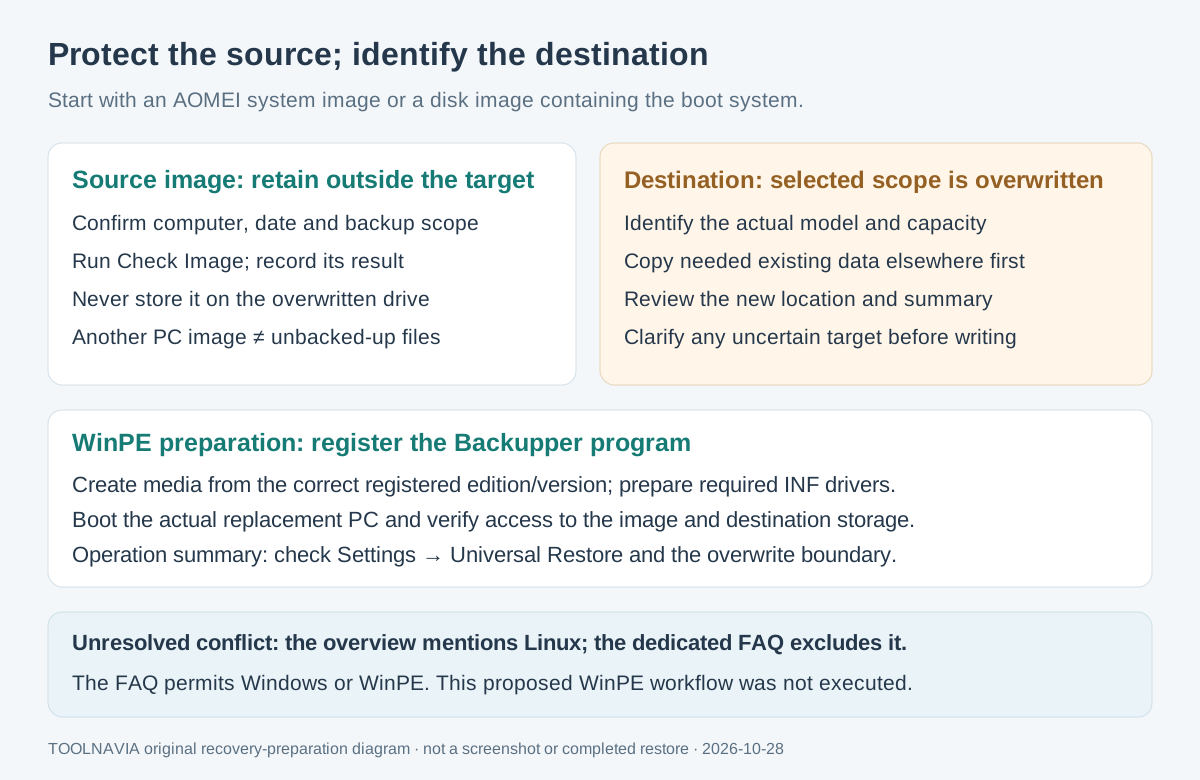
First, confirm the image’s identity, date and scope, then run Check Image. Keep the source image away from the destination drive that will be overwritten. Copy any needed destination data elsewhere and identify the target by model and capacity before reviewing the operation summary.
For a machine that cannot boot Windows, create WinPE media using the correct, registered Backupper edition/version. The detailed guide recommends registering the program before creating new media when Universal Restore is missing. Boot the actual replacement PC and verify that both the image location and target storage are visible; prepare required INF drivers. Media creation success alone is insufficient.
There is an unresolved documentation conflict: the overview says WinPE/Linux, while the dedicated FAQ permits Windows or WinPE and excludes Linux. This workflow uses the documented WinPE route; it does not establish Linux support.
Select the system restore and new destination, then review **Settings → Universal Restore** in the operation summary. Confirm the overwrite boundary before starting.
Accept four different results
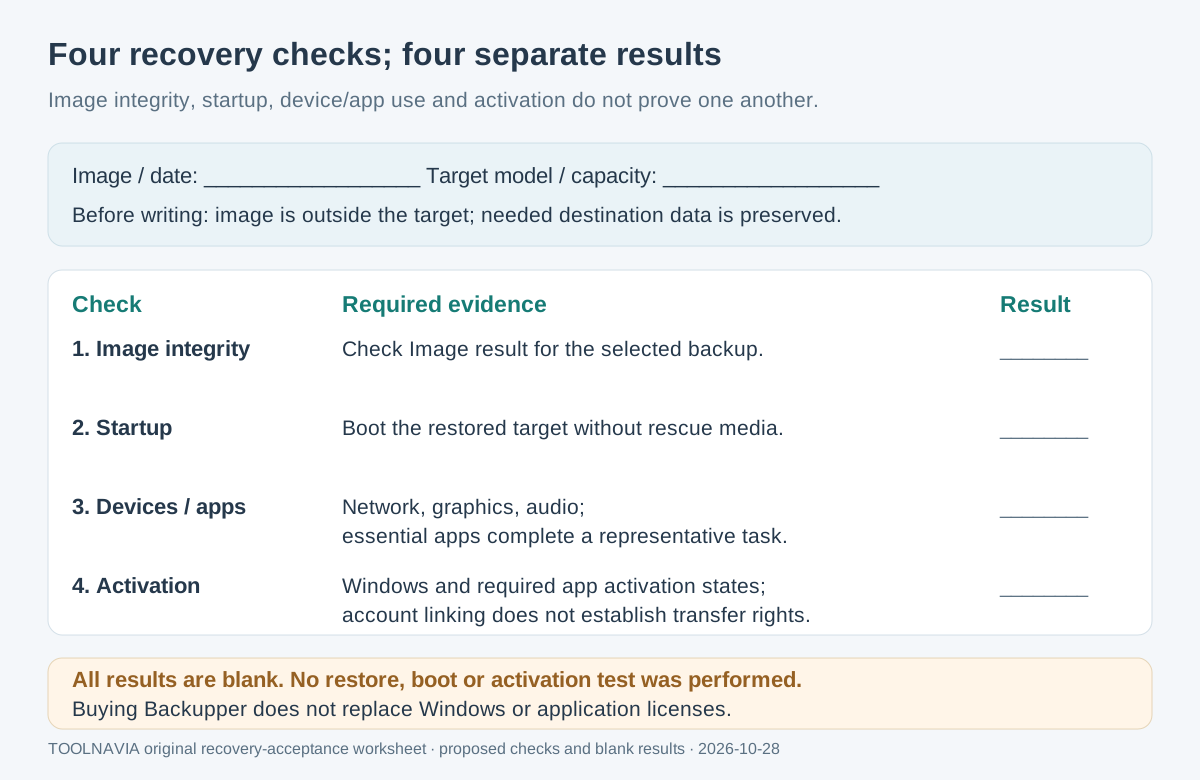
Record each result separately; one successful stage cannot stand in for the others.
| Check | Evidence to collect | | --- | --- | | Image integrity | Check Image result for the selected backup. | | Startup | Boot from the restored target after removing rescue media. | | Devices and applications | Network, graphics and audio work; essential applications complete a representative task. | | Activation | Windows and required applications report an acceptable activation state. |
Universal Restore does not install every peripheral driver. Macrium’s ReDeploy guidance likewise distinguishes startup drivers from other devices, while Veeam documents recovery-media driver preparation. These are comparable recovery principles, not interchangeable image formats or tests of AOMEI.
Microsoft says a motherboard change can disrupt activation. Where possible, confirm activation and link the digital license to the Microsoft account beforehand. Keep the same Windows edition; reactivation can require an internet connection, the troubleshooter or an eligible product key. Account linking does not establish license-transfer rights.
Budget beyond the software price
The quoted yearly plan renews automatically; its current US$39.95 display is not a future price lock. Lifetime is a US$69.95 one-time payment and includes lifetime upgrades. Confirm tax, the selected term and final order. Professional is for one personal PC; it does not confer billable client-deployment rights.
Allow separately for image storage, rescue media, drivers, recovery time and any required Windows or application license. Buying Backupper does not replace those licenses. For replacement-device licensing, see the [one-PC versus two-PC guide](/en/software/aomei-backupper-professional-one-vs-two-pc-license).
Buy after the prerequisites hold
Choose Pro when a usable AOMEI image, compatible replacement hardware and a genuine hardware-adaptation need align. If there is no qualifying image, first assess recovery or reinstallation options. Do not treat Universal Restore as a Windows 11 requirement bypass or an x86-to-Arm conversion tool; those capabilities are not established here.
Toolnavia may earn a commission from purchases through its links.