TOOLNAVIA / BUYING GUIDE
Namecheap Stellar Staging: Push Live Without Losing Orders
The short answer
Namecheap Stellar can create a WordPress staging copy through Softaculous, but the critical buying question is not whether a staging button exists. It is whether you can move code live without replacing new orders, form entries, customer accounts or other production-only data.
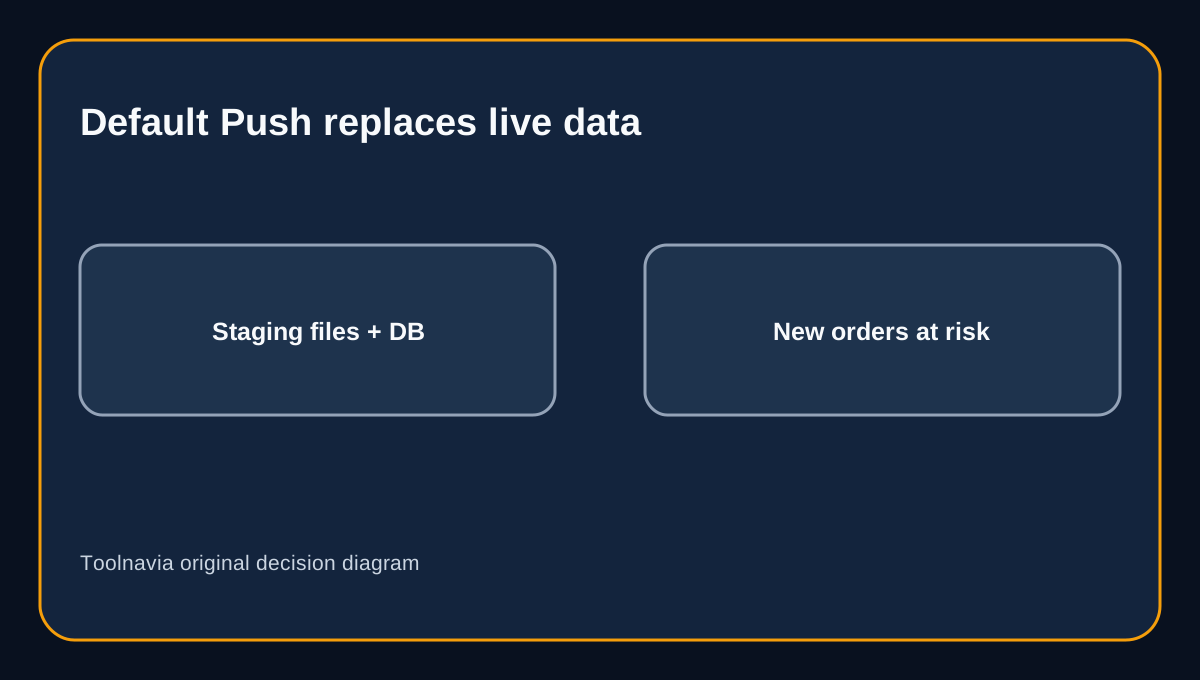
Namecheap's own Softaculous guide says **Default Push copies the staging files and database into the live installation** and creates a backup first. Custom Push lets you choose file and database changes. For a brochure site that is briefly frozen, Default Push may be acceptable. For an active WooCommerce store, it can replace transactions created after the staging copy.
At a glance
- Best for
- WordPress teams that can control push scope and protect live transactions.
- Price model
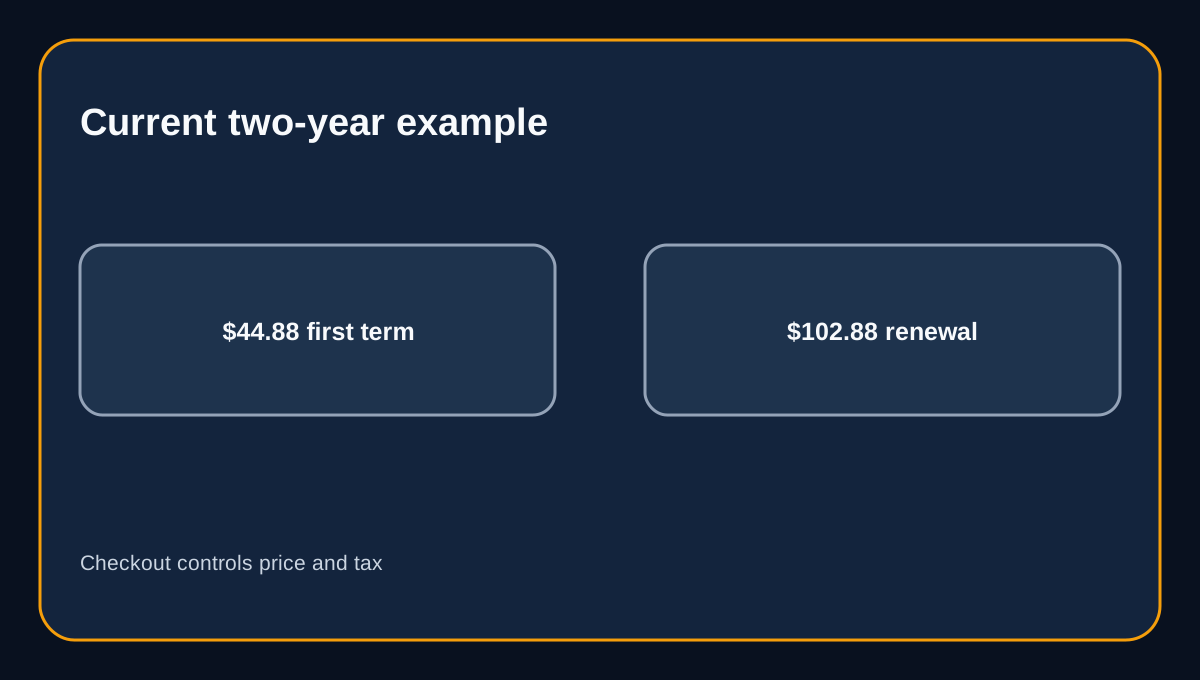
- US example: $44.88/2-year first term; $102.88/2-year renewal; checkout controls.
- Check first
- Default Push replaces live files and database; Custom Push is not an automatic order merge.
What Stellar and Softaculous give you
The current US pricing example shows Stellar at $44.88 for a two-year first term and $102.88 for a two-year renewal; Namecheap also lists $55.88 as the yearly renewal. Checkout controls the actual region, term, tax and renewal.
Softaculous provides Create Staging, Default Push, Custom Push and a pre-push backup workflow. That is useful deployment plumbing, but it is not a database merge service. Your purchase case should include the time and skill needed to classify every production change made after staging was created.
Default Push is a replacement operation
Softaculous says Default Push overwrites the live files and database with the staging versions. Its API documentation likewise treats a full database push as erasing and importing the destination database.
A backup reduces rollback risk, but it does not preserve newer orders inside the pushed database. If order 1050 was created after the staging clone and the staging database ends at order 1049, a full database replacement can remove order 1050 from the live dataset. This example is conceptual; verify the actual store, tables and backup before any push.
Custom Push is safer only when the selection is correct
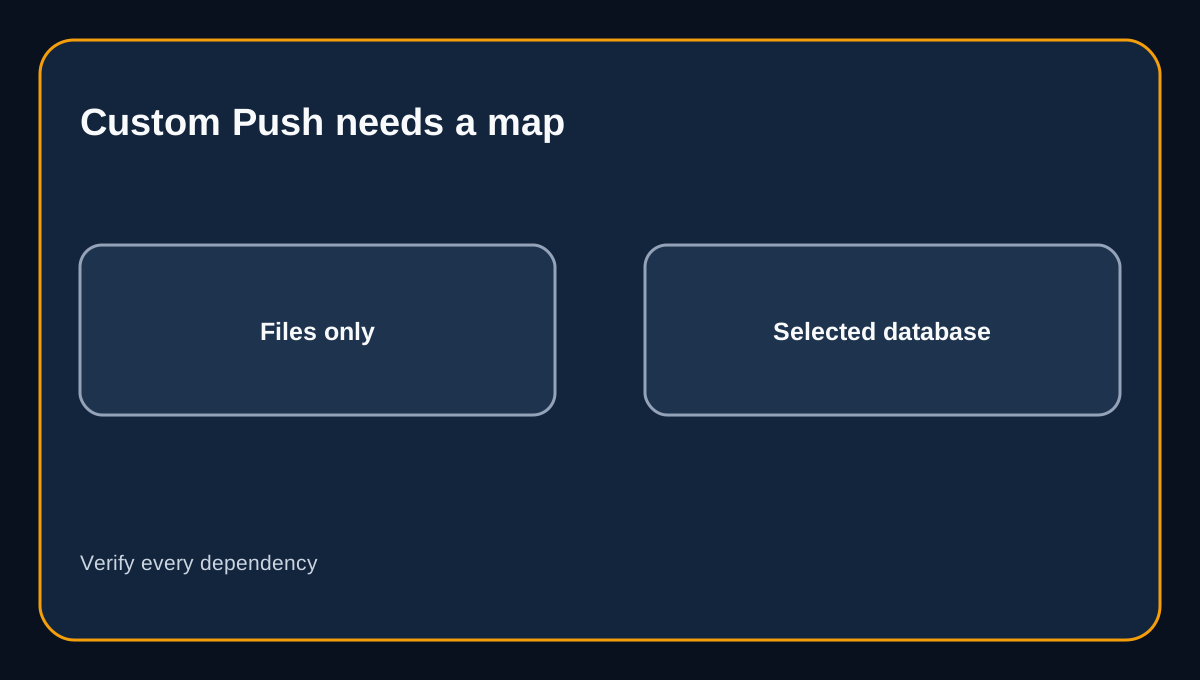
Custom Push can narrow the change to files, a full database or selected database elements. Files-only is often the cleaner choice for a theme or plugin code update, but WordPress configuration can also live in the database. A files-only push may therefore omit widget, menu, option or builder changes.
Do not follow a universal “exclude wp_posts” recipe. WooCommerce HPOS can store orders in dedicated tables rather than only legacy posts tables, and extensions may add their own data. Inventory the store's current order-storage mode, plugin tables and exact change set.
Live stores need a protected deployment window
Kinsta warns that pushing a whole database can wipe newer WooCommerce orders, while WP Engine recommends code moving toward production and changing databases moving away from it. These are same-intent operational principles, not claims that their controls are identical to Namecheap's.
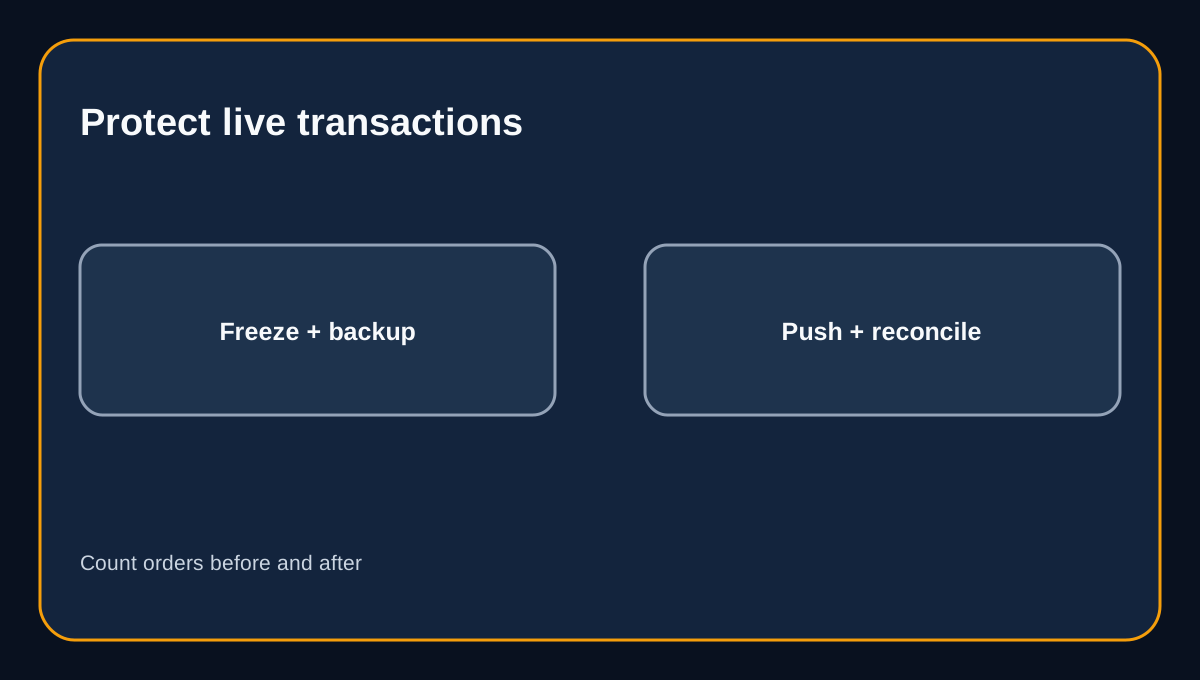
Before pushing, record the live order count, pause checkout or use a documented maintenance window, take an independent backup, and identify the last successful transaction. After the push, compare orders, customers, subscriptions, inventory, forms and scheduled actions before reopening.
A backup is rollback evidence, not merge evidence
The pre-push backup described by Namecheap is valuable if the deployment breaks. It still does not reconcile newer production rows with older staging rows. BlogVault's WooCommerce staging guidance makes the same distinction: active stores require explicit merge and transaction planning.
Test one full restore on a disposable copy before relying on rollback. Confirm where the backup is stored, how long it is retained, how DNS and mail are unaffected, and who can restore it if the dashboard is unavailable. Namecheap's shared-hosting onboarding evidence reinforces that restore capability must be verified in the actual account rather than assumed.
Decision checklist before paying or pushing
1. Confirm Stellar's current checkout total and renewal. 2. Verify the installed Softaculous version and available Custom Push controls. 3. Classify the release as files-only, database-only or both. 4. Map WooCommerce HPOS, legacy and extension tables. 5. Freeze or protect new transactions during the final window. 6. Take an independent backup and record the order/customer baseline. 7. Push the smallest validated change. 8. Verify storefront, checkout, orders, accounts, forms and scheduled tasks. 9. Keep the rollback copy until business acceptance is complete.
Buying verdict
Choose Stellar for this workflow when a low-cost shared-hosting plan plus Softaculous staging fits your site and you can enforce a controlled deployment process. Avoid treating Default Push as a safe one-click release for an active store. Custom Push can reduce the blast radius, but only a store-specific table map, transaction freeze, verified backup and post-push reconciliation protect live data.
Affiliate disclosure: Toolnavia may earn a commission from an eligible Namecheap purchase.