TOOLNAVIA / BUYING GUIDE
Bluehost Starter Cache: Clear Stale Pages Before Buying More
The short answer
Bluehost Starter already provides managed WordPress caching. If a changed page still looks old, identify which saved copy is being served before buying another caching plugin or upgrading hosting. This documentation-based guide offers a repeatable verification plan; it does not report a paid-account speed test.
At a glance
- Best for
- Shared WordPress sites using built-in cache controls.
- Price model
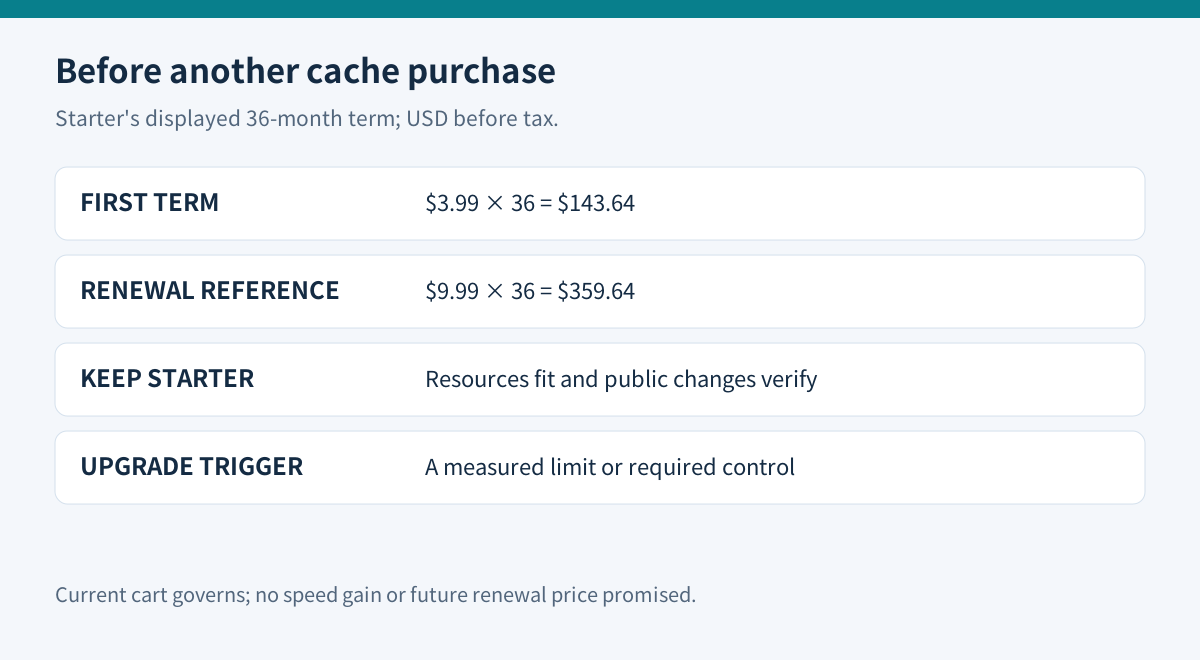
- $143.64 for 36 months; displayed renewal reference $359.64/36 months, before tax.
- Check first
- Cache clearing does not prove correct deployments, forms or checkout.
Start with the included controls
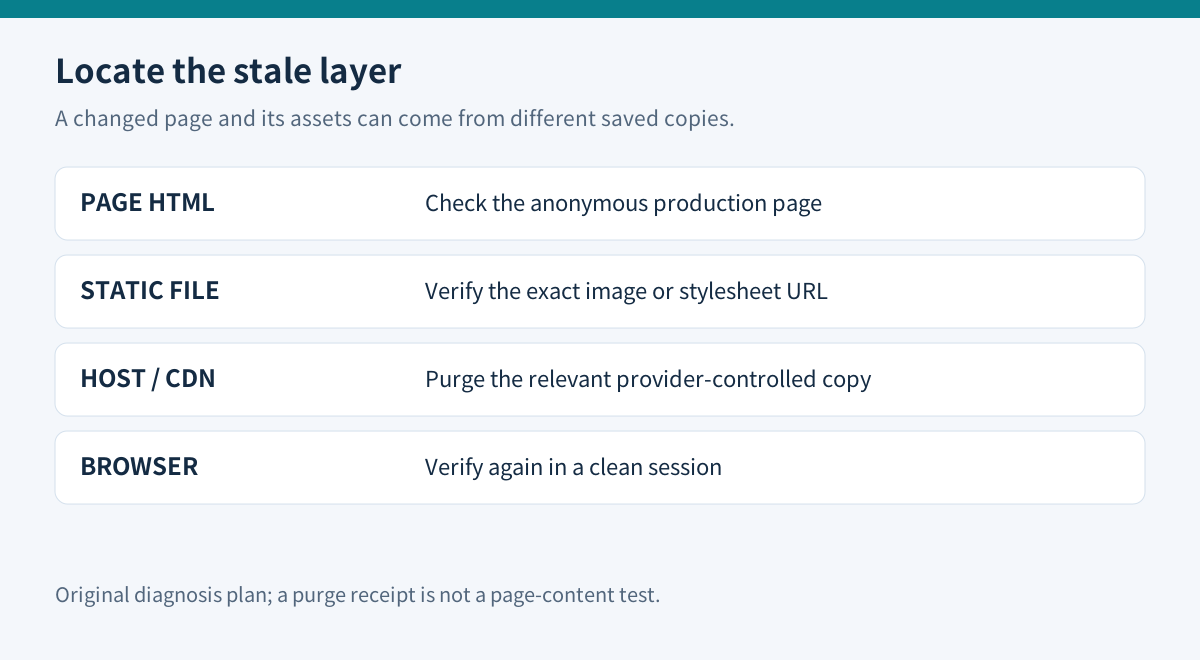
Bluehost's shared-hosting guide distinguishes page, object, CDN and browser caching. A page cache reuses generated HTML; an object cache reuses database results. CDN and browser copies can preserve an old image or stylesheet even after the page itself changes.
The included controls have practical value: selectable page-cache levels match content frequency, a Portal purge provides a recovery action, managed object caching reduces repeated database work, and CDN delivery can keep static files closer to visitors. None proves that a particular page or transaction is correct.
Assets Only avoids caching web pages and is positioned for frequently changing sites. Assets & Web Pages suits ordinary blogs; Extended suits infrequently changed brochure content. These are shared-hosting controls, not a promise that Starter has Bluehost Cloud's separate edge-cache system.
Follow the stale content, layer by layer
First confirm the edit was saved to the correct production site, URL and language. Record a distinctive harmless text change and the exact image or stylesheet URL affected. A preview seen while logged in is not sufficient evidence of the anonymous visitor's result.
Then use Bluehost Portal → Websites → Manage Site → Performance → Clear all cache. Bluehost also exposes cache controls through its WordPress plugin. If you already have a separate cache plugin, its stored copy is another potential layer; clear it using its own controls.
Reload in a clean browser session and compare both page text and assets. If the page is current but an image remains old, investigate the asset's cache separately. A hard refresh on your computer does not empty every visitor's browser cache.
For a separately managed Cloudflare zone, use the exact URL purge when available. Cloudflare recommends this scope and says a successful request only confirms receipt, not that the targeted object was cached or removed. Read the returned asset again and inspect its content and cache status.
Avoid paying for overlapping cache owners
Bluehost's current shared-hosting guidance discourages stacking third-party caching plugins because they can conflict with the built-in system. Its more general purge article nevertheless explains how to clear an existing plugin cache. These serve different purposes: recovery instructions for something already installed do not establish a recommendation to buy another cache layer.
Inventory what an existing plugin actually does before removing it. It may also generate optimized CSS or perform unrelated tasks. Back up its settings and test changes in staging; do not delete arbitrary folders on a live site simply because an old tutorial names a cache directory.
Other hosts reinforce why controls are product-specific. SiteGround separates plugin, server and browser clearing. Kinsta documents different scopes for server, CDN and all-cache actions. Their button names and included products do not transfer to Bluehost.
Use a small acceptance test
Keep this proposed test with each design or content release:
1. Save the intended production URL, changed text and affected asset URLs. 2. Purge the relevant hosting cache once, then request the page anonymously. 3. If only an asset is stale, examine its actual URL and CDN route. 4. Check a second clean browser or device. 5. Verify forms, account pages and checkout separately where applicable. 6. Record what changed, which action fixed it and whether the problem returns.
If nothing changes, investigate the deployed files, database, wrong domain or failed save. Repeatedly pressing purge can hide the actual cause. If the problem returns after ordinary edits, give support the exact URL, observed content and timestamps.
Starter cost and the upgrade decision
The current official Starter display is $3.99 per month equivalent on a 36-month term: $143.64 before tax. Its displayed $9.99 renewal reference would be $359.64 for another 36 months. The page lists 10 websites, 10GB NVMe, free CDN and chat support. Check the selected cart and renewal quote; the monthly equivalent is not monthly billing.
Keep Starter when resources fit and included controls consistently deliver the intended content. Avoid a paid cache plugin whose only proposed benefit duplicates those controls. Consider a different hosting tier only for a measured capacity or configuration requirement that remains after the content path is correct—not because an old stylesheet survived one purge.
For the wider capacity decision, see our [Starter-to-managed-VPS cost comparison](/en/hosting/bluehost-starter-vs-standard-nvme4-managed-vps-upgrade-economics). Toolnavia may earn a commission from an eligible purchase through its Bluehost link.