TOOLNAVIA / BUYING GUIDE
Recoverit After Quick vs Full Format: Is Premium Worth Trying?
The short answer
# Recoverit After Quick vs Full Format: Is Premium Worth Trying?
**Short answer:** Recoverit Premium is worth testing only when the formatted device is still readable, the loss followed a quick format or another metadata-level change, and a scan can preview files you actually need. If Windows completed a full overwrite format, an SSD has already processed TRIM, the drive clicks or disconnects, or you lack the encryption key, buying software is a weak bet. Stop all writes first; the next action can matter more than the tool.
*Affiliate disclosure: Toolnavia may earn a commission if you buy through the approved Recoverit link. That does not change the price you pay or the recovery limits described here.*
At a glance
- Best for
- A stable readable HDD or USB drive after a likely quick format, with writes stopped and credible previews.
- Price model
- Approved destination: $59.99 month, $69.99 year, $129.99 perpetual for two PCs; checkout controls.
- Check first
- Not for completed full overwrite, cleared SSD TRIM, failing hardware, missing encryption keys or cases without credible preview evidence.
The buying verdict
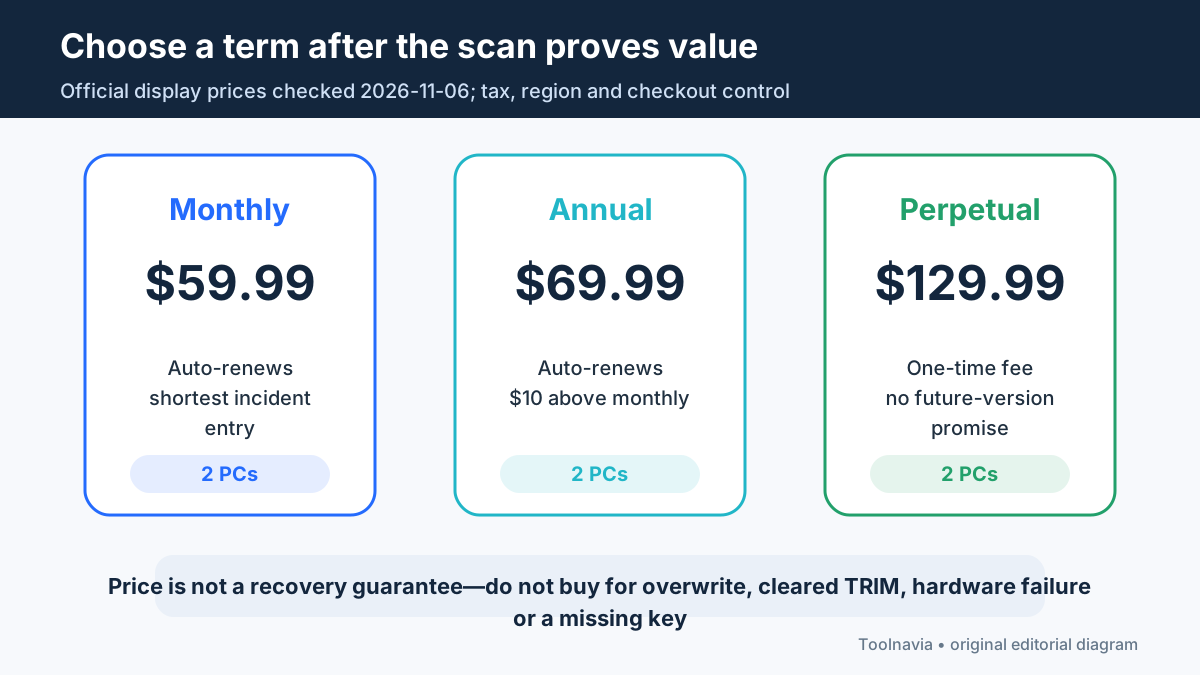
Treat Recoverit as an evidence-gathering tool before treating it as a purchase. The current official store lists Premium for two PCs at **$59.99 for one month**, **$69.99 for one year**, or **$129.99 as a perpetual license**, with the monthly and annual options renewing automatically. Prices were checked on November 6, 2026; tax, region and checkout can change the total. None of those prices buys a guaranteed recovery.
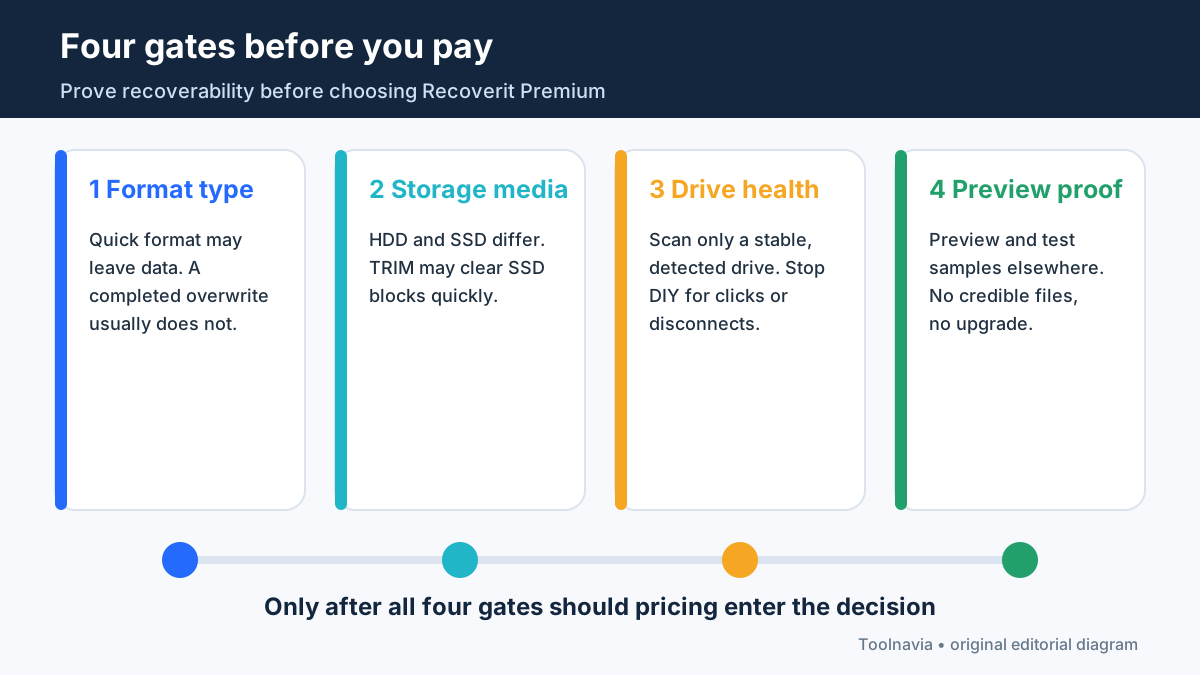
A reasonable paid case has four conditions:
1. The drive is detected consistently and does not show signs of physical failure. 2. The loss came from a quick format, accidental file-system replacement or another logical event—not a completed overwrite. 3. You stopped using the source before new files, updates or recovery output overwrote old sectors. 4. A scan can preview enough important files to justify export.
If any of those gates fails, pause before paying. Backups, Windows File Recovery, a disk image or a professional lab may be the safer next step.
First identify what “formatted” actually means
“Formatted” is too vague for a buying decision. In Windows Disk Management, checking **Perform a quick format** creates a new file table without fully overwriting the volume. Microsoft’s command documentation likewise says the `/Q` option deletes the file table and root directory rather than scanning every sector. Old content may remain underneath until it is overwritten, although filenames and folder structure can be damaged.
A normal or full Windows format is different. Microsoft says it fully erases existing data. Recoverit’s current guide describes a modern full format as writing across sectors while checking the disk. When the original sectors are overwritten, ordinary recovery software has little or nothing left to read.
Do not assume duration alone proves which operation happened. Ask the person who formatted the device, check whether the Quick Format box was selected, and preserve any command or setup history. Also distinguish a format from these other states:
- **RAW or unreadable file system:** Windows cannot mount the existing structure; do not accept a new format prompt before recovery. - **Deleted partition:** the partition entry may be missing while data remains. - **Reformatted partition:** vendors use this phrase broadly; it does not prove a Windows full overwrite can be reversed. - **Secure erase or wipe:** this is not a normal quick format and is a poor software-recovery case.
That terminology conflict matters. R-Studio’s manual says re-formatted partitions can be scanned, while Microsoft and Recoverit draw a sharper line around a full overwrite. This guide therefore treats generic “reformatted” claims as insufficient evidence of full-format recoverability.
Check the drive before choosing software
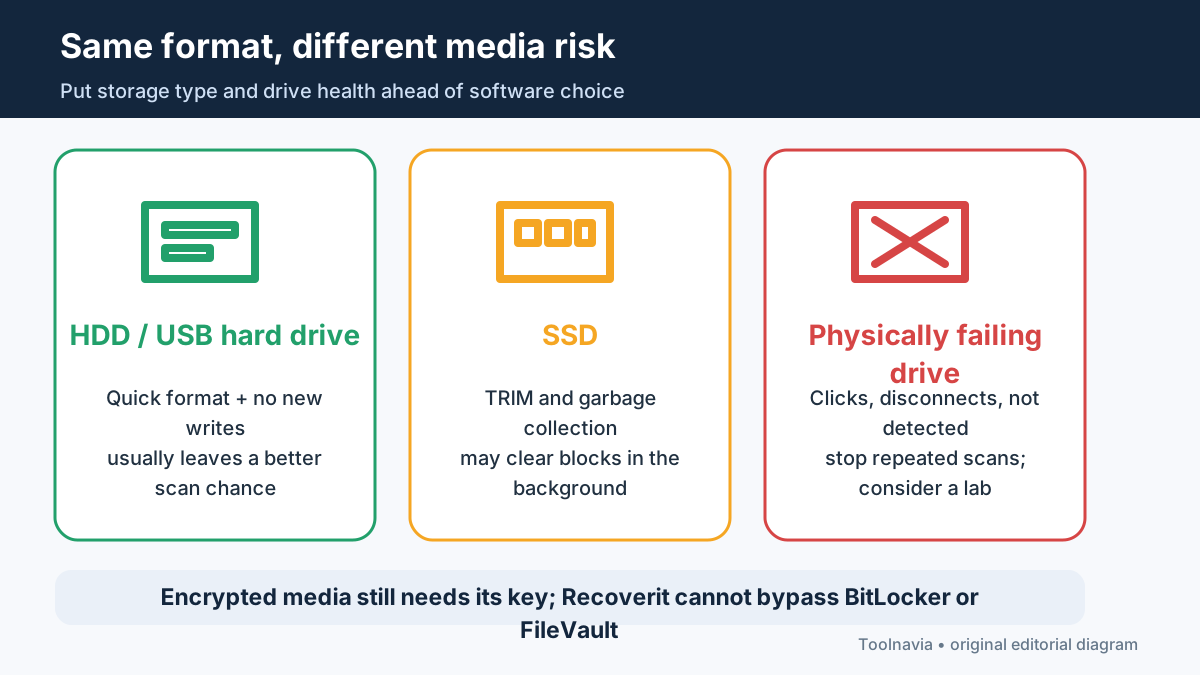
The same format can produce very different outcomes on an HDD, SSD or failing external drive.
For a readable **HDD or USB hard drive** after a quick format, stopping writes can preserve a realistic scan opportunity. Disconnect an external drive until you have another computer and another destination disk ready. If it was an internal non-system drive, avoid downloads, app installs and Windows updates that could write to it.
For an **SSD**, TRIM can tell the controller that deleted blocks are free to clear. Garbage collection may then remove data even without an obvious new file copy. Recoverit itself says standard software recovery is typically ineffective after those blocks have been cleared. If the files are irreplaceable, power down and get professional advice before repeated scans.
Physical symptoms change the answer completely. Clicking, grinding, repeated disconnects, extreme slowness or failure to appear in Disk Management point beyond an ordinary logical-format problem. Repeated DIY scans can add stress. Create a sector image only if you have the equipment and experience to do so safely; otherwise use a lab.
Encryption is another hard gate. Recoverit cannot bypass BitLocker or FileVault without the correct key or password. A visible partition is not enough if the recovered content remains encrypted.
Use free evidence before paying
Recoverit Premium lists deep scanning, file preview and disk-image recovery. Use those capabilities as a decision process, not as a promise.
Start with any backup that already exists. File History, a cloud copy, a NAS snapshot or another external disk is safer than scanning the only remaining copy. For a simple recent quick format on a readable Windows drive, Microsoft’s command-line Windows File Recovery is also worth considering before a paid export.
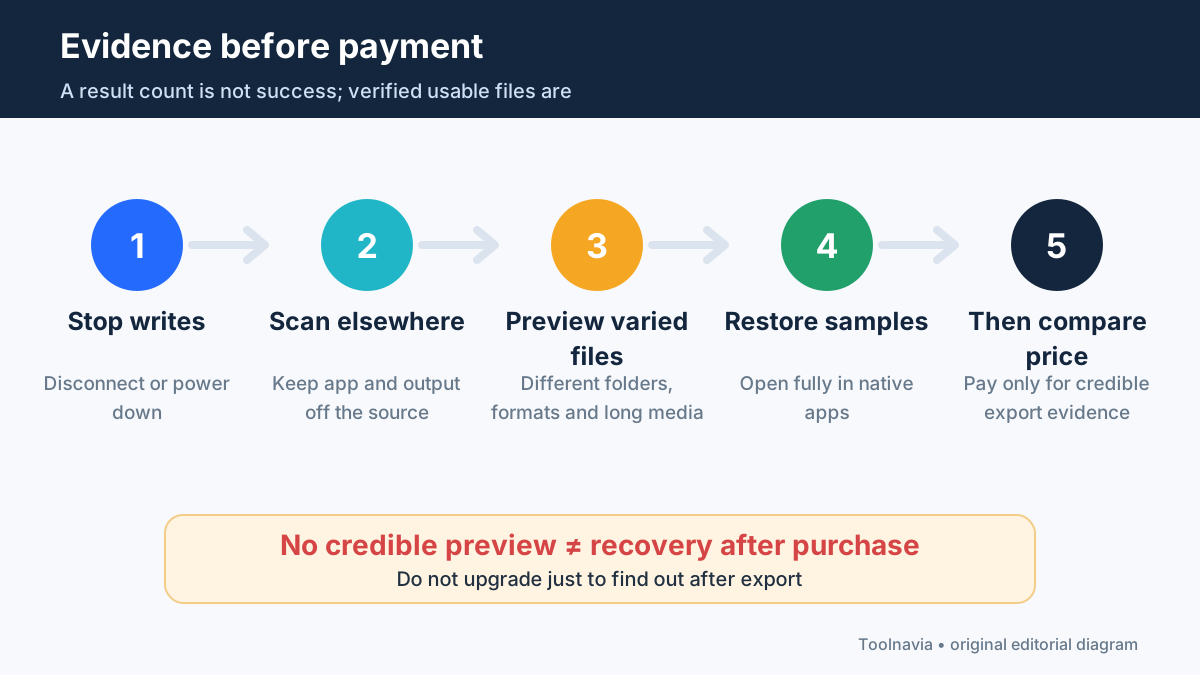
If you test Recoverit:
1. Install it on the healthy system drive or a different computer—never on the formatted source. 2. Connect the source read-only when possible. 3. Select the correct physical device or partition and scan it. 4. Filter for a small set of high-value files. 5. Preview several files from different folders and file types. 6. Recover samples to a different disk and open them in their native apps.
A filename in a result list is not proof. A preview can still represent a partial or cached structure, and a file that opens may be damaged later in the stream. Test documents, photos, archives and long videos all the way through. R-Studio’s manual offers a useful cross-check: compare recognized partitions by file system, starting point and size, then preview files before deciding which structure is real.
Competitor product pages also market formatted-drive recovery, but their success claims were not independently verified and do not establish that your case is recoverable.
Do not pay merely because a scan reports a large file count. Signature-based recovery may return files without original names or folders, duplicates, fragments and old deleted data. The useful number is the count of complete, relevant files you can verify.
Choose a Recoverit term only after the scan
The one-month plan is the lowest current entry price, but at $59.99 it is only $10 below the $69.99 annual plan. That does not automatically make annual better: both renew, and a one-time incident may not justify an extra year of access. Confirm cancellation timing at checkout.
The $129.99 perpetual option is $60 above the displayed annual price. The public store calls it a one-time fee, but this page does not use that label to promise every future major version. Buy it only if you expect repeated logical-recovery work on the covered two PCs and the current version already proves useful.
A practical rule:
- **One accidental quick format, credible previews:** consider the shortest term that covers export and verification. - **Repeated recovery work on two personal PCs:** compare annual and perpetual rights at checkout. - **No credible preview:** do not upgrade just to “see whether export works.” - **Full overwrite, cleared SSD, physical failure or missing key:** spend the budget on backups or professional diagnosis instead.
The approved affiliate destination is the ordinary Recoverit Premium store, not a special recovery guarantee. Save the checkout page, renewal terms and invoice before paying.
Safe recovery checklist
Before starting:
- Stop all writes to the formatted device. - Confirm quick format versus full/overwrite as far as the evidence allows. - Identify HDD, SSD, USB flash or memory card. - Confirm the drive is stable and detected. - Locate the BitLocker/FileVault key if encryption was enabled. - Prepare a separate healthy destination with enough free space.
Before paying:
- Try backups and appropriate free native recovery first. - Scan without installing anything on the source. - Preview multiple high-value files from different locations. - Open recovered samples from a separate disk. - Compare the value of verified files with the current plan price. - Record whether the plan renews and how to cancel.
Recoverit Premium is most defensible as a paid export step after a readable quick-format case produces convincing evidence. It is not a way to undo overwritten sectors, reverse SSD TRIM, repair failing hardware or recover encrypted data without credentials.
Wondershare’s public affiliate programme remains open and cash-paying through CJ; that programme evidence does not prove any recovery outcome.
[Check the current Recoverit Premium plans and terms](https://www.dpbolvw.net/click-101895278-14465154)