TOOLNAVIA / BUYING GUIDE
F-Secure Total License Transfer: Moving Protection to a New Device
The short answer
At a glance
- Best for
- A household replacing hardware and reusing one of three licensed device seats.
- Price model
- Verify live checkout; this article focuses on replacing a device, not a fixed price.
- Check first
- Only the license seat moves; settings and local data require separate recovery or reconfiguration.
Verdict: the subscription seat can move, your setup cannot
F-Secure says a Total or Internet Security license can be released from an old Windows PC or Mac and then assigned to a new computer. The important boundary is that this is a license-seat transfer, not a machine migration: settings and local data do not move with it. My F-Secure is the account layer used to see protected devices, add or remove them, and manage the subscription.
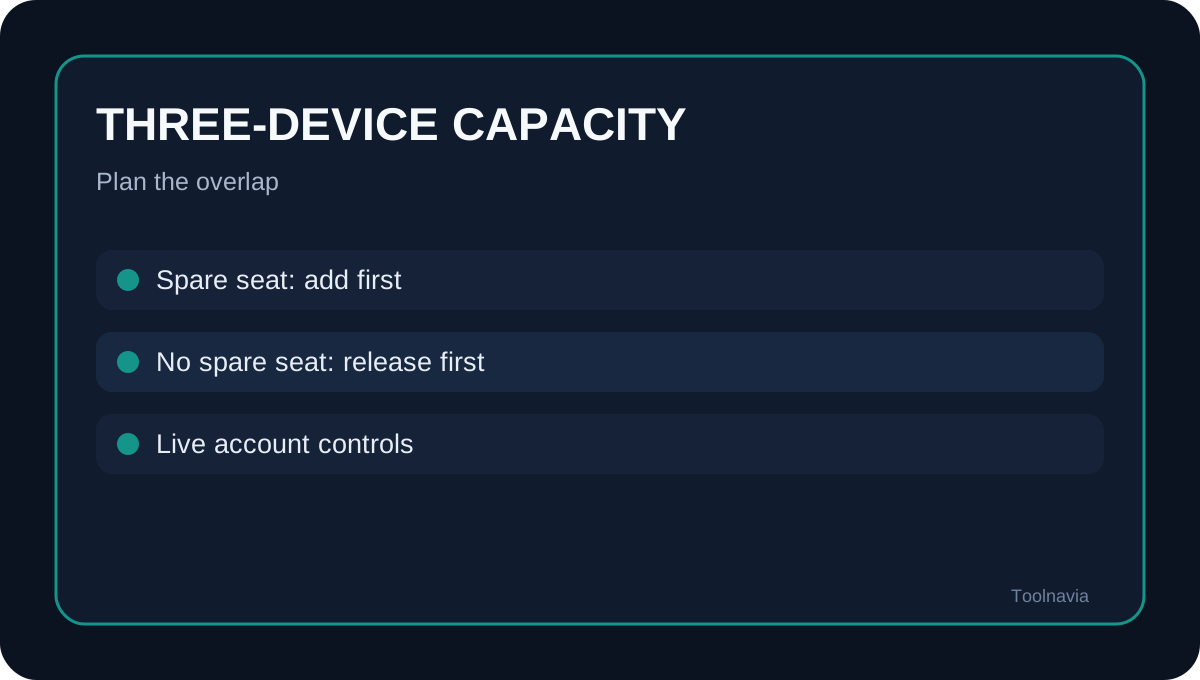
That makes the three-device plan workable for ordinary hardware replacement. It does not make the old and new machines one continuous installation. If all seats are occupied, plan a short handoff: finish any product-specific export or recovery step first, release the old seat, uninstall the old app when possible, and install on the replacement.
When should you release the old device?
Release a seat when the old computer or phone will no longer be protected under this subscription. The official transfer article recommends releasing the old computer before installing on its replacement, then adding the new device through My F-Secure. A mirrored F-Secure user manual describes the same capacity rule: when an old computer, phone or tablet is retired, release its license before assigning that seat elsewhere.
Do not release a seat merely because a device is temporarily offline. Releasing ends that device's entitlement; uninstalling and releasing are related but separate actions. If the old machine is still being used during a migration window, first check whether the account shows a spare seat. The plan's licensed device count controls, and F-Secure's terms permit use only on the number of devices stated for the subscription.
A safer five-step replacement workflow
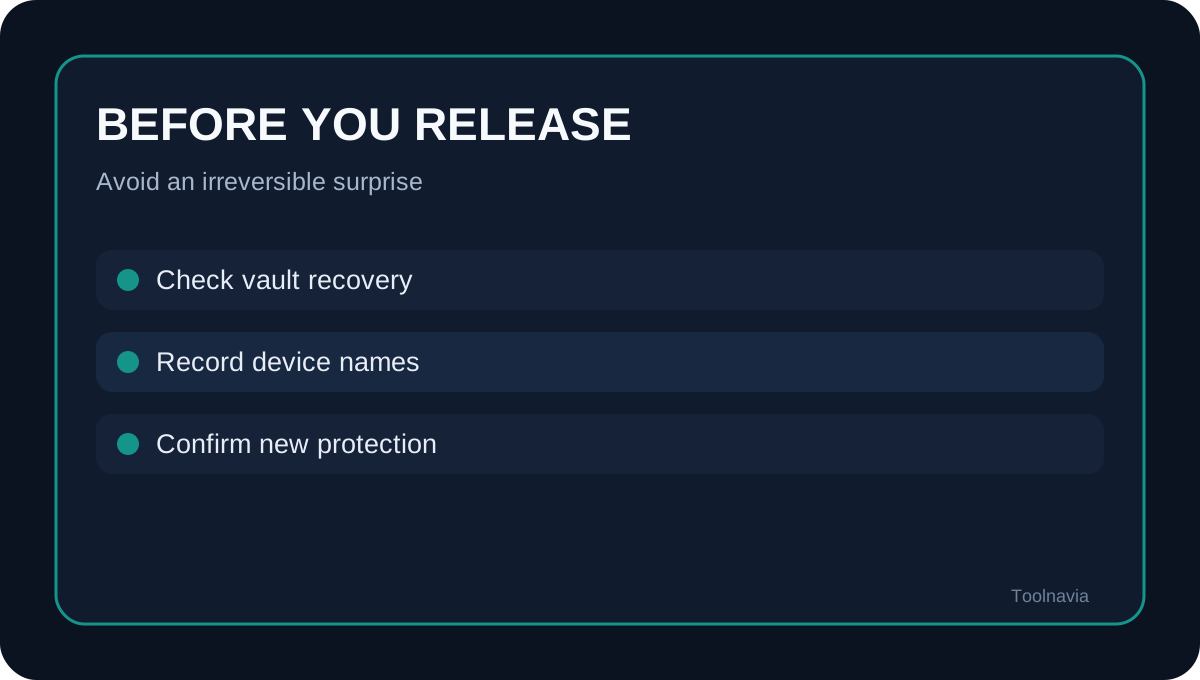
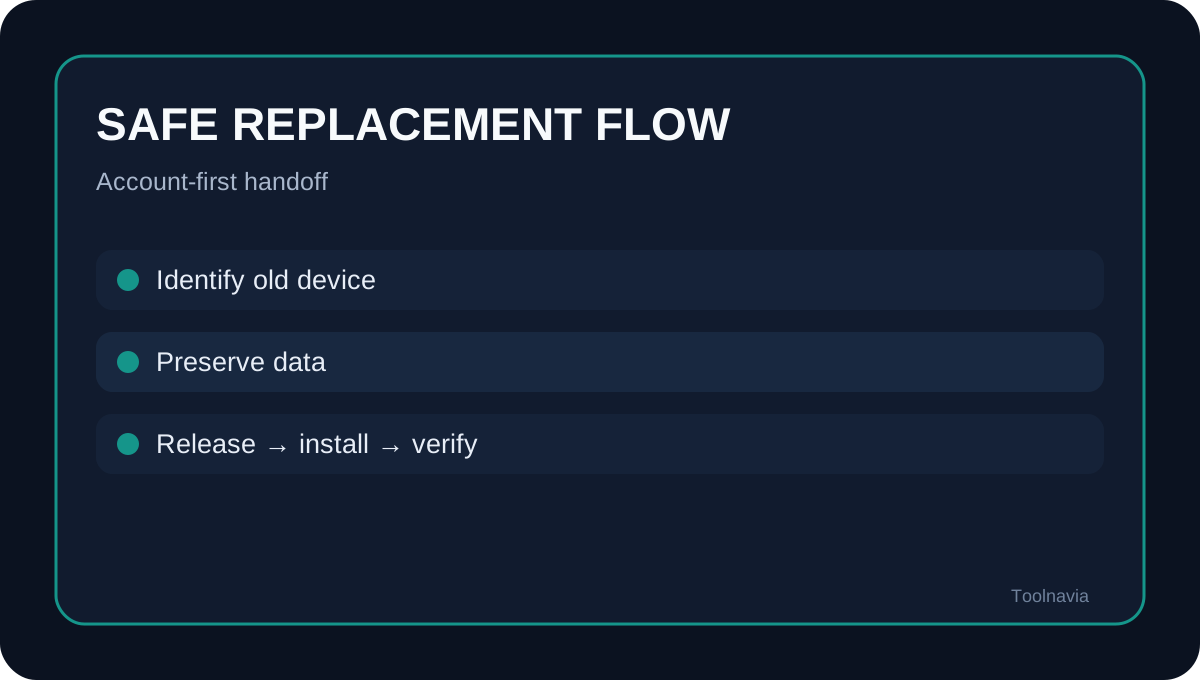
1. Sign in to My F-Secure and identify the exact old device by name. 2. Before releasing anything, preserve the data that matters to you. The license operation does not copy settings or local data. 3. Select the old device and release its license. If the old computer is still accessible, uninstall F-Secure there as well. 4. In My F-Secure, choose Add device, select the correct owner and platform, then download and run the current installer. 5. Confirm that the new device appears in People & Devices and that the app reports active protection. Keep the old machine off the subscription unless you have an unused seat.
This sequence is deliberately account-first. Reviews describe F-Secure Total as a cross-platform suite managed through a web account, while the official product page currently supports Windows, macOS, iOS and Android. Platform availability does not mean every feature or local setting transfers between operating systems.
What will not move with the license?
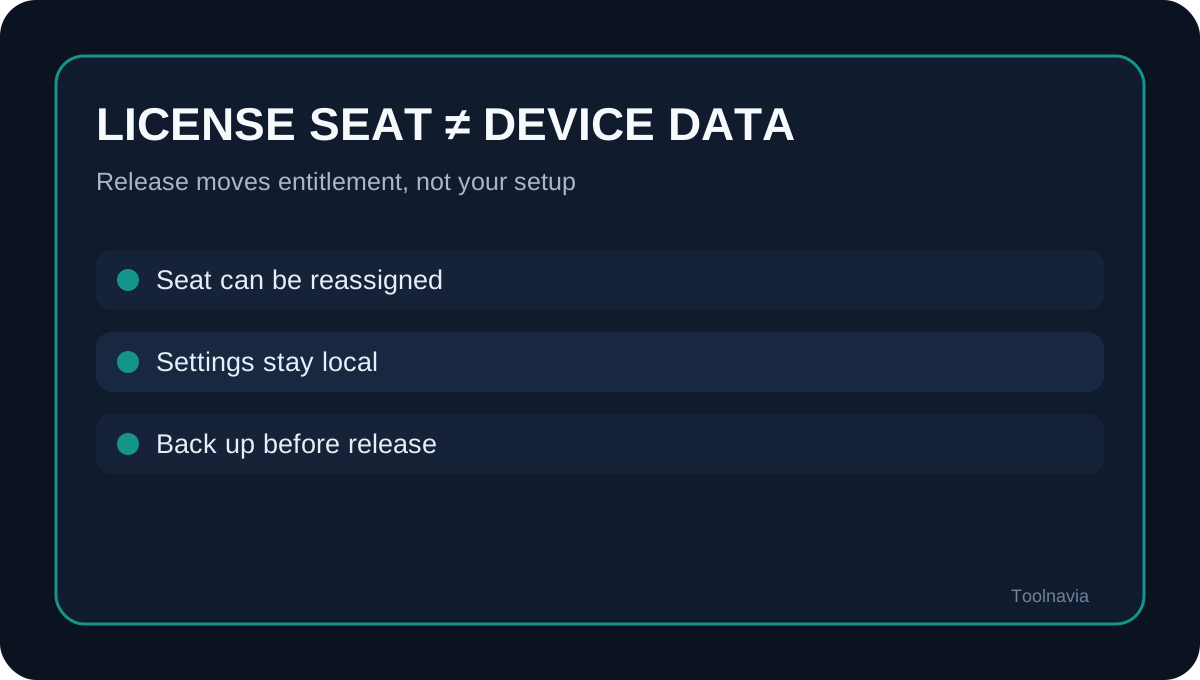
The official support answer is unusually clear: only the license transfers; not all data and settings can be migrated. Treat browser extensions, VPN choices, scan schedules, exclusions, notification preferences, Family Rules and local quarantine as items to review on the new device rather than assumed carry-overs.
Password Vault deserves its own check. Do not delete the old installation until you have confirmed the recovery or synchronization path required by your current F-Secure account. This article does not claim that vault contents, ID-monitoring entries or app preferences automatically follow a released seat.
Independent reviews are useful for product fit but do not override the support workflow. GeekChamp describes Total as covering multiple platforms and devices, while Tech Advisor reviews the wider security-and-VPN bundle. Neither source is evidence that a license release copies a user's local configuration.
Device limits, protection and evidence quality
The current Total page lets buyers choose device and duration options and says the account shows which devices are protected. The exact Toolnavia registry identity used here is the market-confirmed three-device offer, but the live account and checkout remain authoritative for the number you actually own.
A current AV-TEST report evaluates F-Secure Total 26.6 on Windows 11, supporting that the product remains actively tested; it says nothing about migration success on your hardware. App Store feedback includes a report of duplicate device consumption after a mobile update, which is anecdotal rather than a universal defect, but it is a useful reason to inspect the device list before removing anything.
Who should buy—and who should pause?
This plan fits a household with up to three protected devices when hardware changes are occasional and someone is comfortable managing seats in My F-Secure. It is less convenient if all three devices must remain protected during a long overlap, if you expect a full settings transfer, or if losing access to the old device would also remove your only recovery path.
Before paying, verify the live device count, supported operating systems, renewal terms and refund window. Toolnavia has not applied to the F-Secure affiliate program, so there is no purchase button or tracking link here.
Bottom line
You can reuse an F-Secure Total seat on a replacement device. Release the old license, install from My F-Secure, and verify the new device. But plan the move as two separate jobs: reclaim the subscription seat, then rebuild or recover the data and settings that the license transfer does not carry.