TOOLNAVIA / BUYING GUIDE
UltaHost Shared Starter WP-Cron: When cPanel Cron Helps—and When It Doesn’t
The short answer
UltaHost Shared Starter gives WordPress owners access to cPanel cron jobs, but you should not disable WP-Cron just because a hosting tutorial says a real cron is faster. UltaHost explains why page-load WP-Cron can be late on quiet sites or checked frequently on busy sites, while WordPress itself says replacing it is worth considering but is not mandatory unless a site actually needs it. The right choice depends on the jobs your site runs.
At a glance
- Best for
- WordPress sites that want an optional real cron trigger without immediately moving to VPS hosting.
- Price model
- Current two-year path $3.44/mo; two-year renewal shown at $3.44/mo.
- Check first
- Real cron can overlap or be misconfigured; persistent background workers remain outside the intended shared-host workload.
What Shared Starter gives you
UltaHost's current pricing page shows Shared Starter at $3.44 per month on the displayed two-year path, with the two-year renewal also shown at $3.44 per month. The plan includes one domain, about 10,000 monthly visits, 30GB NVMe storage, backups and cPanel.
That cPanel access matters because a real server cron can trigger WordPress independently of visitor traffic. It does not turn the account into a VPS: the command still runs inside a shared-hosting account and must fit that environment.
Keep WP-Cron when timing is not a real problem
WordPress says WP-Cron checks scheduled events on page loads. If nobody visits near the scheduled time, execution can be delayed, but queued events can run at the next opportunity.
WordPress performance guidance adds an important nuance: the built-in scheduler is designed to be lightweight, and replacing it is not mandatory unless the workload gives you a reason. A small brochure site with occasional scheduled posts may be better served by leaving the default alone rather than adding another moving part.
Replace the trigger when traffic makes timing unreliable
UltaHost recommends a real cron when low traffic causes late tasks or when high traffic makes the page-load trigger unnecessarily frequent. Its guide shows setting DISABLE_WP_CRON and then calling wp-cron.php from cPanel cron.
That can make sense for scheduled publishing, store queues, membership emails or integrations where timing matters. But disable the page-load trigger only after the replacement job has been created and tested. Otherwise you can stop scheduled WordPress work entirely.
Do not copy the six-hour example blindly
UltaHost's guide says that running wp-cron.php every six hours is enough for many users and shows that configuration. Treat that as a provider example, not a universal WordPress standard. A site that expects scheduled posts, queue processing or time-sensitive plugin jobs more frequently than six hours could find that cadence far too coarse.
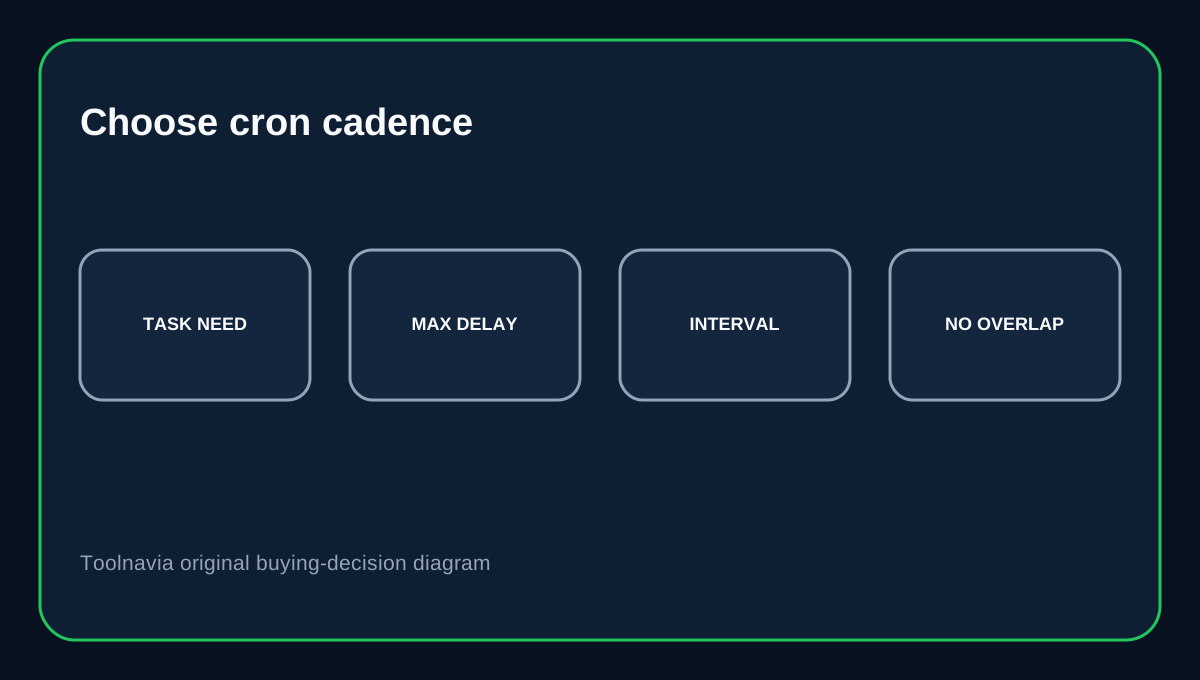
WordPress guidance instead points toward choosing a trigger interval that fits the site. Inspect what your plugins schedule, decide the maximum acceptable delay, then set the real cron cadence from that requirement.
cPanel cron has its own failure modes
UltaHost's cPanel tutorial shows the usual Cron Jobs flow and lets users choose common intervals or custom minute, hour, day, month and weekday fields. cPanel's own documentation warns that a new run can overlap the previous one when a job is scheduled too frequently, degrading performance, and recommends using correct command paths.
So a real cron is not automatically safer. A slow WooCommerce import every minute can be worse than WP-Cron. Keep commands short, prevent overlap when possible, and verify the business result instead of assuming that saving a control-panel entry proves the application task completed.
Test before and after changing the trigger
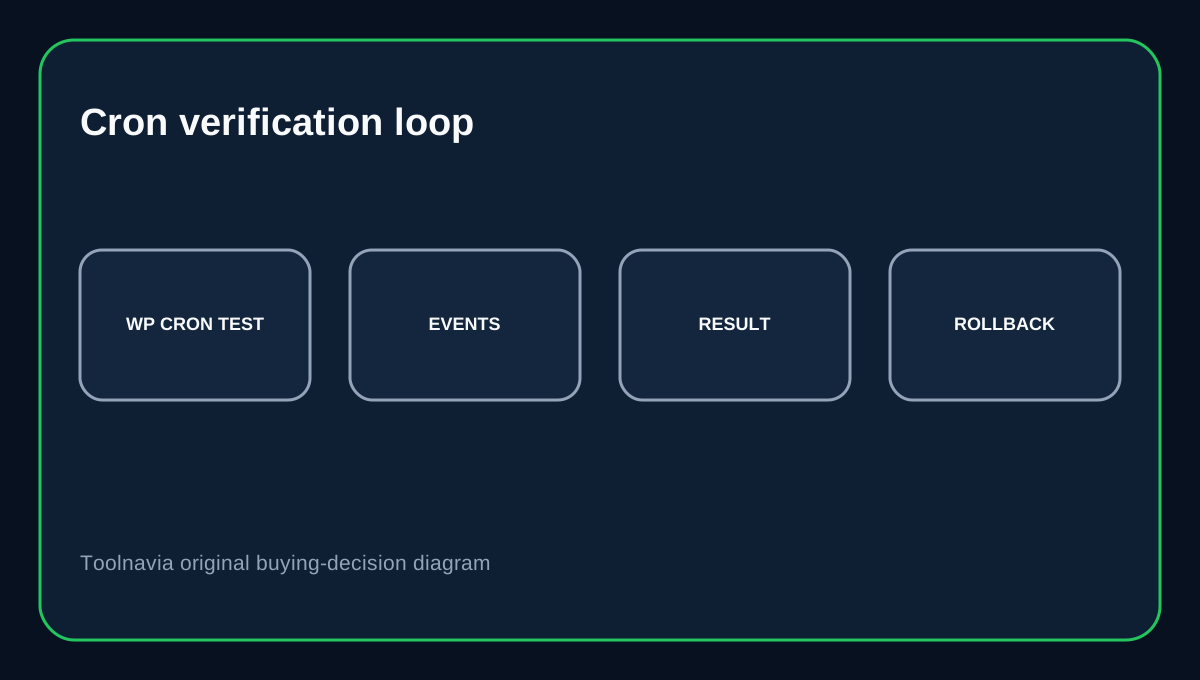
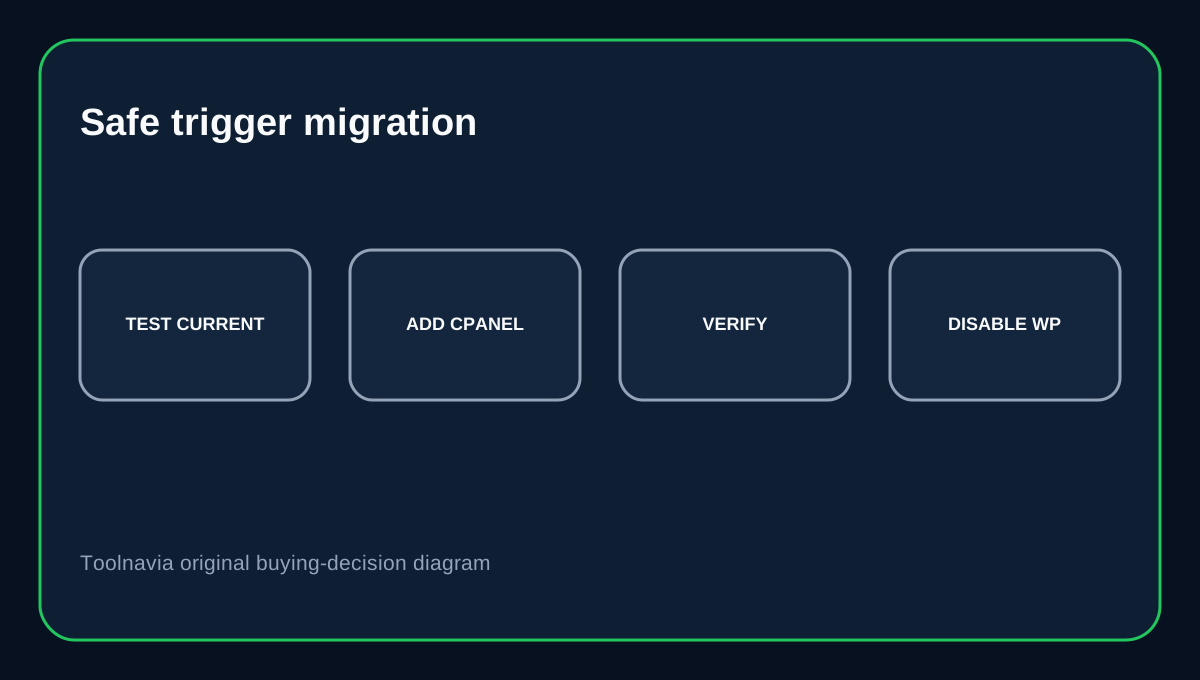
WP-CLI provides wp cron test and commands for listing and running cron events and schedules. A safer sequence is: check the current WP-Cron state, create the cPanel job, confirm the replacement trigger works, inspect important scheduled events, and only then decide whether to keep DISABLE_WP_CRON enabled.
If scheduled jobs fail after the change, first restore the previous trigger, then diagnose command paths, PHP execution, site URLs and plugin-specific errors. Reliability matters more than following a generic optimization recipe.
Buying decision
Choose UltaHost Shared Starter if you want low-cost cPanel shared hosting and the option to move WordPress scheduling from page-load WP-Cron to a real cron when your site actually needs more predictable triggering. The option is valuable; the replacement is not compulsory.
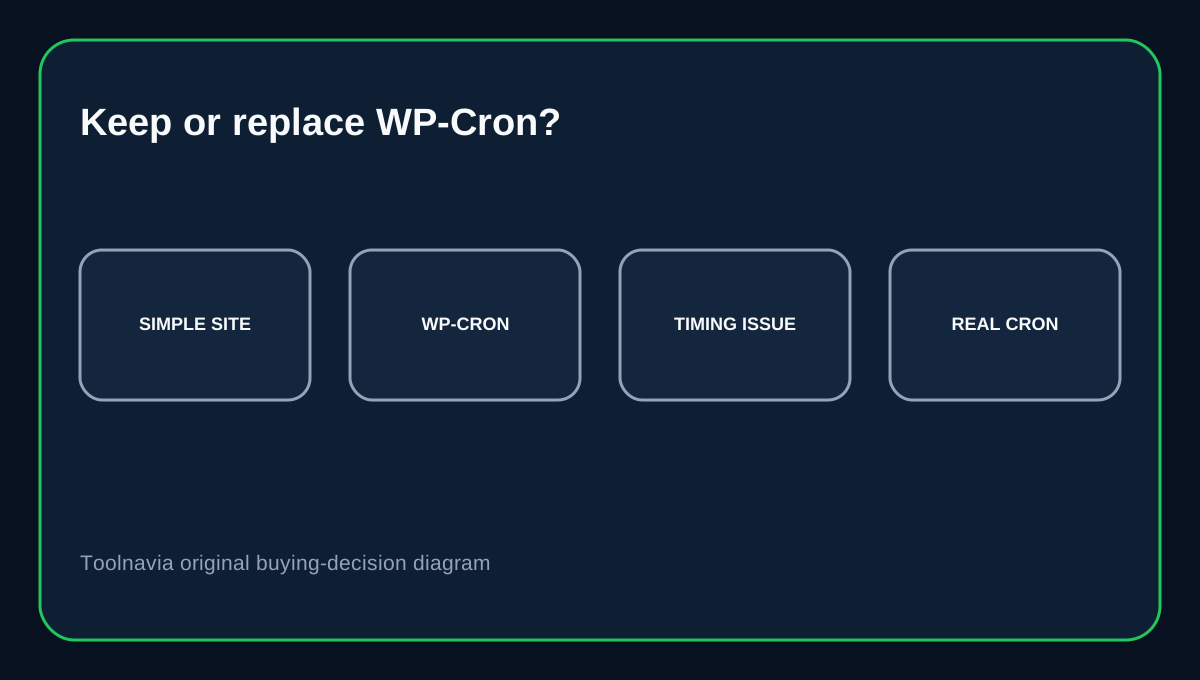
For simple sites, keep WP-Cron until you can identify a concrete timing or load problem. For time-sensitive sites, configure and test the cPanel replacement first, choose an interval from workload requirements rather than the six-hour example, and watch for overlapping jobs. If background work becomes long-running or compute-heavy, the better answer is usually more isolated hosting rather than increasingly aggressive cron frequency.
Affiliate disclosure: Toolnavia may earn a commission from an eligible UltaHost purchase. That does not change the workload-based recommendation above.